
How to lower the risk of Instagram locking your account during a cleanup
Disponível em inglês
Instagram watches for bursts of activity. A long cleanup can look unusual to it, so it may pause the run or ask you to confirm it’s you. Unpost deletes slowly on purpose to protect your account; these steps lower the risk further. They can’t remove it: Instagram’s checks are its own.
- 01
Read the Instagram banner before you start
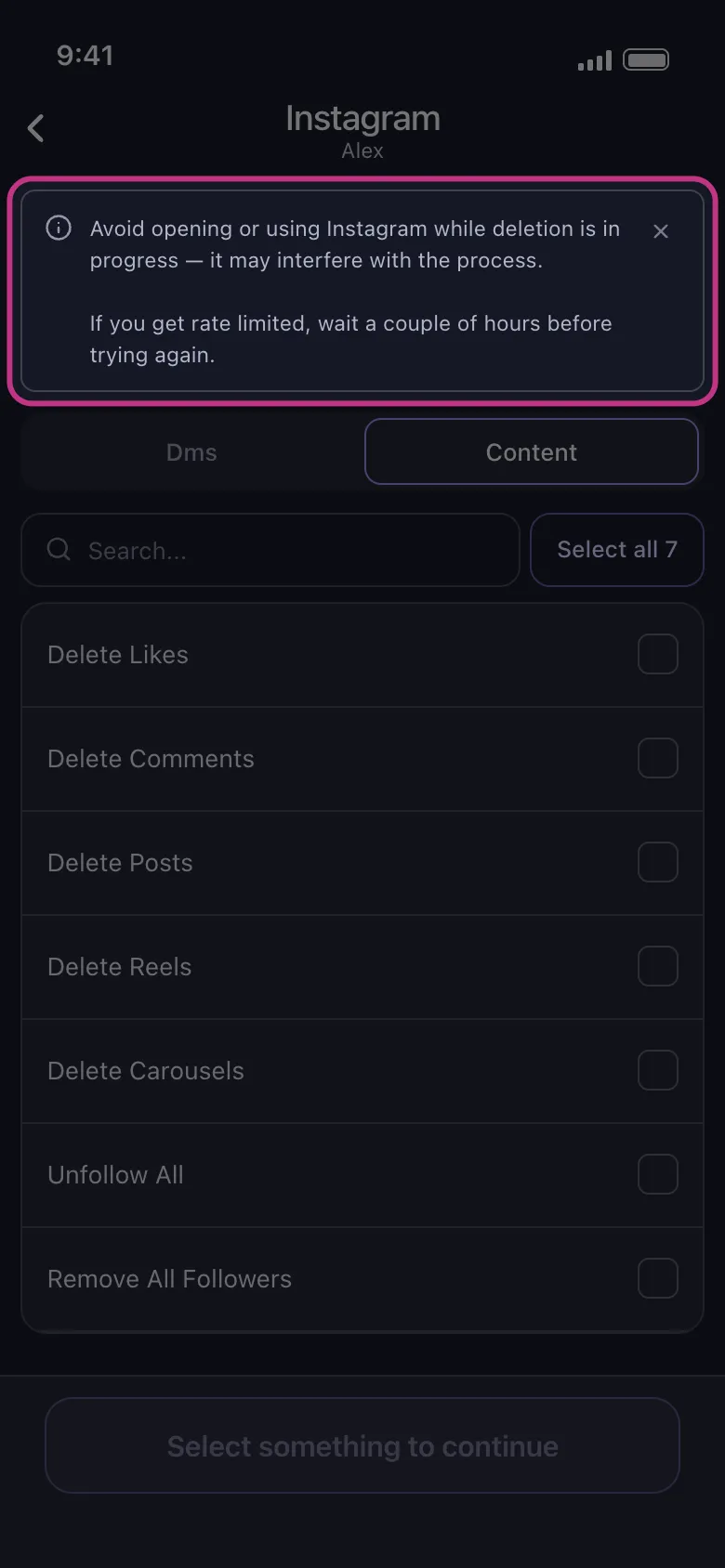
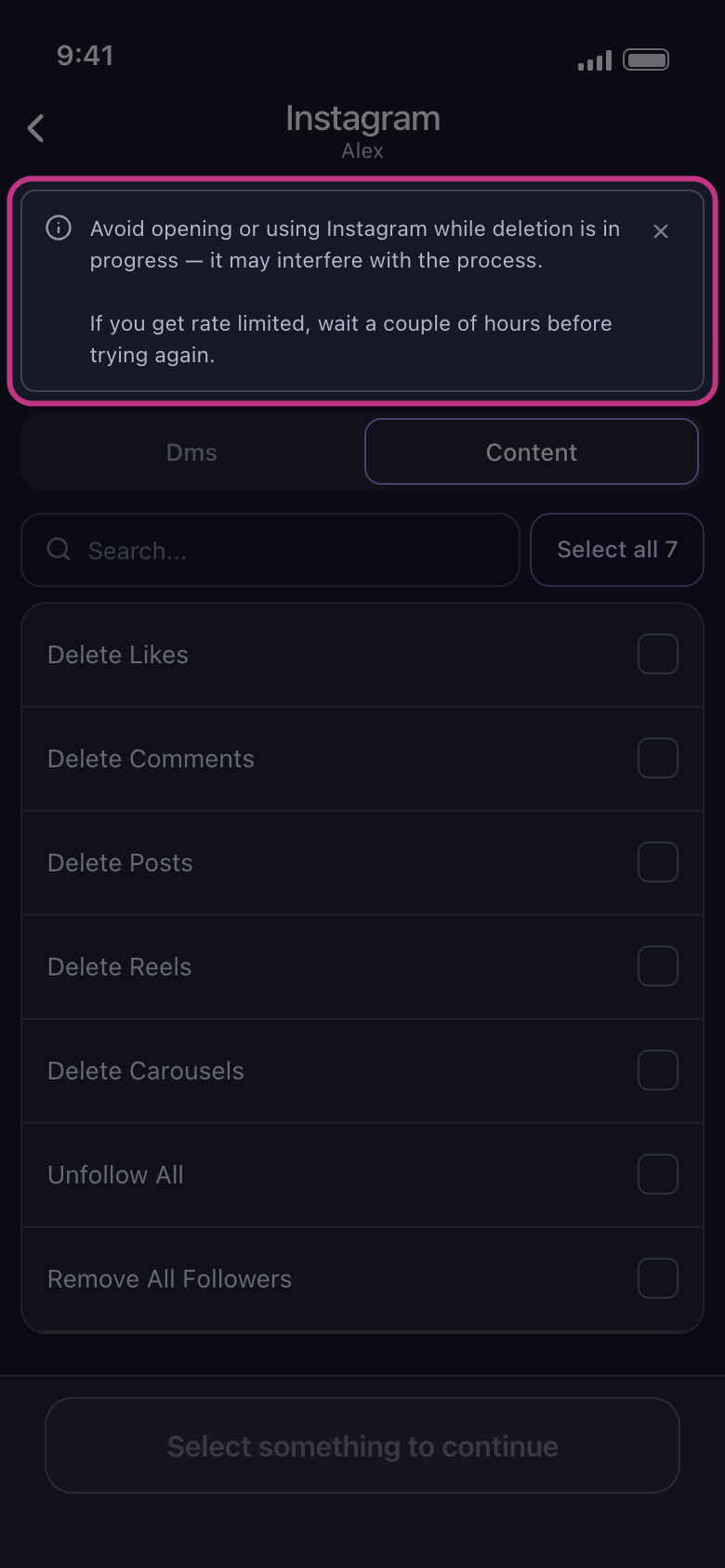
It sits at the top of the list that opens when you tap your Instagram account: avoid opening or using Instagram while deletion is in progress, and if you get rate limited, wait a couple of hours before trying again.
Na app Main → Instagram → account
- 02
Stay off Instagram until the run ends
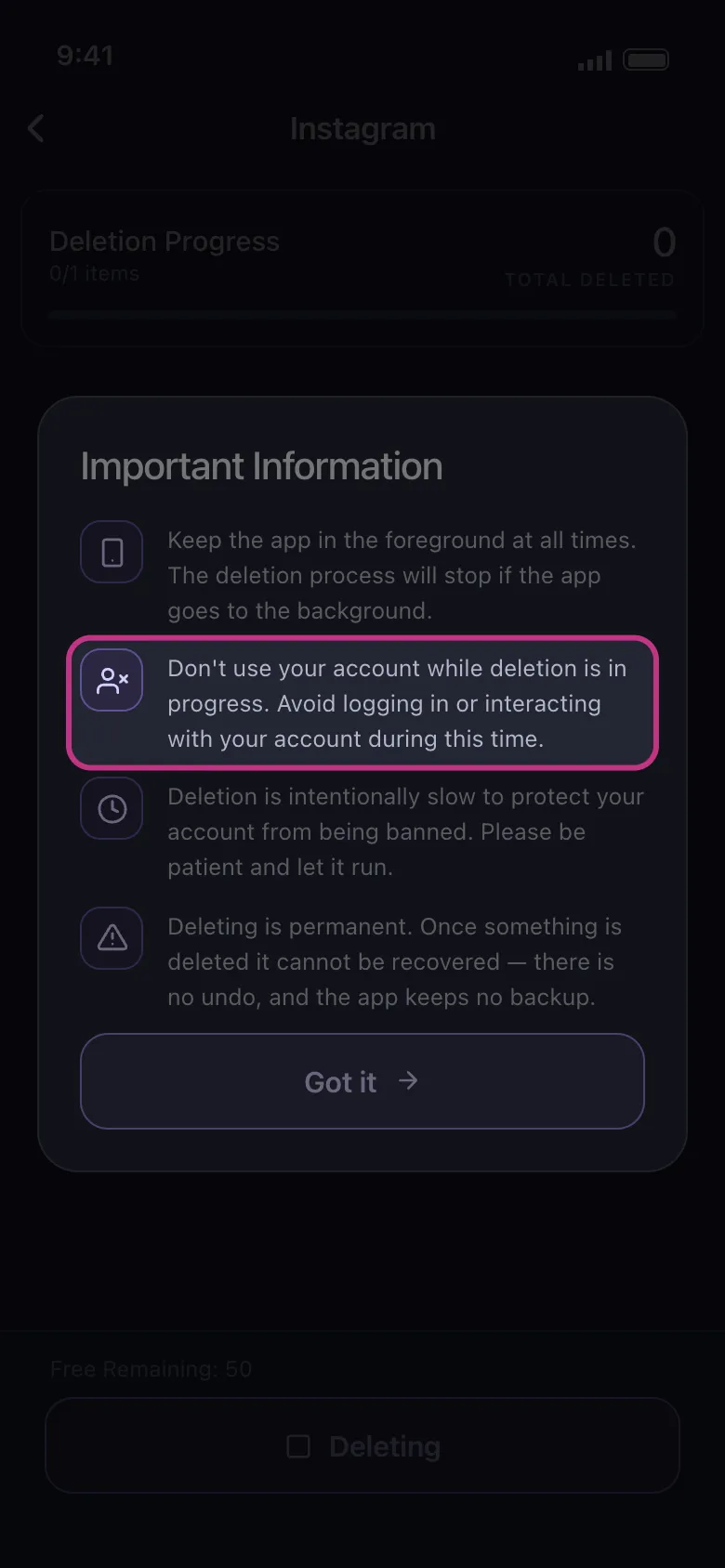
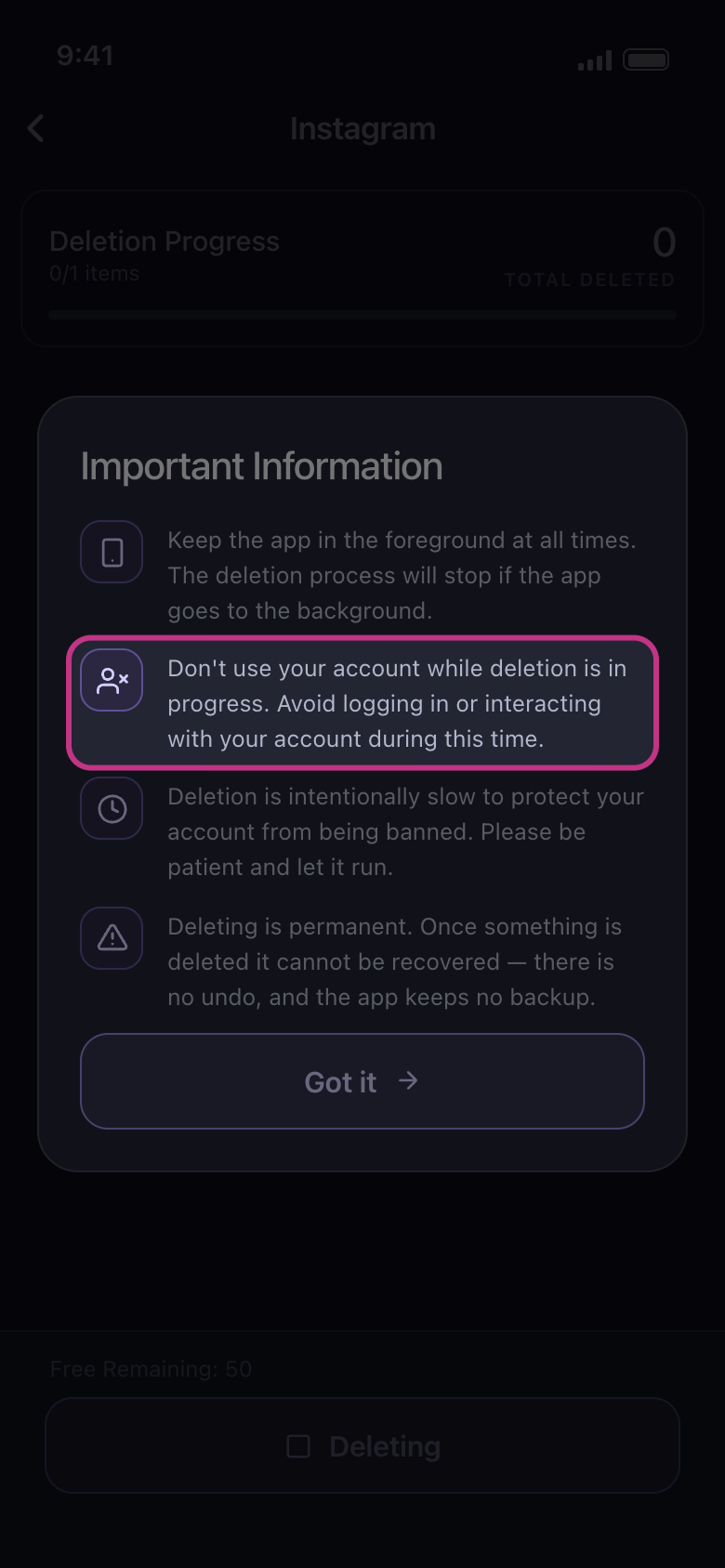
Don’t open Instagram or log in to it on any phone or computer while Unpost is working. The rules shown before every run say the same.
Na app Important Information
- 03
Clean in smaller runs
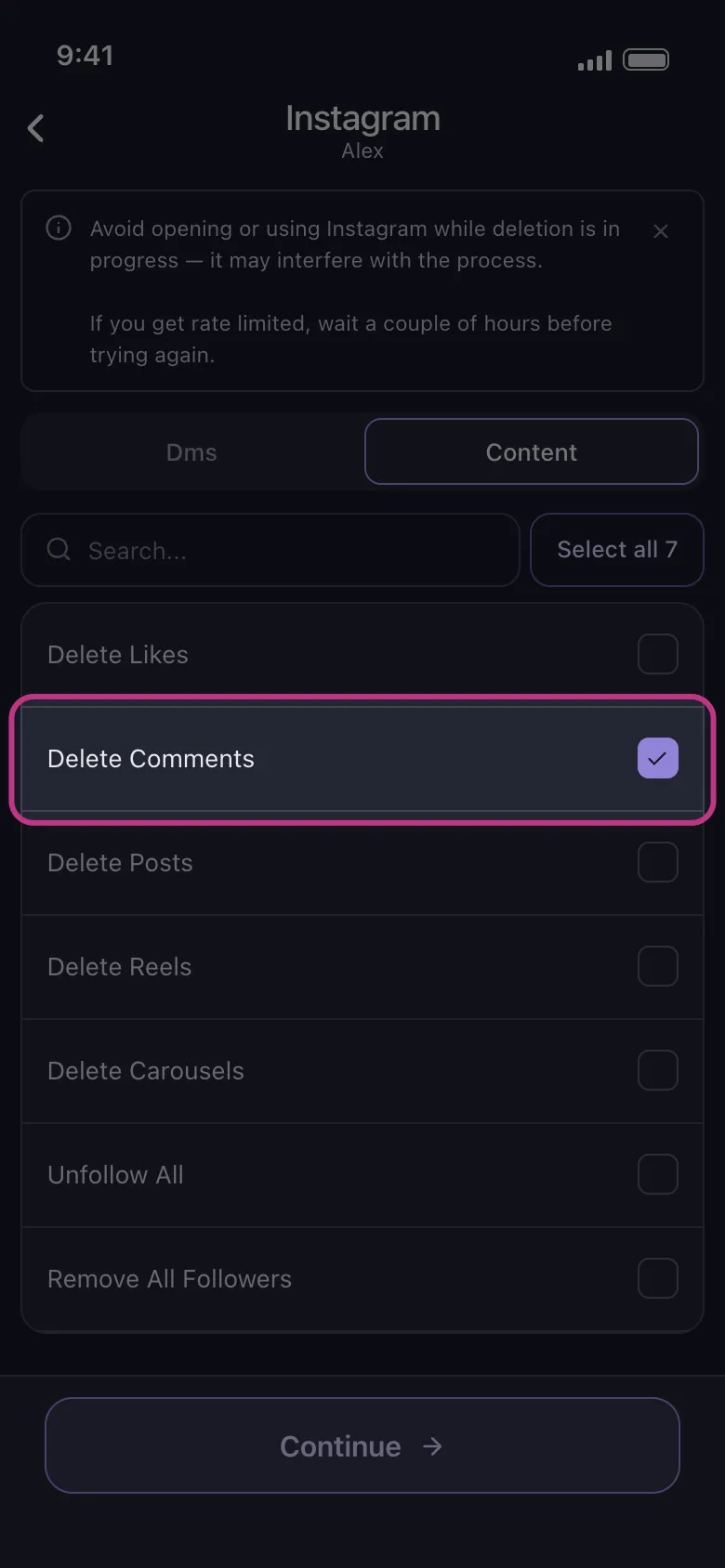
Tick one or two kinds of content at a time rather than everything at once. For posts, reels and carousels (and DMs) you can also set a date range on the options screen after Continue, where Content Filters can narrow posts further by likes or comments; neither narrows likes, comments, followers or following. Shorter runs mean fewer actions in a row.
Na app Main → Instagram → account → Content
- 04
If Instagram pauses the run, wait
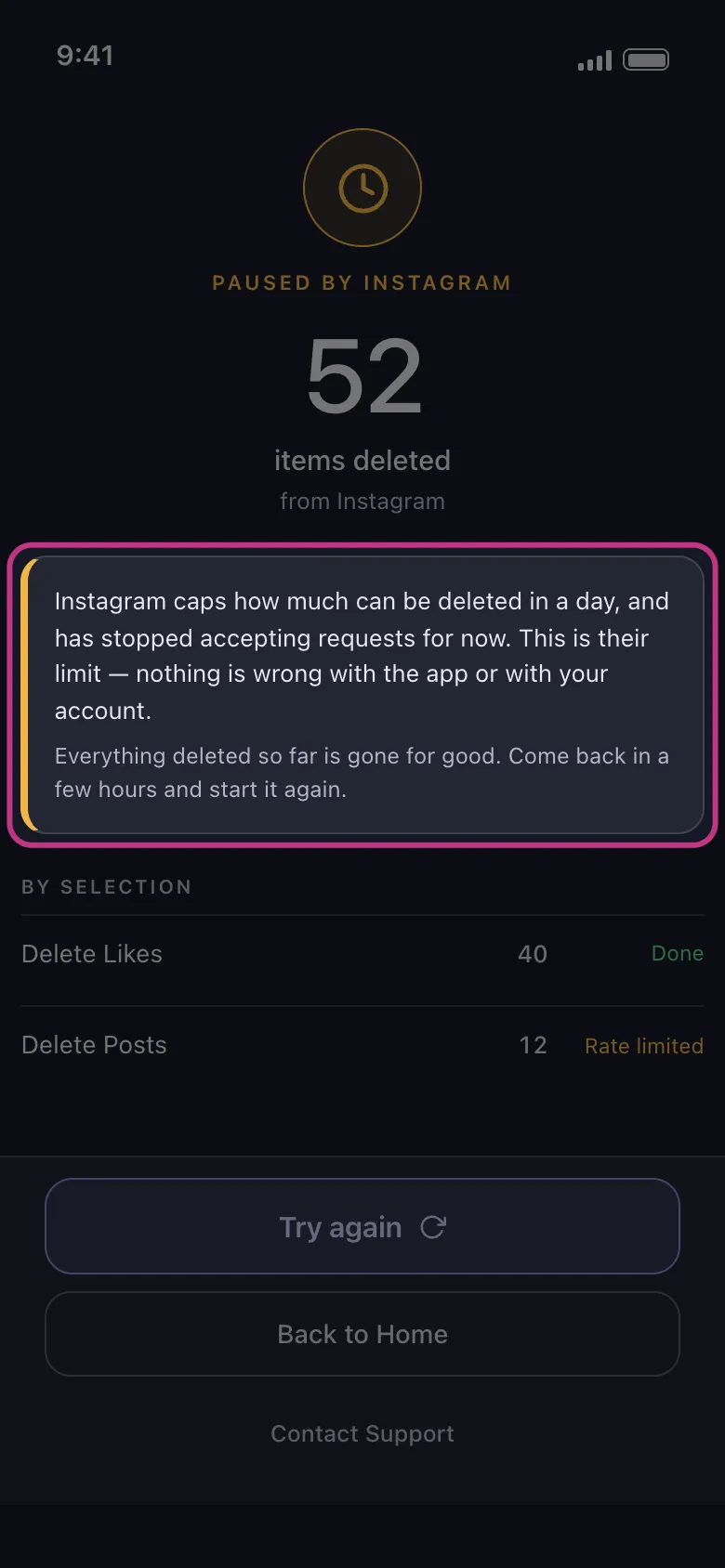
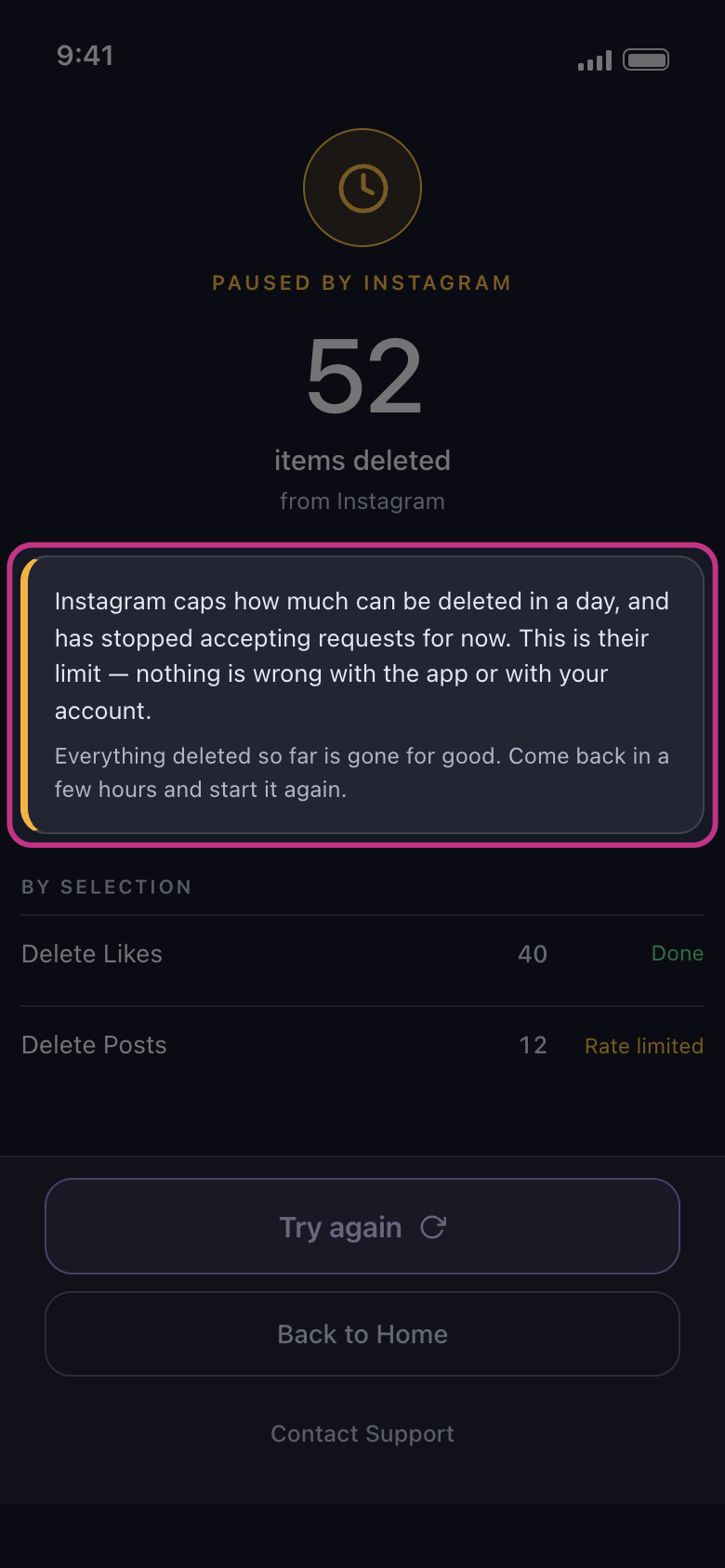
The result reads Paused by Instagram. As the screen says, it is Instagram’s limit, not a fault in the app. Take it as a sign to slow down: don’t tap Try again straight away, wait a couple of hours as the banner advises, then start a smaller run.
Na app Result
- 05
If Instagram asks you to confirm it’s you
Let the run end first, or stop it with the Deleting button. Then open the Instagram app, follow its steps to confirm the activity was yours, and change your password if it asks.
- 06
Reconnect the account in Unpost
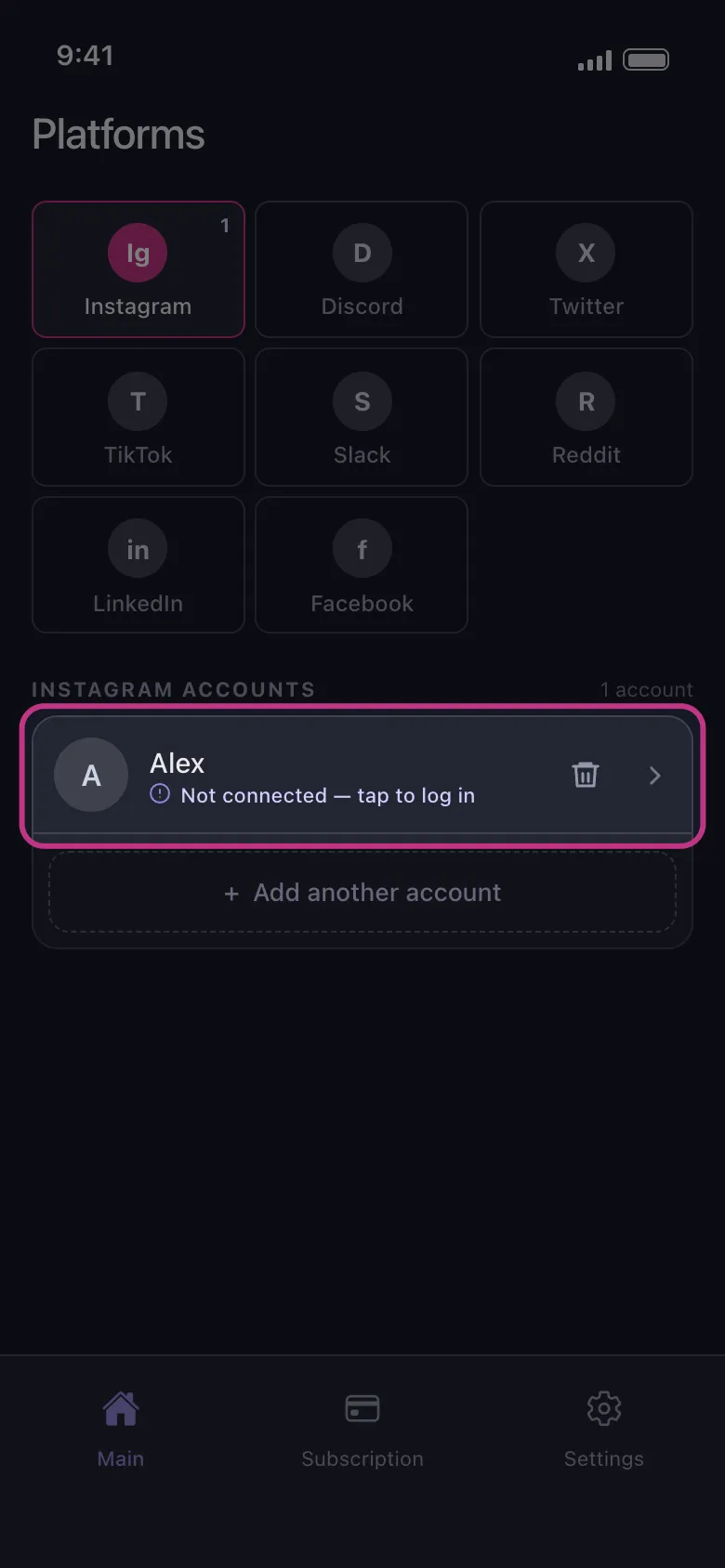
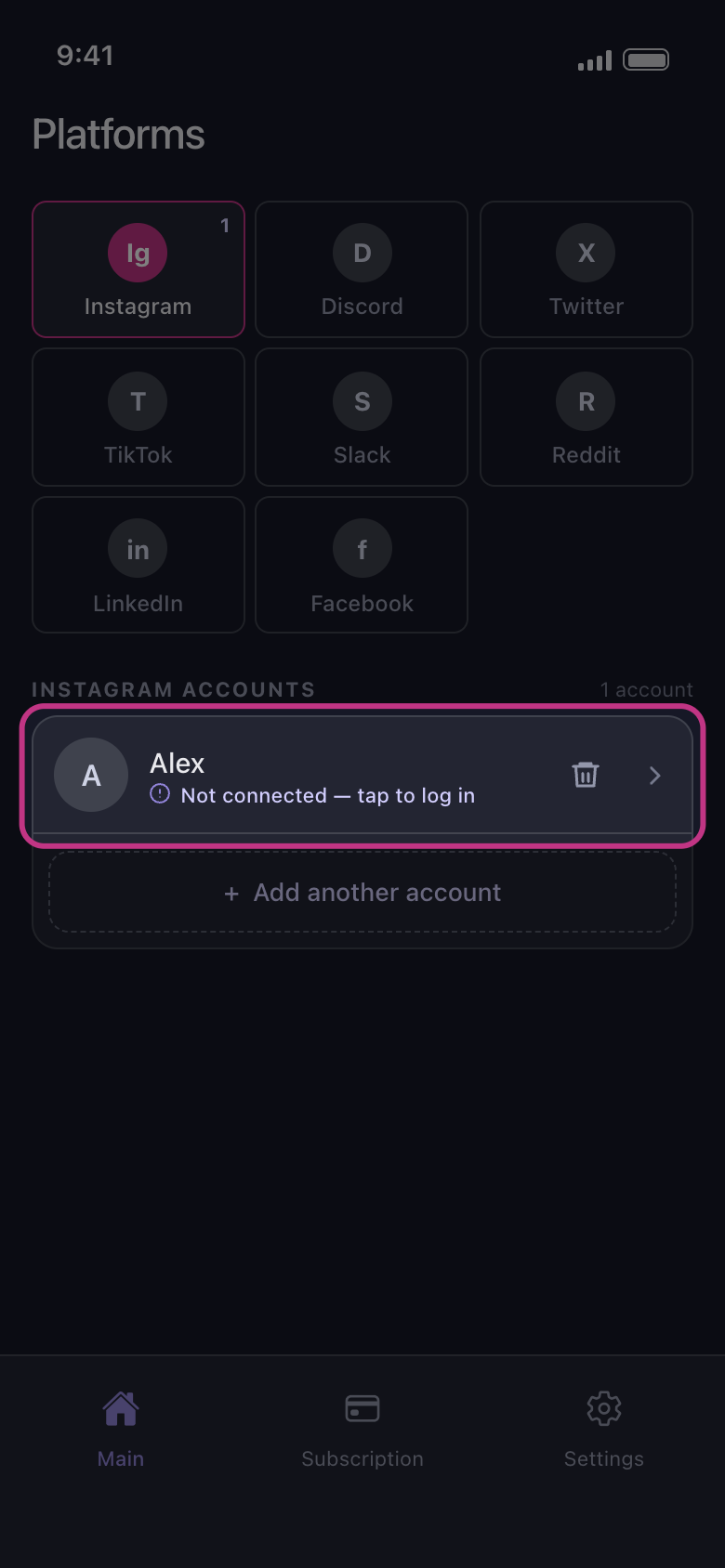
The run has probably ended with Couldn’t finish. Tap the Instagram account on Main: if Instagram signed you out appears, tap OK, and the row then reads Not connected — tap to log in. Tap it and sign in again. If the list opens normally instead, the session survived: tick what is left and start the run again.
Na app Main → Instagram → Not connected — tap to log in

Bom saber
- During a run, a banner reading Instagram limit reached, Next retry in … seconds means Unpost is waiting by itself. Leave it alone: the run carries on when the countdown ends.
- Unpost works from your own login session on your phone. It paces its requests, but it can’t switch off Instagram’s security checks.
- Keep two-factor authentication on. The sign-in page inside Unpost is Instagram’s own, so it asks for the code as usual; expect it each time you reconnect, because Unpost starts every login from a clean session.
Mais guias