
How to Delete Discord Messages on Mobile
Quick Summary
If you only want to delete one Discord message on mobile, the built-in method is simple:
- Open the chat.
- Press and hold your message.
- Tap Delete.
- Confirm.
If you want to clean up many messages, multiple DMs, or server history, the native mobile workflow gets slow very quickly. That is where Unpost is the better option.
If you want the broader overview that covers desktop, DMs, servers, admin cleanup, and older-message workflows too, start with How to Delete Discord Messages in Bulk.
Mobile Discord Cleanup
Delete one message natively, or switch to Unpost for DMs, servers, filters, and longer cleanup jobs.
| Task | Discord Mobile | Unpost Mobile |
|---|---|---|
| Delete one recent message | Fast enough | Possible, but overkill for one message |
| Clean up a full DM history | Very slow, one message at a time | Designed for bulk cleanup |
| Delete across multiple servers | Manual channel-by-channel work | Handles DMs and servers in one mobile flow |
| Filter by date or keyword | No native bulk filters | Built-in filters for selective cleanup |
| Track long-running deletion progress | No dedicated cleanup dashboard | Live progress with retry handling |
Can you delete Discord messages on iPhone or Android?
Yes. Discord lets you delete individual messages you sent on both iPhone and Android.
The problem is scale.
Mobile deletion becomes frustrating when you want to:
- clear a lot of old DMs
- remove messages from many servers
- target older messages by date
- remove only certain keywords
- clean up while staying on your phone instead of switching to desktop
That is why how to delete messages on Discord mobile is a strong intent keyword for a mobile-first cleanup tool.
How to delete one Discord message on mobile
In a DM
- Open the DM.
- Press and hold your message.
- Choose Delete.
- Confirm.
In a server channel
- Open the channel.
- Press and hold your message.
- Choose Delete.
- Confirm.
This is the same basic idea whether you are on iPhone or Android.
The built-in mobile method works, but only for one message at a time.
Limitations of native mobile deletion
The native method is fine for one message. It becomes inefficient when you need to remove a lot of them.
Here are the biggest limits:
- it is one message at a time
- it is hard to manage many conversations
- it is hard to clean up older history
- it gives you no built-in bulk filters
- it is annoying if you want to clean up DMs and servers in one session
If that sounds like your situation, use a dedicated cleanup flow instead.
For the full Discord cleanup hub, including server cleanup, admin moderation, and older-message recovery paths, see How to Delete Discord Messages in Bulk.
Need More Than One-Off Deletion?
Skip the manual hold-delete loop.
If you need to clean up DMs, server posts, or older Discord history on your phone, move to the bulk workflow instead of repeating the same native step over and over.
How to bulk delete Discord messages on mobile with Unpost
Because Unpost is mobile-first, this is a strong conversion path for users who already know they want to stay on phone.
Step 1: Install Unpost
Use the App Store, Google Play, or the website.
Step 2: Connect your Discord account
Open the app, choose Discord, and sign in through the embedded browser.
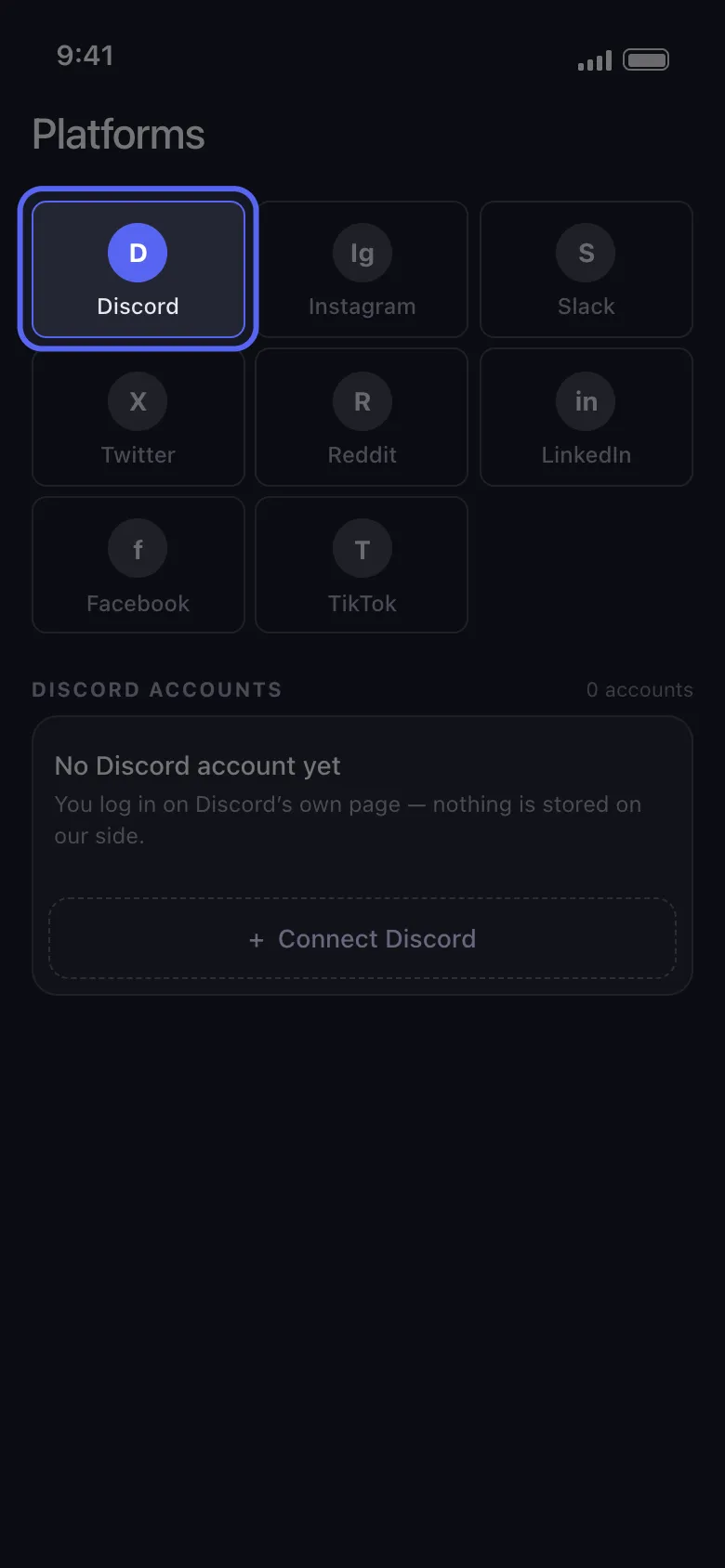
Step 3: Pick DMs or servers
Unpost separates Discord cleanup into:
- DMs
- Servers
That makes it easy to focus on the exact content you want to remove.
Choose the exact DM conversations you want to clean before you start deleting.
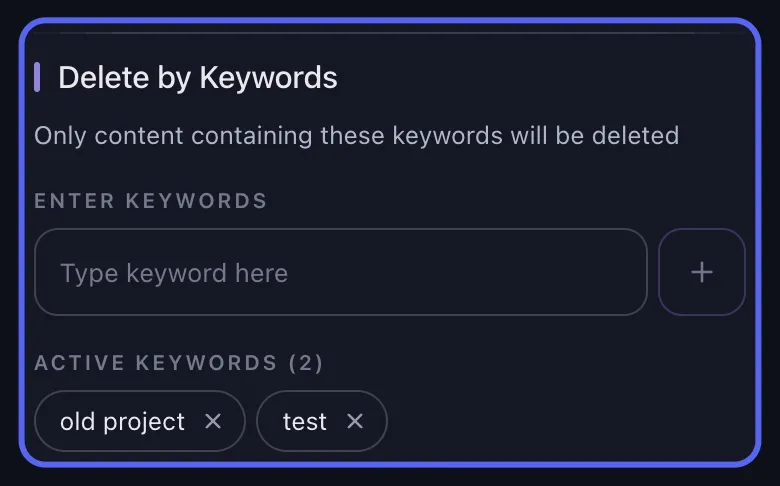
Step 4: Add filters if needed
Before starting the job, you can narrow it down with:
- date range
- keywords
- a cleanup mode that focuses only on messages or also includes threads and reactions

Step 5: Start the job and keep the phone active
Tap Delete and leave the app in the foreground while it runs.
Unpost shows live progress and handles retry delays if Discord slows the action down.
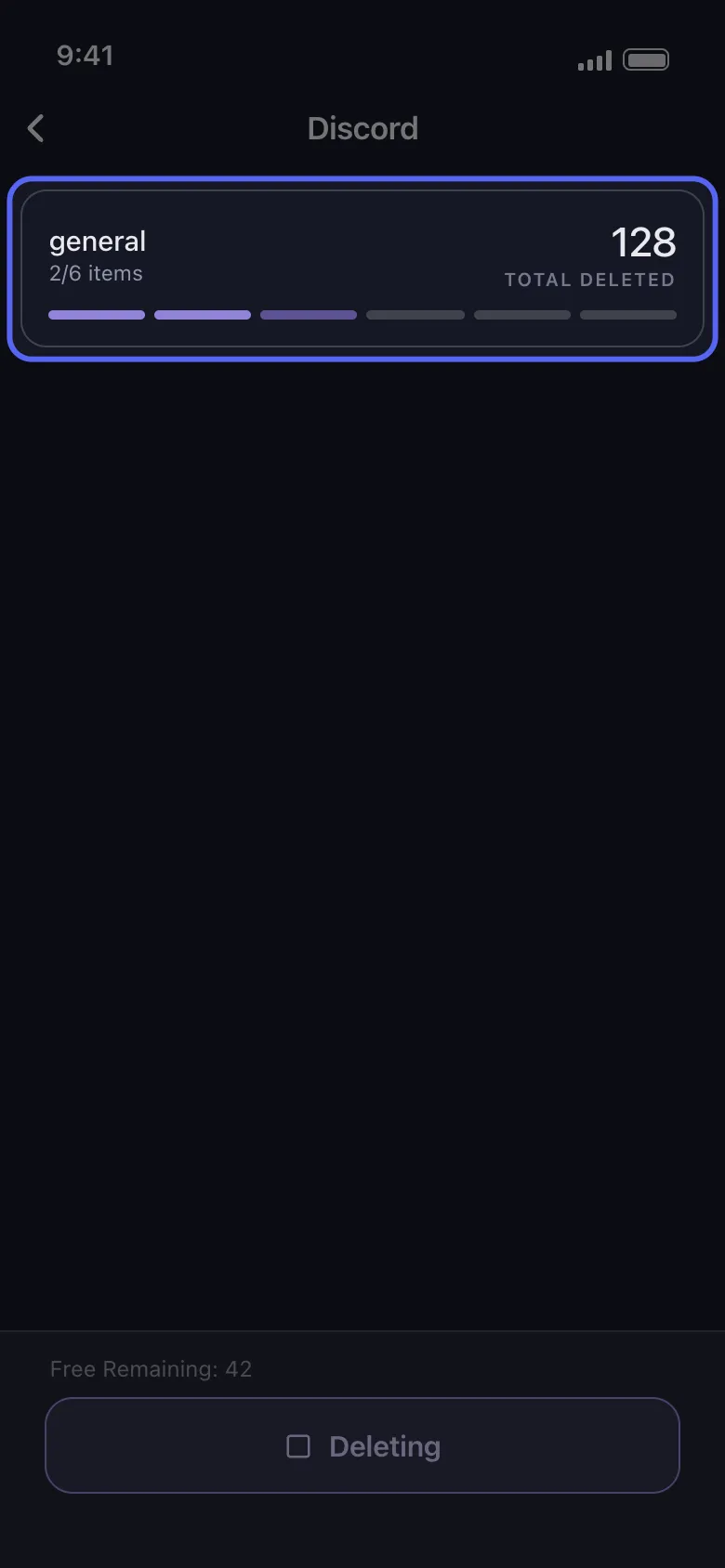
The live progress view helps you keep the cleanup running safely on mobile.
When mobile cleanup is the best option
A lot of users prefer a phone-first workflow because:
- their Discord use is mostly mobile
- they want to clean up on the go
- they do not want to use scripts or browser extensions
- they want a simpler, more guided experience
That is one reason this article can convert well even if search volume is lower than the main pillar page.
Best practices for Discord cleanup on phone
Keep your device awake
Large jobs work better when the phone stays active.
Avoid switching apps constantly
Let the deletion run smoothly.
Start with a smaller batch
If you are cleaning years of history, begin with one DM or one server channel so you can verify the filters.
Use filters whenever possible
Date and keyword filters make the job cleaner and reduce mistakes.
Which guide should you read next?
Choose the one that matches your exact goal:
- How to Delete Discord Messages in Bulk
- How to Delete Discord DMs and Chat History
- What Does Close DM Mean on Discord?
Final answer
Yes, you can delete Discord messages on mobile. The question is whether you want to delete one message or a lot of messages.
- for one message, use Discord’s built-in hold-and-delete method
- for full chat cleanup, DM cleanup, server cleanup, or filtered cleanup, use Unpost
That makes this page a strong mid-funnel article for users who already know they want a mobile solution.
Download Unpost and clean up Discord directly from your phone.
Frequently Asked Questions

Get Started
Delete Old Content Across Your Accounts
Bulk delete messages, posts, likes, comments, DMs, reactions, bookmarks, followers, and more — all from one app.
No password storage • Free to start • iOS & Android
 Download for iOS
  Download for Android