
Can You Delete Someone Else's Discord Messages? Admin Guide
Quick Summary
Direct Answer
DMs: No. Servers: Yes, with permission.
You cannot delete another person's messages in a normal Discord DM. In server channels, moderators with the right permissions can remove other users' messages as part of server cleanup.
This is the honest answer:
- In DMs: no, you cannot delete someone else’s Discord messages
- In servers: yes, if you have the right moderation permissions
That means search queries like discord delete all messages from user in dm are usually based on a misunderstanding. The closest valid workflow is server moderation, not private-DM deletion.
Trust Check
This mode is for server moderation, not private DMs. If you only want to clean your own chat history, use the DM guide instead: How to Delete Discord DMs and Chat History.
If you are a moderator, community manager, or server owner, this guide shows the correct path.

Use the admin-only Discord cleanup flow for server moderation, not private conversations.
What most people mean by this query
Users often search for:
- delete all messages from user Discord
- delete messages from one user in Discord
- Discord admin delete messages
- delete someone else’s Discord messages
There are really two different intents behind those searches:
-
private cleanup
where someone wants to erase a DM conversation -
moderation cleanup
where an admin wants to clean a server or target a problem user
Only the second one is possible as an admin workflow.
If you need a member’s exact ID before moderation, use this first: How to Find Discord User ID.
The rule: DMs vs servers
In DMs
In a normal private conversation, you can only delete messages that you sent.
You cannot:
- remove the other person’s messages
- wipe the other person’s full DM history
- run a moderator-style deletion workflow inside a normal DM
In servers
In server channels, moderators with the proper permission can remove other users’ messages as part of server moderation.
That is where Unpost’s Delete from Discord as Admin mode fits.
When this page is the right fit
This page is for you if you want to:
- clean up one specific user’s messages in a server
- remove a wave of spam or test content
- moderate one or more channels
- delete all messages from many users in a selected server area
- combine moderation with date or keyword filters
If you only want to delete your own history, go back to the main hub instead: How to Delete Discord Messages in Bulk.
What Unpost admin mode can do
Unpost’s Discord admin mode is designed for server-side cleanup.
You can:
- choose Delete from Discord as Admin
- select the server
- target specific users
- choose Delete All
- add a user manually by Discord user ID
- use filters before deletion
- clean selected server content without manually opening every message
This is especially useful for medium and large communities where manual moderation is too slow.
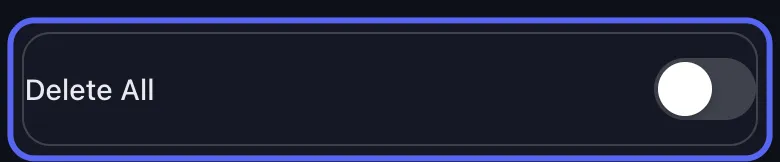
Choose one member, several members, or the whole server cleanup target list in one place.
Step-by-step: delete one user’s Discord messages in a server
Step 1: Connect Discord in Unpost
Download Unpost from the website, App Store, or Google Play.
Open the app, choose Discord, and sign in through the embedded browser.
Step 2: Choose admin mode
Tap the connected Discord account and select Delete from Discord as Admin.
If you do not see this option, the account probably does not have the right moderation permissions in the target server.
Step 3: Select the server
Pick the server you want to moderate.
Unpost then loads the server member list and the available cleanup targets.
Step 4: Select the user or users
You can now:
- choose one specific user
- choose multiple users
- choose Delete All
- add a user manually by Discord ID
If you need the ID first, use this guide: How to Find Discord User ID.

Manual Discord ID entry helps when display names are duplicated or hard to search.
Step 5: Narrow the cleanup
Before you launch the job, decide whether you want to narrow the scope.
Helpful options include:
-
date range
good for cleaning only a certain period -
keyword filters
good for removing spam phrases, promotional text, repeated links, or one topic
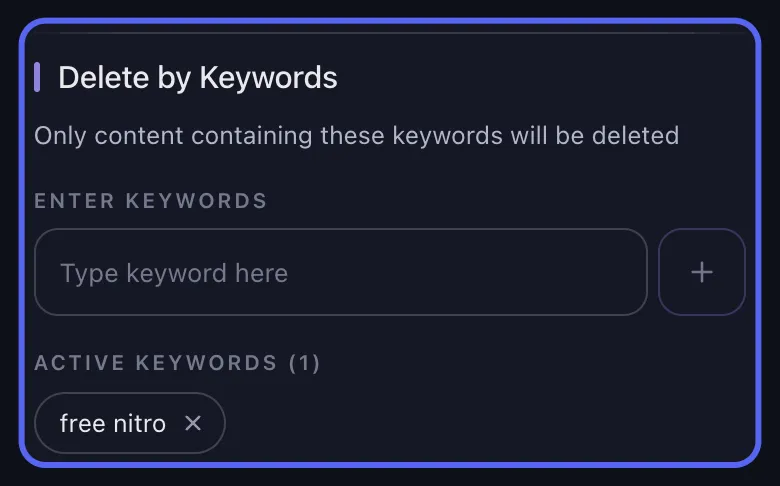
This is much safer than deleting blindly.
Step 6: Start and monitor the job
Once the target is selected, start the deletion job and keep the app open.
Unpost shows progress in real time and handles retry delays if Discord temporarily rate-limits the action.
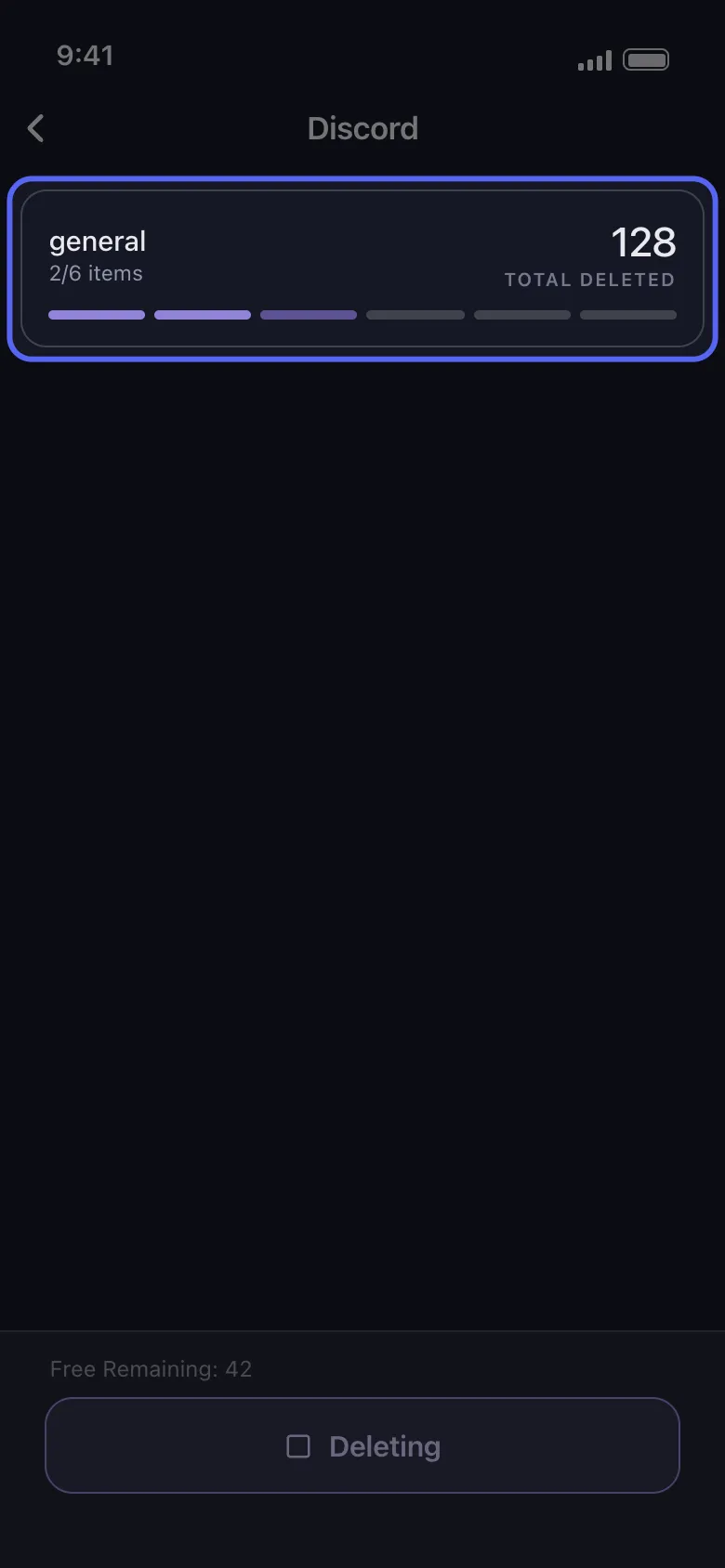
Best use cases for admin cleanup
Spam removal
If one account flooded a channel with repeated text, keyword filters can help narrow the cleanup quickly.
New-server setup mistakes
If a team accidentally filled a server with test messages, you can clean that content in bulk instead of removing it manually.
One-user moderation
If you need to clear a specific user’s posts from one part of the server, this is one of the cleanest ways to do it.
Post-incident cleanup
After a moderation incident, it is often useful to remove content from a limited window rather than wiping everything.
Important limitations
This page should be very clear about what the tool does not do.
- It does not let you delete another person’s normal private DM messages
- It does not turn private DMs into admin-moderated spaces
- It does not remove the need to choose the right server and targets carefully
- It does not make deletion reversible
That honesty matters for both SEO quality and conversion quality. It reduces bad installs from users who expect the wrong thing.
Tips before starting
Confirm permissions first
Test the server on one smaller cleanup before you run a large job.
Start with one user
If the situation is sensitive, target one account first rather than using Delete All immediately.
Use IDs when names are unclear
Large servers often have duplicate display names. Discord IDs are safer.
Keep a narrow scope when possible
Date and keyword filters reduce mistakes.
Related guides
- How to Delete Discord Messages in Bulk
- How to Find Discord User ID
- How to Delete Discord DMs and Chat History
Final answer
If your goal is to delete someone else’s Discord messages, the answer depends entirely on where the messages were sent.
- In DMs, you cannot delete the other person’s messages
- In servers, admins and moderators can remove other users’ messages when they have the proper permissions
That makes this page a strong supporting article because it directly answers a confusing, high-intent query while pointing users toward the correct Unpost workflow instead of promising something Discord does not allow.
Use Unpost to start a targeted Discord server cleanup.
Frequently Asked Questions

Get Started
Delete Old Content Across Your Accounts
Bulk delete messages, posts, likes, comments, DMs, reactions, bookmarks, followers, and more — all from one app.
No password storage • Free to start • iOS & Android
 Download for iOS
  Download for Android