
How to Find Discord User ID: Complete Step-by-Step Guide
TL;DR
To find a Discord User ID: Enable Developer Mode in Settings > Advanced, then right-click any user’s profile and select “Copy User ID”. The unique 17-19 digit number will be copied to your clipboard. On a phone, open their profile and use the three-dot menu instead.
Discord gives every user a unique number called a User ID. This number helps identify users even if they change their username. Learning how to find User IDs is useful for reporting issues, managing servers, or identifying specific users accurately.
How to Find a Discord User ID (Quick Steps)
- Open Discord and click the Settings gear icon.
- Select Advanced in the left menu.
- Toggle Developer Mode on.
- Right-click any username or avatar.
- Click Copy User ID to copy it instantly.
On mobile: tap the user’s avatar to open their profile, then tap the three-dot menu and choose Copy User ID.
What a Discord ID looks like: a 17-19 digit number called a snowflake (like 123456789012345678). User, server, message, and channel IDs all use the same format.
Desktop vs Mobile: Where the Copy ID Option Lives
| Action | Desktop | Mobile |
|---|---|---|
| Enable Developer Mode | Settings > Advanced > Developer Mode | Settings > Advanced > Developer Mode |
| Copy a user’s ID | Right-click their name or avatar | Tap their avatar, then the three-dot menu |
| Copy your own ID | Click your avatar at the bottom-left | Tap your avatar on a message you sent, then the three-dot menu |
What is a Discord User ID?
A Discord User ID is a unique identification number that Discord gives to every user when they create an account. Here’s what makes it special:
- 17-19 digits long (like: 123456789012345678)
- Never changes, even if you change your username
- Unique to each person - no two users have the same ID
- Works across all servers - the same ID everywhere
Why are User IDs important?
- Usernames can be changed, but User IDs stay the same
- They help identify the exact person you’re looking for
- Useful for server management and reporting problems
- More reliable than usernames for identification
Step 1: Enable Developer Mode
Before you can copy User IDs, you need to turn on Developer Mode in Discord. This special setting shows extra options like “Copy User ID.”
On Desktop Discord
- Click the gear icon (⚙️) at the bottom-left of Discord
- Look for “Advanced” in the left menu and click it
- Find “Developer Mode” and turn it ON
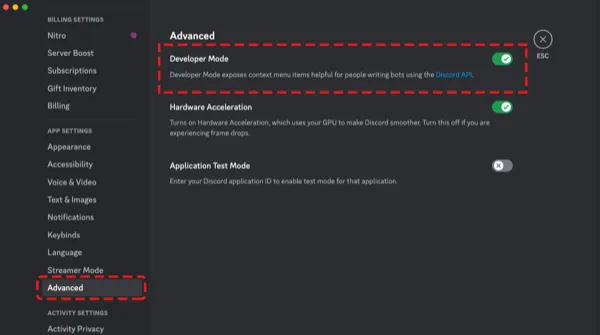
Discord desktop settings showing where to find and enable Developer Mode in the Advanced section
On iPhone and Android
- Tap your profile picture at the bottom-right
- Tap the gear icon (⚙️) at the top-right
- Scroll down and tap “Advanced”
- Turn on “Developer Mode”
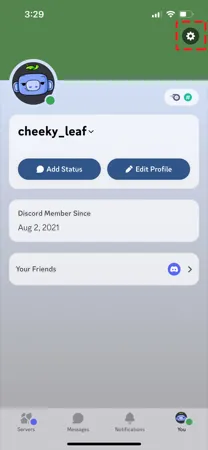
The gear icon on your profile tab opens Discord’s settings
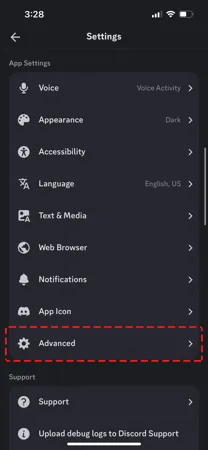
Discord mobile app settings showing the Advanced section where Developer Mode is located
Important: You only need to do this one time. Developer Mode will stay on until you turn it off.
Step 2: Find the User You Want
Open any place their name or avatar appears: the member list on the right of a server, your DM conversation with them, or one of their messages in a channel.
Step 3: Copy the User ID
Once you’ve found the user, here’s how to copy their ID:
Method 1: Right-Click Their Profile (Desktop)
- Right-click on the user’s profile picture or name
- Look for “Copy User ID” in the menu that appears
- Click “Copy User ID”
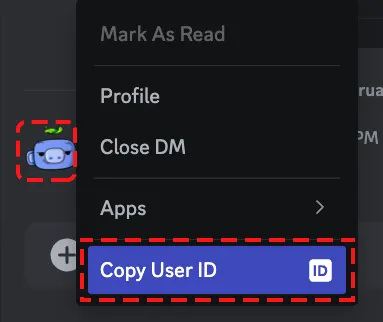
Right-click menu on desktop Discord showing the “Copy User ID” option
Method 2: Through Their Profile (iPhone and Android)
- Tap their avatar or name to open their profile (in a DM, tap their name at the top)
- Tap the three dots (⋯) at the top-right of the profile
- Tap “Copy User ID”, just below “Copy Username”
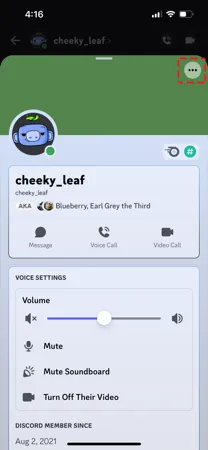
A user’s profile on mobile: the three-dot menu sits at the top-right
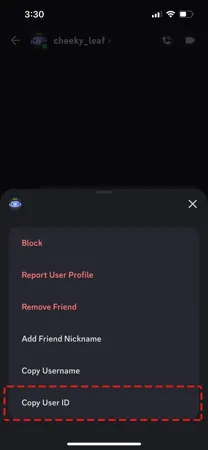
The profile menu on mobile, with “Copy User ID” at the bottom
Alternative Ways to Find User IDs
Your Own User ID
To find your own Discord User ID on desktop:
- Click your avatar at the bottom-left of Discord
- Click “Copy User ID” at the bottom of the card that opens
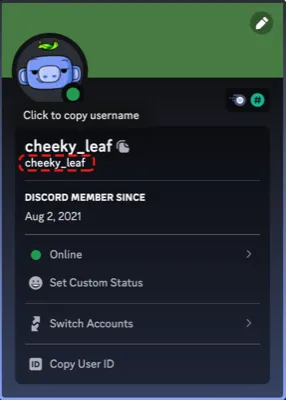
Your own profile card on desktop, with “Copy User ID” at the bottom
Using a Mention
- With Developer Mode: send a mention of the person (@ and their name), then right-click the mention in the posted message and select “Copy User ID”.
- Without Developer Mode: type @, pick the person from the suggestion list, put a backslash (\) before the mention and send it. Discord shows
<@123456789012345678>instead of their name: the number inside is their User ID.
What to Do With the User ID
Once you’ve copied a User ID, you can:
- Paste it anywhere you need to identify the user
- Use it for reporting issues to Discord support
- Share it with server moderators if needed
- Keep it for your records to identify specific users
If you moderate a Discord server, the ID is also how you target one member in Unpost: its option to delete as a server admin lets you add a member by their user ID and delete what they posted in the servers or channels your account moderates. Without Premium, each connected account gets 50 free deletions a day; the Discord deletion guide walks through a full run.
Troubleshooting Common Problems
Can’t See “Copy User ID” Option
Problem: The Copy User ID option doesn’t appear when you right-click.
Solution: Make sure Developer Mode is enabled in your Discord settings. Go to Settings > Advanced > Developer Mode and turn it ON.
User ID Doesn’t Copy
Problem: Clicking Copy User ID doesn’t seem to work.
Solution:
- Try clicking it again
- Make sure you have permission to copy on your device
- Try using a different method (profile vs right-click)
Can’t Find the User
Problem: You can’t locate the person you’re looking for.
Solution:
- Check if you’re in the same servers
- Look in your Direct Message history
- Ask them to send you a message so you can find their profile
Related Discord Guides
If you found this guide helpful, you might also want to read:
- Complete History of Discord Guide - Learn about how Discord became the world’s most popular gaming communication platform
- Can You Delete Someone Else’s Discord Messages? - What server admins can remove, and how
- Privacy and Security Guide - Protect your online privacy across all platforms
Ready to clear one member’s messages? Get Unpost, connect the Discord account that moderates the server, and pick the member by their user ID.
Frequently Asked Questions

Get Started
Delete Old Content Across Your Accounts
Bulk delete messages, posts, likes, comments, DMs, reactions, bookmarks, followers, and more — all from one app.
No password storage • Free to start • iOS & Android
 Download for iOS
  Download for Android