
How to Delete Your Instagram Account on a Computer
You can permanently delete your Instagram account entirely from a computer — no phone, no app, nothing to install. Sign in at instagram.com in any desktop browser, open Accounts Center, then go to Personal details → Account ownership and control → Deactivation or deletion, select your account, and choose Delete account. The same 30-day grace period applies as everywhere else: your account is hidden right away, and the deletion becomes final after roughly 30 days unless you log back in and cancel it.
This guide stays on the on-computer path from start to finish. If you are still weighing a permanent exit against a temporary break, start with the broader guide on how to delete or deactivate an Instagram account — it covers that decision in depth. Here, we focus on the exact desktop clicks, what to do before you confirm, and what actually happens once the request is in.
Quick Steps: Delete Your Instagram Account in a Browser
Instagram moved account deletion into Accounts Center, so the desktop flow now mirrors the mobile app almost exactly. The current path is usually:
- Go to instagram.com and log in.
- Click More in the bottom-left corner, then Settings.
- Open Accounts Center.
- Click Personal details.
- Click Account ownership and control.
- Click Deactivation or deletion.
- Select the Instagram account you want to remove.
- Choose Delete account, then click Continue.
- Pick a reason, re-enter your password, and confirm.
Instagram changes labels from time to time, so if your screen looks slightly different, head for Accounts Center first — the deletion controls live there even when the menus around them shift. Older tutorials that point to a separate “Delete Your Account” page describe a flow Instagram has largely retired; the Accounts Center route is the one its help center currently documents.
Want a Break Instead? Deactivate From the Same Screen
Deactivation works from a computer too, and the desktop path is identical until the very last choice: Accounts Center → Personal details → Account ownership and control → Deactivation or deletion, then pick Deactivate account instead of Delete.
Deactivating hides your profile, photos, comments, and likes until you log back in, and Instagram currently lets you deactivate only once a week. It is the safer pick when you are not fully decided: nothing is destroyed, and reactivating is as simple as signing in again. Deletion, by contrast, only stays reversible during the grace period — after that, there is no way back to the account.
Before You Delete: Download Your Data, Then Clean Up
Two things are worth doing from your desktop before you confirm a deletion, in this order.
1. Download your information. Once deletion completes, Instagram says your profile, photos, videos, comments, and likes are permanently removed, and you will not be able to retrieve them. From a computer, open Accounts Center, look for Your information and permissions, and request a download of your information. Choose the full archive if you are unsure what you need — it covers posts, stories, messages, and profile data, and Instagram sends a download link by email when the file is ready.
2. Clean up what you don’t want archived elsewhere. Deleting the account removes your side of Instagram, but it is not a precise cleanup tool. Messages you sent still sit in other people’s inboxes, and anything already screenshotted, re-shared, or saved is beyond the deletion’s reach. If part of your reason for leaving is specific content — old DMs, comments you regret, posts you would rather not leave sitting in someone else’s archive — delete those items first, while you still have access. The Instagram cleanup guide walks through every content type step by step.
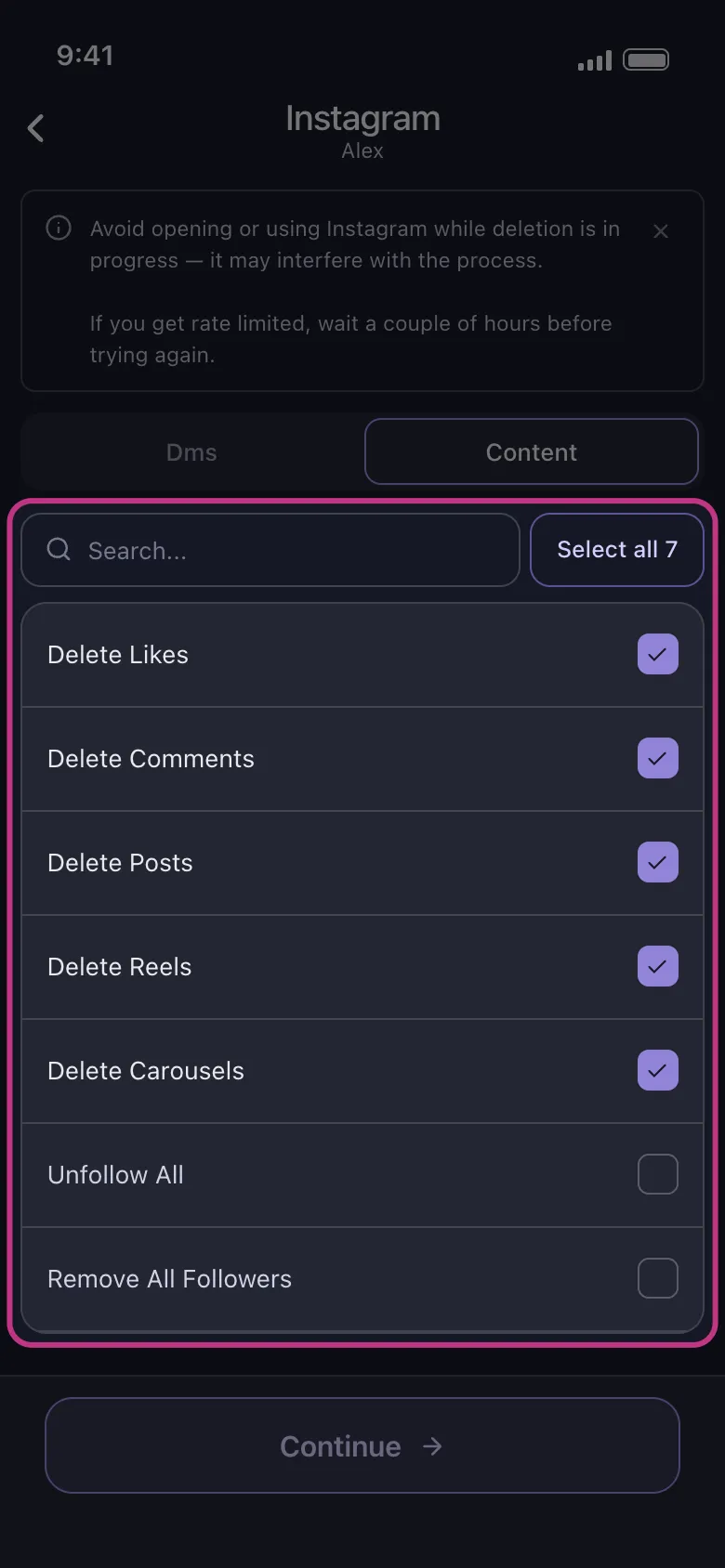
Doing that by hand can mean thousands of clicks and taps. Try Unpost — a mobile app for iOS and Android that bulk deletes Instagram DMs, posts, reels, carousels, likes, and comments, and can unfollow everyone or remove all followers. Unpost does not delete or deactivate your account; it handles the content cleanup so the account you delete from your computer is already clear of the things you actually worried about.
What Happens After You Click Delete
Confirming the request does not erase the account on the spot. Instagram’s help materials describe a staged process:
- Your account is hidden immediately. From the moment you submit the request, your profile, posts, comments, and likes stop being visible to others. To anyone who looks you up, the account simply appears to be gone.
- You get a roughly 30-day grace period. Instagram says deletion requests can generally be cancelled for about 30 days, though the exact window can vary by region. Until that window closes, nothing is final.
- Logging back in cancels the deletion. This cuts both ways. It is your safety net if you change your mind — sign in and follow the prompt to keep the account. But it also means you must stay logged out everywhere: opening the app on your phone out of habit, or a saved session signing in automatically, can quietly cancel the request.
- Full removal can take up to 90 days. After the grace period ends, Instagram says deleting all copies of your data from its systems can take up to 90 days, and some information may persist longer for legal reasons.
There is no countdown screen while you wait. The reliable signal that deletion completed is that the login stops working — so note the date you submitted the request.
Deactivate vs Delete From a Computer
Both options sit behind the same desktop screen, which makes them easy to mix up at the final click. The short version:
| Deactivate (desktop) | Delete (desktop) | |
|---|---|---|
| Path | Accounts Center → Deactivation or deletion | Same screen, different final choice |
| Effect | Profile, photos, comments, and likes hidden | Account permanently removed after the grace period |
| Reversible? | Yes — log back in anytime | Only during the roughly 30-day window |
| Limits | Once a week | Full removal can take up to 90 days |
| Best for | A break with the option to return | Leaving Instagram for good |
The bottom line: the on-computer path covers everything, with no app required. Decide between a pause and a permanent exit, download your data, clean up the content you don’t want surviving in other people’s chats and archives, and only then click Delete account.
Frequently Asked Questions

Get Started
Delete Old Content Across Your Accounts
Bulk delete messages, posts, likes, comments, DMs, reactions, bookmarks, followers, and more — all from one app.
No password storage • Free to start • iOS & Android
 Download for iOS
  Download for Android