
How to Delete Your Slack Account (Messages Stay — Here's the Fix)
How do you delete your Slack account? The honest answer: there’s no single delete button, because there’s no single account. Slack identities live per workspace — your “account” is really a membership in each workspace you’ve joined. To leave one for good, you deactivate your account there: open your profile, choose Account settings, scroll down and click Deactivate your account. Or you ask a workspace admin to do it for you. Belong to five workspaces? That’s five separate deactivations.
Then comes the catch that surprises almost everyone: deactivating does not delete your messages. Everything you ever posted — channel messages, direct messages, files, thread replies — stays in the workspace with your name attached, visible and searchable for everyone who remains. Once you’re deactivated, you can’t sign in anymore, which means you can’t delete anything either. If you want your words gone, you have to remove them before you deactivate, not after.
This guide covers the whole picture: the exact deactivation steps, what stays behind, how to run a proper pre-departure cleanup, what admins and owners can do — including deleting an entire workspace — and how to wind down a Slack identity scattered across several workspaces.
How to Deactivate Your Slack Account: Quick Steps
For a regular member, deactivation takes about a minute:
- Sign in to the workspace you want to leave.
- Click your profile picture in the top right corner.
- Select Profile to open your profile panel.
- Click the three-dot More menu, then Account settings.
- Your account page opens in the browser; scroll down.
- Click Deactivate your account at the bottom.
- Enter your password to confirm your identity.
- Confirm the deactivation — Slack signs you out everywhere.
Two caveats worth knowing. If you’re the workspace’s primary owner, Slack blocks deactivation until you transfer ownership to someone else. And if your company runs Slack through single sign-on, the option may not appear at all — in that case, ask an admin or your IT team to deactivate the account for you. Going through an admin is also the fallback if you long ago lost the password to some old workspace.
What Deactivation Leaves Behind
Deactivation is about access, not content. After you confirm, here’s the state of things:
- Every message stays. Channel messages, thread replies and DMs remain in place, word for word, with your name attached. They keep showing up in search results.
- Your files stay. Documents, images and snippets you uploaded remain available wherever you shared them.
- Your profile lingers. Co-workers see you as a deactivated account, and old @-mentions still point to your profile.
- DMs stay on the other side. Every direct message conversation remains in the other person’s sidebar, your half fully readable.
- You lose the ability to clean up. No sign-in means no deleting, no editing, no exporting — your history is frozen exactly as you left it.
None of this is a bug. Slack treats workspace content as belonging to the workspace, because for companies it’s a business record. That’s reasonable for project channels; it feels very different for the offhand DMs, hot takes and personal asides you assumed would leave when you did.
The Pre-Departure Cleanup: Delete Your Messages First
Because deactivation freezes your history rather than erasing it, the order of operations is everything: clean first, deactivate second. Reverse the steps and you’re locked out of your own messages permanently.
Manually, Slack gives you exactly one tool: hover over a message, open More actions, choose Delete message, confirm — then repeat for the next one. There’s no select-all, no date range, no “delete my history” switch. Our complete guide on how to delete Slack messages walks through the mechanics, the permissions and the edge cases. For a few regrettable messages it’s fine; for years of history across dozens of channels and DMs, it’s a multi-day project nobody finishes.
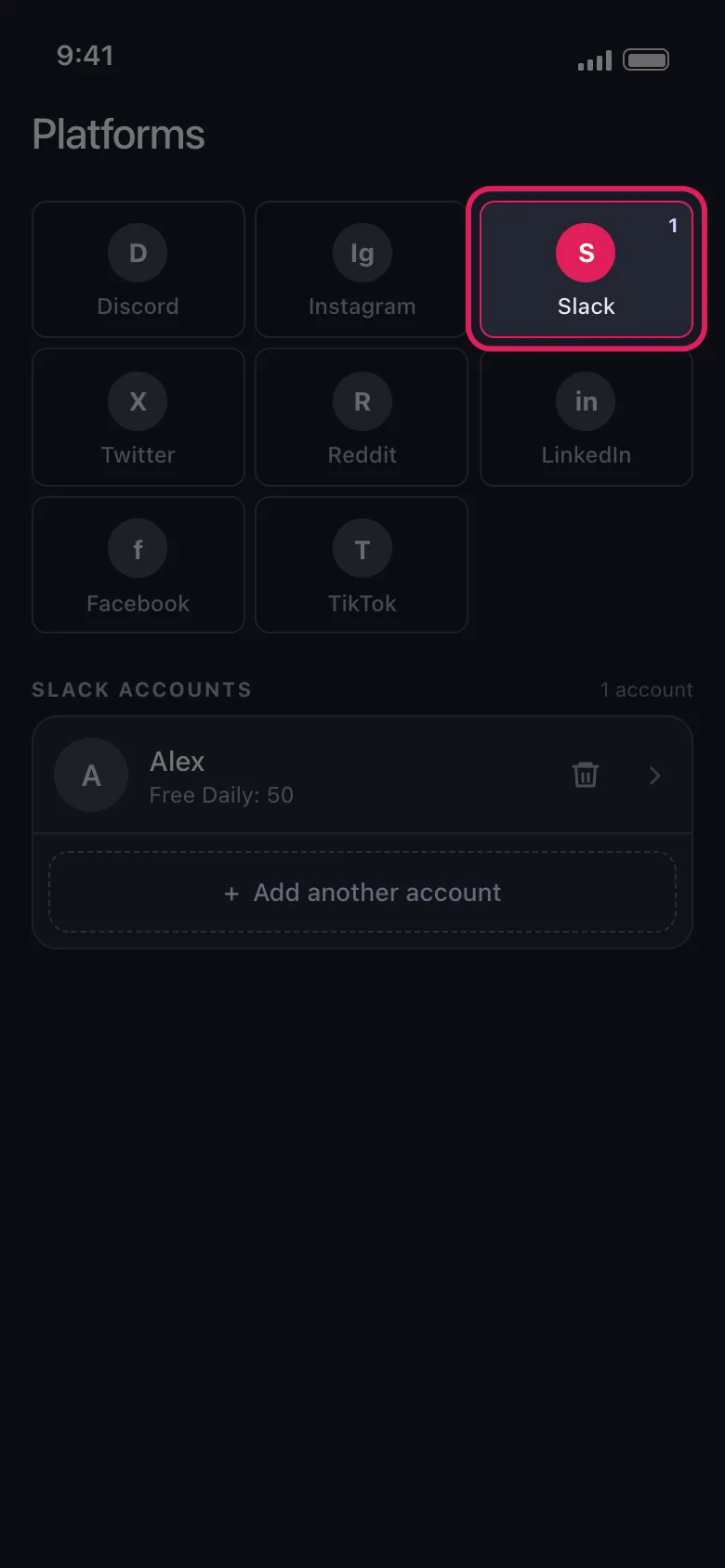
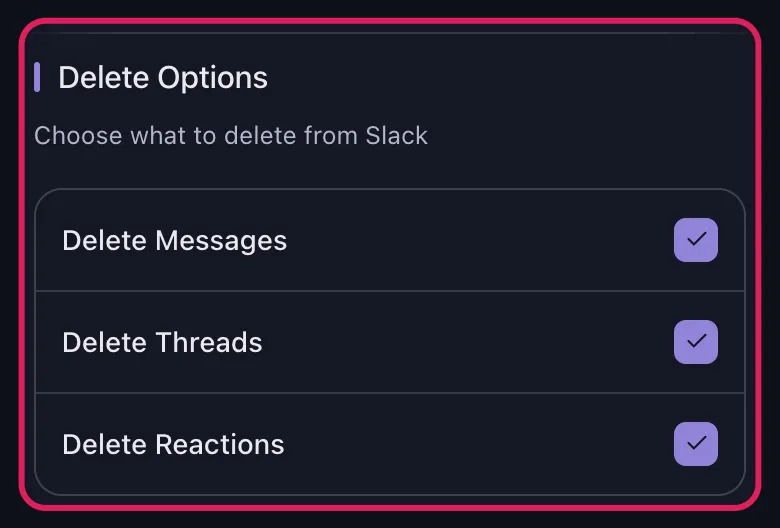
That’s exactly the gap Unpost fills. Unpost connects to your Slack account and bulk-deletes the messages you’ve sent in any channel or direct message — hundreds at a time, in a few taps, no admin rights required. Sweep through the conversations that matter, confirm your side is clean, then deactivate knowing the workspace keeps your name but not your words. Download it for iOS or Android and make the cleanup the first step of every departure, not an afterthought.
One honest caveat: on paid plans, workspace retention settings may keep records of deleted messages for compliance. You can’t control that as a member — but deleting still removes your messages from everyday view, from search and from exports created afterwards, which is what most departures call for.
Admins and Owners: Deactivating Members, Deleting Workspaces
The other side of the same coin: workspace owners and admins can deactivate any member’s account from the admin console — open Manage members, click the three-dot menu next to a name, choose Deactivate account. It’s the standard offboarding move, and it follows the same rule: the person loses access, their content stays.
When the content itself has to go — a departed employee’s messages, a compliance request, a channel that needs a reset — deactivation isn’t enough, and admins reach for stronger tools. Our Slack admin bulk deletion guide covers those options step by step, from retention policies to bulk removal.
Owners hold one more lever that members don’t: deleting the entire workspace. The primary owner can do it from the workspace settings page — scroll to the bottom, click Delete workspace, confirm with their password. That erases everything for everyone: every channel, every message, every file, every account. When the real goal is shutting down a team or company space altogether — not just removing yourself from it — workspace deletion, not account deactivation, is the answer.
One Email, Many Workspaces: The Rest of Your Slack Identity
Here’s the part people forget: each workspace membership is a separate account, even when they all use the same email address. Deactivating in your old job’s workspace does nothing to the freelance client’s Slack, the community server or the side project you joined in 2021. There is no master switch.
To wind down your Slack identity completely, work through the list: enter your email on Slack’s find-your-workspaces sign-in page to see every workspace linked to it, then deactivate — after cleaning up — in each one, one at a time.
What about the email-level Slack account itself? Slack doesn’t offer a global profile you can delete; your identity is the sum of those memberships. Most data sits under each workspace’s control, so requests about messages and profile data go through its owner — owners can also have a deactivated member’s profile information deleted. For the little Slack controls directly, such as the record of your email address, you can send a data deletion request to Slack’s privacy team.
Deactivate, Clean First, or Delete the Workspace?
| Approach | What it removes | Best for |
|---|---|---|
| Deactivate only | Your access — every message and file stays | Quick exits where history should remain |
| Clean, then deactivate | Your messages first, then your access | Privacy-conscious departures from any workspace |
| Delete the workspace (owner only) | Everything, for everyone, permanently | Shutting down a team or company space |
The bottom line: “deleting your Slack account” really means deactivating memberships one workspace at a time — and deactivation removes you, never your words. Decide what should outlive you in each workspace, delete the rest while you still have access, and only then hand back the keys. Done in that order, leaving Slack is clean, quick and actually final.
Frequently Asked Questions

Get Started
Delete Old Content Across Your Accounts
Bulk delete messages, posts, likes, comments, DMs, reactions, bookmarks, followers, and more — all from one app.
No password storage • Free to start • iOS & Android
 Download for iOS
 Download for Android