
How to Delete Your Discord Account (the Right Way)
Here is the short version: Discord account deletion lives in User Settings → My Account → Delete Account. Confirm with your password (plus your 2FA code if you have it enabled), and Discord schedules the account for permanent deletion.
Before you tap that button, though, three things are worth knowing:
- Servers block deletion. If you own any server, Discord refuses to delete the account until you transfer or delete it.
- Deletion is not instant. The account sits in a pending state for roughly 14 to 30 days before it is permanently removed, and logging back in during that window cancels it.
- Your messages stay. Everything you ever sent in servers and DMs remains visible to everyone, attributed to a grey “Deleted User” — unless you delete those messages before the account goes.
That last point is the one most people miss, so this guide walks through the process in the order that actually works: messages first, servers second, account last.
Order Matters
Wipe your messages first — they do not leave with the account.
Quick steps: delete your Discord account
On the mobile app (iPhone and Android):
- Open Discord and tap your avatar in the bottom bar.
- Tap Account under Account Settings.
- Scroll down and tap Delete Account.
- Enter your password and confirm.
On desktop or in the browser:
- Click the gear icon next to your username.
- Stay on the My Account tab.
- Scroll down and click Delete Account.
- Enter your password and 2FA code, then confirm.
If Discord shows a “you own servers” error instead of accepting, skip ahead to the server-ownership section below — you will need to hand those off before the button works.
Disable vs delete: make sure you want the permanent option
Right next to Delete Account, Discord offers Disable Account. The two sound similar and do very different things.
Disabling your account is a pause:
- your profile goes quiet — no notifications, no friend requests, no messages reaching you
- friends, servers, message history, Nitro, and purchases are all preserved
- logging back in reactivates the account exactly as you left it
Deleting your account is the exit:
- the account is scheduled for permanent removal after the pending window
- friends list, server memberships, and profile are gone for good
- your username is eventually released, and purchases tied to the account are lost
The rule of thumb: if you need a break from Discord, disable. If you are leaving for good, delete — but finish the next section first, because it covers the part Discord will not warn you about.
One more practical difference: a disabled account keeps your username and email reserved, so nobody can claim them while you are away. A deleted account eventually frees the username — if you ever come back, you will be starting from zero.
The step everyone skips: your messages do not leave with you
Account deletion removes you, not what you wrote. After the account is gone, every server message and every DM you ever sent stays fully readable for everyone else. The only thing that changes is the author name, which becomes a generic Deleted User with a scrambled identifier.
We unpacked exactly what survives deletion — and what Discord’s anonymization does and does not cover — in Does Deleting Your Discord Account Delete Messages?. The short version: the identity is anonymized, the content is not removed. That applies to one-on-one DMs too — the other person keeps the entire conversation in their client, with your side of it intact.
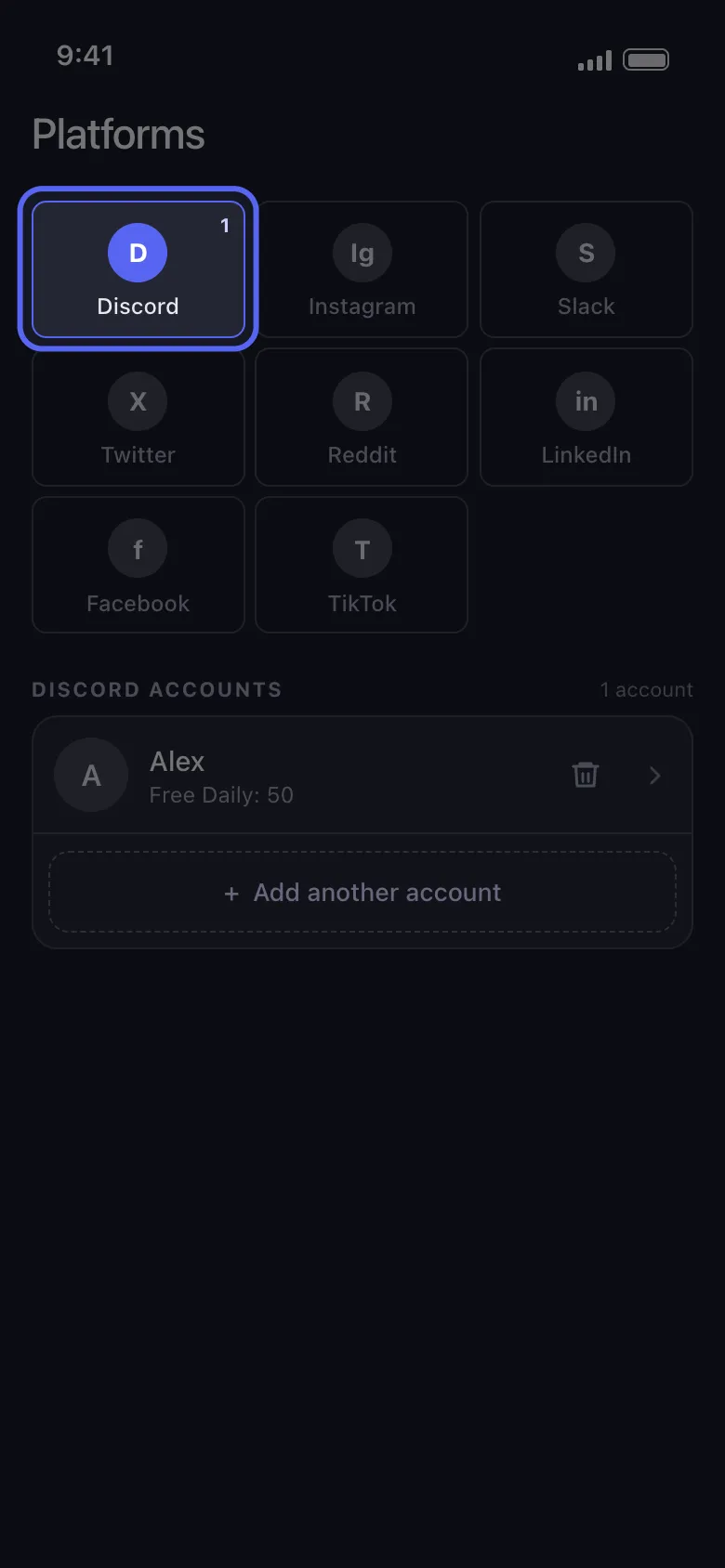
So if privacy is the reason you are leaving, the order of operations matters. Delete the content first, while you still have account access — afterwards there is no way back in to clean things up. Discord has no built-in bulk-delete tool, and doing it by hand means one message at a time. Unpost automates the cleanup from your phone:
- bulk-deletes server messages, DMs, group chats, threads, and reactions
- date-range and keyword filters for a targeted rather than total cleanup
- data-package support to reach old or closed conversations
- paced deletion with retry handling, and your login token stays encrypted on the device
Before You Hit Delete
Leave Discord without leaving your messages behind.
Unpost bulk-deletes your Discord DMs, server messages, threads, and reactions from your phone, with date and keyword filters — so nothing stays up under "Deleted User" after you are gone.
For the full message-cleanup walkthrough — filters, data packages, DMs, and servers — follow How to Delete Discord Messages in Bulk, then come back here to finish the job.
Transfer or delete the servers you own
Discord will not delete an account that still owns servers, so handle every server you own in one of two ways.
To transfer ownership:
- Open Server Settings → Members.
- Tap the three dots next to a member.
- Choose Transfer Ownership and confirm.
To delete the server instead:
- Open Server Settings.
- Select Delete Server at the bottom.
- Type the server name and confirm.
A dead server with no real members is easier to simply delete; an active community deserves a proper handover to a moderator you trust. If you have 2FA enabled, Discord asks for a code on both actions. Repeat the process for every server on your list — the deletion screen will keep refusing until none are left under your name.
What happens after you confirm deletion
- Before you start: if you want a copy of your history, request your Discord data package first — an account that is pending deletion can no longer complete the request.
- Immediately: you are logged out everywhere, and the account is deactivated and marked for deletion.
- The pending window: the account stays in that state for roughly 14 to 30 days while Discord processes the removal.
- Changing your mind: log back in with your email and password during the window, and Discord offers to restore the account. That is the only undo — once the window closes, the deletion is final.
- What others see afterwards: your profile becomes Deleted User, and you disappear from friends lists and member lists. Your old messages, however, remain in every channel and DM — which is exactly why the cleanup step comes before this one.
Disable vs delete vs clean-then-delete
| Disable | Delete | Clean up, then delete | |
|---|---|---|---|
| Account | Paused, back on next login | Permanently removed | Permanently removed |
| Friends and servers | Kept | Lost | Lost |
| Your sent messages | Untouched | Stay up as “Deleted User” | Wiped before you leave |
| Reversible | Yes, anytime | Only during the pending window | Only during the pending window |
| Best for | Taking a break | Leaving quickly | Leaving cleanly |
The right order, start to finish
-
Bulk-delete the messages you do not want left behind.
-
Cancel Nitro and any server boosts tied to the account.
-
Transfer or delete every server you own.
-
Go to User Settings → My Account → Delete Account.
-
Stay logged out for the full pending window.
Follow that sequence and account deletion finally does what most people assume it does by default: it removes you and your history.
Frequently Asked Questions

Get Started
Delete Old Content Across Your Accounts
Bulk delete messages, posts, likes, comments, DMs, reactions, bookmarks, followers, and more — all from one app.
No password storage • Free to start • iOS & Android
 Download for iOS
 Download for Android