
How to Delete a Repost on TikTok (One or All of Them)
You did not mean to keep them. A repost is one tap from TikTok’s share sheet — often a mis-tap while you were trying to send a video to a friend — and it stays on your profile for as long as the account does. Then someone opens that profile, taps the loop-arrow tab, and scrolls two years of other people’s videos with your name on every one.
Deleting one repost on TikTok takes about four taps; the steps are in the next section. The problem is the other three hundred. TikTok’s bulk tools stop at the videos you posted yourself, so the only native answer to “clear them all” is to open every video and tap the button a second time.
How Do You Delete a Repost on TikTok?
Open the video you reposted — fastest from the Reposts tab on your profile — tap the share arrow on the right-hand edge, then tap the Repost button again. It is highlighted for anything you have already reposted, and on current builds it reads Remove repost, asks for no confirmation and simply flips back. The video leaves your tab straight away.
From your profile (iOS and Android are identical here):
- Tap Profile in the bottom bar.
- Tap the loop-arrow tab under your bio — that is your Reposts tab.
- Tap the video you want to un-repost so it opens full screen.
- Tap the share arrow on the right edge.
- In the share sheet, tap Repost / Remove repost.
- Close the sheet. The video is gone from the tab.
Same two taps from the feed or a DM — the repost button is already highlighted.
Two things are worth knowing before you do this three hundred times. Deleted is the wrong word for what just happened: you un-shared a video. It is still on its creator’s account with its views, likes and comments intact, nobody is notified, and nothing else on your profile moves. What changes is that your profile stops recommending someone else’s video on your behalf, which is the whole point.
And there is no in-app undo: putting a repost back means finding the video and reposting it by hand.
Where Your TikTok Reposts Are Hiding
Reposting on TikTok is a recommendation, not a post. Tapping Repost in the share sheet can surface someone else’s video in the For You feeds of people who follow you, with your name on it, and files it in a Reposts tab on your profile. Nothing lands on your grid and nothing goes to your drafts.
The tab itself sits in the row under your bio: your own videos first, then a loop arrow. On current builds it appears only once you have at least one repost, which is why some profiles have that tab and others do not.
“Don’t check my reposts” became a running joke for a reason: the tab is the least curated thing on an account. Every repost can also surface in your followers’ For You feeds, labeled as yours. Treat the tab as public, and keep in it only what you would be happy to post yourself.
Why You Cannot Delete All Your TikTok Reposts at Once
TikTok’s bulk tools stop at content you made. You can select several of your own videos from your profile and remove them together — the guide to deleting TikTok videos walks through that flow. None of it reaches the Reposts tab: no select-all, no long-press multi-select, no date filter, no bulk action of any kind for reposts, in the app or on the website.
So the arithmetic is unforgiving. At four taps and a scroll — call it eight to ten seconds once you include finding the next one — fifty reposts is under ten minutes and six hundred is an hour and a half of uninterrupted tapping, with the tab reflowing under your thumb every time an item leaves. Your profile counts followers and likes; it never counts reposts, so you cannot even see how big the job is until you have scrolled the tab to the bottom.
How to Delete Reposts on TikTok All at Once with Unpost
Unpost is a mobile app for iPhone and Android that performs the same one-at-a-time removal for you. On TikTok it covers five things: your videos, your reposts, the comments you left under other people’s videos, the comments other people left on yours, and your watch history. You sign in through TikTok’s own login page inside the app, under a line that says it plainly: “You log in on TikTok’s own page — nothing is stored on our side.”
The session stays on your device, and for a repost the app sends TikTok’s own remove-repost request, one video at a time. It does not touch your DMs, your followers, your drafts or the videos you liked.
Here is the whole job:
-
Install Unpost from the App Store or Google Play and open it. The home screen is one tile per platform.
-
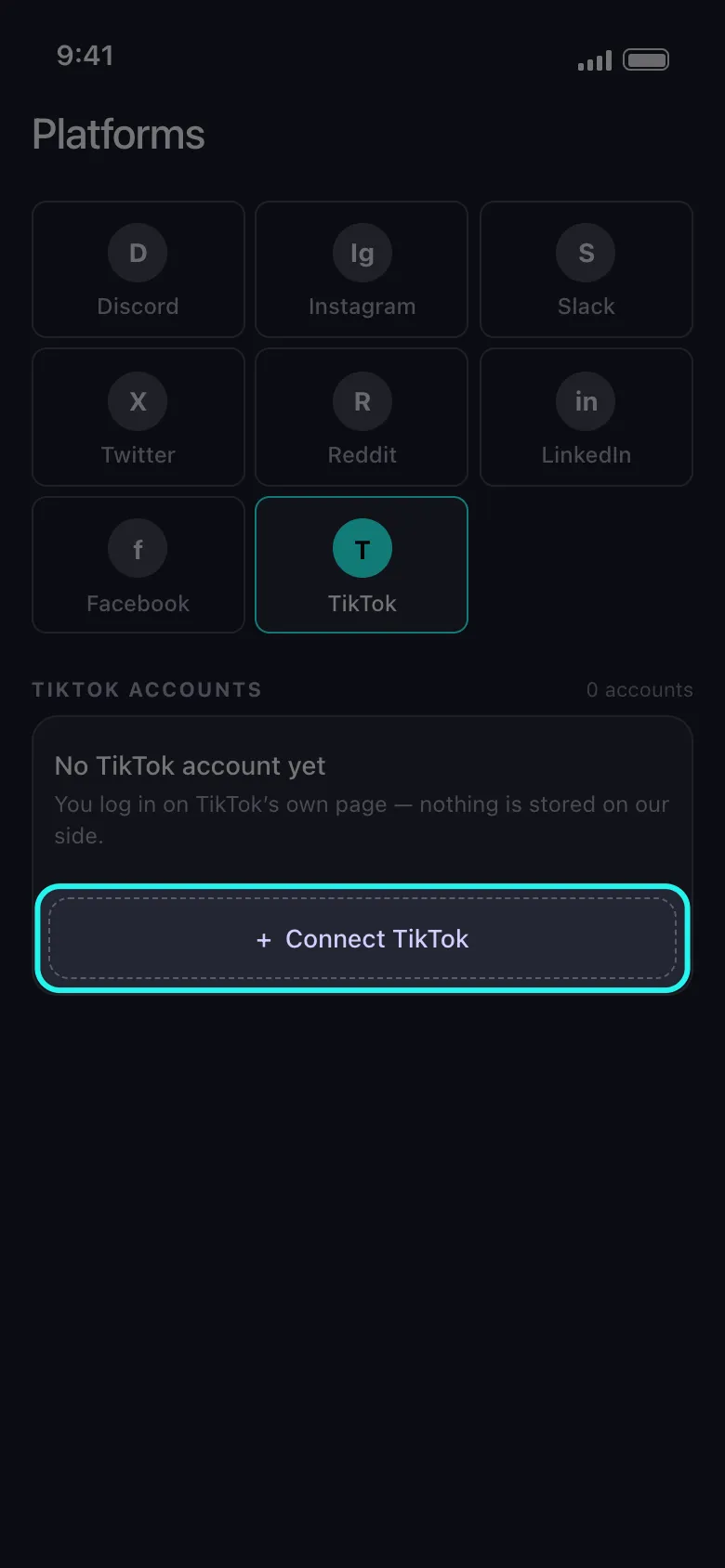
Tap the TikTok tile, then Connect TikTok and log in on TikTok’s own page.
-
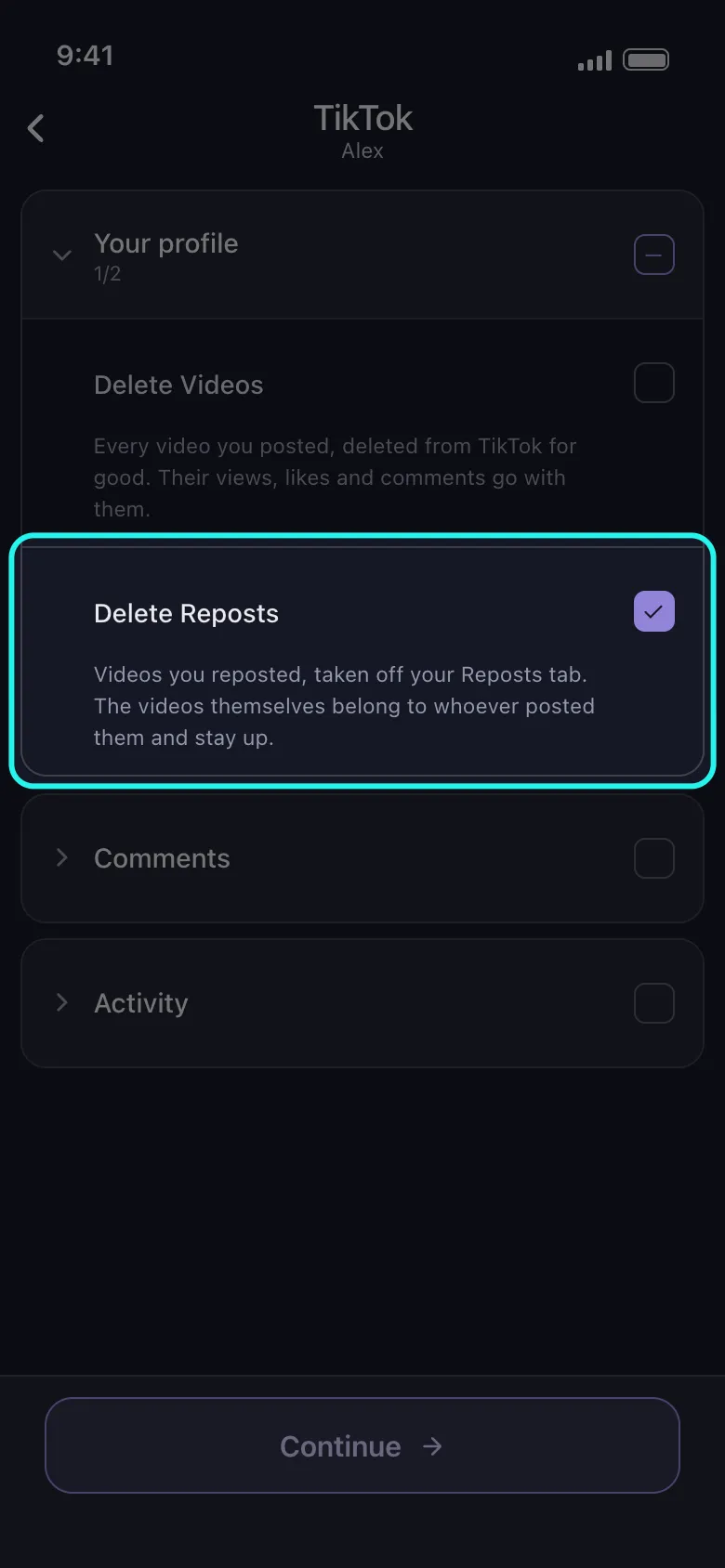
Tick Delete Reposts. The list that opens is headed TikTok and arrives as three closed groups — Your profile, Comments, Activity. Open Your profile and tick Delete Reposts; the row describes itself: “Videos you reposted, taken off your Reposts tab. The videos themselves belong to whoever posted them and stay up.” Tap Continue.
-
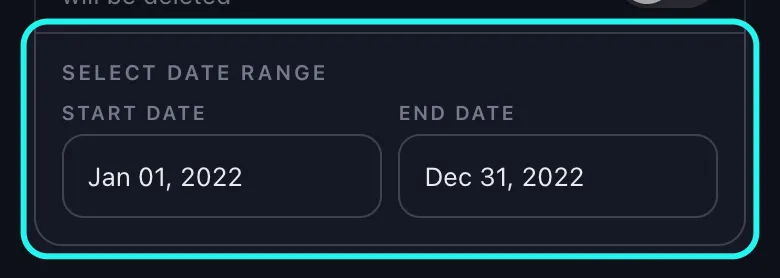
Leave the filters alone for a full clear. The next screen carries three sections, in this order: Delete all Messages, Content Filters and Delete by Keywords. The first one is the date switch — it keeps that name whatever you are deleting, reposts included — and turning it off opens Select Date Range with a Start Date and an End Date. Only one of the three does anything on a repost run, and not what you would expect — the next section explains. Tap Delete.
-
Read the popup, then start. Important Information lists the four rules: keep the app in the foreground, don’t use your account while it runs, deletion is intentionally slow, deletion is permanent. Got it starts the run.
-
Watch it work. The progress card shows what is being removed, how many of your selections are finished, a running Total Deleted and a Free Remaining figure in the footer. Removals go out one at a time, about a second and a half apart, and if TikTok pushes back the app waits the time it asks for and tries again up to three times — so a full tab takes a while by design.
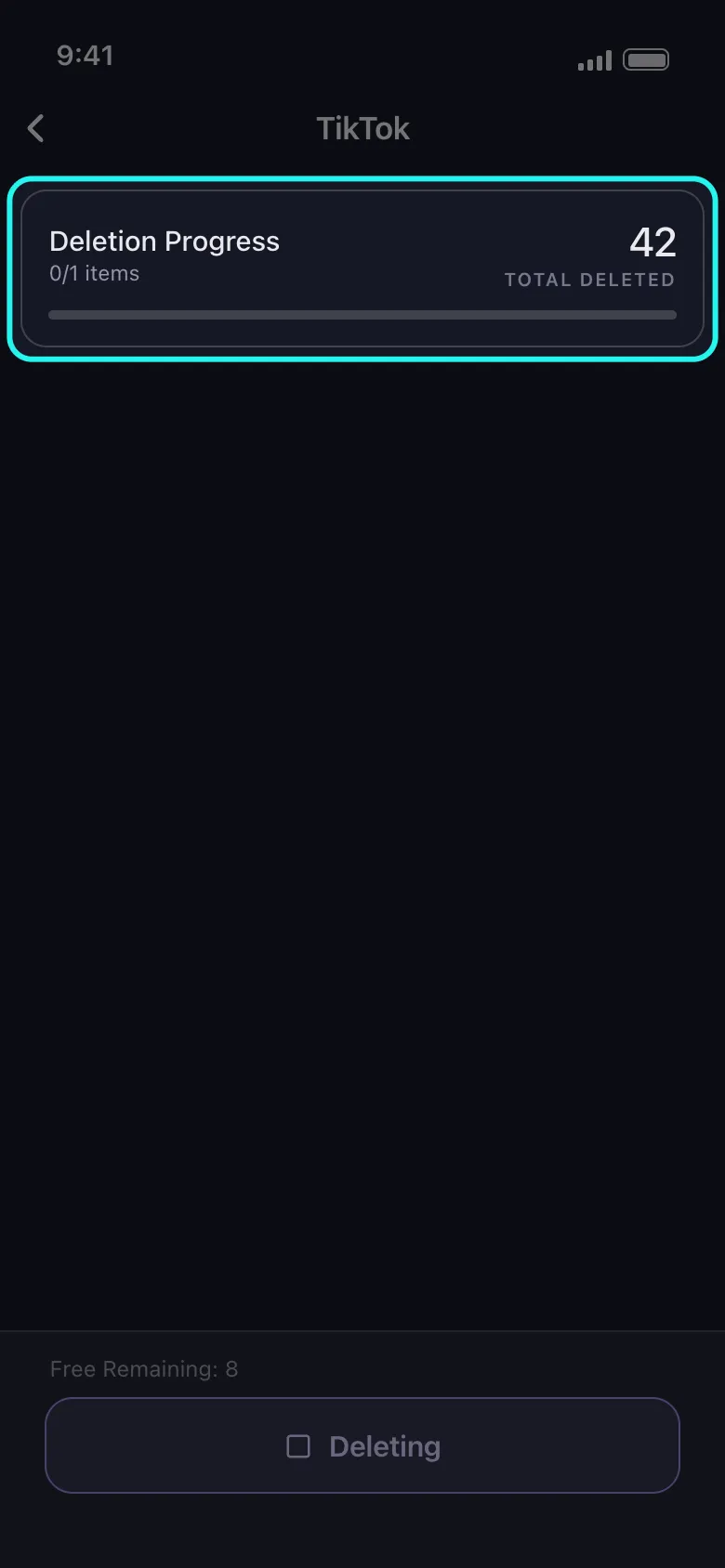
Free accounts get 50 deletions a day, and the app is clear about whose limit it is when you reach it: “This is unpost’s own daily allowance, not a limit from TikTok — your account is fine.” Everything already removed stays removed, so you can carry on tomorrow. Forty reposts is a free-plan job; six hundred is about twelve days of free runs, or one sitting on a subscription.
Empty the Reposts Tab
Remove every TikTok repost without opening a single video.
Install Unpost, connect TikTok through its own login page, tick Delete Reposts, press Delete — and let your phone do the tapping. Free plan: 50 deletions a day.
What the Filters Can and Cannot Do on a Repost Run
A lot of advice promises more here than these filters actually deliver, so here is what each section really does when the job is reposts.
The keyword box does not apply. The note printed under it inside the app says so: Applies to comments only. A repost run never reads text at all, so there is nothing for a word to match — not a hashtag, not the creator’s caption, not anything you typed when you reposted.
The likes, comments and views bounds do not apply either. The hint under Content Filters reads Applies to your videos only — likes and comments are not filtered by these counts, and the repost routine never checks a count. So there is no “remove reposts with fewer than 1,000 views” recipe. Those bounds are for the videos you posted yourself.
The date range does apply — but not to the date you expect. A repost has no date of its own that TikTok exposes; the only date the list carries belongs to the original video. So the range matches when the video was published, not when you reposted it. Ask for 1 January to 31 December 2022 and you get “reposts of videos published in 2022”, not “the reposts I made in 2022”. It also needs both ends: without a Start Date and an End Date the app falls back to deleting everything. Anything whose date TikTok does not report is left alone rather than deleted unchecked, and each item the filter passes over is marked Skipped in the live list as the run reaches it.
That leaves two honest recipes:
- Empty the tab. Set no dates, tick nothing else, press Delete. This is what almost everyone wants.
- Clear the old stuff. Set a Start Date and an End Date and read the result as “reposts of videos published between those dates”. Most people’s old reposts are old videos, so it lands close — but check the Skipped rows before you assume the tab is clean.
And one recipe that does not exist: protecting two or three favorites with a filter. Note the ones you want first, clear everything, then repost that handful by hand.
Reposts, Shares, Favorites and Likes: Which One to Clear
People arrive here wanting a few different things:
| Action | Where it ends up | Who can see it | How to remove it |
|---|---|---|---|
| Repost | Reposts tab on your profile; can surface in your followers’ For You feeds | Anyone who opens your profile | Share arrow, then Repost again — or Delete Reposts in Unpost |
| Share (link, DM, another app) | Nowhere on your profile | Only whoever you sent it to | Nothing on your profile to remove |
| Favorite (the bookmark flag) | Your Favorites | Only you | Tap the flag again |
| Like | Your Liked tab | Only you, unless your privacy settings say otherwise | Tap the heart again; Unpost does not unlike TikTok videos |
| Your own video | Your profile grid | Everyone | Delete the post itself |
| Comment | Under someone else’s video | Everyone | Long-press the comment and delete — or Delete Comments in Unpost |
If the cleanup you actually want is the videos you posted yourself, that job is how to delete TikTok videos, TikTok’s own multi-select included. If it is the trail of comments you left under other people’s videos, how to delete comments on TikTok covers those. The three cleanups are separate rows inside the app, so you can tick more than one and let a single run work through them.
Clear the Tab Before Someone Else Scrolls It
The answer to how to delete a repost on TikTok is four taps. The answer to clearing the whole tab is those same four taps repeated until it is empty — by you over an evening, or by an app that keeps tapping while you do something else. There is no third option, because TikTok never built one.
Pick by size. Under fifty reposts, open the loop-arrow tab tonight and work top to bottom. Above that, get Unpost, tick Delete Reposts and let the run finish over a few days on the free plan, depending on how full the tab is. The same evening often turns into clearing an old Twitter timeline or thinning out years of Instagram posts, for the reason laid out in the practical case for a smaller public footprint: the content you removed last year is the content nobody can screenshot next year.
One Job, Not Three Hundred Taps
Delete every repost on TikTok from your phone.
Connect TikTok through its own login page, tick Delete Reposts, and start the job. Free plan: 50 deletions a day; premium removes the cap.
Frequently Asked Questions

Get Started
Delete Old Content Across Your Accounts
Bulk delete messages, posts, likes, comments, DMs, reactions, bookmarks, followers, and more — all from one app.
No password storage • Free to start • iOS & Android
 Download for iOS
  Download for Android