
How to Delete a TikTok Video (One, Several, or All of Them)
You posted it at one in the morning, it did not land, and it has sat on your profile ever since. Or the problem is bigger than one video: the whole first era of a rebranded account, three hundred posts a recruiter should not scroll into.
TikTok’s answer is the same either way. How to delete a TikTok video: open it, tap the share arrow, tap Delete, confirm. Roughly ten seconds. There is no delete-all button anywhere in the TikTok app, no way to say “everything before 2024”, and no filter for the videos that flopped — which is precisely the cleanup most people actually want.
This guide covers the whole ladder: one video in a few taps, several with TikTok’s own multi-select, then the routes that scale to a full history — filters, reposts, comments, watch history, and what to save first.
How Do You Delete a TikTok Video?
Open TikTok and tap Profile. Tap the video to open it, tap the share arrow on the right-hand side, then swipe along the bottom row of options to Delete and confirm. The video leaves your profile immediately, taking its views, likes and comments with it.
The steps are identical on iPhone and Android:
- Open the TikTok app and tap Profile in the bottom-right corner.
- Tap the video you want gone. It opens full screen.
- Tap the share arrow on the right-hand rail — some builds show a three-dot icon in the same place, and either opens the same panel.
- In the bottom row of options, swipe along to Delete.
- Tap Delete again to confirm.
That is the entire native toolkit for one video, and everything below is that action repeated. At ten seconds a video, 400 posts is over an hour of tapping — assuming you never stop to watch one, which you will.
Before you tap Delete: a video you remove is gone for good, with every view, like and comment it collected, and TikTok keeps no copy you can put back. Undecided? Set it to private instead — reversible, and invisible to everyone but you.
How to Delete Several TikTok Videos at Once
TikTok does have a multi-select. It is not advertised, most people never find it, and it is the fastest native route.
- Open your Profile.
- Press and hold any of your videos and tap Manage posts. On current builds that is the entry point.
- Tap each video you want to remove. A checkmark appears on every selected thumbnail.
- Tap Delete at the bottom of the screen, then confirm.
If your build offers it, the same selection can set those videos to private instead — the reversible version of this cleanup.
Where it stops. Manage posts is a selection tool, not a cleanup tool: you still tap every video, the grid loads only as you scroll, and nothing filters it — no date range, no view threshold, no “everything before the rebrand”. It reaches posted videos only, so reposts, comments and watch history stay put.
How to Delete All Your TikTok Videos With Unpost
Unpost is a mobile app for iPhone and Android that does the repetitive part for you. On TikTok it covers five categories, grouped as Unpost groups them: Your profile (Delete Videos, Delete Reposts), Comments (Delete Comments, Delete Comments On My Videos) and Activity (Delete Watch History). You sign in through TikTok’s own login page inside Unpost, the session stays encrypted on your device, and each video comes off the way you would by hand: one at a time, at a pace that mimics manual deletion.
Just as important is what it does not touch: your DMs, your followers, the videos you liked, and your drafts, which live on your phone rather than your profile. Cleanup here means videos, reposts, comments and watch history.
The whole job is five steps:
-
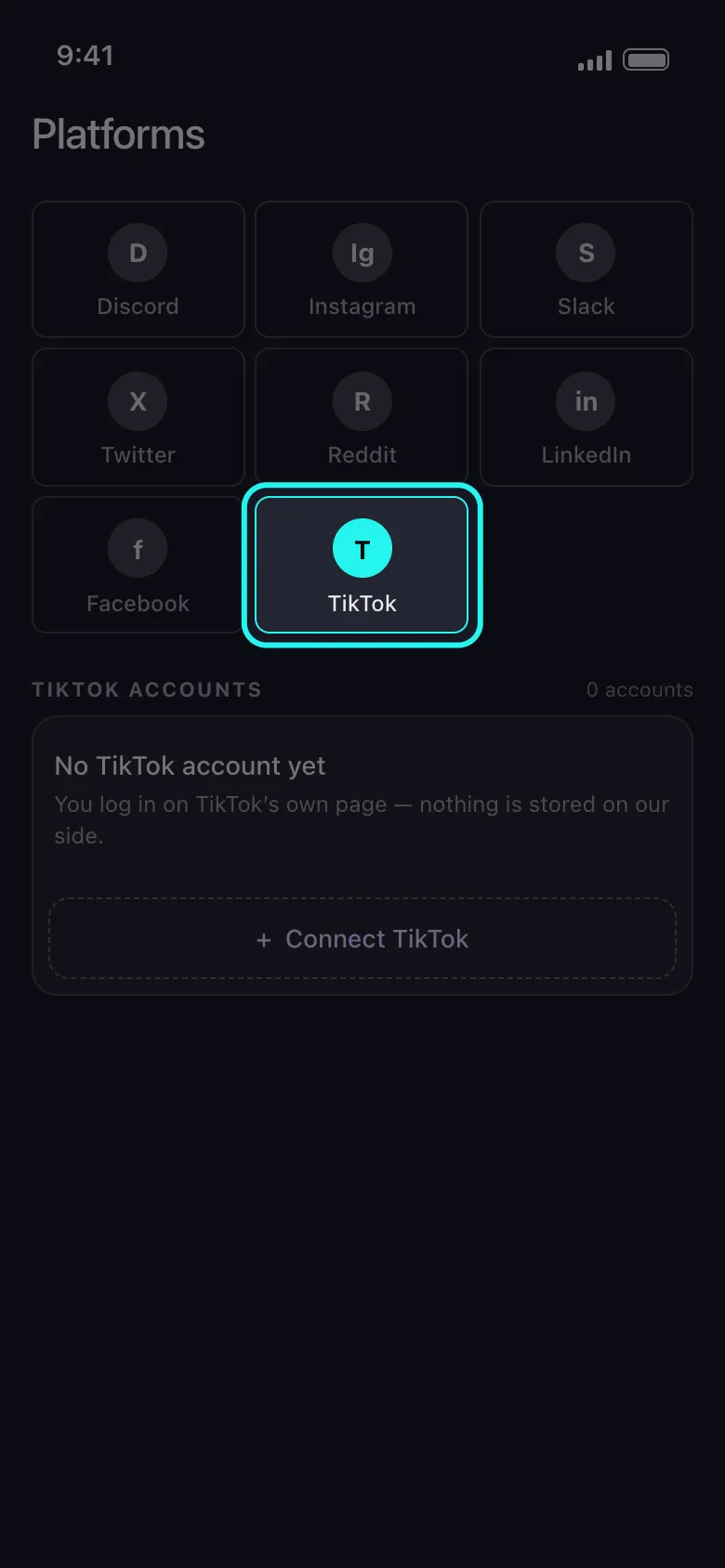
Install Unpost and open TikTok from the platform list on the home screen.
-
Connect your account through TikTok’s own login page inside Unpost — nothing is pasted into a website, no API key involved.
-
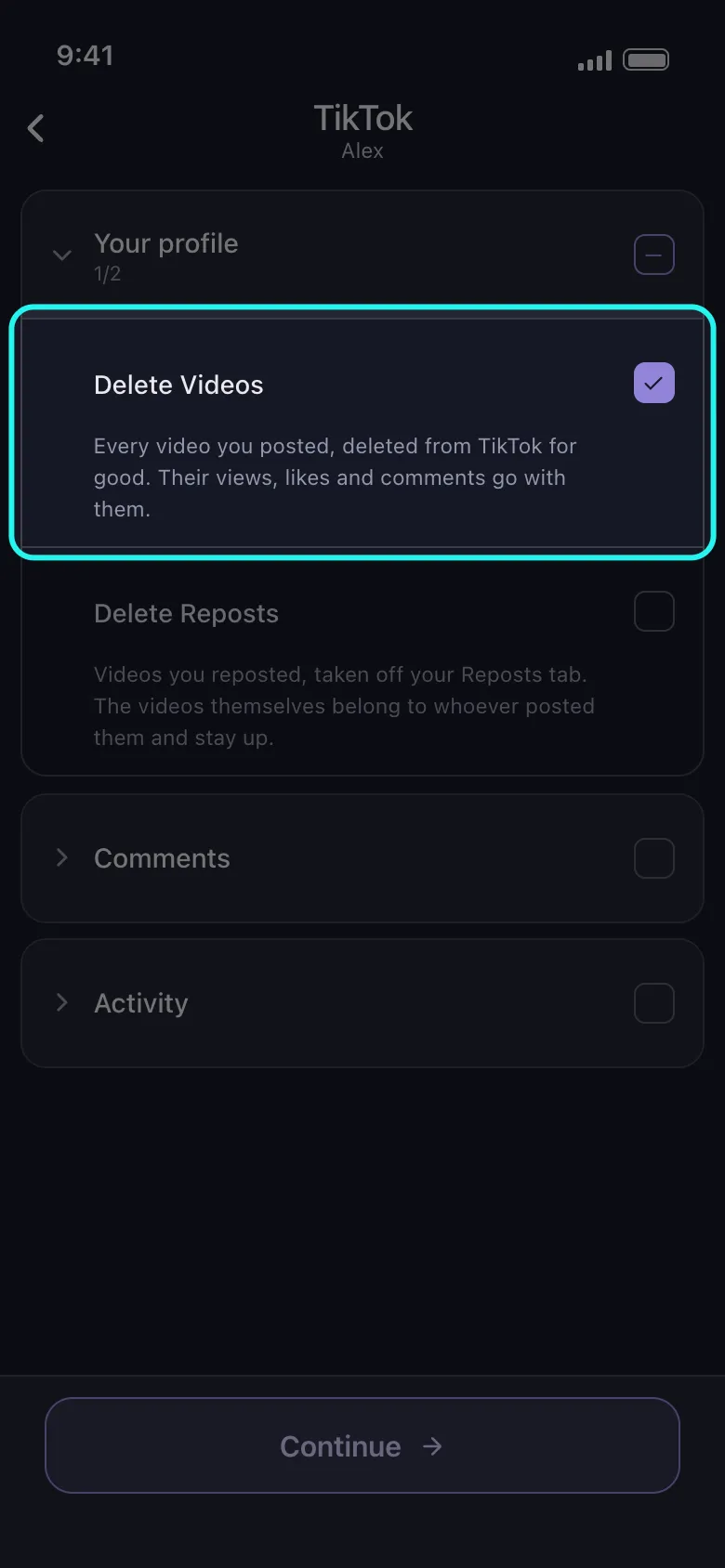
Pick what to delete. Every row carries a description — Delete Videos reads “Every video you posted, deleted from TikTok for good.” Tick it and tap Continue.
-
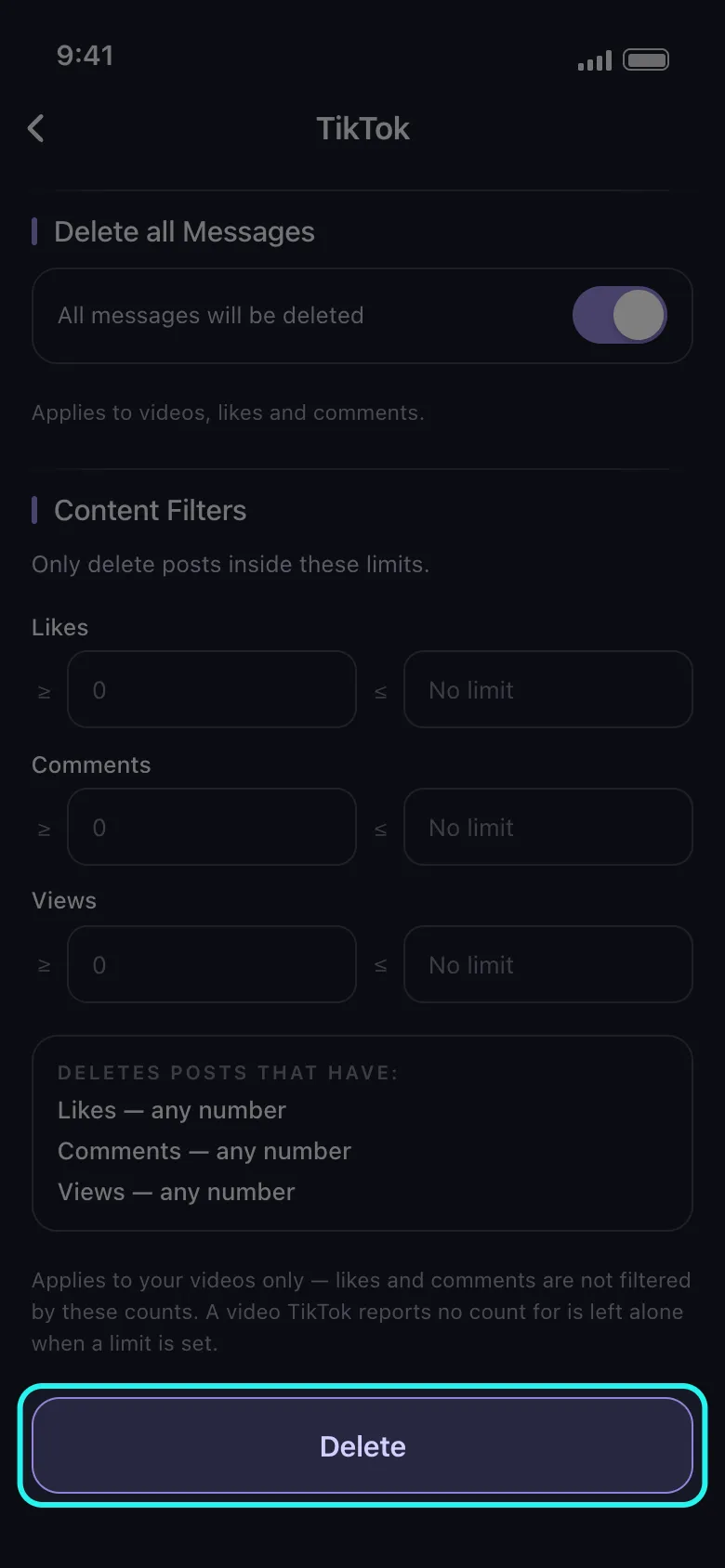
Set your filters, or skip them. The options screen offers Select Date Range, Content Filters for likes, comments and view counts, and a keywords list. Leave all three untouched to take everything you ticked.
-
Tap Delete and keep Unpost in the foreground. The Important Information popup says it plainly — the run stops the moment Unpost goes to the background — so leave it on screen and stay out of TikTok until it finishes. The run card shows what is being deleted and a running tally; stop it whenever you like, and what is already deleted stays deleted.
The free plan covers 50 deletions a day — enough for a quiet year of posts, or to watch the workflow end to end before committing. A bigger history needs the subscription that lifts the daily cap.
Clear The Whole Era
Delete every TikTok video you would not post today.
Install Unpost, connect TikTok through its own login page, tick videos and reposts, set a date or a view threshold, and start the run. Free plan included, 50 deletions a day.
Delete Only the Videos You Want: By Date, By Views, By Likes
Most cleanups are not “everything must go” but “the era before I knew what I was doing” or “the ones that flopped”. Three recipes cover nearly all of them.
Everything before the rebrand. Open Select Date Range, set a Start Date and an End Date, and run Delete Videos. Only videos posted inside that window go; everything else is marked Skipped in the live log. The range applies to videos, reposts, comments and watch history. A decade is easiest cleared one year at a time.
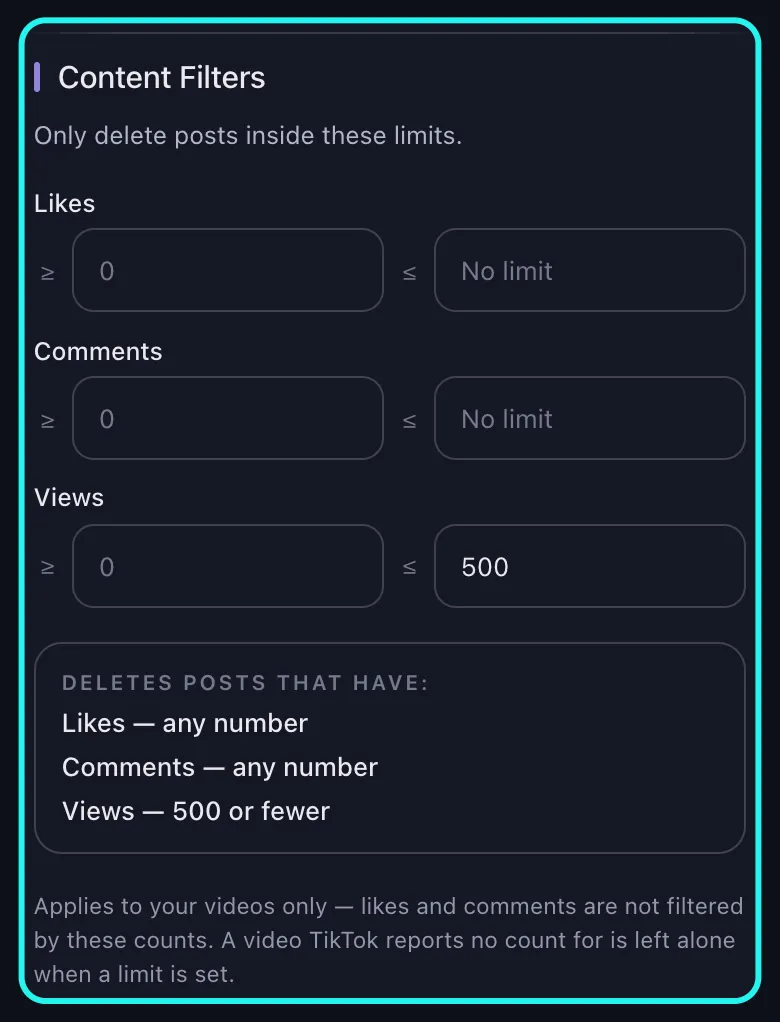
Everything under 500 views. This is the filter nothing else gives you, and the reason a lot of people install a tool at all. Content Filters takes limits on Views, Likes and Comments: set a maximum of 500 views and the posts that never traveled disappear while the ones that did numbers stay put. Unpost states both catches on screen: the counts narrow your videos only, and a video TikTok reports no count for is left alone rather than deleted unmeasured.
The ones nobody liked. Same section, the Likes row: it holds two boxes, one marked ≥ and one marked ≤. Put 0 in both and only videos with no likes at all go. An empty box is not a zero — the ≥ box shows a faint 0 and the ≤ box reads No limit until you type in them — so check the summary Unpost prints under the fields, which should read Deletes posts that have: Likes — exactly 0. It is the gentlest cleanup available, and a sensible first run.
And the filter that will not do what you expect: keywords. The keyword box carries its own note in Unpost — Applies to comments only — and that is how it behaves: what you type is read on the comment runs, never on the video run. You cannot pick videos out by their caption, hashtags included; video cleanups go by date range, views or likes.
Reposts Sit in Their Own Tab
The repost button pushes someone else’s video to your followers, and every one you have tapped lives in a Reposts tab that deleting your own videos never touches. TikTok has no un-repost-all either: you take each one back from the video itself, one at a time.
Unpost treats reposts as their own content type. Delete Reposts clears the tab while the videos stay up on the profiles of whoever made them, so a year of reposting is one job instead of an afternoon. The full method is in our guide to deleting a repost on TikTok.
The Comments You Left, and the Ones Under Your Videos
Comments are two piles and TikTok has no bulk tool for either. Unpost splits them the same way: Delete Comments covers what you left under anyone’s video; Delete Comments On My Videos covers everyone’s comments on your own posts — not only yours, which is the point after a pile-on.
TikTok does gather your own comments in one place, under Settings and privacy → Activity center → Comment history on current builds. What it does not give you there is a way to clear them together: you still delete them one at a time. Unpost walks that same history in a single run, and this is the one place the keyword filter works, so you can clear every comment containing a particular word or name. Full walkthrough: how to delete comments on TikTok.
Delete Your TikTok Watch History (and Clear Your Searches)
Your posts are the public half of your account. The other half is what you watched and searched for — the record that shapes your For You page and puts your taste on display on a borrowed phone.
Watch history. Open your profile, tap the menu button, then Settings and privacy, and open Activity center → Watch history. On current builds the screen has its own Select and Select all, so clearing what is in front of you is quick — and TikTok keeps only the last few months of the record in the first place.
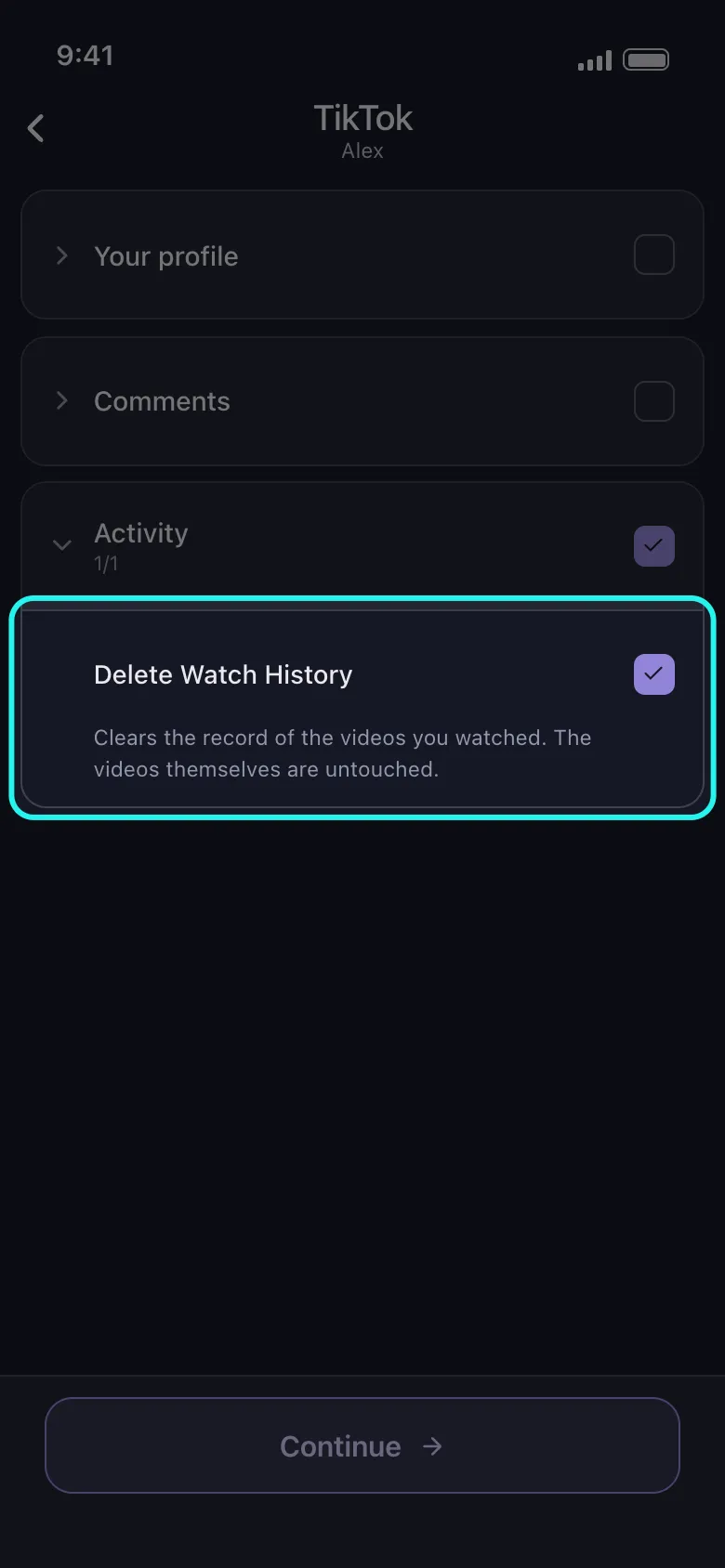
What that screen cannot do is work to a date. Unpost’s Delete Watch History row takes a date range, so “everything I watched before June” is a valid job — and it runs alongside the rest: tick videos, reposts, comments and watch history together and Unpost works down the categories in one run. The videos stay up either way; you are deleting TikTok’s record of watching them, not the posts.
Search history. Unpost does not touch searches — that one is yours to clear. Tap the search box and your recent searches appear underneath, each with a small ✕, plus a clear-all where your build offers one. Do it in the same sitting: together, the two records are what keep the recommendations following you around. The phone’s own privacy settings sit under all of this — iOS vs Android privacy and security.
Save Your Videos Before You Delete Them
Most people do not remember what is in their oldest fifty posts. A copy first costs one form and a bit of patience.
Save the videos themselves. Open a video, tap the share arrow, then Save video — it lands in your camera roll with a TikTok watermark and your handle burned in. If the option is missing, open Settings and privacy → Privacy → Downloads and turn video downloads on.
Request your data. Open Settings and privacy → Account → Download your data. Choose what to include, pick a file format, and tap Request data. TikTok takes a few hours to a few days to build it, then leaves it in the Download data tab for a limited window, so grab it as soon as the notification arrives.
One expectation to set: the export is a record of what you posted — captions, dates, links, your comment and watch history — not a folder of video files. Treat it as the inventory of what you are about to delete. It is not a deletion tool either: Unpost can delete straight from a data package on Discord, X (Twitter) and Reddit, but not on TikTok, so a TikTok cleanup always runs against your live account.
What Deleting a TikTok Video Actually Removes
Deletion takes the video off TikTok, which is where it is most visible and most attached to your name. A complete plan accounts for the rest.
- Its numbers go with it. Views, likes, saves and every comment underneath disappear, and your profile’s total like count drops. Re-uploading the file later starts a new post at zero.
- There is no trash and no restore. Unlike Instagram’s recently-deleted folder, TikTok keeps nothing for posted videos. This is the one irreversible step in the guide.
- Reposts of your video vanish too. Someone else’s repost points at your post, so when yours goes, theirs has nothing to show.
- Duets and stitches do not. Those are separate uploads with your footage baked in, and they survive the original.
- Drafts are unaffected. They live inside TikTok on your phone, not on your profile, so deleting posts never touches them — but uninstalling TikTok does, and on some builds so does logging out.
- Copies you do not control stay. Screenshots, screen recordings, anything downloaded while your video was up: no tool reaches those, which argues for deleting sooner rather than later. Search results lag too — a TikTok that Google indexed can keep appearing for days until the page is recrawled.
- Your account is untouched. Deleting every video leaves the handle, the followers and the DMs where they were: a clean profile, not a lost one.
Cleaning one platform tends to expose the others: the same job on Instagram is in our guide to bulk-deleting Instagram posts, the X version is how to delete all your tweets, and the same trail on Reddit is in how to delete your Reddit history. The case for bothering at all is in our guide to the practical privacy benefits of cleaning up your online history.
Start With the Videos You Would Not Post Today
If one bad video is what brought you here, the answer to how to delete a TikTok video takes ten seconds and you are already finished: profile, tap the video, share arrow, Delete, confirm. Nothing else in this guide applies to you.
If the real problem is four years of posts, work in this order: save the videos you would be sad to lose, request your data download, take one pass with Manage posts at the ones you can name from memory, then set a date range or a view threshold and let Unpost walk the rest, with reposts, comments and watch history ticked alongside.
TikTok is never going to build you a delete-all button. Clearing it out does not have to cost you a weekend either.
One Job, Not Four Hundred Taps
Let your phone delete the videos for you.
Connect TikTok in Unpost, tick videos, reposts, comments or watch history, filter by date or view count, and start. Free plan included, 50 deletions a day.
Frequently Asked Questions

Get Started
Delete Old Content Across Your Accounts
Bulk delete messages, posts, likes, comments, DMs, reactions, bookmarks, followers, and more — all from one app.
No password storage • Free to start • iOS & Android
 Download for iOS
  Download for Android