
How to Delete a Post on Facebook (One, Several, or All of Them)
Ten years of Facebook is a strange archive. It holds the wedding, the dog and the graduation, and it also holds a running commentary on your twenties that you would not read aloud to a hiring manager who has just typed your name into the search box.
So most people arrive at the same question. The short answer to “how do you delete a post on Facebook?” is three taps: open the post, tap the three-dot menu, choose Move to trash. Ten seconds, done.
The long answer is why this page exists. Facebook has no delete-all button: its activity log shows you everything you ever did and then makes you remove it one row at a time, and its one multi-select screen works a page of results at a time. If the real job is deleting FB posts by the hundred, that is an afternoon of tapping.
This guide covers both halves: the native steps on mobile and desktop, what Facebook’s bulk screens really do, how to clear years of posts in one run, and what deletion does not undo.
How Do You Delete a Post on Facebook?
Open the post on your profile, tap the three-dot menu in its top-right corner, and choose Move to trash — labeled Move to bin in the UK and Ireland, and Delete post on older builds. Confirm when Facebook asks. The post leaves your timeline immediately, then waits in your trash for 30 days before Facebook erases it for good.
In the Facebook app for iOS or Android:
- Tap your profile picture, or open Menu and tap your name, to open your profile.
- Scroll to the post you want gone.
- Tap the three dots in the post’s top-right corner.
- Tap Move to trash.
- Confirm.
On the desktop site:
- Go to facebook.com and click your name or profile picture.
- Find the post on your timeline.
- Click the three-dot icon on the post.
- Click Move to trash, then confirm.
Two things people discover late. Trashed posts sit out those 30 days, and you can empty the trash yourself: profile ··· menu, Activity log, Trash. And Move to archive, in that same post menu, deletes nothing — it hides the post from everyone but you.
Delete Posts in the Facebook App vs the Desktop Site
Both surfaces delete the same way; only the screens that save you time sit elsewhere. In the Facebook app, Manage activity — the one multi-select Facebook offers — is inside Activity log, behind your profile’s ··· button. On some versions it opens straight from the profile menu as Manage posts, an older entry point rather than a second tool.
On the desktop site the log has an address of its own, facebook.com/your-username/allactivity, with the filters in a left-hand column instead of behind a sheet. No extra powers there, but far faster to work in: for a cleanup of any size, desktop is the better seat.
Why Facebook Has No “Delete All Posts” Button
Manage activity deserves a proper look, because it is the tool most articles point at and then stop. It is a multi-select over your own posts, narrowed by three filters — Categories, Dates and People — with Archive and Trash as the actions you can apply to everything you selected. That is genuine bulk work, and for a few hundred posts it is usable.
The limits arrive quickly:
- A selection covers one page of results. You select what the list has loaded, apply the action, wait for it to reload, and start selecting again.
- The filters are coarse. Categories, dates and the people tagged: no keyword search, no “posts nobody reacted to”, no audience filter.
- It only covers posts. Comments, likes, poll votes, saved items, event responses and story reactions are not part of that selection, so clearing those is back to one row at a time in the activity log.
- Media is a separate job. A photo deleted as a post and a photo deleted from your Photos tab are not the same operation, and albums are a third.
Do the arithmetic before you commit an evening. History loads a chunk at a time, so reaching 2014 costs minutes of scrolling before the first delete. Count that and the reloads in and an item runs eight to ten seconds: a thousand items is two and a half hours of uninterrupted tapping, and ten years of an active account is a weekend — with no undo once the trash is empty.
The one true bulk action Facebook hands you is not a deletion at all. Settings → Audience and visibility → Posts → Limit who can see past posts switches every past public and friends-of-friends post to friends-only in one click. Good move if your worry is strangers rather than the content itself — but the posts are still there, still yours, still in your friends’ feeds. And closing the account is no shortcut: after a 30-day grace period it takes Messenger, your groups, your photos and every login you made through Facebook with it — and Facebook says the deletion itself can take up to 90 days to complete after that.
How to Delete All Your Facebook Posts With Unpost
Unpost is a mobile app for iPhone and Android that does the repetitive part for you. Facebook is one of the newer platforms in it, and the one it reaches furthest into: twenty-four content types, grouped the way you would sort them yourself. You sign in through Facebook’s own login page inside the app, the session stays on your device, and each item comes off the way you would remove it by hand — no password handed over, nothing pasted into a website. The same app also cleans up Instagram, X (Twitter), Reddit, Discord, Slack, LinkedIn and TikTok.
The whole job is five steps:
-
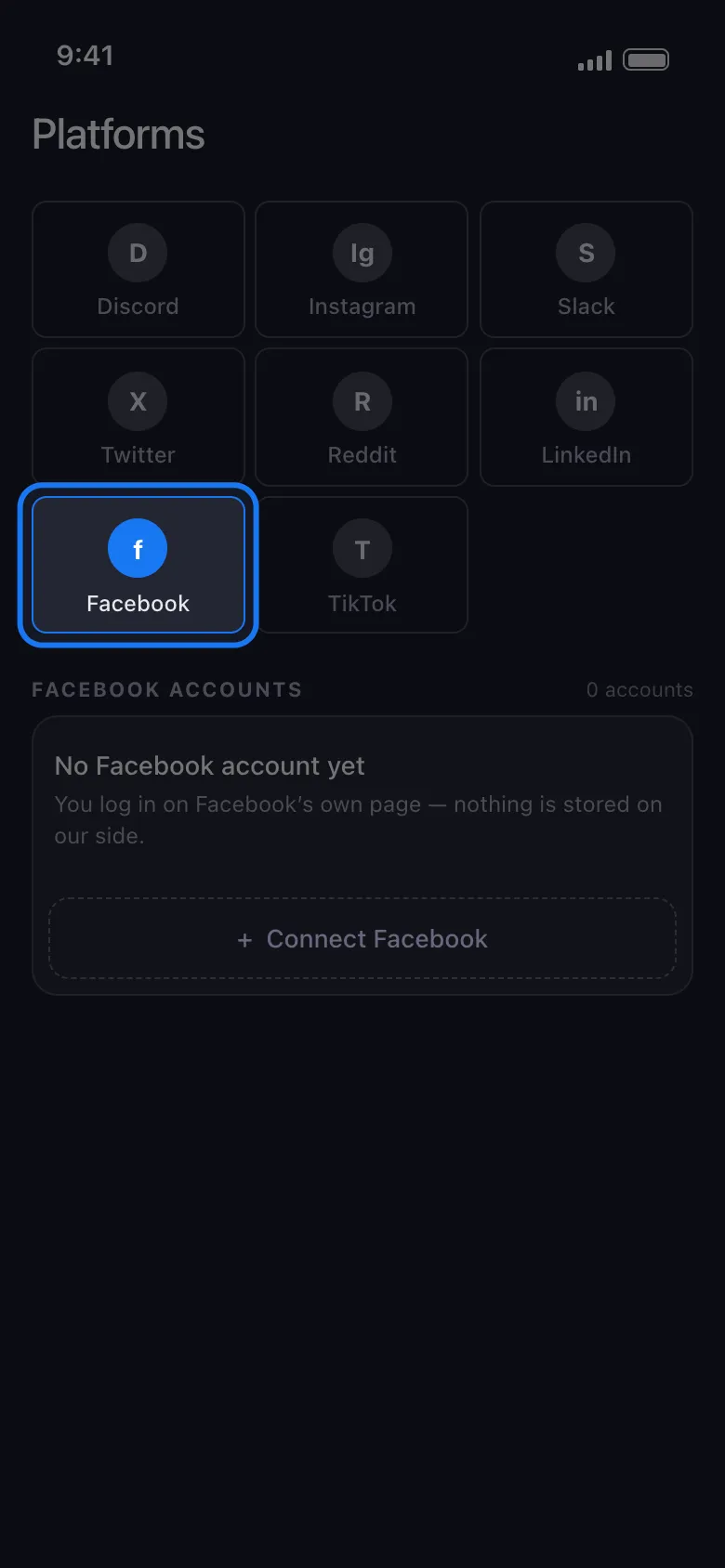
Open Unpost and choose Facebook from the platform list on the home screen.
-
Connect your account through Facebook’s normal login page inside the app.
-
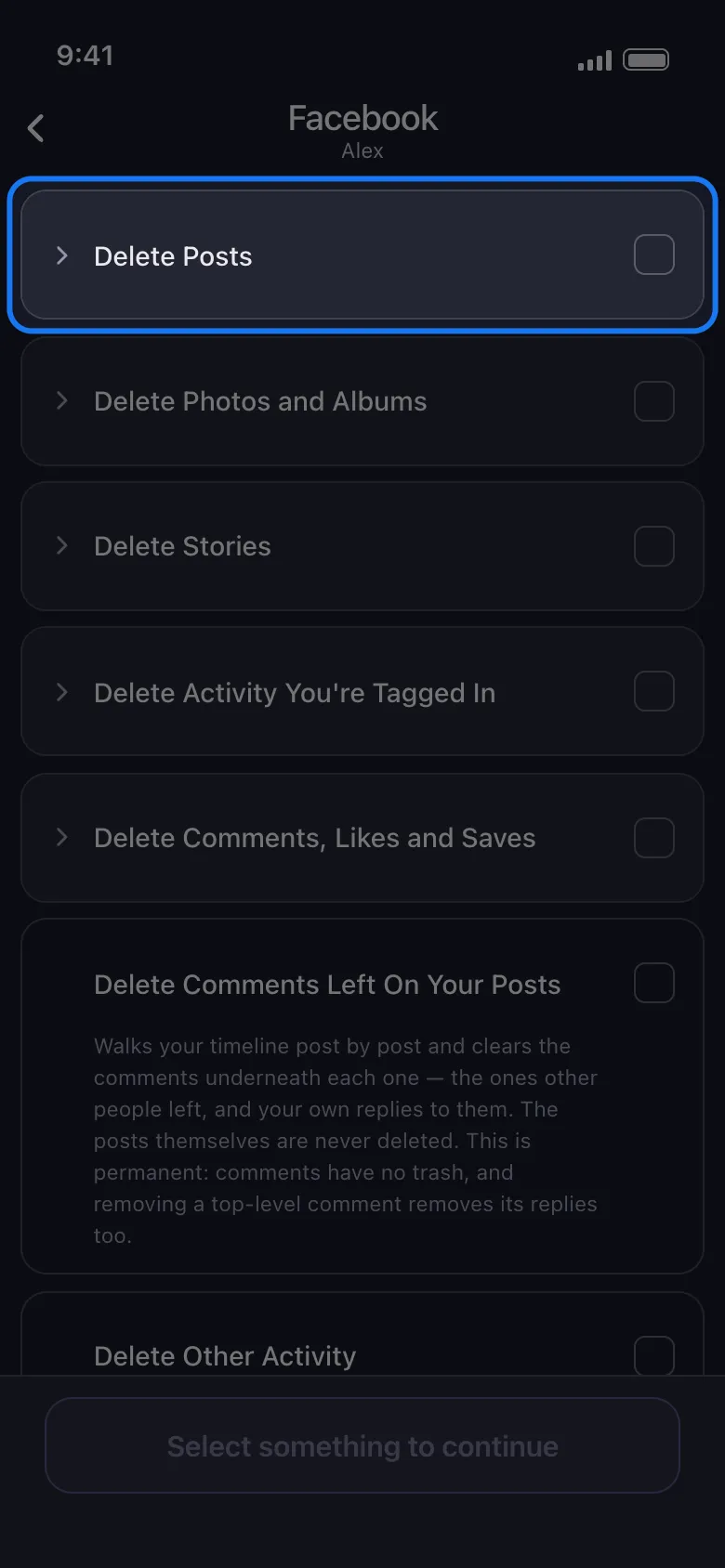
Pick what to delete. The Facebook list arrives grouped and collapsed, so tap a group to open it; every row carries a plain-English description: Delete Posts (text posts, photo posts, reels, videos, reposts, posts friends wrote on your timeline, posts you wrote on theirs, archived posts, and everything Facebook gives no type), Delete Photos and Albums, Delete Stories, Delete Activity You’re Tagged In, and Delete Comments, Likes and Saves. Three rows sit on their own underneath: Delete Comments Left On Your Posts, Delete Other Activity and Empty Your Trash. Check what you want, then tap Continue.
-
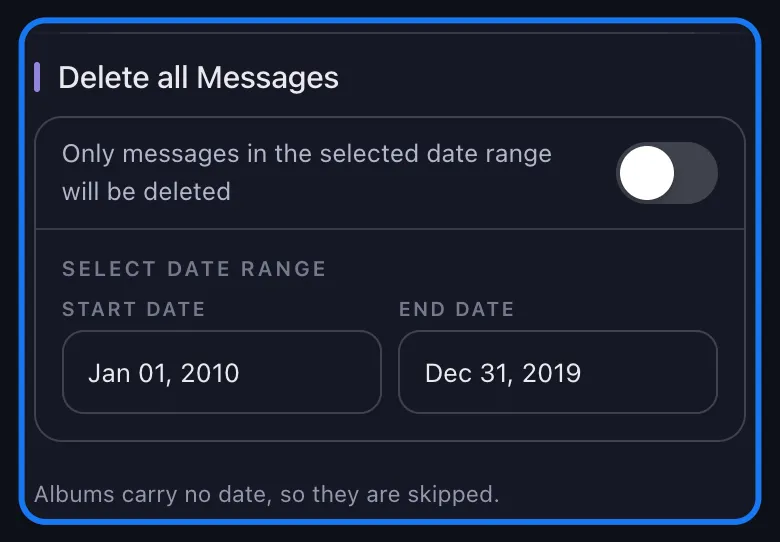
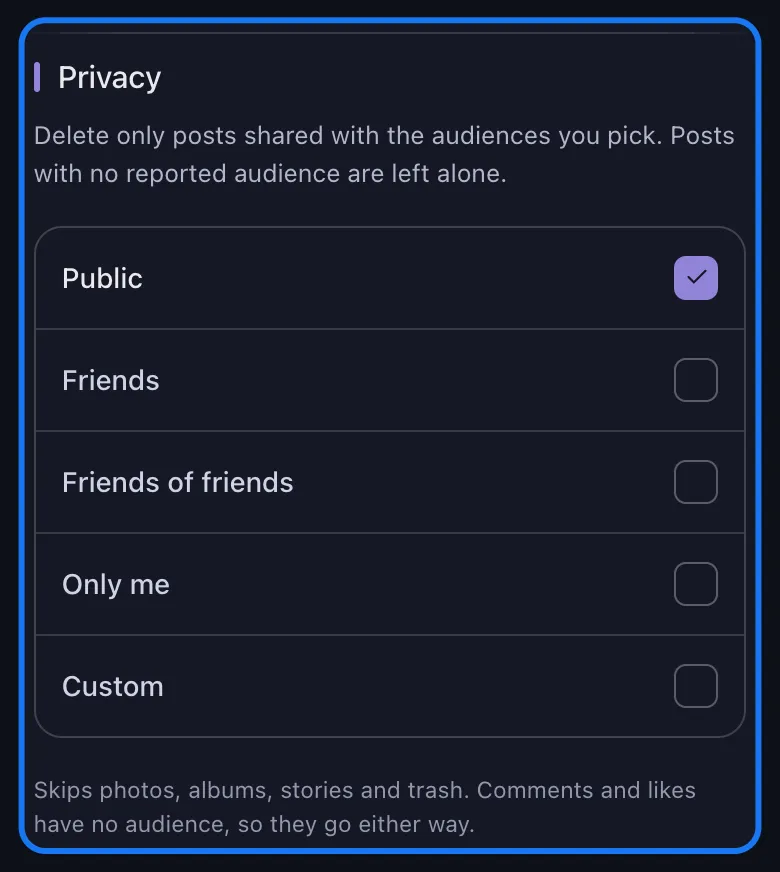
Set your filters. Four sections follow: a date range, Content Filters for likes and comments counts, Privacy for the audience a post was shared with, and Delete by Keywords. Leave every filter untouched to take everything you checked.
-
Tap Delete and leave Unpost open. It keeps the screen awake while it works, but the run needs the app in the foreground. The card shows what is being deleted right now, how many of your selections are done and a running tally, with your free deletions for the day counting down in the footer as Free Remaining.
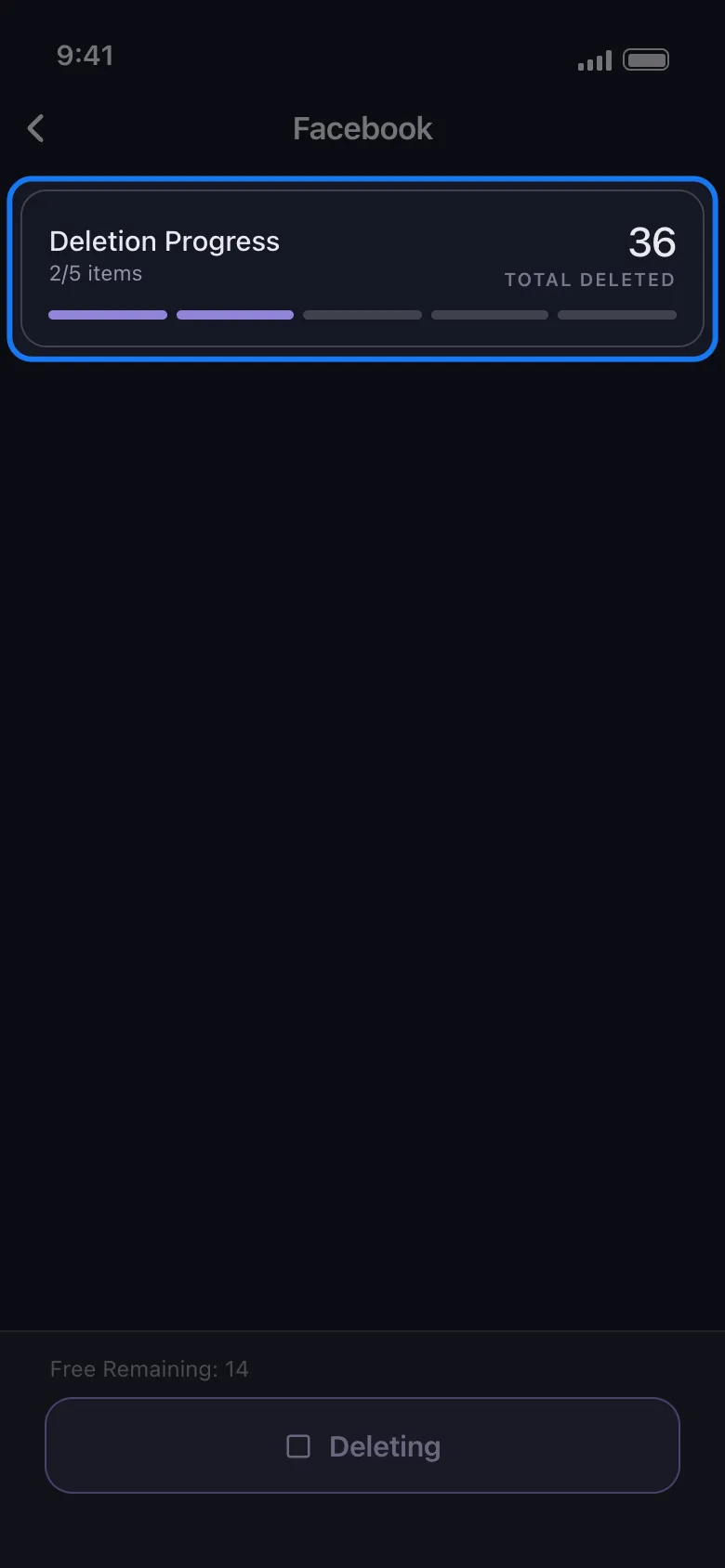
Finish with Empty Your Trash. Most of what Facebook deletes waits out those 30 days in the trash first, so run the post groups, then run Empty Your Trash as a second pass to have a decade gone today rather than next month. That pass is permanent — nothing in it can be restored.
Three limits before you start. The free plan covers 50 deletions a day — enough to clear a quiet year, or to watch the workflow end to end; a full history needs the subscription that lifts the daily cap. Keyword filtering matches post and comment text only, so a keyword run reaches posts and comments: Delete Photo Library and Delete Albums are skipped whole while a keyword is set. Give media a pass of its own — the filter rules are below. And a few categories are permanent the moment they run — your photo library, posts friends wrote on your timeline, posts you wrote on theirs, comments, and stories.
What Unpost does not do on Facebook is worth saying plainly: it does not remove friends, it does not touch Messenger conversations, and it does not manage Groups. It deletes what you posted, commented, liked, saved, voted on, responded to and were tagged in, and the activity records Facebook keeps of you.
Clear A Decade In One Run
Bulk delete Facebook posts, photos, comments and likes.
Install Unpost, connect Facebook through its own login page, pick the content types, set a date range or keep only what was never public — then start the job. Free plan included, 50 deletions a day.
Delete Only What Matters: Date, Audience, Engagement and Keywords
Most people do not want an empty profile. They want one era gone, or one audience, or one name. The four filter sections combine, which is what makes that possible.
“Everything before 2020.” The date filter is the section titled Delete all Messages: turn its switch off and Select Date Range appears, with a Start Date and an End Date. It keeps the recent years that still represent you and retires the rest. One caveat Unpost prints under that section: albums carry no date, so a dated run skips every album — with a date range set, Delete Albums removes nothing. An album list reports no audience or caption either, so no filter narrows it: clear albums in a pass of their own with every filter cleared, which takes every album you created, last month’s included.
“Only what is public.” The Privacy section lists the five audiences Facebook records: Public, Friends, Friends of friends, Only me, Custom. Check Public alone and only the posts you shared publicly are deleted, leaving the family photos you shared with friends where they are. Its small print sits under it: posts with no reported audience are left alone, photos, albums, stories and trash are skipped, and comments and likes carry no audience, so they go either way.
“Only the posts nobody reacted to.” Content Filters bound a run by likes and comments counts — at least, at most, exactly, or a range — and a summary line spells out what you set: Deletes posts that have: Likes 1 or fewer. It applies to timeline posts and decides which posts get their comments cleared. Two things to know before you lean on it: a post Facebook reports no count for is left alone once a limit is set, so a “Likes 0” pass will not catch every silent post; and photos, albums and activity rows never carry counts at all, so a limit does not narrow them and they still go.
“Anything mentioning that job, that ex, that city.” Delete by Keywords takes a list: type a word, add it as a chip, repeat. Only content containing one of those words is deleted, and a keyword run reaches posts and comments only: Delete Photo Library is skipped entirely while a keyword is set, captioned or not, and Delete Albums with it. Leave both out of a keyword pass — clear the photo library by date or by content type (the date range narrows your Photos tab, though photos sitting inside albums come off whatever their date), and albums in a pass with no filters at all. Run one theme at a time rather than one giant list: a narrow pass is easier to check, and you can stop after each one.
Stack two and a run gets precise — everything public, posted before you started the current job, and nothing besides.
Facebook Comments, Likes and Poll Votes
Posts are usually the smallest part of the pile. The Delete Comments, Likes and Saves group covers the marks you left on other people’s content: comments and replies you wrote, likes and reactions, votes on other people’s polls, saved posts and collections, and event responses. Deleting one takes back your mark — the post or event underneath stays up. A separate row, Delete Comments Left On Your Posts, works the other way round: it walks your timeline post by post and clears the comments underneath each one, other people’s and your own replies, without deleting the posts themselves. Both accept the same date range and keyword filters as posts.
For the full method, including the native routes, read our guide to deleting Facebook comments, yours and the ones left on your posts.
Photos, Albums, Stories and Tagged Posts
Three more groups cover the visual half of your history. Delete Photos and Albums works on pictures rather than posts: Delete Photo Library removes the photo itself, which is what reaches images bundled inside an “added new photos” post, while Delete Albums removes whole albums — the ones Facebook builds for you, such as profile pictures, cover photos and mobile uploads, cannot be deleted and are skipped. Delete Stories covers live stories, archived ones, and the reactions you left on other people’s. Delete Activity You’re Tagged In removes your tag from someone else’s post or photo; their content stays up, because it is theirs.
Two deeper guides pick these up: deleting Facebook photos, albums, videos and reels and removing Facebook tags and tagged photos.
Download Your Facebook Data Before You Delete
Deletion is one-way, and most people have no idea what is actually in their history. The export tells you before you find out the hard way.
Go to Settings & privacy → Settings → Accounts Center → Your information and permissions → Download your information, pick the profile, choose a date range and a format — HTML reads like a website, JSON is for tools — then request the file. It arrives within hours or a couple of days.
Treat it as a reading copy and a backup, not as a deletion source. On Discord, X (Twitter) and Reddit, Unpost can import your export and delete straight from it, which reaches content the live app no longer lists — see deleting from a data package on Discord, X and Reddit. Facebook is not one of those platforms, so a Facebook cleanup always runs against the live account.
What Deleting a Facebook Post Does and Does Not Do
Deleting removes the post from Facebook for everyone who could see it — your timeline, your friends’ feeds, Facebook’s own search, anywhere it was shared to. That is the strong part. Here is the rest, honestly:
- Copies survive. Screenshots, downloads, text quoted in notification emails already sent, and anything a friend saved sit outside your account and outside any tool’s reach.
- Search results lag. A public post that Google indexed can keep showing a snippet for days or weeks until the page is recrawled. That fades on its own.
- Deleting is not a retroactive AI opt-out. Meta trains its AI on public posts from Facebook and Instagram; deleting shrinks what is available going forward but does not retract what was already used. Our guide to Meta’s AI training and the objection process covers what the opt-out reaches.
The rest of your Meta footprint is a separate job: deleting Instagram posts, photos, reels and carousels covers Instagram feed content, and the full Instagram cleanup guide covers the rest of that account. For the case for doing any of this rather than just the method, the practical privacy benefits of cleaning up your online history makes it without hand-waving.
Start With the Post That Is Bothering You
If one specific item brought you here, the answer to “how do you delete a post on Facebook?” is at the top of this page and takes ten seconds: three dots, Move to trash, confirm. Do that first, then come back for the rest.
If the real problem is a decade of posts that no longer sounds like you, work in order: download your data as a backup, pick the filter that matches the job — everything before a date, everything that was public, everything mentioning one name — and let the run work through it while you do something else. Finish with Empty Your Trash, so nothing you just removed is quietly waiting in it.
Facebook will never make this a single button. It does not have to cost you a weekend either.
Before Someone Searches Your Name
Let your phone do the tapping.
Connect Facebook in Unpost, choose the content types, filter by date, audience, engagement or keyword, and start the job. Start free with 50 deletions a day; the subscription lifts the cap for a full history.
Frequently Asked Questions

Get Started
Delete Old Content Across Your Accounts
Bulk delete messages, posts, likes, comments, DMs, reactions, bookmarks, followers, and more — all from one app.
No password storage • Free to start • iOS & Android
 Download for iOS
  Download for Android