
How to Delete Photos on Facebook (One, an Album, or All of Them)
Facebook never forgets a photo. Ten years of them sit in albums you did not create — Mobile uploads, Timeline photos, Profile pictures — plus every picture attached to a post you scrolled past in 2015. Go looking for a way to clear them out and you find that Facebook removes photos one at a time: open, three dots, Delete photo, confirm, repeat.
So how can you delete photos from Facebook when there are four hundred of them? The single-photo answer takes ten seconds and is right below. After that, the routes that actually scale: deleting an album whole, the multi-select inside Manage activity, and the app route that walks your entire Photos tab picture by picture.
Along the way: which photos Facebook refuses to delete, what its trash does with the rest, and how to clear the public ones while the family album stays. If the post rather than the picture is what bothers you, deleting a post on Facebook is the companion guide to this one.
How Can You Delete Photos From Facebook?
Open your profile and tap Photos, then the Your photos tab. Tap the picture to open it, tap the three-dot menu in the top corner and choose Delete photo — some versions word it Move to trash, or Move to bin in the UK and Ireland. Confirm, and it disappears from your profile and from the post it was attached to. If your version routed it to the trash, it waits there 30 days and you can still restore it; if it did not, the picture is gone the moment you confirm.
In the Facebook app for iPhone or Android:
- Tap your profile picture, then View Profile (or the menu tab, then your name).
- Scroll to the Photos section and tap See all photos.
- Open the Your photos tab — the other tabs are Photos of you and Albums.
- Tap the photo you want gone.
- Tap the three-dot menu, choose Delete photo, and confirm.
On the desktop site the path is the same: click your name to open your profile, open the Photos tab and then Your photos, click the picture to open the viewer, and use the three-dot icon in its corner to choose Delete photo.
The Bit That Confuses Everyone: A Photo Is Two Things
Every picture you upload exists twice over. It is an item in an album — usually Mobile uploads or Timeline photos, whether or not you chose that — and it is also attached to a post on your timeline. Which route you take decides what actually disappears:
- Delete the photo from the Photos tab and the picture goes, taking its place in any post with it. In a post with several photos, the rest of the post stays.
- Delete the post from your timeline and the whole post goes, comments included. That is the route when the caption is the problem.
- Neither is complete on its own. Photos bundled into an old “added 12 new photos” roundup are the classic gap: the post is one item, the pictures inside are many, and clearing your timeline can leave them sitting in your albums.
Facebook renames these screens often, so a word may differ on your version. The shape — profile, Photos, tab, three-dot menu — does not.
How to Delete Multiple Photos on Facebook
There is no select-all on the Photos tab. The one multi-select Facebook offers is Manage activity, and three limits decide whether it is a real solution for you.
- Open your profile, tap the ··· button below your name, open Activity log, then Manage activity. Some versions open the same tool straight from the profile menu as Manage posts; on the desktop site the log has its own address,
facebook.com/your-username/allactivity, with the filters in a left-hand column. - Narrow Categories to photos and videos.
- Use Dates to pick a year — this is what makes the list manageable. (People, the third filter, narrows by who is tagged.)
- Tick the items the page has loaded.
- Choose Trash and confirm. Archive, the other action offered, deletes nothing — it hides the post from everyone but you.
- It works on posts, not on pictures. Photo posts appear; the photos sitting in your albums and photo library as pictures do not. Neither do your albums themselves.
- A selection covers one page of results. You tick what the list has loaded, apply the action, wait for the reload, and start selecting again. There is no “select all 3,000”.
- Trash is not deletion. Items land in your Facebook trash for 30 days before Facebook removes them. Empty it yourself from Activity log → Trash to end that wait sooner.
For a few dozen photos from one bad summer, Manage activity is fine. Past that, the arithmetic decides it: at ten seconds an item, 500 photos is over an hour of tapping, and a decade-old account runs into thousands.
Delete a Whole Album, or the Photo Library
Albums you created can be deleted whole, and that is the fastest thing Facebook itself offers for a lot of photos at once. Open Photos → Albums, open the album, tap its three-dot menu and choose Delete album, then confirm. Holiday 2013, the wedding album, that folder of memes — one action each.
Albums Facebook created for you cannot be deleted at all. Profile pictures, Cover photos, Mobile uploads, Timeline photos and Videos have no delete option anywhere in the interface: they are containers Facebook manages, and the only way to empty one is to remove the pictures inside, one by one, from the Photos tab — which is where most of your history sits, and why “just delete the albums” is never the whole answer.
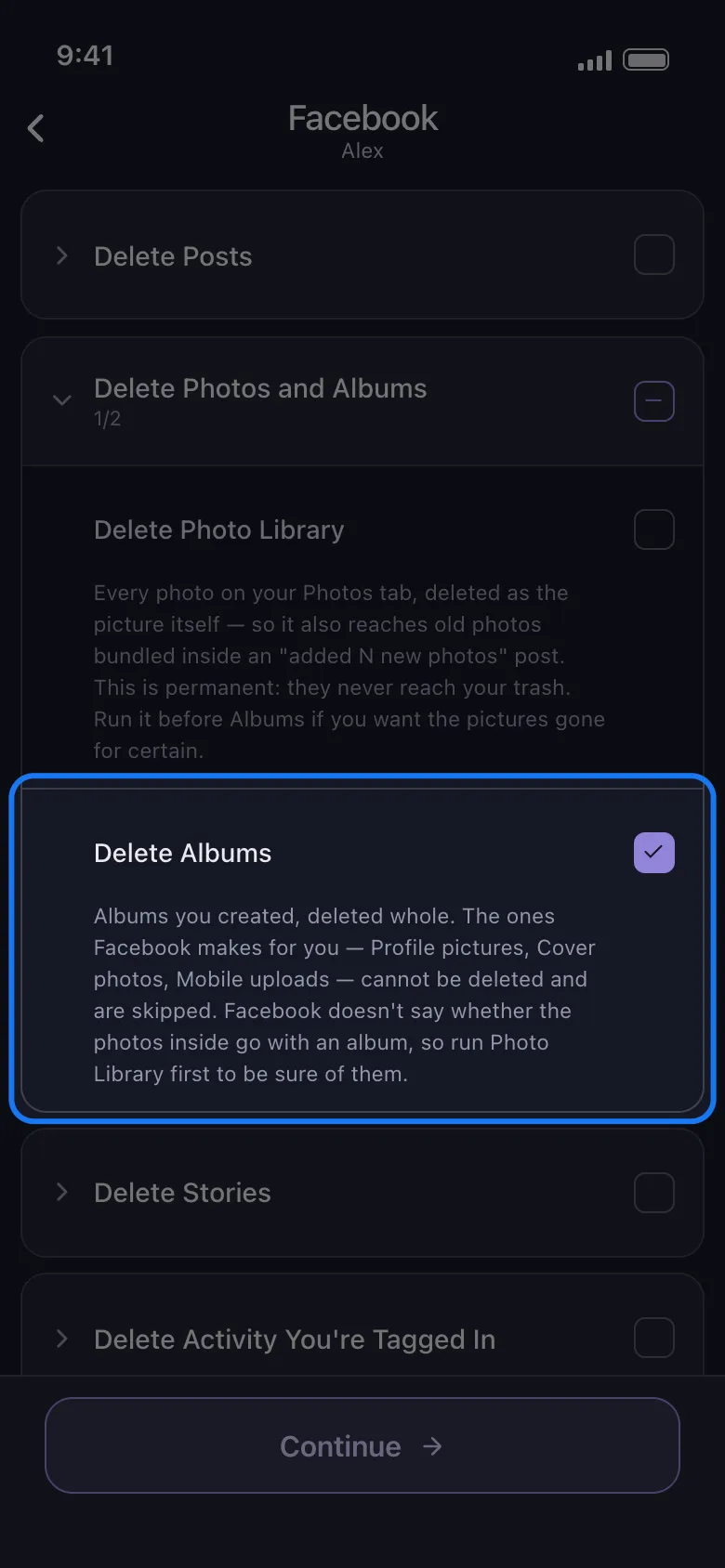
One ordering note before you start: if you want the pictures inside an album gone for certain, remove them as pictures first, then delete the album. Facebook does not say whether the photos inside go with the album, so an album that has disappeared is no proof the pictures went with it.
What About Your Profile Picture?
Your old profile pictures live in the Profile pictures album and behave like any other photo: open one, three-dot menu, Delete photo. Unpost removes them the same way, as library photos. What it never does is set or clear the picture your profile is currently displaying — that stays a Facebook account action. If the one on display is what you want gone, change it on Facebook first, then delete the old picture with the rest.
How to Delete All Your Facebook Photos With Unpost
Unpost is a mobile app for iPhone and Android that does the repetitive part for you. It covers the media side of Facebook properly: Delete Photo Posts (posts whose attachment is a photo, album posts included), Delete Photo Library (every photo on your Photos tab, deleted as the picture itself — which is how it reaches those bundled “added 12 new photos” roundups), Delete Albums, plus Delete Videos and Delete Reels.
The whole job is five steps:
-
Install Unpost and open Facebook from the platform list on the home screen.

-
Connect your account through Facebook’s own login page, loaded inside the app. Your password goes to Facebook and nowhere else, and the session is stored encrypted on your device.
-
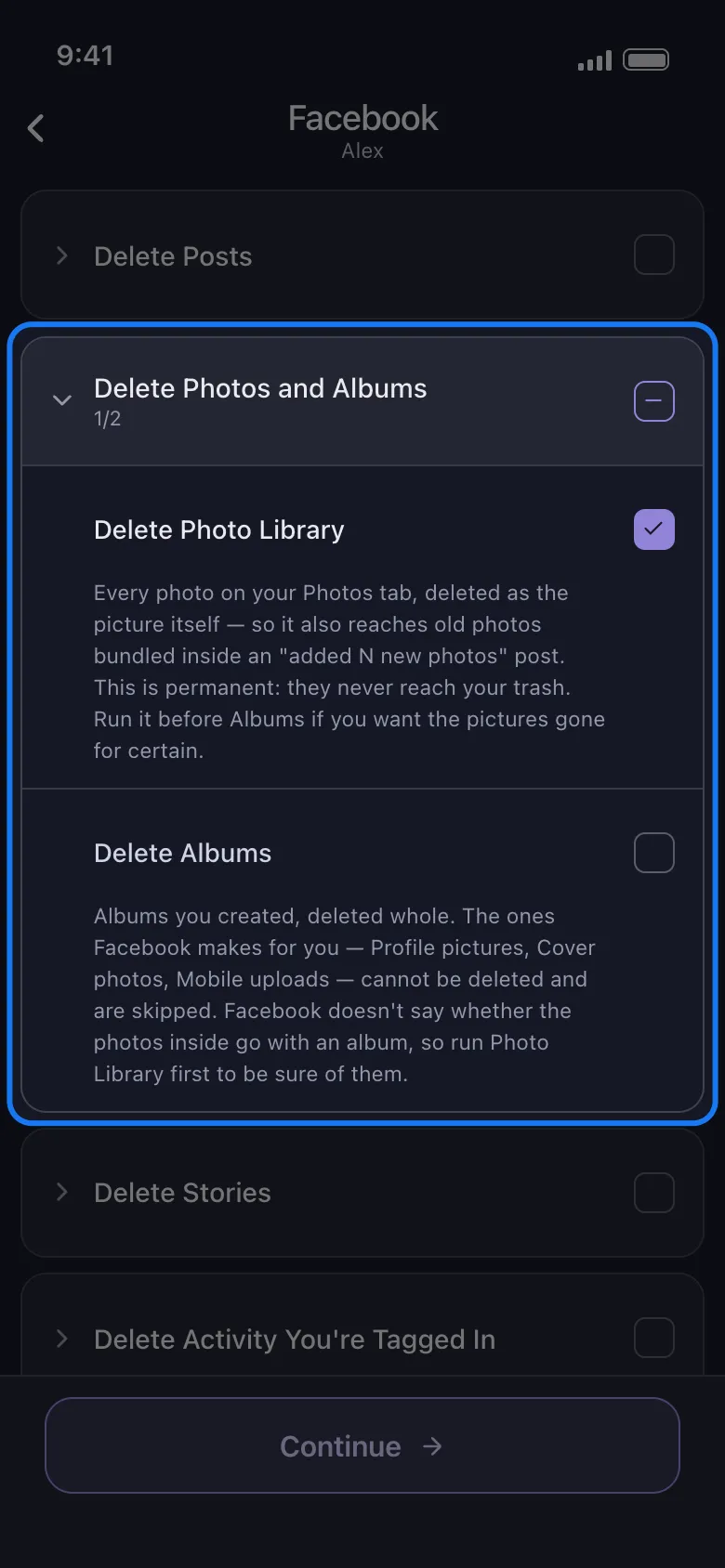
Pick what to delete. Facebook’s picker is grouped, with a description under every row. For photos, open the Delete Photos and Albums group — Delete Photo Library and Delete Albums — and, in the Delete Posts group, Delete Photo Posts. Tick what applies and tap Continue.
-
Set your filters, or skip them. The options screen carries a date range, Content Filters, Privacy and a keywords list; the next section covers what each one does to photos. Leave them untouched to take everything in the categories you ticked.
-
Tap Delete and leave the app open. The run card shows what is being deleted, how many categories are finished and a running tally.
Run Photo Library before Albums, and know how far it reaches. The app asks for that order on the row itself, because Facebook does not say whether the photos inside go with the album. Delete Photo Library does not stop at your Photos tab: once the tab is done it opens your albums and deletes the pictures it finds inside, and it takes those whatever date range you set — a photo from last month sitting in a 2013 album goes with them. Photo Library deletion is permanent either way: those pictures never reach your trash.
The free plan covers 50 deletions a day, enough to clear a quiet year of photos or to see the workflow end to end before committing. A decade of albums is thousands of items, and that needs the subscription that lifts the daily cap.
Clear Ten Years of Photos
Delete Facebook photos, albums and your whole photo library.
Install Unpost, connect Facebook through its own login page, and open the Photos and Albums group. Narrow photo posts by date or to the public ones only, take the photo library and your albums unfiltered, and start. Free plan included, 50 deletions a day.
Delete Only Some Photos: By Date, by Audience, by Album
Most cleanups are not “everything must go”. They are “everything from before I had this job”, or “the public ones”, or “that one album” — and each filter behaves differently by category.
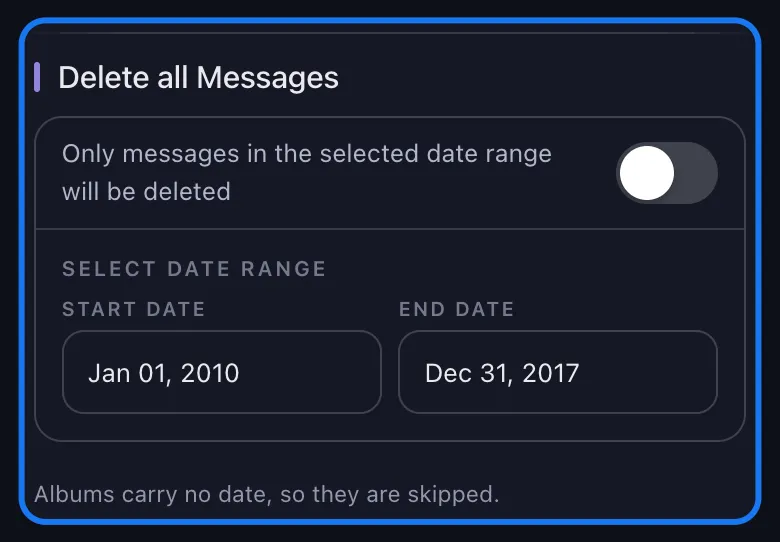
Everything before 2018. This is a Delete Photo Posts job. Set a Start Date and an End Date on the options screen — both of them, because a half-set range means the app takes everything — and every photo post outside those dates is left where it is.
Do not lean on that range for Delete Photo Library. It does narrow the Photos tab — the app asks Facebook for the photos inside your dates and gets only those back — but the library run has a second source: once the tab is done, the app opens your albums and deletes the pictures it finds inside, and those go whatever their date. A photo from last month that sits in a 2013 album is inside that sweep. So run a dated cleanup on your photo posts, and run the photo library only when you have accepted losing every picture in it, unfiltered. Albums themselves carry no date, so a dated run skips them — the app says as much under the date range. Delete those in a separate, unfiltered pass.
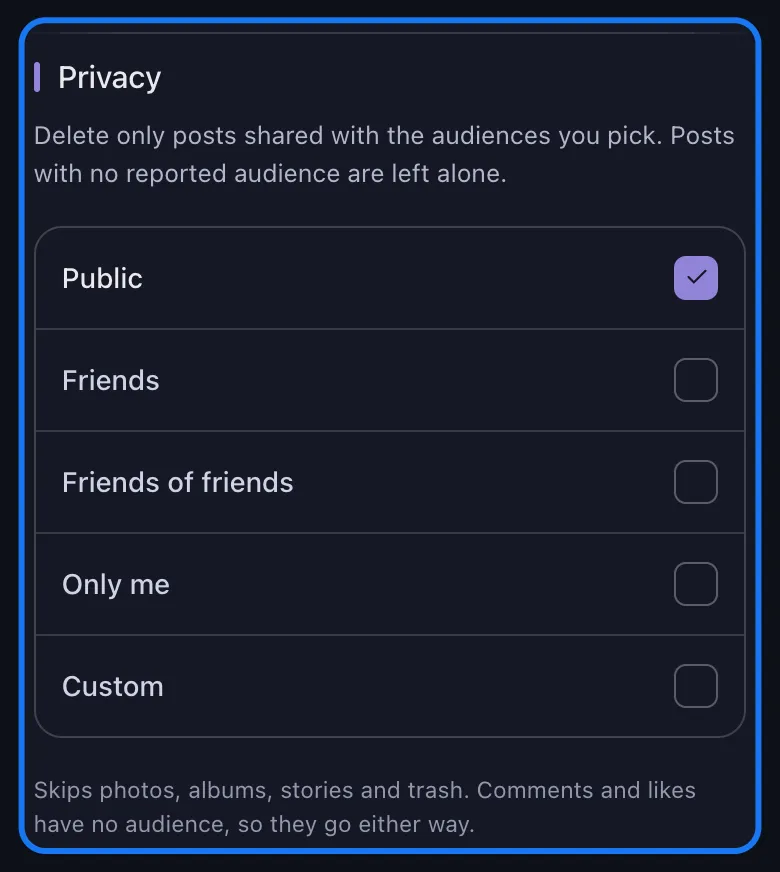
Public photos only, family album kept. This is the Facebook-specific filter, and the strongest reason to use a tool at all. In the Privacy section you tick the audiences to clear — Public, Friends, Friends of friends, Only me, Custom — and only posts shared with those audiences go. A post whose audience Facebook does not report is left alone: an unknown audience is never treated as a match. The limits are stated on screen, in a note that reads “Skips photos, albums, stories and trash. Comments and likes have no audience, so they go either way.” The “photos” in it means your photo library: a picture there carries no audience of its own, so an audience selection makes the app skip that row, and albums with it. Delete Photo Posts is the row an audience actually narrows — run the public-only pass there, and decide separately about the library.
All Your Created Albums, in One Pass. Tick Delete Albums on its own and leave every filter alone. There is no per-album picker: the row takes every album you created that Facebook offers a delete for, so it is all of them or none. If some albums have to survive, skip this row and delete the others on Facebook itself — Photos → Albums, open the album, three-dot menu, Delete album — one at a time. And the filters really do have to stay off: any filter — a date, a keyword, an audience — makes the app skip albums entirely, because the albums page reports no caption, audience or date to match against. An unfiltered album run is the whole feature.
And the filter that will not do what you want: keywords. It matches post and comment text only, and anything without text is skipped. A photo with no caption can never match, and your photo library carries no captions at all, so a keyword makes the app skip that category outright. Keywords are for posts where you wrote something; for pictures, the levers are the category you tick and, on photo posts, the date range or the audience. The comments under those photos are their own job — deleting comments on Facebook covers both yours and the ones left on your posts.
And the filter that is easy to misread: Content Filters. It bounds a run by like and comment counts, and it narrows photo posts: set a ceiling of five likes and the photo posts nobody reacted to go while the ones that mattered stay. It makes the same carve-out the audience filter does — a photo post Facebook reports no like or comment count for cannot be shown to fall inside your limits, so it is left alone. What it does not narrow is your photo library or your albums. They report no counts, and the hint under the section says what happens then — “Photos, albums and activity rows report no counts, so a limit does not narrow them — they are still deleted.” Ticking Delete Photo Library with a “0 likes” ceiling does not clear out the unloved pictures; it clears the library. Run the library unfiltered, and keep the count limits for the photo posts.
Videos, Reels, and the Photos Other People Tagged You In
- Videos and reels. Delete Videos covers posts whose attachment is a video; reels are not included there, because Facebook labels them separately and so does the app — Delete Reels is the row for those.
- Photos other people posted of you. Not yours to delete. Under Delete Activity You’re Tagged In, the Photos and videos row removes your tag; their photo stays up on their profile. The picture belongs to whoever uploaded it, and untagging is the control you hold. Our guide to removing tags on Facebook covers the rest, including the review setting that stops the next one landing on your timeline.
Doing the same job on Instagram? The mechanics rhyme but the categories differ — see deleting Instagram posts, photos, reels and carousels.
Download Your Photos Before You Delete Them
Deleted photos do not come back, and most people have no real idea what is still sitting in the pictures they posted in 2014. Requesting a copy first costs one form and solves both problems.
- Open Settings & privacy → Settings, then Accounts Center.
- Choose Your information and permissions → Download your information, then Download or transfer information, your profile, and the option to pick specific types of information rather than all of it.
- Tick Posts and Photos and videos, continue, and choose Download to device as the destination.
- Set the date range to all time, pick your format, choose High media quality, and create the file.
Facebook sends a link when the archive is ready — anything from a few minutes to a couple of days. Download it, check the photos are actually in it, and only then start deleting. High media quality matters here: the low option leaves you with compressed copies as your only surviving version.
One thing that export is not: a deletion tool. Unpost can import a platform export and delete straight from it on Discord, X (Twitter) and Reddit — here is how the data package route works — but Facebook is not one of those, so a Facebook cleanup always runs against your live account.
What Deleting a Facebook Photo Does and Does Not Do
Deletion removes the photo from Facebook, where it is most attached to your name. A complete plan accounts for the rest:
- Photo posts go to the trash first. They sit there for 30 days before Facebook removes them for good. Empty it yourself from Activity log → Trash, or use Unpost’s Empty Your Trash row, which clears what is already in there — permanently, with no restore.
- Unpost’s Photo Library route skips the trash. It removes the picture itself, and the app says so on the row. That is the stronger delete, and the one with no second chances.
- Likes and comments go with the post. A photo post takes its reactions, comments and shares along. If a thread under a photo is worth keeping, screenshot it first.
- Copies you do not control stay. Screenshots, downloads, re-shares, a friend’s saved copy — deletion does not reach those.
- Cleanup is content, not account admin. Unpost’s Facebook support covers posts, photos, albums, videos, reels, comments, likes and tags. It does not remove friends, leave groups or touch Messenger — those stay on Facebook, done by you.
Start With the Photos You Would Not Post Today
If one embarrassing picture is what brought you here, the answer is five taps and you are already done: profile, Photos, the picture, the three-dot menu, Delete photo. Nothing else in this guide applies to you.
If the real problem is ten years of albums, here is how to order the work. Request your download and wait for it. Run the photo library first and unfiltered, knowing it reaches the pictures inside your albums too — that is the pass you cannot take back, so be sure of it before you start. Then run the album pass, which takes every album you created in one go; if some of them have to survive, skip that pass and delete the others yourself from Facebook’s Albums tab. Take one dated or public-only pass at the photo posts, and finish by emptying your trash so nothing waits out its 30 days.
Facebook will not make any of that bulk. It does not have to cost you a weekend either.
One Job, Not Four Hundred Taps
Let your phone delete the photos for you.
Connect Facebook in Unpost, tick photo posts, your photo library and whole albums, narrow the photo posts by date or audience, and start the run. Library deletions are permanent, so download your Facebook data first.
Frequently Asked Questions

Get Started
Delete Old Content Across Your Accounts
Bulk delete messages, posts, likes, comments, DMs, reactions, bookmarks, followers, and more — all from one app.
No password storage • Free to start • iOS & Android
 Download for iOS
  Download for Android