
How to Remove Tags on Facebook and Delete Tagged Photos
Nobody curates the half of a Facebook profile that other people built. Ten years of it: a party in 2014, an ex’s album, the school group, a business page that tagged half its customer list in a promotion. You posted none of it, and all of it is attached to your name.
So how do you remove a tag from Facebook, and what happens when you do? Removing a tag and deleting a photo are two actions with two different owners: your tag is yours to take off anything, any time, while the photo belongs to whoever uploaded it. This guide covers both: the removal on one post, the routes for deleting tagged photos you do own, what to do when there are six hundred of them, and the review switch that stops the next one landing on your profile.
How Do You Remove a Tag From Facebook?
Open the post or photo you are tagged in, tap the three-dot menu in its top corner and choose Remove tag. Confirm, and your name comes off: the post stops appearing on your profile. It stays up on the poster’s profile, because the post belongs to them.
In the Facebook app for iPhone or Android:
- Open the post or photo from the notification, from the poster’s timeline, or from your profile’s photo section if your build lists tagged pictures there. If it does not, use the activity log route below.
- Tap the three-dot menu at the top of the post.
- Choose Remove tag.
- Confirm when Facebook asks.
- Go back and repeat for the next one.
On the desktop site the flow is identical: open the post at facebook.com, click the three-dot icon, click Remove tag, confirm. Facebook renames these menus regularly, so a word may differ; the shape does not.
If you would rather work from a list than hunt through notifications, use the activity log:
- Open your profile, tap the three-dot menu below your name and choose Activity log. It also sits under Settings & privacy.
- Open the category list. Facebook keeps posts and comments you are tagged in separate from photos and videos you are tagged in, so check both — a photo tag is not normally filed under the posts category.
- Narrow by date if the list is long.
- Open an item’s options and choose Remove tag.
- Work down the list.
Everything else in this guide exists because step 5 is the problem.
Removing a Tag vs Deleting a Tagged Photo
Two people searching the same words want opposite things.
Removing a tag takes your name off a post and unlinks it from your profile. The post keeps existing where its owner put it and their audience keeps seeing it. Untagging changes your profile, not their post.
Deleting removes the content itself, and you can only delete what you own. A photo somebody else uploaded is not yours to delete, even if you are the only person in it.
| What it is | Who owns it | What you can actually do |
|---|---|---|
| A photo somebody else uploaded of you | Them | Remove your tag; ask them to take it down; report it if it breaks the rules |
| A comment on their post that tags you | Them | Remove your tag |
| A photo you uploaded and were tagged in | You | Delete the photo |
| A post on your own timeline that tags you | You | Delete the post |
| A post a friend wrote on your timeline | Them, but it sits on your profile | Remove it from your timeline |
Your name is the only part of someone else’s post that belongs to you. Two things removing a tag will never do: delete the photo, and stop the same person tagging you again tomorrow. The second has a fix, further down.
Meta says it trains its AI models on public content, so the poster’s photo is in scope whether or not your name is on it — our guide to Meta AI training and your data covers what that includes.
How to Delete Tagged Photos on Facebook
Most people searching this want the picture gone, not just their name off it. Deletion is available in three cases; untagging covers the rest.
The photo is yours. Open your profile, tap Photos, open the Your photos tab, tap the picture, use its three-dot menu and choose Delete photo. Our guide to deleting photos on Facebook has the full set of routes: one photo, a whole album, or an entire photo library.
The tagged item is your own post. Delete the post and the tag goes with it. Deleted posts wait in your Facebook trash for 30 days, so empty that too if you want them gone now. Deleting a post on Facebook covers the routes and the trash.
A friend wrote the post on your timeline. You did not write it, but it lives on your profile, so you can remove it from there. Unpost calls this category Delete Posts from Friends — posts other people wrote on your timeline, deleted for good, never reaching your trash.
Anything else. Untag. If the photo is genuinely a problem, the same three-dot menu carries Facebook’s reporting options, and a message to whoever posted it is worth trying first.
Removing Tags in Bulk: What Facebook Gives You
There is no “remove all tags” control anywhere on Facebook, and the activity log is the only place it gathers your tags at all. On the desktop version you can check several of the tagged items on screen and remove their tags in one action; that covers what is loaded, and in current builds the list reloads after each batch, so you select again from the top. The phone app’s select mode is limited or absent depending on your build; where it is missing it is one at a time: open, remove the tag, confirm, go back, wait for the reload. Facebook’s only other control here, profile review, is forward-only: the review section of this guide covers it.
How to Remove Tags on Facebook in Bulk With Unpost
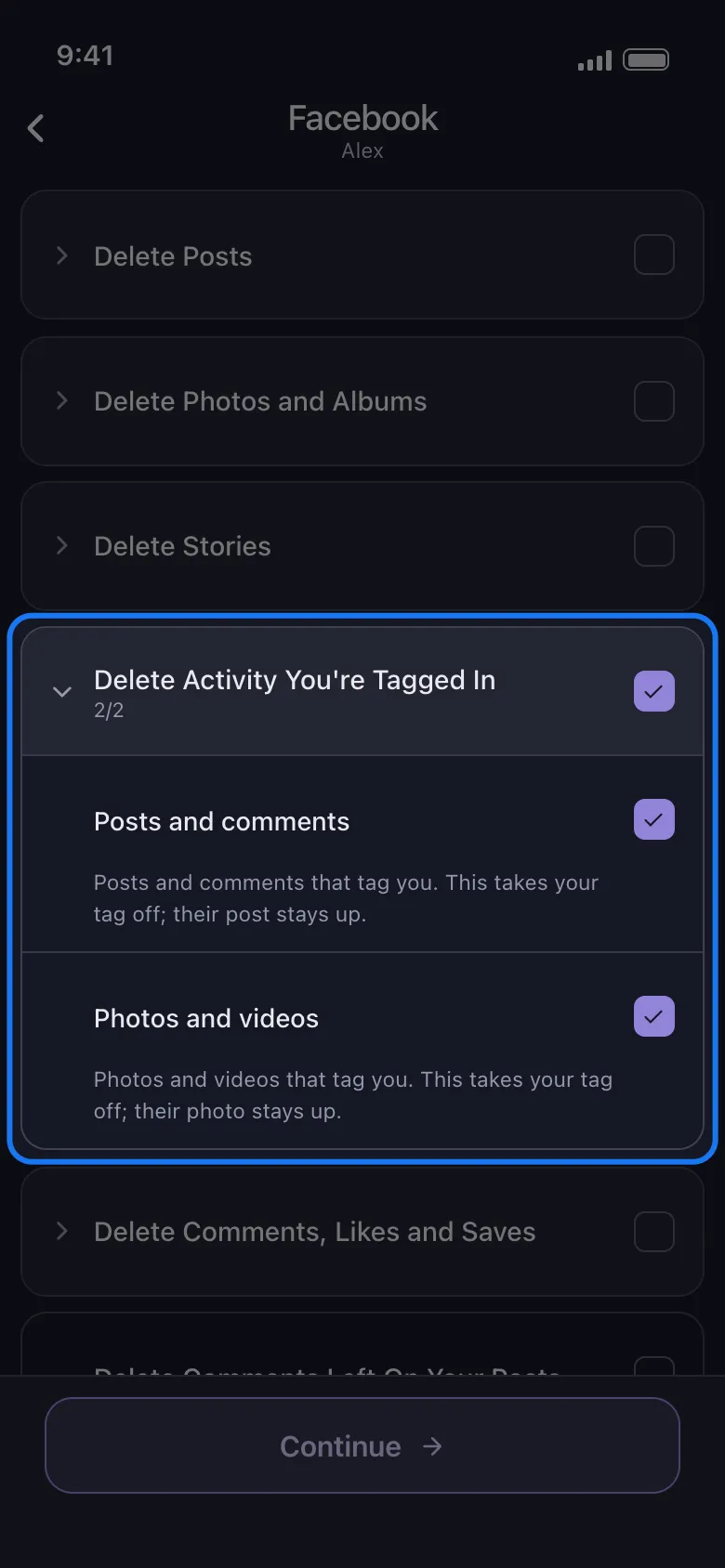
Unpost is a mobile app for iPhone and Android that does the repetitive part for you. On Facebook it has a group called Delete Activity You’re Tagged In with exactly two rows, and Unpost spells out what each one does on the row itself. Posts and comments reads “Posts and comments that tag you. This takes your tag off; their post stays up.” Photos and videos reads “Photos and videos that tag you. This takes your tag off; their photo stays up.” That is the promise in full: Unpost sends Facebook the same tag removal you would send by hand, item after item, and these two rows never delete content that belongs to somebody else.
You sign in through Facebook’s own login page and the session stays on your device. Unpost also cleans up X (Twitter), Reddit, Discord, Slack, LinkedIn, TikTok and Instagram, where deleting posts, photos, reels and carousels is the same job on the other Meta account.
Five steps, start to finish:
-
Install Unpost and pick Facebook from the platform list on the home screen.

-
Connect your account through Facebook’s normal login page inside the app.
-
Choose what to clear. The Facebook list is grouped and starts collapsed, so tap Delete Activity You’re Tagged In to open it, tick Posts and comments, Photos and videos, or both, and tap Continue. Tick both and the rows are walked one after the other in the same run.
-
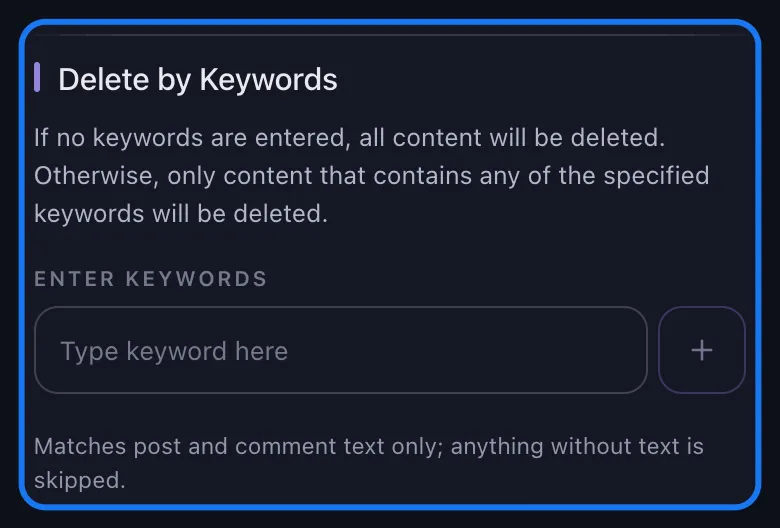
Set a date range if you want one, or leave every filter untouched to take the lot — but leave the keywords box empty, because a keyword skips every tagged row. Then tap Delete.
-
Leave the app in the foreground while it runs. The card shows each category’s progress, a running tally and how many free deletions you have left, and ends with “All items completed”.
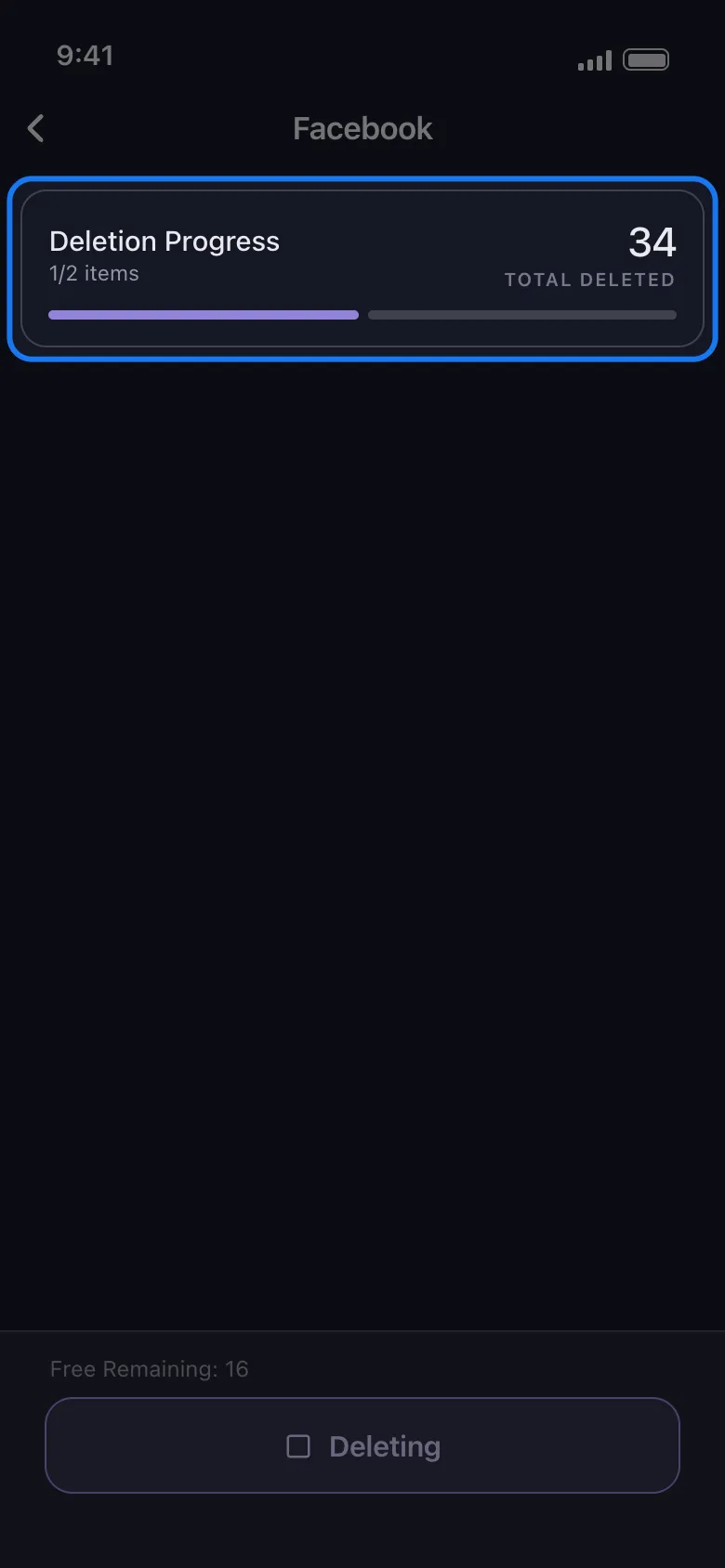
Before any run Unpost shows the same four warnings on every platform: keep it in the foreground, do not use your account while it works, expect it to be deliberately slow (on these categories it waits close to a second between items to protect the account), and treat every deletion as permanent, because there is no undo and no backup.
Three behaviors are worth knowing. Facebook lists view-only rows that offer no removal at all, and asking to remove one errors the whole request, so Unpost drops those rows as it reads the list. When Facebook refuses a row that did offer a removal, Unpost marks it Skipped, notes “Can’t be removed” on it and remembers it, so a later run does not offer it again. And because Facebook’s listing lags its own deletions, Unpost re-walks a category after any pass that removed something, until a pass comes back empty.
The free plan covers 50 deletions a day — Unpost’s own allowance, not a limit from Facebook — and it resets the next day: enough for a quiet year of tags, or to see the workflow before committing. A decade of other people’s posts runs to thousands of items, which is what the subscription lifts the cap for.
Ten Years of Other People's Photos
Take your name off all of it in one run.
Install Unpost, connect Facebook through its own login page, open Delete Activity You're Tagged In, tick Posts and comments or Photos and videos, set a date range, and start. Free plan included, 50 deletions a day.
Only the Old Ones: Which Filters Narrow a Tag Run
The options screen offers four filters, and on tagged content only one of them does anything.
The date range works, and it is the filter for this job. Set a start and an end date to clear everything from before a job, a relationship or a decade you have moved on from. One rule comes with it: a row Facebook reports no date for cannot be shown to fall inside your range, so Unpost leaves it alone.
Leave the keywords box empty. The note under it says exactly what it does: “Matches post and comment text only; anything without text is skipped.” The only text it reads is the caption or comment on the row it is walking, and a tagged row is somebody else’s post, so it carries none. Set a keyword and a tag run skips every item and finishes with “Nothing matched your filters.”
Privacy does not narrow tags. A tagged row has no audience of its own: the audience belongs to whoever’s post it sits under, so ticking Public will not restrict a tag run to public posts and the tagged rows go either way. That section is for the posts you own, where our Facebook photo guide shows the public-only recipe.
Content Filters do not narrow tags either. The likes-and-comments limits apply to your timeline posts; the hint on that screen says activity rows report no counts, so a limit does not narrow them — and their tags are still removed.
For tags: pick the row, pick the years, run it.
How to Remove a Tag From Someone Else’s Comment
Being tagged inside a comment feels different, but the mechanics are the same: the comment belongs to whoever wrote it, your name inside it belongs to you. Step by step:
- Open the item from the posts and comments you are tagged in category of your activity log, so you see the context before you act. Facebook files tagged posts and tagged comments together, though the category names shift between builds.
- Open the comment’s options — press and hold the comment on the phone, or its three-dot icon on desktop — and choose Remove tag. Your name comes off the comment; the comment itself stays up, because its author owns it.
- If the log does not list the comment, open it from the notification that announced it, or from the post it sits under, and use the same options there.
- If the comment is abusive rather than annoying, use the reporting option in the same place instead.
If the comment sits under your own post, you have the stronger move: delete the comment. In Unpost, this whole category is the Posts and comments row, which walks the same list without you opening a single item. Clearing comments themselves is a separate job, and deleting comments on Facebook covers both sides of it.
How to Stop People Tagging Me on Facebook: The Review Switches
Clearing the backlog and then getting tagged in the same album next weekend is a bad trade. Facebook’s two review switches live together under Settings & privacy → Settings → Profile and tagging → Reviewing, and they do different jobs:
- Profile review — Review posts you’re tagged in before the post appears on your profile. Nothing anybody tags you in reaches your profile until you approve it. Older accounts may still see it named timeline review.
- Tag review — Review tags people add to your posts before the tags appear on Facebook. This one guards your own posts, not other people’s.
The same section sets who can see posts you are tagged in on your profile: Only me leaves existing tags in place but hides them from everybody else there.
Three honest limits:
- Review is forward-only. It does nothing about the tags already on your profile, which is what the rest of this guide is for.
- Approval is about your profile, not their post. Dismissing a tag keeps a post off your timeline; the post stays up wherever its owner published it.
- Unpost does not change these settings. It removes tags. The review switches are a one-time job you do by hand, and they take about a minute.
The Short Answer, and the Long One
So, how do you remove a tag from Facebook? Open the post, tap the three-dot menu, choose Remove tag and confirm. Your name comes off, the post leaves your profile, and it stays up with its owner. If one photo brought you here, you are already finished.
If ten years brought you here, work in this order. Turn on profile review first, so the backlog stops growing while you clear it. Delete the tagged photos and posts you actually own, because those are deletions rather than removals. Then take the tags themselves in one pass: both categories, a date range if you only want the old ones, and nothing in the keywords box. If the rest of the profile deserves the same treatment, the practical privacy benefits of cleaning up your online history make the case. What you cannot do, at any price, is delete somebody else’s photo; what you can do is make sure it is no longer filed under your name.
One Pass, Not Six Hundred Taps
Clear every old Facebook tag from your phone.
Connect Facebook in Unpost, open Delete Activity You're Tagged In, tick the posts and the photos, add a date range for the years you want gone, and let it run. Removals are permanent, so check the list first.
Frequently Asked Questions

Get Started
Delete Old Content Across Your Accounts
Bulk delete messages, posts, likes, comments, DMs, reactions, bookmarks, followers, and more — all from one app.
No password storage • Free to start • iOS & Android
 Download for iOS
  Download for Android