
How to Delete Instagram Posts, Photos, Reels, and Carousels
Reviewed by Unpost Team
To delete one Instagram post, photo, reel, or carousel manually, open the item, tap the three-dot menu, and choose Delete. If you need to remove several posted items, Instagram typically also lets you go through Your Activity, open your posted content, use Sort & Filter, select multiple posts, reels, or videos, and delete them in one batch. That native method is fine for small cleanup jobs. If you want to clean up a much larger backlog or narrow the job by date, likes, or comments, Unpost is usually the faster option.
If your goal is broader account decluttering, the full Instagram cleanup guide covers DMs, posts, reels, comments, likes, followers, and more.
| Cleanup job | Native Instagram method | What it does well | When Unpost is better |
|---|---|---|---|
| Delete one post, photo, reel, or carousel | Open the item and use the three-dot menu | Fast for one-off cleanup | You have many items to remove |
| Delete several posted items | Use Your Activity and multi-select | Good for a moderate batch | You want filtering beyond Instagram’s basic sort flow |
| Delete older low-value content selectively | Manual review inside Instagram | Works if the list is short | You want date range, likes range, or comments range filters |
| Repeat cleanup over time | Reopen Instagram and do another pass | Possible, but repetitive | You want a dedicated bulk workflow on mobile |
What This Does and What It Does Not Do
What this does
- Explains how to delete one Instagram post, photo, reel, or carousel manually.
- Explains Instagram’s current multi-select flow for deleting multiple posted items from Your Activity.
- Shows when Unpost is a better fit for larger cleanup jobs across posts, reels, and carousels.
What this does not do
- Claim that Instagram always shows the exact same labels on every device or app version.
- Claim that Unpost deletes Instagram Stories or deactivates or deletes your account.
- Suggest that bulk cleanup should be rushed without checking what you selected first.
Native Instagram Method
If you searched how to delete Instagram post, how do I delete an Instagram photo, or how do you delete a picture on Instagram, the manual answer is usually straightforward.
How to delete one Instagram post or photo
The current flow is usually:
- Open Instagram and go to your profile.
- Tap the post or photo you want to remove.
- Tap the three-dot menu on the item.
- Tap Delete and confirm.
That is also the usual answer to how do you delete a pic on Instagram when the item is a standard feed post.
How to delete one reel on Instagram
Instagram usually handles reels in the same basic way:
- Open your profile or Reels tab.
- Open the reel you want to remove.
- Tap the three-dot menu.
- Choose Delete and confirm.
If your search was how to delete reels on Instagram, this is the native one-by-one method most people need first.
How to delete one carousel on Instagram
A carousel is still one published post, even though it contains multiple photos or videos. The usual flow is:
- Open the carousel from your profile grid.
- Tap the three-dot menu.
- Choose Delete.
- Confirm the deletion for the full carousel post.
If your question is how to delete photos on Instagram or how to delete pictures on Instagram, the key detail is that deleting a carousel removes the full post, not just one slide from the published carousel.
How Instagram Deletes Multiple Posts, Reels, or Videos Natively
Instagram currently also gives many users a more efficient cleanup path through Your Activity. The exact labels can vary a little by device or app version, but the current flow is usually:
- Open your profile.
- Open the menu and go to Your Activity.
- Open the section for your posted content, which typically includes posts, reels, or videos.
- Use Sort & Filter if you want to narrow the list before selecting anything.
- Select the items you want to remove.
- Tap Delete and confirm.
This matters because not every cleanup job needs a third-party tool. If you only have a small batch of old posts, reels, or videos to remove, Instagram’s own multi-select flow may be enough.
What Instagram typically does well here:
- Lets you select multiple posted items instead of deleting everything one by one.
- Gives you a built-in Sort & Filter step before you choose items.
- Keeps the whole job inside Instagram if the batch is small or moderate.
Where the native method usually starts to drag:
- You still have to review and select items manually.
- It is harder to target engagement-based cleanup, such as very low-like posts.
- Repeated cleanup sessions can become tedious if your backlog is large.
Why People Bulk-Delete Older Instagram Content
Most people do not look up how to delete Instagram posts because of one random post. The real trigger is usually a larger cleanup goal.
Common reasons include:
- Rebranding: older posts may no longer match your current business, creator niche, or visual style.
- Cleaning low-engagement content: old posts with weak engagement can make a grid feel neglected or off-strategy.
- Removing outdated photos: older personal photos, event shots, or location-heavy posts may no longer feel appropriate.
- Tidying test content: trial reels, placeholder carousels, draft-quality images, or campaign tests often stay up longer than intended.
That is also why the phrase how do I delete an Instagram photo often turns into a bigger question after the first deletion. One photo is easy. Fifty older items spread over several years is a different job.
When Unpost Is Better
Instagram’s native tools are fair to mention first because they work for one-offs and smaller batches. Unpost becomes the better option when the problem is scale, filtering, or repeated cleanup.
On Instagram, Unpost supports deleting posts, reels, and carousels. It is a mobile app for iOS and Android built for bulk social-media cleanup, so it makes more sense when you are working through a larger content backlog instead of cleaning up one item manually.
Use Unpost when:
- You want to delete many posts, reels, or carousels faster.
- You want to narrow the job before deleting.
- You want to revisit cleanup in several passes instead of one long manual session.
- You want a privacy-first workflow that keeps encrypted session data locally on your device.
If that is your use case, Try Unpost. The app connects through Instagram web login in an embedded browser and stores encrypted session data locally on your device. During deletion, keep Unpost in the foreground and do not actively use Instagram at the same time, because that can interfere with the process. If Instagram rate limits an action, the run may need to pause and retry before continuing.
How Unpost Helps You Clean Up Posts, Reels, and Carousels
Unpost is not just about deleting more items. The real difference is selective cleanup.
Relevant filters for Instagram content cleanup
For Instagram posts, reels, and carousels, Unpost supports these filters:
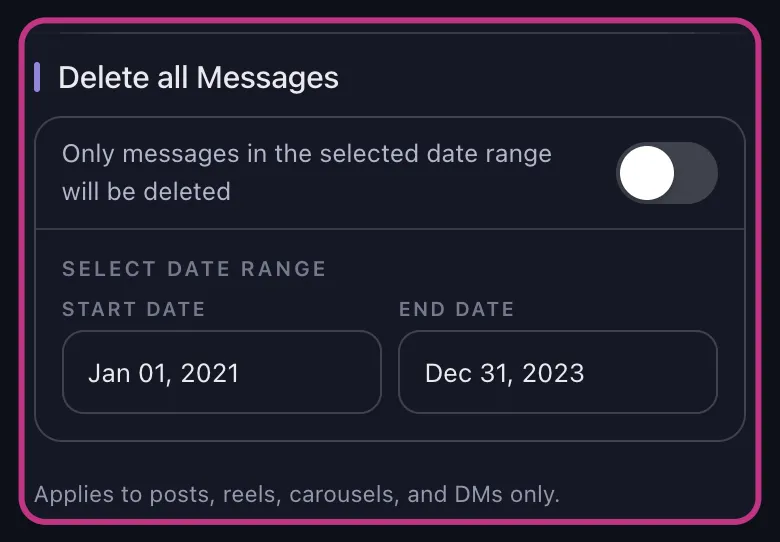
- Date range: useful when you only want to remove content from a specific era, such as pre-rebrand posts from 2021 to 2023.
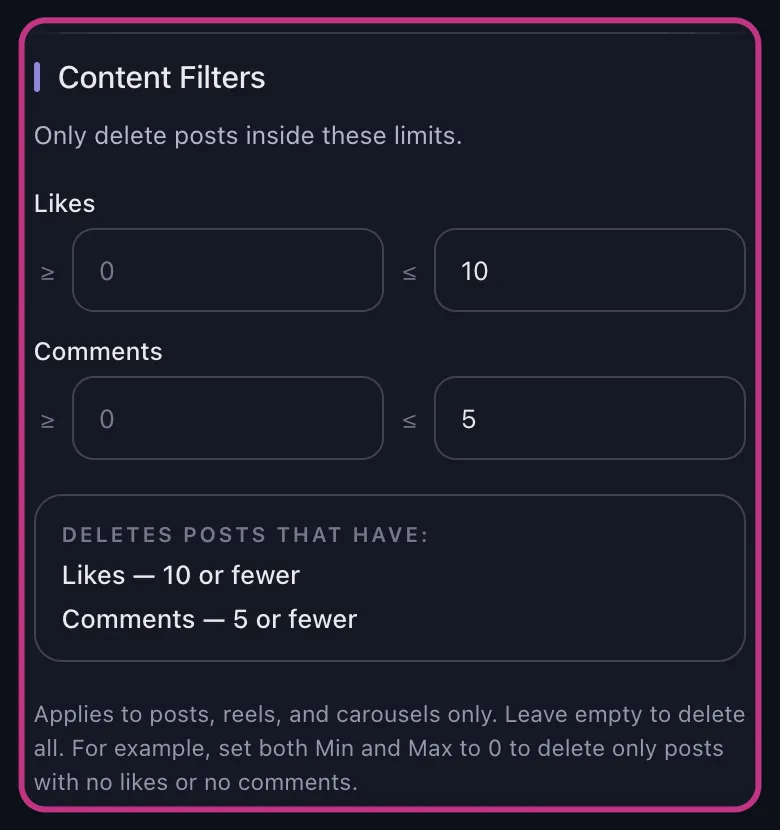
- Likes range: useful when you want to clear low-engagement content, such as deleting only posts with zero likes or fewer than 10 likes.
- Comments range: useful when you want to remove posts that drew little or no conversation, or isolate heavily commented content for review.
These filters apply to posts, reels, and carousels. They do not apply to Instagram likes or comments cleanup.
That makes a practical difference. Instead of asking only how to delete pictures on Instagram, you can ask a more useful cleanup question, such as:
- Delete only zero-like posts from an older date range.
- Delete old reels from a test period.
- Delete carousels with little engagement from before a rebrand.
Example workflow in Unpost
The typical workflow is:
-
Install Unpost on iOS or Android.
-
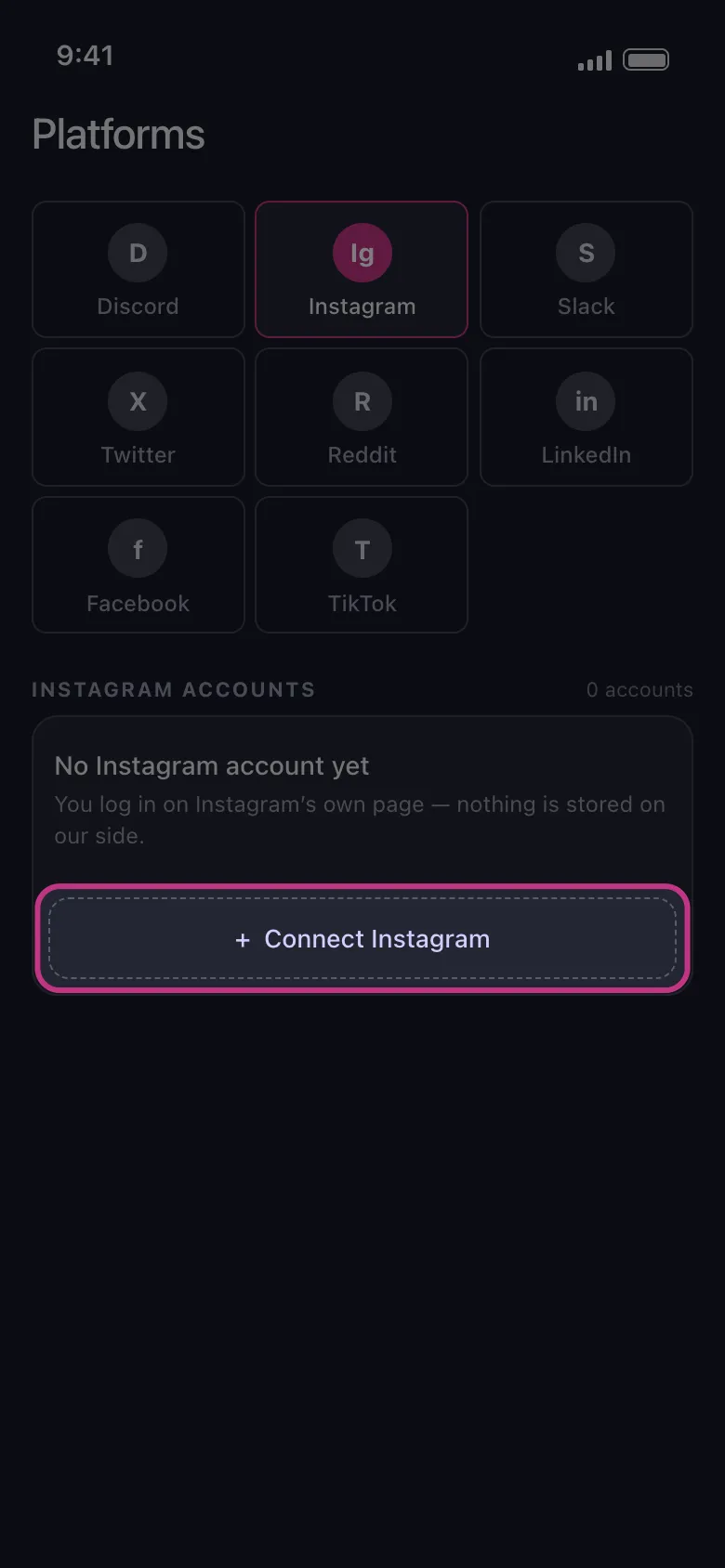
Add your Instagram account through Instagram web login in the embedded browser.
-
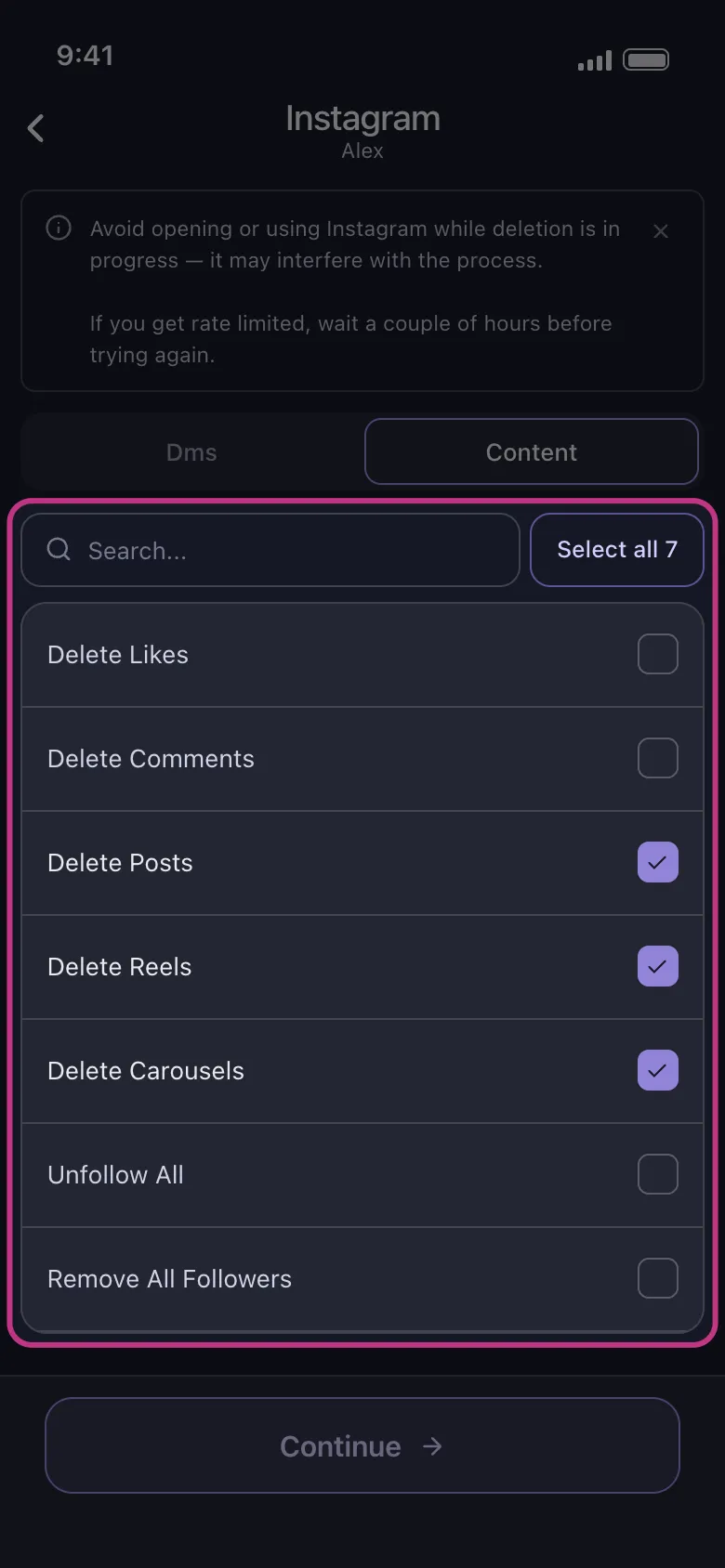
Open the content section and choose posts, reels, or carousels.
-
Apply filters if you want to narrow the cleanup.
-
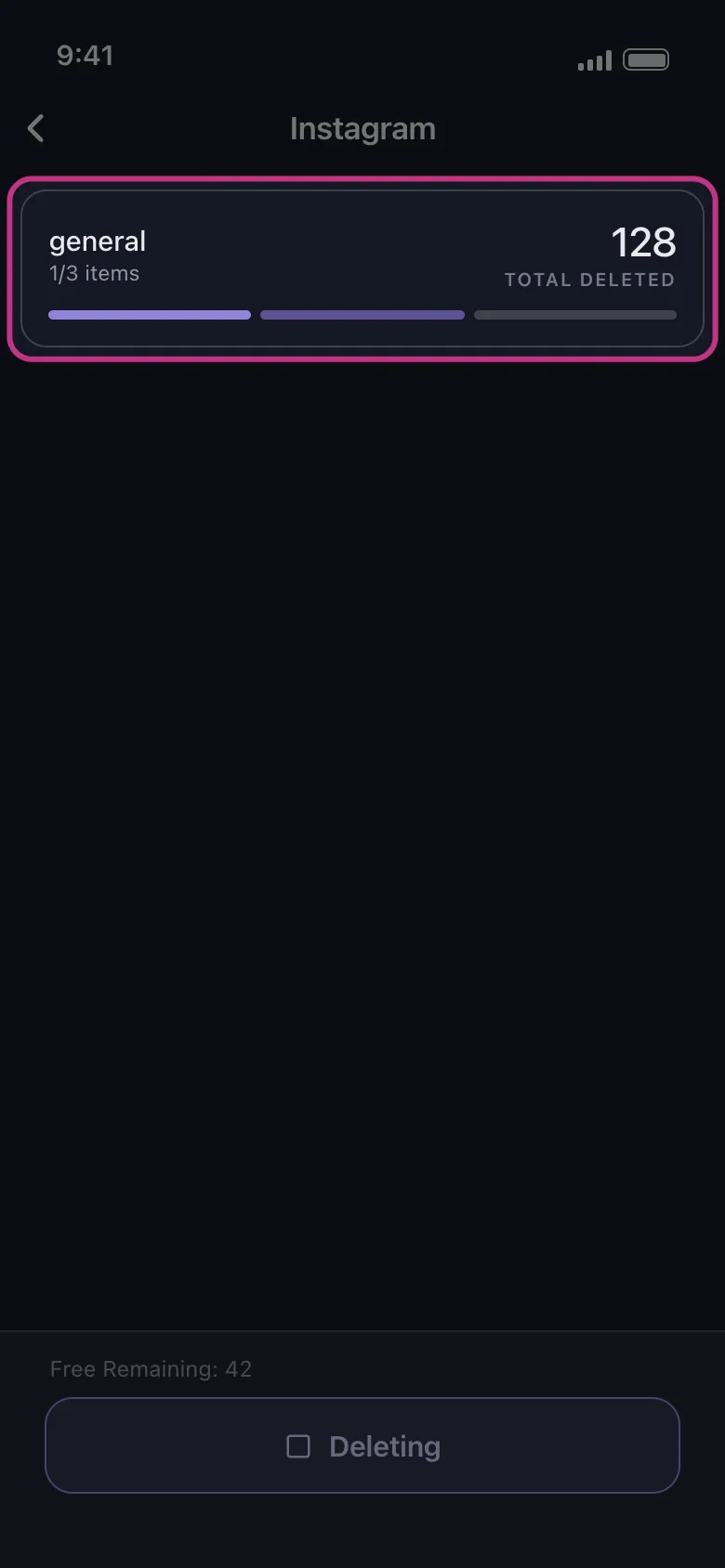
Start deletion and keep the app in the foreground.
-
Let the run finish, including any pause-and-retry steps if Instagram temporarily slows the action down.
This is where a dedicated post deleter for Instagram starts to make sense. The problem is no longer finding the delete button. The problem is managing a realistic volume of old content without wasting time.
One Post Manually vs Many Posts With Filters
| Situation | Best method | Why |
|---|---|---|
| One recent photo you regret posting | Native Instagram | The three-dot menu is fastest |
| One reel that needs to come down now | Native Instagram | Manual deletion is direct and simple |
| A handful of older items you already identified | Native Instagram multi-select | Your Activity can usually handle a small batch |
| Hundreds of older posts you want to review by date | Unpost | Date range filtering reduces manual scanning |
| Low-engagement cleanup across posts, reels, and carousels | Unpost | Likes range and comments range make the job more selective |
| Repeated cleanup over several sessions | Unpost | A dedicated workflow is easier to reuse than manual selection every time |
Native Instagram Method vs Unpost: The Practical Tradeoff
The native Instagram flow is the right answer when:
- You only need to delete one post, one reel, or one carousel.
- You already know exactly which items to remove.
- You only have a small batch and Instagram’s own multi-select view is enough.
Unpost is the better answer when:
- You have many items to remove.
- You want filters, not just manual selection.
- You are cleaning up content as part of a rebrand, privacy reset, or feed refresh.
- You want to work in targeted passes instead of making one giant manual selection inside Instagram.
That distinction keeps the article honest. Instagram already offers a native path, and for some users it is enough. Unpost becomes useful when the cleanup job is broad enough that speed and filtering matter.
Questions People Usually Have Before Deleting
Should I use Instagram or Unpost first?
Start with native Instagram if you only need to remove one item or a small batch you already identified. If you open your account and realize the cleanup is much larger than expected, switch to Unpost for a more targeted workflow.
Is deleting a carousel different from deleting a normal post?
Not in the way most people mean. A carousel is deleted as one published post. If you delete the carousel post, the whole published carousel is removed.
Can I clean up other Instagram activity too?
Yes, but it depends on the activity type. On Instagram, Unpost also supports deleting DMs, likes, and comments, plus unfollow all and remove all followers. If those are part of the same reset, read how to delete Instagram comments and how to delete likes on Instagram. If temporary content is the real issue, native Instagram is still the right option for how to delete an Instagram Story.
What if deletion pauses partway through?
Keep Unpost open and let the process continue. Instagram may temporarily slow or rate limit the action, which can cause a pause and retry. That is usually a workflow issue, not a sign that you need to restart immediately.
Best Option for Bulk Instagram Content Cleanup
Unpost is the strongest fit here if your real task is not one embarrassing photo but a backlog. It is especially useful for people who want to remove older posts after a rebrand, clear out low-engagement reels, delete outdated carousels, or run several cleanup passes without starting from scratch each time.
If you are already in that situation, Try Unpost. It gives you a practical bulk-cleanup workflow for Instagram posts, reels, and carousels on iOS and Android, with content filters that help you clean up more precisely instead of deleting blindly.
Bottom Line
If you want the short answer to how to delete Instagram post, open the post, photo, reel, or carousel, tap the three-dot menu, and delete it. If you need to remove several items, Instagram typically also lets you use Your Activity to sort, filter, multi-select, and delete posted content in batches.
When the job gets larger, Unpost is easier to justify. It supports deleting Instagram posts, reels, and carousels in bulk and gives you date range, likes range, and comments range filters so the cleanup can be more selective. For the product-focused walkthrough, read post deleter for Instagram. If your cleanup also includes engagement history, follow up with how to delete Instagram comments and how to delete likes on Instagram.

Get Started
Delete Old Content Across Your Accounts
Bulk delete messages, posts, likes, comments, DMs, reactions, bookmarks, followers, and more — all from one app.
No password storage • Free to start • iOS & Android
 Download for iOS
  Download for Android