
How to Delete a Comment on Instagram
Reviewed by Unpost Team
To delete a comment on Instagram, open the post, find the comment, and use Instagram’s delete option for that comment. If you need to clean up several comments you have left across Instagram, the current flow is usually Profile > Menu > Your Activity > Interactions > Comments, where Instagram typically lets you review, sort, select, and delete multiple comments you wrote. That native method is enough for one-off cleanup and many smaller batches. If your comment history is much larger or comment cleanup is part of a broader Instagram reset, Unpost is usually the more practical option.
If your cleanup goes beyond comments, the full Instagram cleanup guide covers posts, likes, DMs, followers, and other account-reset tasks.
| Cleanup need | Native Instagram method | What it does well | When Unpost is better |
|---|---|---|---|
| Delete one comment you just posted | Open the post and delete the comment directly | Fast for one-off cleanup | You are not solving a one-comment problem |
| Review comments you wrote across Instagram | Your Activity > Interactions > Comments | Good for finding and deleting a smaller batch | You want a dedicated bulk-cleanup workflow on mobile |
| Remove many older comments over time | Revisit Your Activity and keep selecting comments | Works, but can become repetitive | You are doing larger-scale cleanup or repeated passes |
| Reset several activity types, not just comments | Separate native flows for comments, likes, posts, and DMs | Fine for isolated tasks | You want one app for comments plus other Instagram cleanup actions |
What This Does and What It Does Not Do
What this does
- Explains how to delete one Instagram comment manually.
- Explains Instagram’s current Your Activity flow for reviewing comments you wrote and deleting multiple comments when Instagram shows that option.
- Shows when Unpost is the better fit for larger cleanup of comments you have written on Instagram.
What this does not do
- It does not claim you can delete other people’s comments on someone else’s post.
- It does not present Unpost as a moderation tool for removing other people’s comments from your posts.
- It does not promise that every device or app version shows the exact same labels in the exact same place.
Native Instagram Method for Deleting One Comment
If your question is simply how do I delete a comment on Instagram, the native method is usually the right place to start.
The current flow on mobile is usually:
- Open Instagram and go to the post where the comment appears.
- Open the comments for that post.
- Find the comment you want to remove.
- On iPhone, Instagram usually lets you swipe left on the comment to reveal Delete. On Android, Instagram usually lets you press and hold the comment, then tap Delete.
- Confirm if Instagram asks.
On Instagram.com, the usual flow is to open the post, hover over the comment, open the comment options, and choose Delete.
This is the fastest answer to how do you delete a comment from Instagram when you already know which comment needs to go.
How to Review and Delete Comments You Wrote in Your Activity
Instagram also typically gives you a broader cleanup route through Your Activity. This matters because most people do not search how to delete instagram comments for one typo. They are usually trying to clean up an older trail of replies that no longer fit the account.
The current Your Activity flow is usually:
- Open your profile.
- Tap the menu in the top corner.
- Open Your Activity.
- Open Interactions and then Comments.
- Use Sort & Filter if Instagram shows it.
- Select the comments you want to remove.
- Tap Delete and confirm.
Instagram’s own help materials indicate that Your Activity is where you can review and delete comments you have made, and that multi-select deletion may be available from that view. That is the fairest native answer to can you delete comments on Instagram in batches: often yes, but the exact menu labels can vary a little by app version and device.
Native Instagram is usually enough when:
- You only need to delete a few comments.
- You want to review each comment manually before removing it.
- Your cleanup is limited to comments and you do not mind using Instagram’s built-in activity screens.
Native Instagram starts to feel slower when:
- Your comments are spread across a long time period.
- You are doing repeated cleanup sessions instead of one short pass.
- Comments are only one part of a bigger Instagram reset that also includes posts, likes, or DMs.
Deleting Your Comment vs Moderating Comments on Your Own Posts
This topic gets mixed up a lot, so it helps to separate two different jobs.
Deleting a comment you wrote
This is the workflow most people mean when they search delete instagram comment. You wrote the comment, and you want it removed from a post, reel, or comment thread. Instagram typically lets you do that from the post itself or from Your Activity.
Moderating comments on your own content
If the post belongs to you, Instagram also gives you moderation controls for comments other people leave on your content. Depending on the situation, Instagram may let you delete a comment, hide a comment, restrict the account, or turn commenting off for that post. That is a different use case from cleaning up comments you wrote elsewhere.
That difference matters for Unpost too. On Instagram, Unpost supports deleting comments you have written. This article stays focused on your own comment history. It does not assume Unpost is the tool for moderating other people’s comments on your posts.
How to Delete Multiple Instagram Comments or Clean Up Older Comments
If you are trying to remove several old replies, the real problem is not learning where the delete button is. The real problem is finding comments that are buried across months or years of activity.
Instagram’s Your Activity section is the native way to do that. When Instagram shows Sort & Filter, it usually makes a smaller cleanup session manageable because you can narrow the list before selecting comments.
This is the kind of cleanup where people usually need more than one pass:
- Old comments from an earlier job, brand, or public persona.
- Replies on public posts that no longer match how you want the account to read.
- Older jokes, arguments, or low-value comments that still show up under your username.
- Cleanup before a broader privacy reset that also includes likes or posted content.
If that wider reset is your real goal, related guides on how to delete Instagram posts, photos, reels, and carousels and how to delete likes on Instagram are usually the next steps after comments.
When Unpost Is Better
Instagram deserves the first mention here because it can already delete comments natively. Unpost becomes the better choice when the job is bigger than what you want to keep doing inside Your Activity.
On Instagram, Unpost supports deleting comments you have written. It is a mobile app for iOS and Android built for bulk social-media cleanup. That makes it a better fit when your comment history is part of a larger cleanup project or when you want a dedicated workflow instead of repeating the same review process inside Instagram.
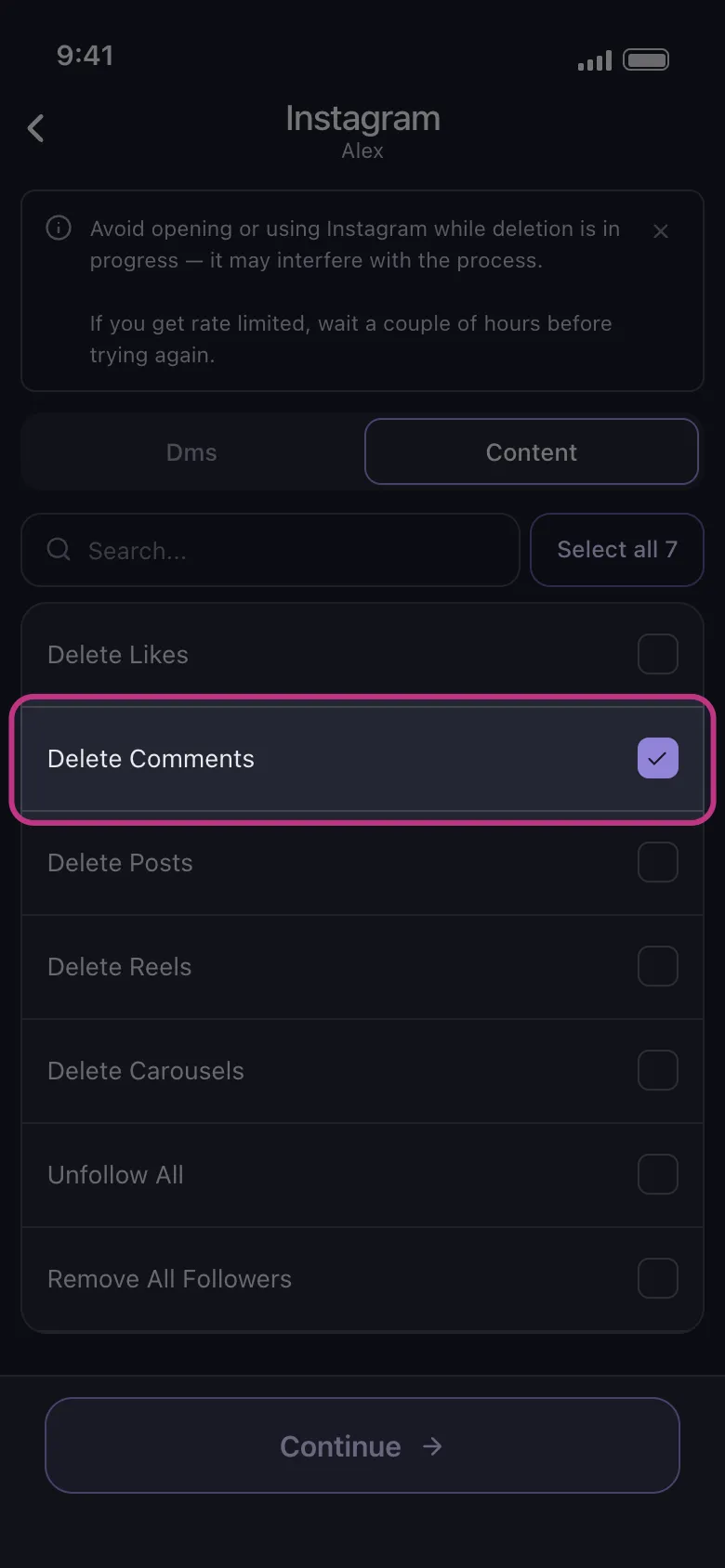
Use Unpost here when:
- You want to work through a larger backlog of comments over multiple sessions.
- Comment cleanup is happening alongside likes, posts, reels, carousels, or DMs.
- You prefer a privacy-first mobile workflow for broader account cleanup.
- You want one tool that supports comments plus other Instagram cleanup actions.
If that sounds closer to your job than deleting one stray reply, Try Unpost. Unpost connects through Instagram web login in an embedded browser and stores encrypted session data locally on your device. Keep Unpost in the foreground while deletion runs, and do not actively use Instagram at the same time because that can interfere with the process. If Instagram slows an action down, the run may need to pause and retry before continuing.
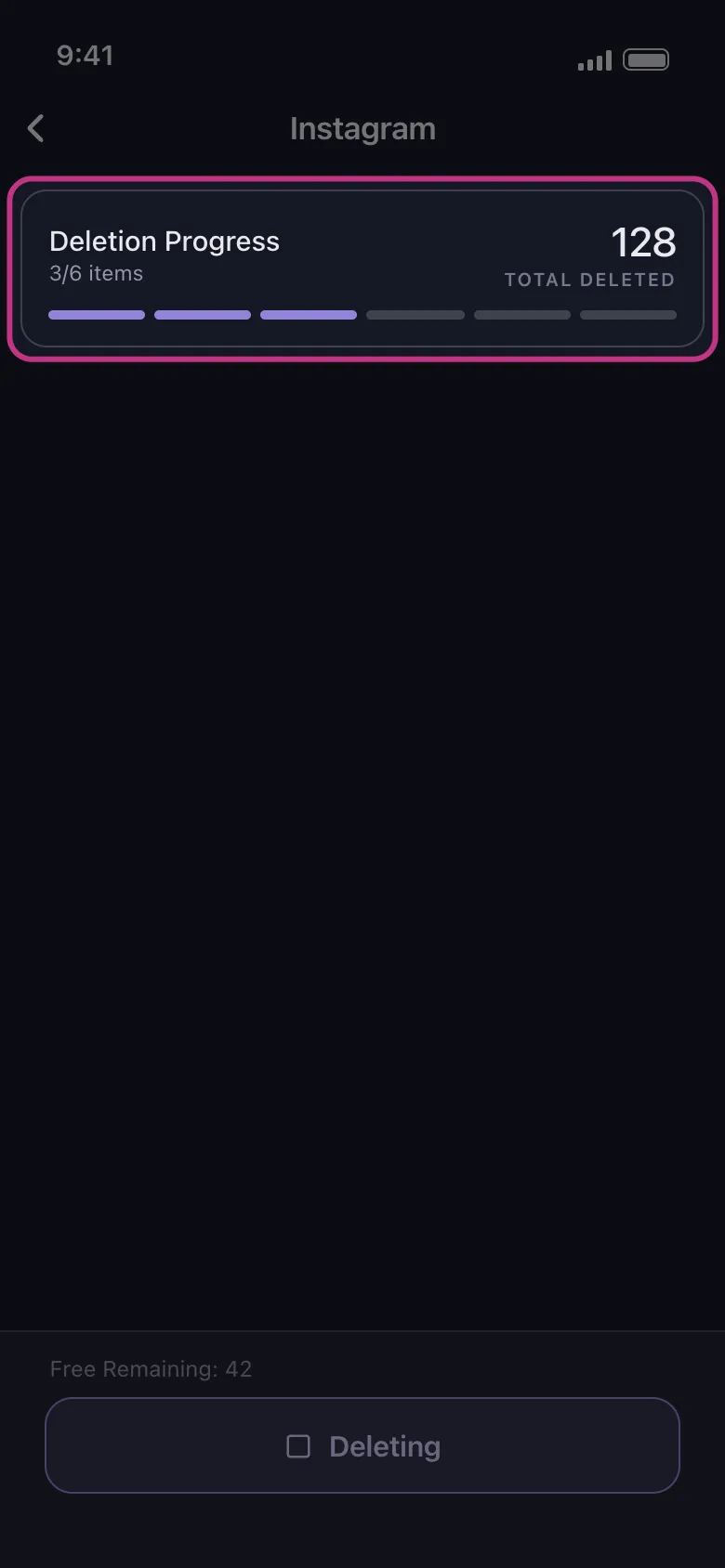
Why Unpost Fits Larger Comment Cleanup
The honest reason to use Unpost is not that Instagram has no delete option. Instagram does. The honest reason is that old Instagram cleanup often expands once you start.
A realistic cleanup session often looks like this:
- You remove a few comments.
- Then you notice old likes that no longer fit your account.
- Then you decide to clear outdated posts or reels too.
- Then the cleanup turns into a broader privacy or rebranding project.
That is where Unpost starts to make more sense than handling every action in a separate native screen. On Instagram, Unpost supports deleting DMs, posts, reels, carousels, likes, and comments, plus unfollow all and remove all followers. If your cleanup is moving in that direction, the related guide on post deleter for Instagram is also useful.
FAQ
Can you delete comments on Instagram?
Yes, but permissions matter. You can usually delete comments you wrote on Instagram posts and reels that you can still access. If the content belongs to you, Instagram may also let you moderate comments other people leave on your posts. On someone else’s post, you cannot delete comments written by other people.
Does deleting a comment on Instagram notify anyone?
Instagram does not usually send a separate alert just because you deleted a comment. Still, a person may already have seen the comment itself, a push preview, or an email summary before you removed it. If you are deleting a comment on an Instagram reel that was also shared to Facebook, Instagram’s help flow says deleting that comment removes it from both apps.
Can deleted Instagram comments be recovered?
You should usually treat deleted comments as final. Instagram’s official Recently Deleted documentation specifically mentions posts, stories, reels, direct messages, and notes, but not comments. In practice, that means Instagram does not usually offer a simple comment trash view to restore deleted comments later.
Can you delete many comments at once on Instagram?
Instagram typically allows multi-select deletion for comments you wrote through Your Activity > Interactions > Comments. If Instagram shows Select and Sort & Filter in your account, that native route may be enough for a small or moderate batch. If the cleanup is larger or part of a broader account reset, Unpost is usually the more practical workflow.
Who Should Use Unpost Here?
Unpost is the best fit for this page when your real task looks like one of these:
- You want to remove a long history of comments you wrote.
- Comments are only one part of a bigger Instagram cleanup.
- You are doing a privacy reset, reputation cleanup, or account refresh.
- You want a mobile workflow that is built for bulk cleanup instead of one comment at a time.
If you only need to remove one comment, native Instagram is simpler. If you are cleaning up comment history at scale, Try Unpost.
Bottom Line
The short answer to how to delete a comment on instagram is simple: open the post, find the comment, and delete it there. For multiple comments, Instagram typically lets you review comments you wrote in Your Activity and remove several in one pass. That native method is fair, useful, and often enough for smaller jobs.
Unpost is the better option when comment cleanup is larger, repeated, or tied to a broader Instagram reset. If your next step is bigger than one comment, start with the Instagram cleanup guide, then branch into how to delete Instagram posts, photos, reels, and carousels, how to delete likes on Instagram, or post deleter for Instagram as needed. For the all-in-one cleanup workflow, Try Unpost.

Get Started
Delete Old Content Across Your Accounts
Bulk delete messages, posts, likes, comments, DMs, reactions, bookmarks, followers, and more — all from one app.
No password storage • Free to start • iOS & Android
 Download for iOS
  Download for Android