
How to Delete All Your Tweets: Bulk & Mass-Delete Methods
Twitter (X) gives you exactly one native way to remove a tweet: open it, tap the menu, choose Delete, confirm. There is no select-all checkbox, no “delete all tweets” button hiding in the settings, and no official bulk option of any kind. So the honest answer to “how do I delete all my tweets?” comes down to two paths: delete them manually one by one, which is fine for a few dozen posts, or hand the repetitive part to a bulk deletion tool.
One warning before the steps. Much of the advice on mass deleting tweets predates 2023, when X moved its API behind expensive paid tiers.
The free web deleters older articles recommend were built on cheap API access. Since then they have shut down, moved behind subscriptions, or capped their free plans at a small batch of recent tweets.
First, the Basics: Deleting a Single Tweet
Worth thirty seconds, because every method below is ultimately this one action repeated.
In the X app (iOS or Android):
- Open the X app and tap your profile picture.
- Find the tweet on your profile.
- Tap the three-dot menu on the tweet.
- Tap Delete.
- Tap Delete again to confirm.
On the web:
- Go to x.com and open your profile.
- Scroll to the tweet you want gone.
- Click the three-dot icon on the tweet.
- Click Delete, then confirm.
The removal is immediate and permanent — X has no trash folder and no undo. It is also the entire native toolkit. At roughly ten seconds per tweet, a 3,000-tweet account works out to more than eight hours of uninterrupted tapping, which is exactly why bulk tools exist.
How to Delete All Tweets: The Two Realistic Paths
Manual deletion: fine under about 50 tweets
If your account holds a few dozen posts, skip the tooling question entirely. Open your profile, work from the top, and repeat the steps above until the timeline is empty. Check the Replies and Media tabs on your profile too — posts hide there that the main feed does not surface. No third-party access, no caps, no cost beyond a coffee break’s worth of tapping.
Bulk deletion: how everyone else does it
Past that, manual deletion stops being a plan and starts being a punishment. Bulk tools fall into two families: web-based deleters that run in your browser and connect through X’s paid API, and apps that run on your device. Our guide to choosing a tweet deleter compares the whole landscape.
Unpost takes the on-device route: a mobile app for iPhone and Android that deletes your own X content by category — Posts, Replies, Reposts, Quotes, Likes and Bookmarks. You log in on x.com’s own page inside the app, the session is kept on the phone in encrypted storage, and deleted content never passes through an Unpost server. The same app also cleans up Reddit, Discord, Instagram, and Slack. Here is the whole job:
-
Install Unpost on your iPhone or Android phone from the App Store or Google Play.
-
Open it, pick the app’s language, then tap Continue under the privacy policy. Without Premium the app opens on its Subscription tab: tap Main in the bottom bar to reach the platforms.
-
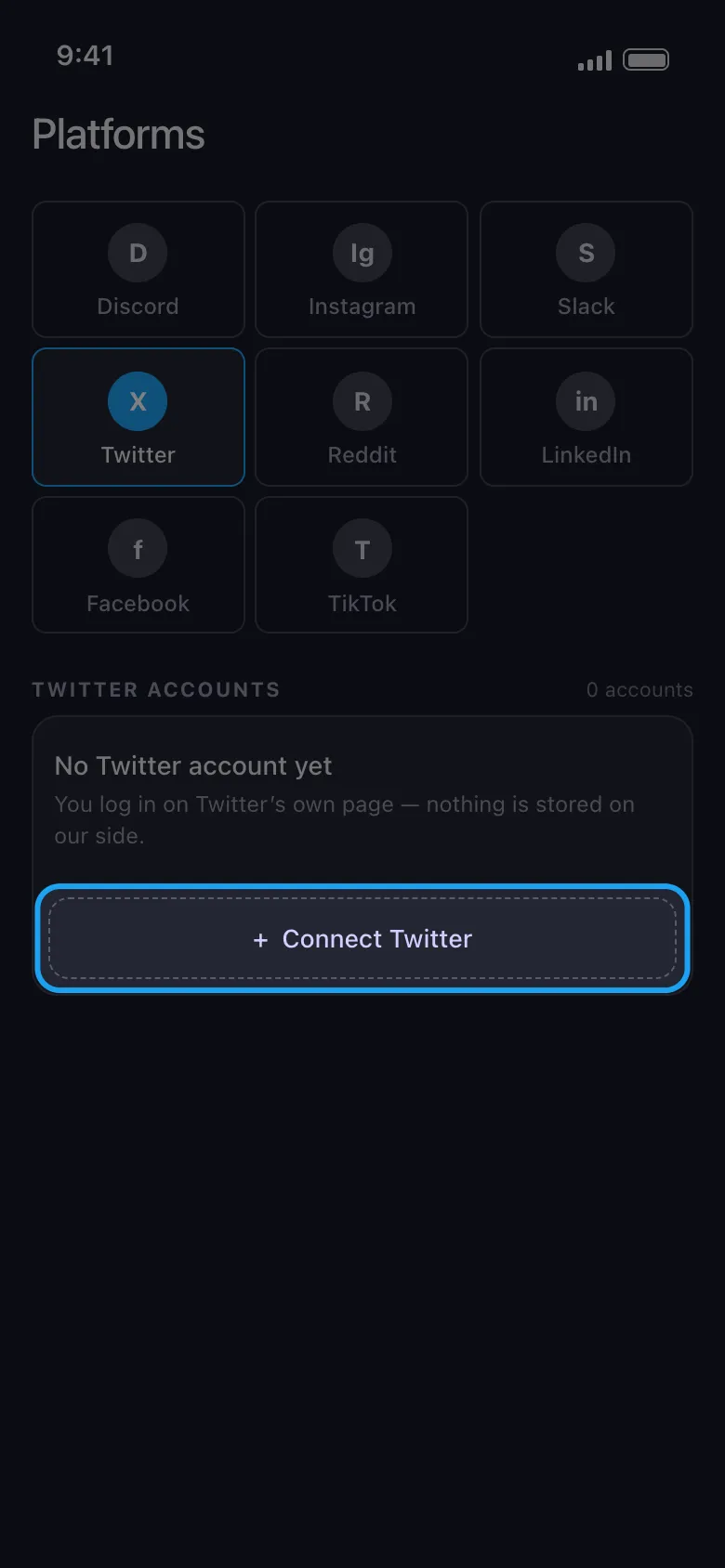
Connect your Twitter (X) account. Tap the Twitter tile, then the connect button under it, and log in on x.com’s own page, which opens inside the app.
-
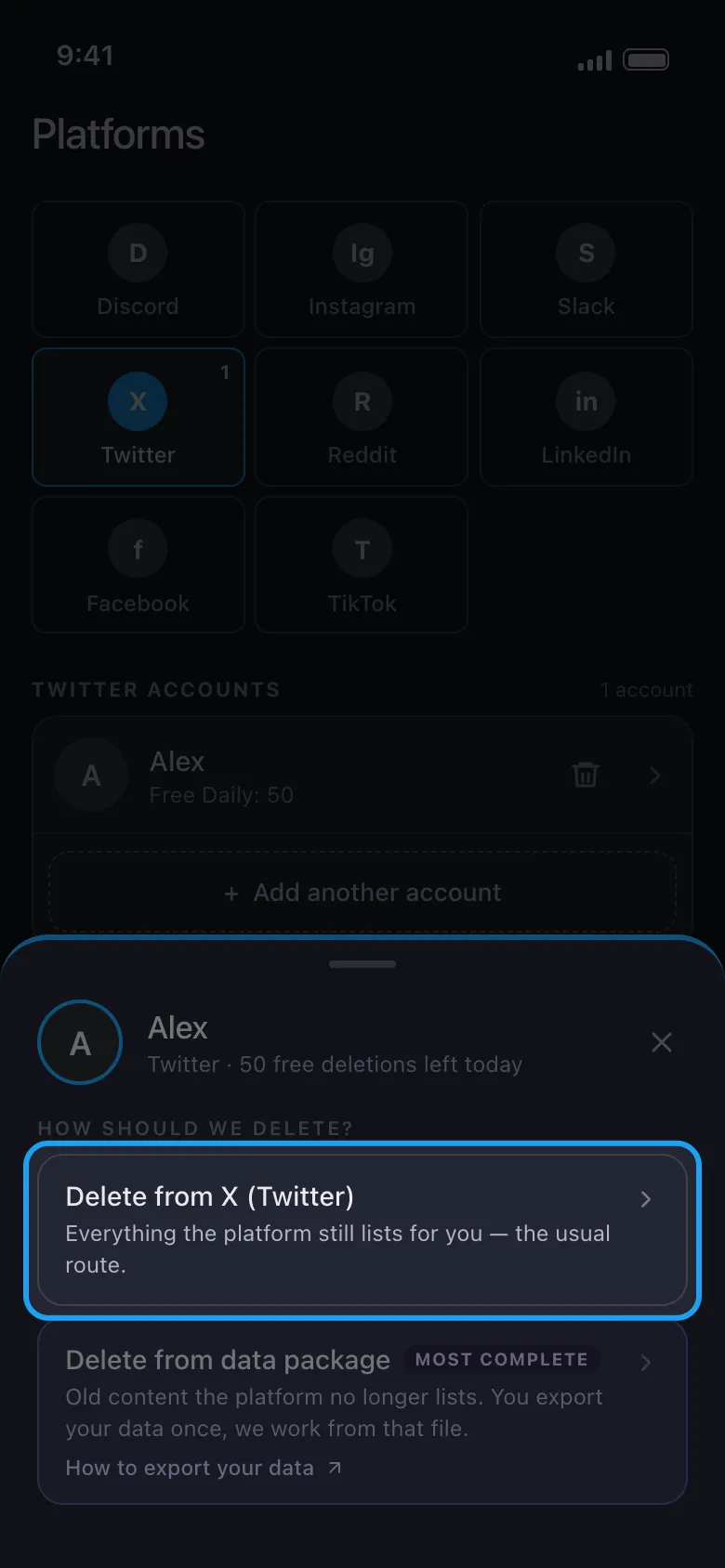
Tap the connected account and choose how to delete: straight from the account, or from X’s data export (see the next section).
-
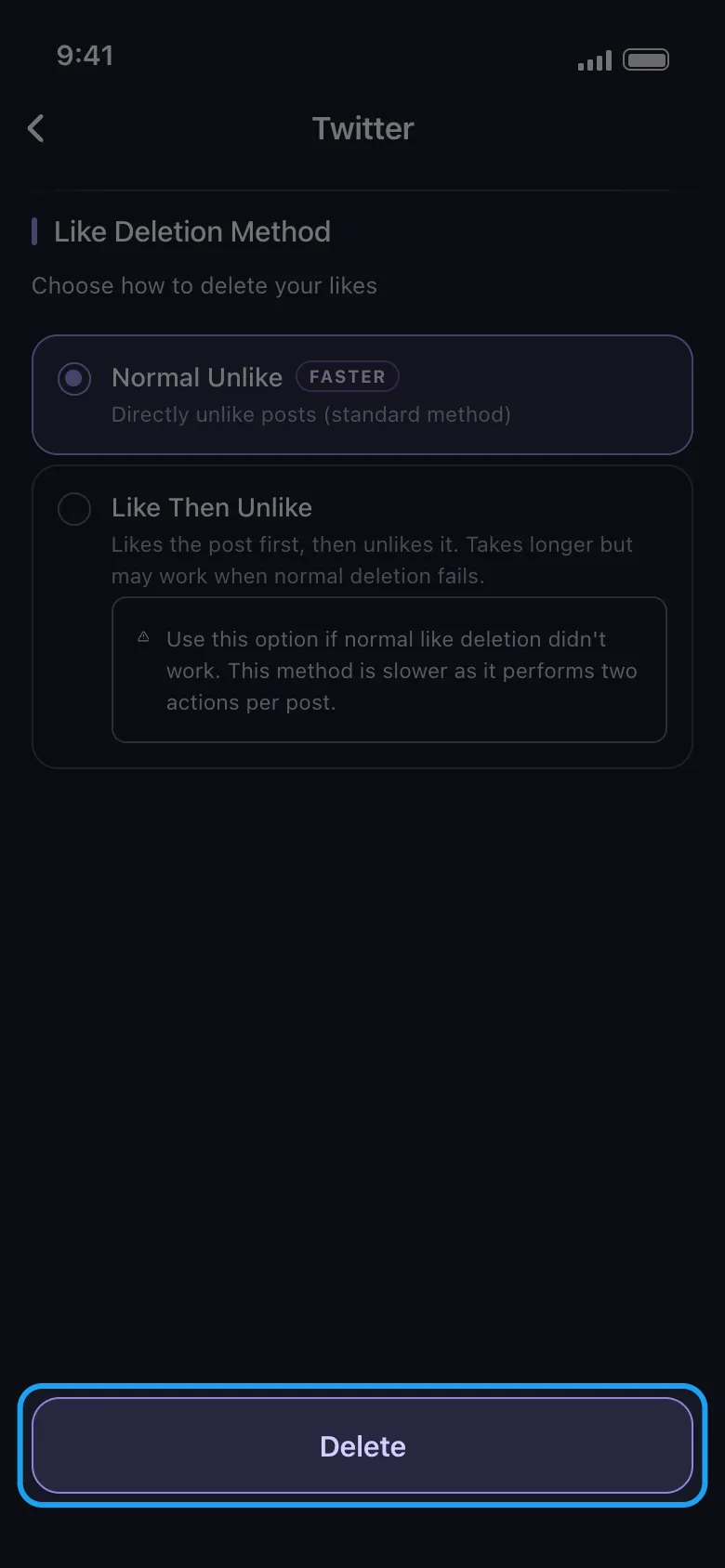
Pick what to delete — for a full wipe, Posts, Replies, Reposts and Quotes — set the options, then tap Delete.
-
Read the rules and tap Got it. The run starts and deletes item by item, slowly on purpose to protect the account from a ban. Don’t use X meanwhile. On an iPhone keep the app in the foreground; on Android it goes on in the background, but not if you close the app.
Without Premium, each connected account gets 50 deletions a day (the day is UTC). The run stops when they are used and the allowance comes back the next day, so start it again then. Premium, a monthly subscription, removes the cap.
Deleting Old Tweets by Date
Plenty of cleanups are not “everything must go” but “2014 me must go”. Old tweets resurface at the worst possible moments — a hiring manager scrolling deep into your profile, a decade-old joke presented as your current opinion.
The obstacle is visibility. X’s timeline stops serving very old posts at some point, so tools that rely on it typically reach only your most recent few thousand tweets. Web deleters get around this by having you upload your archive to their servers.
The way in is X’s own data export. Request it under Settings and privacy, then Your account, then Download an archive of your data; it arrives within a day or two as a browsable file of everything you ever posted. Read it first: it shows what lives in your 2013, and it is the only copy you will keep, because deleted tweets cannot be recovered.
Then, in the app, tap your X account, choose to delete from a data export and import the whole export, as a .zip file or a folder. It is read on the phone, never uploaded, and it reaches the old posts X’s own screens no longer list. One limit to know: there is no date-range option for X, so the app cannot keep 2023 while removing 2014.
Manual vs Free Web Tools vs Unpost
| Manual deletion | Free web deleters | Unpost | |
|---|---|---|---|
| Coverage | Every tweet, one at a time | Free tiers capped at a small recent batch; old tweets need an archive upload | The account’s Posts, Replies, Reposts and Quotes; older posts through X’s data export, read on the phone |
| Cost reality | Free, paid in hours of tapping | ”Free” until the cap, then a subscription | Free: 50 deletions per account per day |
| Safety | Nothing to connect | Account access granted to a third-party server; the worst ones ask for passwords or tokens | Log in on x.com’s own page inside the app; the session is kept on the phone in encrypted storage |
| Picking what goes | You, scrolling | Date filters commonly a paid feature | By category; no date range for X |
What Deleting Tweets Does Not Remove
Deleting a tweet removes it from X: it leaves your profile, drops out of X’s search, and quote tweets of it stop displaying your text. A complete cleanup plan should still account for what survives.
Copies made by other people. Screenshots are forever, and no tool on earth reaches into someone else’s camera roll. The commentary on a quote tweet stays up even after your quoted post goes blank, and third-party archive sites may hold snapshots of public pages — how to see deleted tweets shows which of those routes still work. None of this is a reason to skip deleting — it is a reason to delete sooner, because a post that is gone cannot be screenshotted next year.
Search-engine caches. Google and Bing keep cached copies of indexed pages for a while, so a deleted tweet can still surface in search results for days or weeks after it is gone from X. These fade out on their own as crawlers revisit; no action needed, just patience.
The rest of your footprint. Your likes still sit on other people’s posts, your retweets of other accounts keep amplifying them until you undo each one, and the replies you dropped into other people’s threads are their own pile — replies are tweets, so a full wipe includes them, but a filtered pass might not. Each has its own guide: deleting your likes, undoing retweets, deleting all your replies and clearing all your bookmarks.
Deactivating vs Deleting Tweets
A tempting shortcut: if deleting every tweet takes work, why not just deactivate the account? Because deactivation and deletion do different jobs.
Deactivation is an account-level switch. The moment you deactivate, your profile and every tweet disappear from public view — but nothing is deleted yet. X holds the account in that hidden state for 30 days, and logging in during that window restores everything exactly as it was, tweets included. Only after the window passes is the account permanently erased: handle, followers, and DMs along with it.
Deleting tweets removes the content while keeping the account. Your handle stays yours, your followers stay put, your DMs survive, and your timeline is simply clean.
So the choice maps to your goal. Leaving X for good? Deactivate and let the 30 days run out — though many people bulk-delete their tweets first, since the content sits recoverable on X’s side until the deadline passes. Staying on X with a fresh slate, or keeping your username from ever being recycled? Delete the tweets and keep the account. Deactivation is not a tweet-deletion method; it is an account-deletion method on a delay.
The checklist for erasing your Twitter history puts the whole cleanup in order. The choice comes down to size: a few dozen tweets, delete them by hand today; hundreds or thousands, get Unpost and let your phone do the tapping for you.
Frequently Asked Questions

Get Started
Delete Old Content Across Your Accounts
Bulk delete messages, posts, likes, comments, DMs, reactions, bookmarks, followers, and more — all from one app.
No password storage • Free to start • iOS & Android
 Download for iOS
  Download for Android