
How to Erase Your Twitter (X) History: The Complete Checklist
“Erase your Twitter history” sounds like a single task. On Twitter — now X — it is actually seven, because your history is not one thing: it is your tweets, your replies, your retweets, your likes, your bookmarks, your search history, and the media attached to everything you have ever posted. Each layer lives in a different corner of your account, each has its own removal path, and none of them comes with a delete-all button that covers the rest.
Here is the answer-first version: every layer can be erased, none of it requires closing your account, and the fastest route is to treat the job as a checklist. The private layers — bookmarks and search history — clear natively in under a minute, and bookmarks even get the platform’s only true bulk-delete button. The public layers — tweets, replies, retweets, and likes — delete strictly one at a time, which is why a full reset of an older account usually runs through a bulk tool rather than a weekend of tapping. The sections below give each item a short summary, the quick path, and a link to the dedicated guide; after that comes the most efficient order for the whole reset, the honest list of what erasing cannot reach, and a single table you can work through line by line.
Erase your tweets — the core of your history
Tweets are the most visible layer and the one people mean first when they say “Twitter history”: every post still sits on your profile, in X’s search, and in Google results tied to your handle. X lets you delete any tweet from its three-dot menu, but only individually — there is no select-all and no delete-by-year, and old timelines stop loading long before your first tweet. Your media has no separate path either: the photos and videos in your Media tab disappear with the tweets that carried them. The full method, including mass-deleting by date and what still works for free after X’s API lockdown, is in how to delete all your tweets.
Erase your replies
Replies are tweets too — they just live under the Replies tab of your profile, and on most accounts they outnumber original posts several times over. That makes them the largest slice of a Twitter history and the one people forget: a timeline that looks clean from the Posts tab can still carry a decade of arguments one tab to the right. Each reply deletes exactly like a tweet, one at a time, with the same missing bulk option. The dedicated walkthrough is how to delete all your Twitter replies.
Undo your retweets
Retweets are the fastest public layer to clear: tap the green retweet icon on anything you have reposted, choose undo, and it leaves your profile instantly. The catch is finding them all — X mixes retweets into your timeline instead of listing them separately, and retweets of since-deleted or protected posts can linger as ghosts that are fiddly to remove. Both the simple case and the stubborn ones are covered in how to delete a retweet.
Remove your likes
Likes became mostly private in 2024 — strangers can no longer browse your Likes tab — but they are not invisible: the author of every post you liked still sees your name on it, your own tab still lists years of taps, and likes keep feeding the recommendation algorithm. Removing them means unliking one heart at a time, and on heavy accounts the tab often refuses to load likes past the first few thousand, putting the oldest ones beyond manual reach entirely. What is visible to whom, and how to clear likes at scale anyway, is in how to delete Twitter likes.
Clear your bookmarks
Bookmarks are the easy win. They are fully private — no one else can see them — and X is uncharacteristically generous here: the Bookmarks page has a real Clear all Bookmarks option, the only genuine bulk-delete native to the platform. Two taps reset years of saved threads; the one wrinkle is Premium bookmark folders, which the clear-all does not always empty cleanly. Details and the folder workaround are in how to clear all Twitter bookmarks.
Clear your search history
Search history is the only layer without a dedicated guide, because it does not need one — the native path takes seconds:
- Open the Explore tab (the magnifying glass).
- Tap the search bar at the top.
- Your recent searches appear under Recent.
- Tap the ✕ next to them, choose Clear all, and confirm.
This wipes the recent-search list stored on your account. It was never public — nobody else could browse it — but it is the layer that resurfaces old queries as suggestions while someone is looking over your shoulder, so clear it first for an instant win.
The efficient order: archive first, bulk-delete second, sweep last
Done naively — likes today, tweets next weekend, bookmarks whenever — a full reset drags on for weeks. Done in the right order, it is three moves:
1. Request your archive (day one). Go to Settings and privacy → Your account → Download an archive of your data. X usually takes around 24 hours to prepare the file, so start this before deleting anything. The archive is your permanent private copy of every tweet, like, and DM — you erase the public record and keep the personal one.
2. Bulk-delete the public layers. Once the archive has arrived, this is the job Unpost was built for. Unpost is a mobile app for iOS and Android that bulk-deletes your own content on Twitter/X — and on Reddit, Discord, Slack, and Instagram — by doing exactly what you would do by hand, automatically:
- It runs on your device and signs in through X’s own login screen; your password is never stored and nothing passes through third-party servers.
- It deletes tweets, replies, retweets, and likes one by one, paced to respect X’s limits, with live progress while the job runs.
- Date and keyword filters let you erase 2013–2019 but keep this year, or remove every post mentioning one topic and nothing else.
Setup takes a few minutes: install Unpost, choose Twitter/X, sign in through the login screen inside the app, pick the content types, set filters if you want them, and start the run.

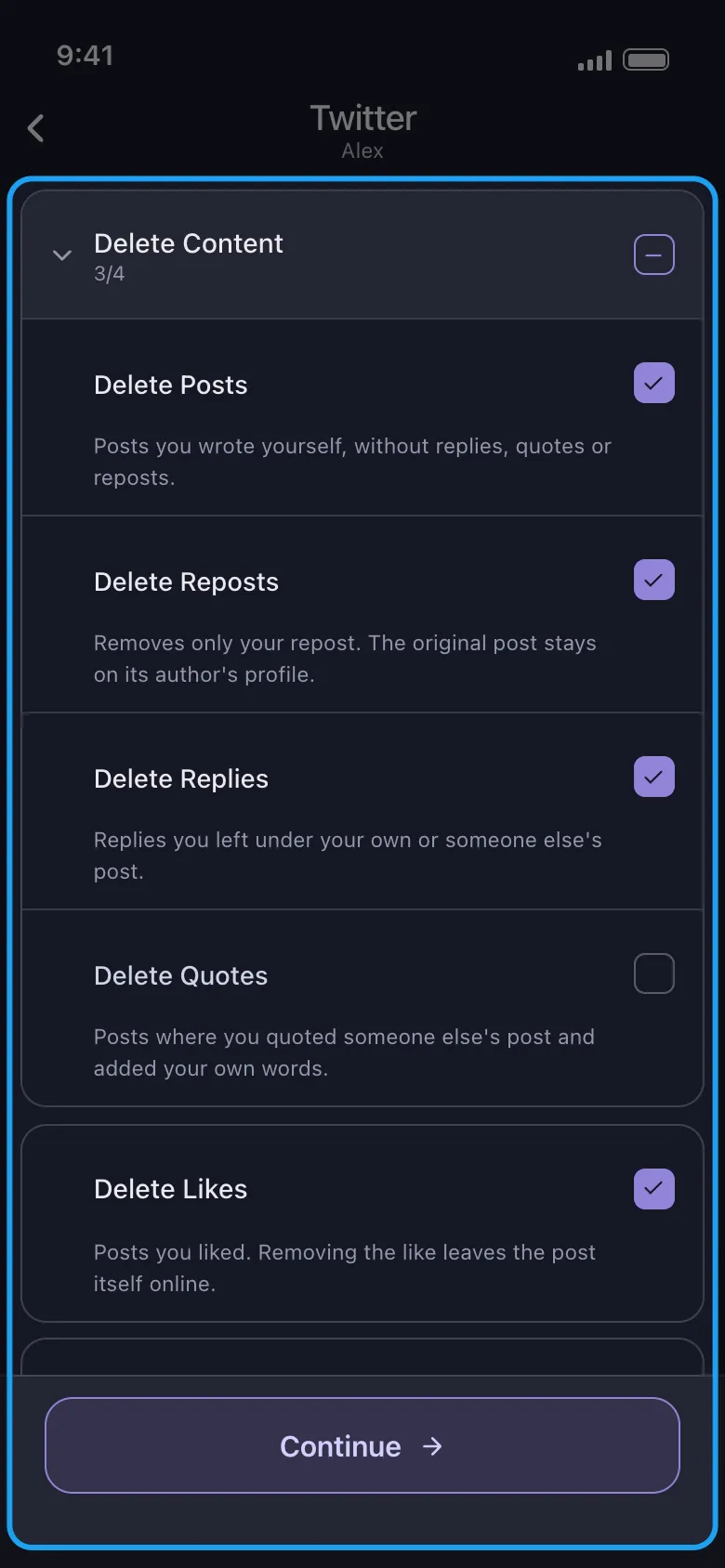
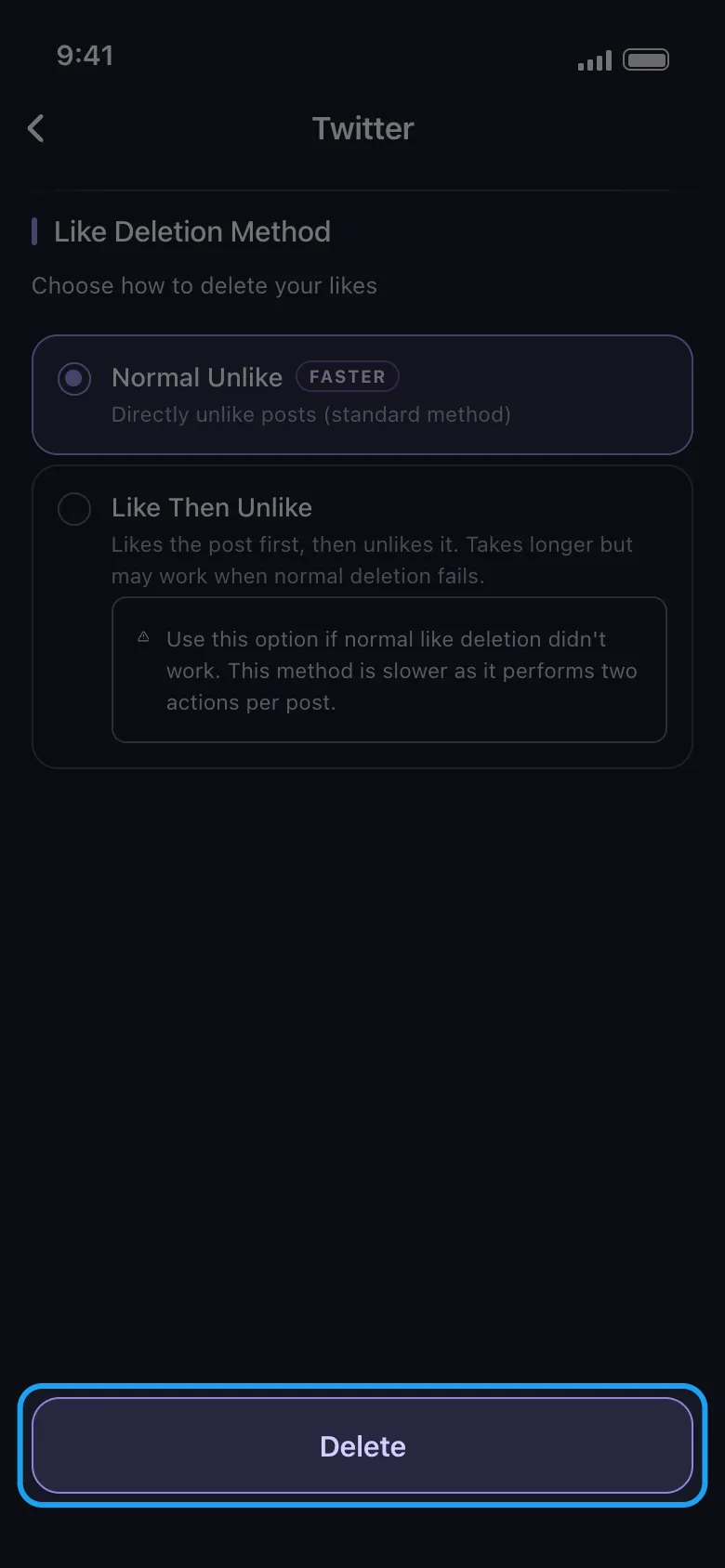
If you would rather survey the wider tool landscape first — what is still free after X’s API price hike, and which web tools to avoid — start with our tweet deleter guide.
3. Sweep the private layers. While the bulk job runs, take the two native quick wins: Clear all Bookmarks on the Bookmarks page and clear recent searches in the Explore tab. Under two minutes combined.
Start Twitter Cleanup
Use Unpost on mobile to bulk delete your tweets, replies, retweets, and likes with date and keyword filters.
What erasing your history can’t remove
An honest checklist also lists the boxes no method can tick:
- Other people’s quote tweets and replies. Deleting your tweet removes your words, but a quote tweet that excerpted or screenshotted them belongs to someone else’s account and stays up.
- Screenshots. Anything captured as an image lives wherever it was shared — group chats, articles, other platforms. Nothing you delete on X reaches those copies.
- Web archives. The Wayback Machine and similar services keep snapshots of public tweets taken before you deleted them. They handle removal requests case by case, and slowly.
- Search-engine caches. Google and Bing can keep showing a deleted tweet’s title or snippet until they recrawl the page — typically days, sometimes a few weeks. The link itself dies immediately; the preview fades later.
One more boundary worth naming: deactivating your account is not erasing it. Deactivation hides your profile and starts a 30-day countdown to permanent deletion, but it does nothing about archived copies or caches — and it locks you out of deleting anything yourself. If a clean slate is the goal, erase the history first, then decide whether the account follows. None of this argues against the cleanup; it argues for doing it sooner, because every month content stays up is another month of copies accumulating outside your reach.
The full Twitter history checklist
| Item | Native path | Bulk option |
|---|---|---|
| Tweets | Three-dot menu on each tweet → Delete | Unpost, with date and keyword filters |
| Replies | Profile → Replies tab → delete each one like a tweet | Unpost, in the same run as tweets |
| Retweets | Tap the green retweet icon → Undo repost | Unpost |
| Likes | Profile → Likes tab → tap each heart to unlike | Unpost |
| Bookmarks | Bookmarks page → ⋯ → Clear all Bookmarks | Native clear-all (the only one X offers) |
| Search history | Explore tab → search bar → Clear all | Native clear-all |
| Media | None — photos and videos go with their tweet | Covered by tweet deletion |
| Account itself | Optional and separate: deactivation in Settings | Not required to erase history |
Work the table top to bottom and the slow rows collapse into one bulk job while the quick rows take a minute each. A complete Twitter history erase — the kind that used to be a weekend project — now fits inside an evening, and your account, username, and followers come out the other side intact.
Frequently Asked Questions

Get Started
Delete Old Content Across Your Accounts
Bulk delete messages, posts, likes, comments, DMs, reactions, bookmarks, followers, and more — all from one app.
No password storage • Free to start • iOS & Android
 Download for iOS
  Download for Android