
How to Delete Messages on Instagram From Both Sides
Reviewed by Unpost Team
The answer to how to delete messages on Instagram from both sides is one action: unsend. Press and hold a message you sent, unsend it, and it disappears for you and for the other person. Deleting the conversation only clears it from your inbox; the other person keeps every message. No method erases what the other person wrote. For a backlog of sent DMs, the bulk method below removes your own messages in the conversations you pick.
This page is the focused answer for the “both sides” question. If you want the broader DM cleanup picture, including inbox deletion and one-off chat removal, read how to delete Instagram messages and chats.
| Goal | Native Instagram method | What it actually does | When it falls short |
|---|---|---|---|
| Remove one message you sent | Unsend | Removes that sent message from the conversation | You need to do the same thing across many messages or many chats |
| Remove a chat from your inbox | Delete the conversation | Removes the thread from your inbox view | You need message-level cleanup, not inbox cleanup |
| Clean up many sent DMs | Manual unsend, repeated one by one | Possible, but slow and repetitive | You want bulk cleanup with conversation selection, a date range, and live progress |
What “Delete From Both Sides” Actually Means on Instagram
The phrase sounds simple, but Instagram message deletion is easy to misunderstand.
If you are asking can I delete Instagram messages for both sides, the answer is yes, but only for messages you sent: unsending removes them from the conversation for everyone. As for how to delete Instagram messages from the other person, you can’t: nothing on Instagram erases what they wrote from the thread.
If DM cleanup is part of a larger reset across posts, reels, comments, likes, followers, or following, the Instagram cleanup guide is the best broader reference.
Unsend a Message on Instagram (Native Method)
Instagram already gives you a native way to remove one sent message from a conversation. It is usually called Unsend.
Unsend one message
The current flow is usually:
- Open Instagram and go to your inbox.
- Open the conversation that contains the message.
- Press and hold the message you sent.
- Tap Unsend.
For a small job, this is the native answer to how to delete Instagram messages from both sides.
Why doing it manually gets slow fast
Manual unsend is fine for one mistake. It becomes tedious when the real task is a long cleanup pass across multiple conversations. You have to open each thread, find your sent messages, and repeat the same action over and over. So the “both sides” question often turns into a bulk workflow problem instead of a how-to problem.
When Unpost Is Better
For many old messages across many chats, try Unpost, a mobile app for iPhone and Android that bulk unsends the messages you sent in the conversations you select. Without Premium, each connected account can delete 50 items a day; Premium, a monthly subscription, removes the cap. On Instagram the same app can also bulk delete posts, comments, messages and more: reels, carousels, likes, unfollow all and remove all followers.
Bulk Unsend Your Own Sent Instagram Messages With Unpost
1. Install Unpost on your phone
Install Unpost on iOS or Android and open the app.
2. Connect your Instagram account
Add your Instagram account. You sign in on Instagram’s own page, which opens inside the app, and the session is kept encrypted on your device.
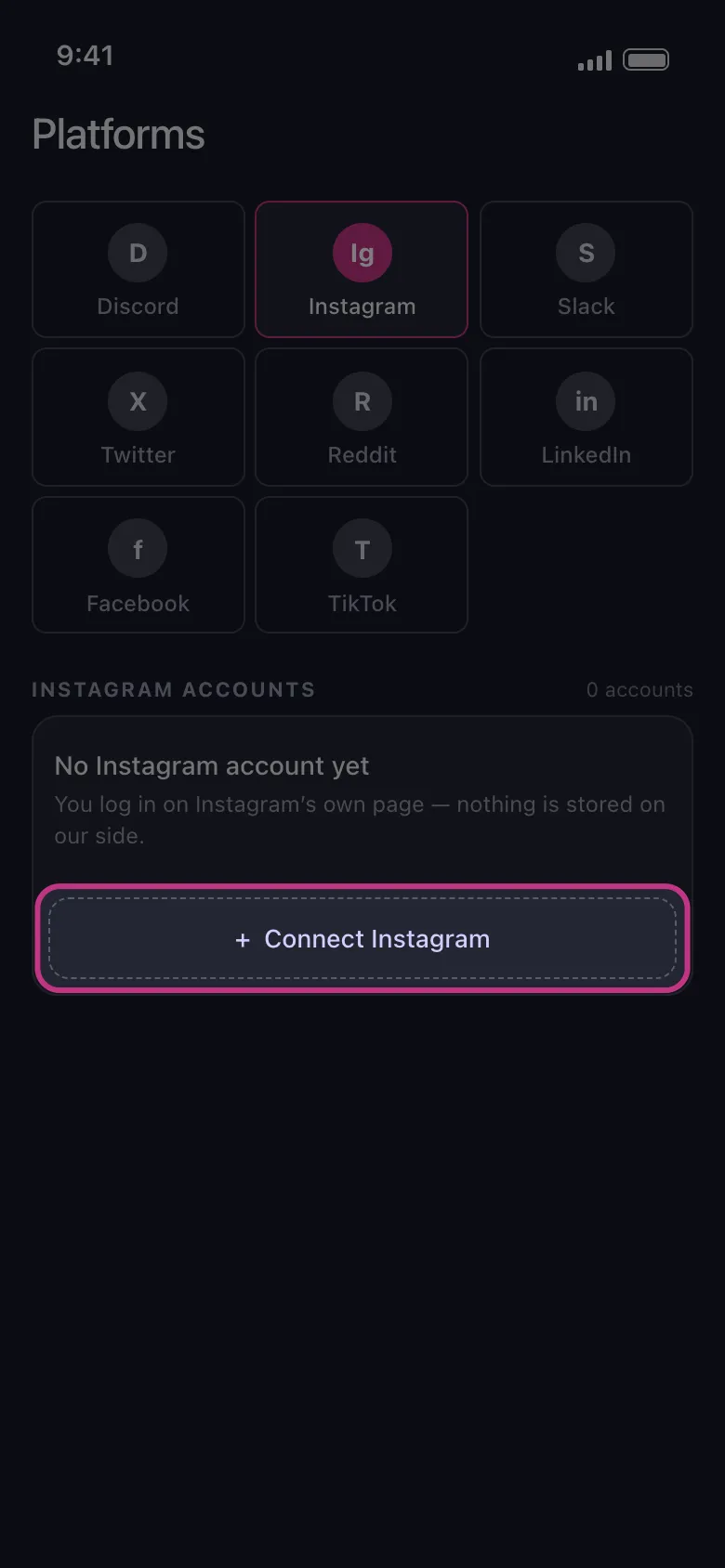
3. Open the DMs tab
After the account is connected, open the Instagram DMs section. Your conversations load as a list, so you can work from it instead of jumping in and out of the Instagram app itself.
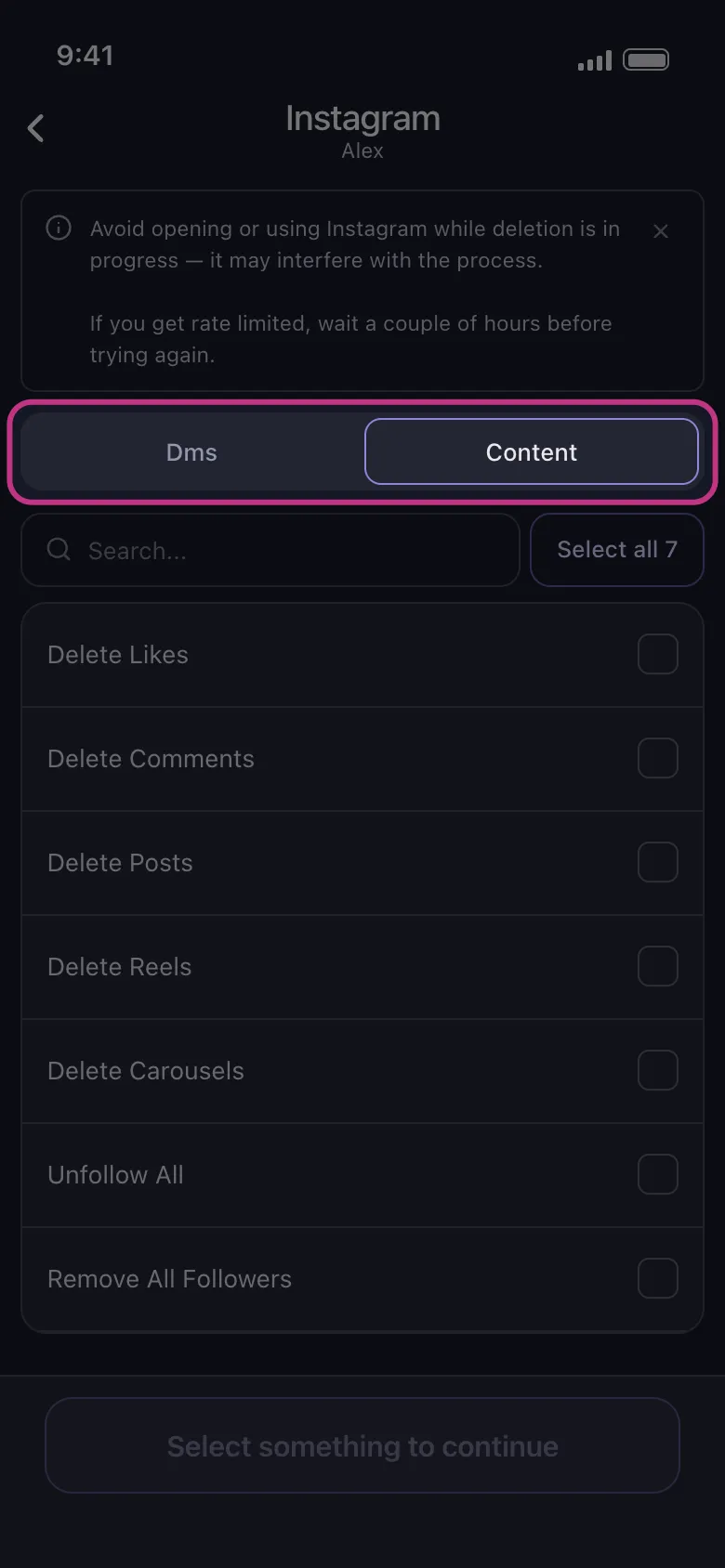
4. Select the conversations you want to clean up
Choose the chats you want to process. This is the key difference from manual cleanup: you are deciding which conversations to work on first, instead of repeating the same taps inside every thread one by one.
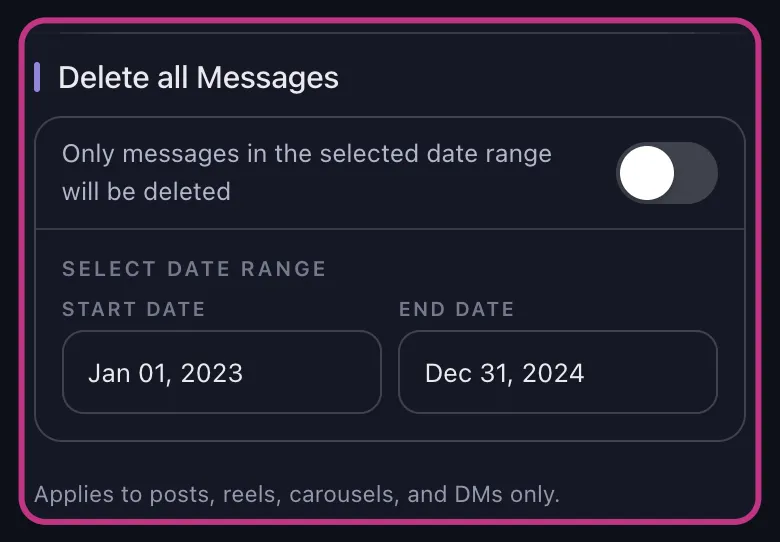
5. Narrow the job with filters if needed
To keep part of the history, set a date range with a start and an end date, so the run targets one time period instead of everything in the selected conversations.
6. Start deletion
Tap Delete, read the rules the app shows, and tap Got it. The app begins removing the messages you authored in the selected conversations.
7. Keep the app open and avoid using Instagram
Keep the app running until the deletion ends (on an iPhone, in the foreground). Do not use Instagram during the process: it can interfere with the cleanup.
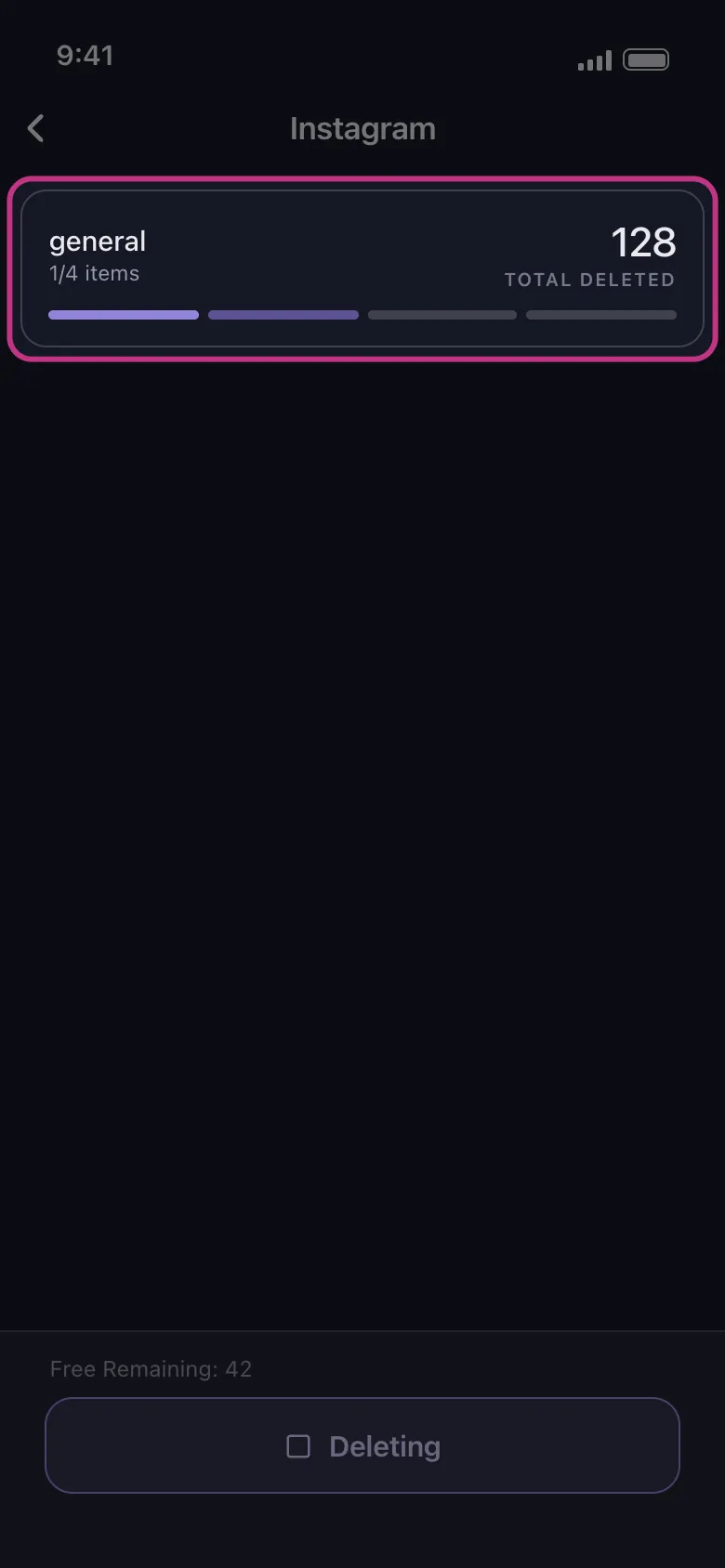
8. Watch live progress
The app shows live progress while it works. Runs are slow on purpose, to protect the account. If Instagram rate limits you, wait a couple of hours before trying again.
FAQs
Does the other person get notified if I delete messages on Instagram from both sides?
Unsend is the native action for this, and the message simply disappears from the chat, so the other person can notice the gap. Whether Instagram alerts them is covered in if you unsend a message on Instagram does it notify.
Do my messages pass through Unpost’s servers?
No. Every Instagram request goes to Instagram’s own hosts, and deleted content never passes through an Unpost server; the app’s own services receive per-account counts, never content or credentials.
Does deleting with Unpost leave a backup?
No. Deleting is permanent: nothing deleted can be recovered, and the app keeps no backup, so unsend only what you want gone for good. For recovery questions, read how to see deleted messages on Instagram.
For one recent message, Instagram’s own unsend is enough. For a real DM backlog, get Unpost and let it work through the conversations you pick.

Get Started
Delete Old Content Across Your Accounts
Bulk delete messages, posts, likes, comments, DMs, reactions, bookmarks, followers, and more — all from one app.
No password storage • Free to start • iOS & Android
 Download for iOS
  Download for Android