
How to Delete an Instagram Chat or Message (and What the Other Person Sees)
Reviewed by Unpost Team
To delete messages on Instagram, you need to choose the right action first. Instagram typically gives you two native options: unsend one message inside a conversation, or delete a conversation from your own inbox. Those are not the same thing. If you need to clean up many sent messages across multiple chats, Instagram usually does not offer a true delete-all workflow, so a bulk-cleanup tool is the more practical option.
If you searched for how to delete Instagram messages, how to delete Instagram direct messages, or how to delete an Instagram chat, the main difference is simple: unsend removes a specific sent message, deleting a chat removes the thread from your inbox, and bulk cleanup is for large DM history management.
| Task | What it does | Best option |
|---|---|---|
| Unsend one message | Removes one sent message from the conversation | Native Instagram |
| Delete a chat from your inbox | Removes the conversation from your inbox only | Native Instagram |
| Bulk delete your own sent messages | Removes many sent messages inside selected conversations | Unpost |
| Clean up group DMs | Removes your sent messages one by one or in bulk, but does not erase other people’s messages | Native Instagram for one-offs, Unpost for scale |
The Difference Between Deleting a Chat, Unsending a Message, and Bulk Cleanup
Instagram chat cleanup is confusing because the app uses similar language for very different actions.
- Delete a chat from your inbox: removes the conversation from your inbox view, but does not usually remove the other person’s copy.
- Unsend a message: removes one message you sent from the conversation.
- Bulk cleanup: helps when you want to remove many messages you sent across selected conversations instead of opening every chat one by one.
If your goal is broader account cleanup, not just DMs, start with the Instagram cleanup guide. If your goal is specifically removing sent messages rather than hiding a thread, the more focused follow-up is how to delete messages on Instagram from both sides.
What This Does and What It Does Not Do
What this does
- Explains how to delete a single Instagram message with the native unsend option.
- Explains how to remove a full conversation from your own inbox.
- Explains how to delete many messages you sent inside selected conversations with Unpost.
What this does not do
- Promise a native one-tap way to delete all Instagram messages at once.
- Claim that deleting a chat from your inbox erases the other person’s copy.
- Offer message recovery. If recovery is your question, read how to see deleted messages on Instagram.
Native Instagram Method
Instagram’s native tools are the right choice when you only need to remove one message, a recent mistake, or a small number of conversations.
How to Delete a Single Instagram Message Using Unsend
If you want to delete one Instagram DM you sent, the current flow is usually:
- Open Instagram and go to your Direct Messages.
- Open the conversation that contains the message.
- Press and hold the message you sent.
- Tap the unsend option.
This is the native answer to “how to delete Instagram messages” when the job is small. It works best for one message or a few messages, not for a long message history.
How to Remove an Entire Conversation From Your Inbox
If you want to delete an Instagram chat rather than a single message, Instagram typically lets you remove the conversation from your inbox list.
The current flow is usually:
- Open Instagram and go to your inbox.
- Find the conversation you want to remove.
- Swipe or long-press the chat, depending on your device and app version.
- Choose the delete option for the conversation.
That action usually removes the thread from your inbox only. It is not the same as unsending every message inside the thread, and it does not usually delete the chat from the other person’s inbox.
How to Delete a Group Chat on Instagram
If you searched for how to delete a group chat on Instagram, the same distinction matters even more.
Instagram typically lets you remove the group conversation from your inbox, but that does not erase the thread for the other members. Group participants usually keep the conversation and the messages that remain in it. If you want one of your own messages gone from the group, you generally need to unsend that message. Depending on the current app version, Instagram may also show a separate leave-chat option, but leaving a group is still not the same as deleting the message history for everyone.
In practice, group DMs are where manual cleanup becomes tedious fastest. One mistaken message is easy to unsend. Months or years of sent messages are not.
What Instagram Does Not Do Natively
If you searched for how to delete all Instagram messages, Instagram usually does not offer a one-tap delete-all button for DMs.
Instagram also does not typically give you:
- A native bulk workflow to unsend many messages across many chats.
- A date-range filter for DMs.
- A keyword filter to find and delete matching sent messages in bulk.
- A practical delete-all method for active group DM history.
That is the main point where manual chat management turns into a time problem rather than a knowledge problem.
If you only have a few conversations to clear, stay with the native method. If you are trying to clean up a large DM backlog, Try Unpost, a mobile app for iOS and Android built for bulk social-media cleanup.
When Unpost Is Better
Unpost is useful when the real task is scale, filtering, or repeated cleanup. On Instagram, Unpost supports deleting DMs, posts, reels, carousels, likes, comments, unfollow all, and remove all followers. For DMs specifically, Unpost can bulk delete messages the authenticated user sent inside selected conversations.
That distinction matters. Unpost is not pretending that Instagram has a native delete-all button. It is helping you work through large DM cleanup jobs more efficiently than the default one-message-at-a-time flow.
How to Delete Many Instagram Messages With Unpost
Use this workflow when you need to clean up many sent messages across one or more conversations.
-
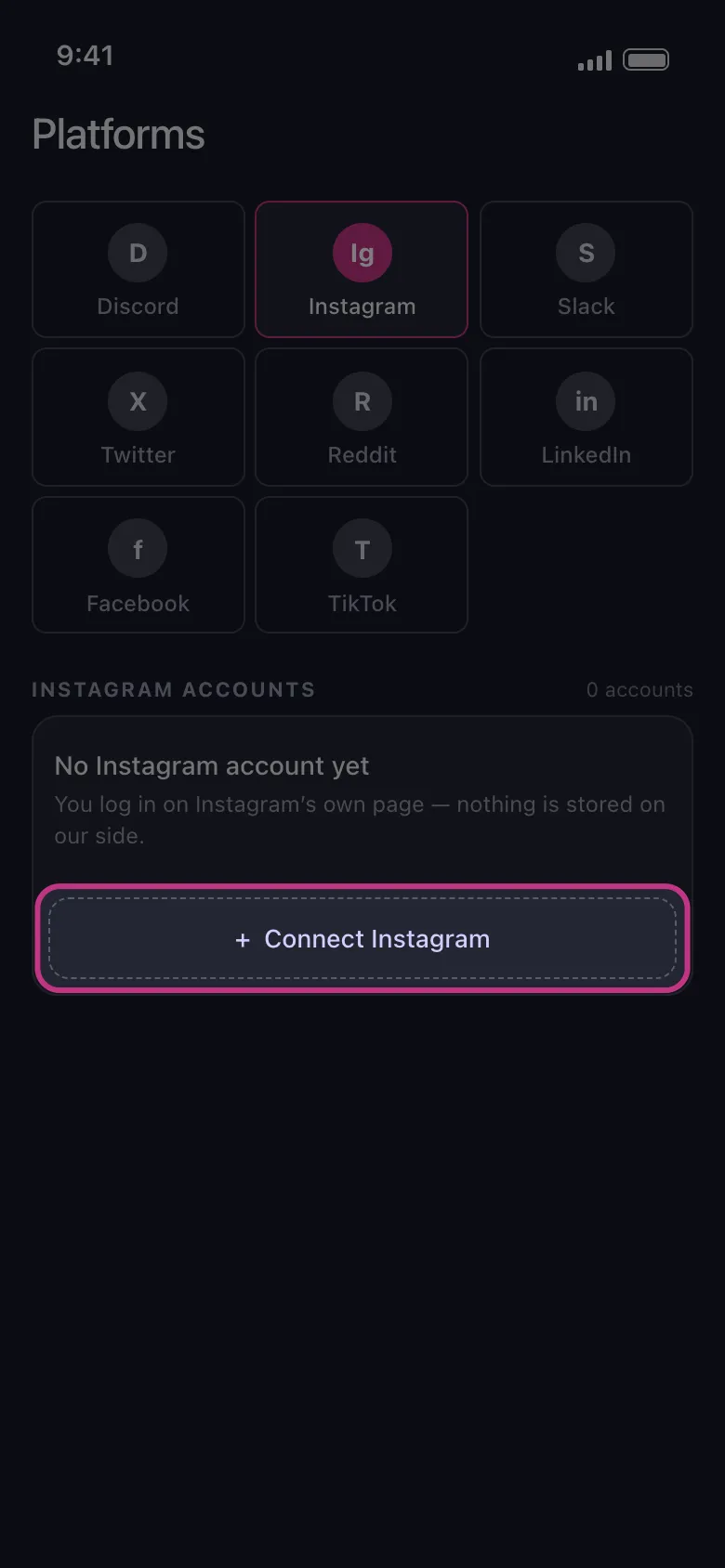
Add your Instagram account. Open Unpost and add your Instagram account. Unpost connects through Instagram web login in an embedded browser and stores encrypted session data locally on your device.
-
Open the DMs tab. After the account is added, open the Instagram DMs section in Unpost.
-
Select the conversations you want to clean up. Choose one conversation, several conversations, or the threads that matter for the cleanup you have in mind.
-
Optionally filter by date range or keywords. This is where Unpost becomes more practical than manual cleanup. You can narrow the job instead of working through every sent message in every thread.
-
Start deletion. Unpost begins removing the messages you sent inside the selected conversations.
-
Keep the app open and avoid using Instagram. Unpost works in the foreground, so keep the app open while deletion runs. Do not actively use Instagram during deletion because that can interfere with the process.
-
Review progress as it runs. Unpost shows live progress while deleting. If Instagram rate limits the action, the process may need to pause and retry before continuing.
This is the better answer to “how to delete Instagram messages” when your actual job is bulk cleanup rather than one quick correction.
Who Should Use Unpost Here?
Unpost is the strongest fit for:
- People cleaning up years of sent Instagram DMs.
- People who only want to delete messages from a certain time period.
- People who want keyword-based cleanup instead of opening chats manually.
- People who want visible progress during a long deletion session.
If that sounds like your use case, Try Unpost. It is especially useful when DM cleanup is part of a larger reset that also includes posts, reels, carousels, likes, comments, following, or followers.
FAQs and Edge Cases
Does Blocking Someone on Instagram Delete Messages?
No. Blocking someone on Instagram does not usually delete the existing message history by itself. Blocking changes who can contact or interact with you, but it is separate from DM deletion. If you want a sent message removed, use unsend. If you want a conversation out of your inbox, delete the chat from your inbox. If you want large-scale cleanup of your sent messages, use a bulk workflow.
Does Deactivating Instagram Delete Messages?
No, deactivating Instagram is not the same as deleting your DM history. Deactivation typically affects account visibility, not message cleanup. If DM privacy is the real goal, handle the messages directly before or separately from deactivation.
If You Delete a Chat on Instagram, Does the Other Person Know?
Deleting a chat from your inbox typically does not send a special notification to the other person. The more important point is that the conversation usually remains available in their inbox unless they remove it too.
If your concern is the notification side of unsend rather than inbox deletion, see if you unsend a message on Instagram does it notify.
Does Instagram Notify Someone if You Delete Messages?
Deleting a conversation from your inbox and unsending a message are different actions. Instagram typically does not send a separate “you deleted this chat” notification when you remove a thread from your inbox. With unsend, the message disappears from the conversation, so the other person may notice the change when they open the chat, even if there is no special alert.
Why Might Message Deletion Fail?
Native Instagram deletion can fail because of app glitches, network problems, or temporary service issues. The simplest fixes are usually:
- Update Instagram.
- Close and reopen the app.
- Check your connection.
- Try again later if Instagram seems slow.
With Unpost, the most common issue is workflow interruption rather than a broken feature. Keep the app in the foreground, avoid actively using Instagram while deletion runs, and let the process continue if Instagram slows the action down. Some deletion sessions may pause and retry when Instagram rate limits the account.
Can You Recover Deleted Instagram Messages?
Usually, the better question is whether the message still exists somewhere else, not whether Instagram offers a simple restore button. This article is about deletion, not recovery. If you are trying to understand the recovery side of the problem, read how to see deleted messages on Instagram.
The Bottom Line
The right answer to how to delete messages on Instagram depends on scale. For one message, use unsend. For one thread, remove the conversation from your inbox. For large DM cleanup, Instagram’s native flow usually becomes too manual too quickly.
Unpost is the better fit when you want to clean up many sent messages across selected conversations, especially if you want date-range filtering, keyword filtering, and live progress while the work runs. If DM cleanup is only one part of a wider account reset, the Instagram cleanup guide is the best next read, and the history of Instagram is there if you want broader platform context.
For large-scale DM cleanup on iOS or Android, Try Unpost. It gives you a more practical way to work through Instagram message history without turning a simple privacy task into hours of manual tapping.

Get Started
Delete Old Content Across Your Accounts
Bulk delete messages, posts, likes, comments, DMs, reactions, bookmarks, followers, and more — all from one app.
No password storage • Free to start • iOS & Android
 Download for iOS
  Download for Android