
How to Delete a Post on LinkedIn and Clean Up Your Activity Feed
LinkedIn is the account people clean up for a reason, not a mood. A recruiter is about to open your profile, a client is about to search your name, or you changed jobs last month and three years of posts about the old company are still sitting on your activity page. The question is rarely philosophical. It is simply how to delete a post on LinkedIn, quickly, and then how to do the same to the two hundred posts, comments and reactions behind it.
The single-post answer takes about ten seconds and is right below. The honest part is what comes after: LinkedIn has no select-all, no date filter and no bulk delete anywhere in the mobile app or on the desktop site. Posts, comments, reactions and reposts all come off one at a time. This guide covers the native steps for all four, what LinkedIn lets you change instead of deleting, how to run a keyword-targeted cleanup when a specific employer or topic has to disappear, and what deletion genuinely cannot undo.
How to Delete a Post on LinkedIn (the Quick Answer)
Open your profile, tap Show all posts under the Activity box, and stay on the Posts tab. Find the post, tap the three-dot menu in its top-right corner, and choose Delete post. Confirm when LinkedIn asks. The post leaves your profile and your followers’ feeds immediately, and there is no undo.
In the LinkedIn app for iOS or Android:
- Tap your profile photo, then View profile.
- Scroll to the Activity section and tap Show all posts.
- Stay on the Posts tab.
- Tap the three-dot menu on the post you want gone.
- Tap Delete post, then confirm.
On the desktop site:
- Click Me in the top navigation, then View Profile.
- In the Activity box, click Show all posts.
- Stay on the Posts tab.
- Click the three-dot menu on the post.
- Click Delete post and confirm.
Deleting takes the whole post with it — the comments underneath, the reactions on it and its view analytics, not just your words.
Where LinkedIn Hides Your Old Posts and Activity
Most of the frustration in a LinkedIn cleanup is not the deleting. It is the finding. Everything you ever published lives on one page: your activity page, reachable from your profile or directly at linkedin.com/in/your-name/recent-activity/all/. That page is split into tabs:
- Posts — everything you published, including reposts. A plain repost has no tab of its own: it sits here with a “You reposted this” header, while a repost you added commentary to looks like any other post.
- Comments — every comment you left under someone else’s post. On most accounts this is the second-biggest pile.
- Reactions — every like, celebrate, support, love, insightful or funny you have ever tapped. This is usually the longest tab of all, because a reaction costs one tap and nobody counts them. Invisible to you day to day, fully visible to anyone who opens the tab.
- Images, Videos and Documents — these slice the same posts by format rather than adding anything new.
- Articles, Newsletter and Events — separate objects rather than posts. A published article or newsletter edition is deleted from the article page itself — its own three-dot menu has Delete article — not from a post’s three-dot menu on the activity page.
The link under the Activity box is named after the chip selected above it: Show all posts, Show all comments, Show all reactions. Every version lands on the same activity page, usually with that tab already selected — switch tabs there if not.
There is no search inside your own activity, no jump-to-a-year control and no sorting. The list loads a chunk at a time as you scroll, so reaching your 2019 output costs several minutes of scrolling before you delete the first thing. That is the real cost of a manual cleanup, and why people abandon them halfway.
Can You Delete All Your LinkedIn Posts at Once?
No — not natively. LinkedIn offers no select-all checkbox, no multi-select, no date range and no “delete all activity” button in any of its apps or on the web. Every post and comment is a three-dot menu plus a confirmation; every reaction is a separate tap.
Closing your account is not the shortcut it looks like either: it costs you the network you spent years building, and it is not a reliable way to erase things you wrote on other people’s posts.
So the math decides the method. At roughly ten seconds per item once scrolling and loading are counted, 500 items is around ninety minutes of uninterrupted tapping, and a five-year account with a few thousand reactions is several evenings. Under about fifty items, do it by hand today. Past that, hand the repetition to something that does not get bored.
How to Bulk Delete LinkedIn Posts With Unpost
Unpost is a mobile app for iPhone and Android that performs the same one-at-a-time deletion for you. It covers the four kinds of activity that fill nearly all of that page — posts, reposts, comments and reactions — with two filters: a date range and a keyword list. You sign in through LinkedIn’s own login screen inside the app, the session stays on your device, and each item comes off the way you would remove it by hand. The same app also cleans up Discord, Slack, Instagram, X (Twitter), Reddit, Facebook and TikTok.
The whole job is five steps:
-
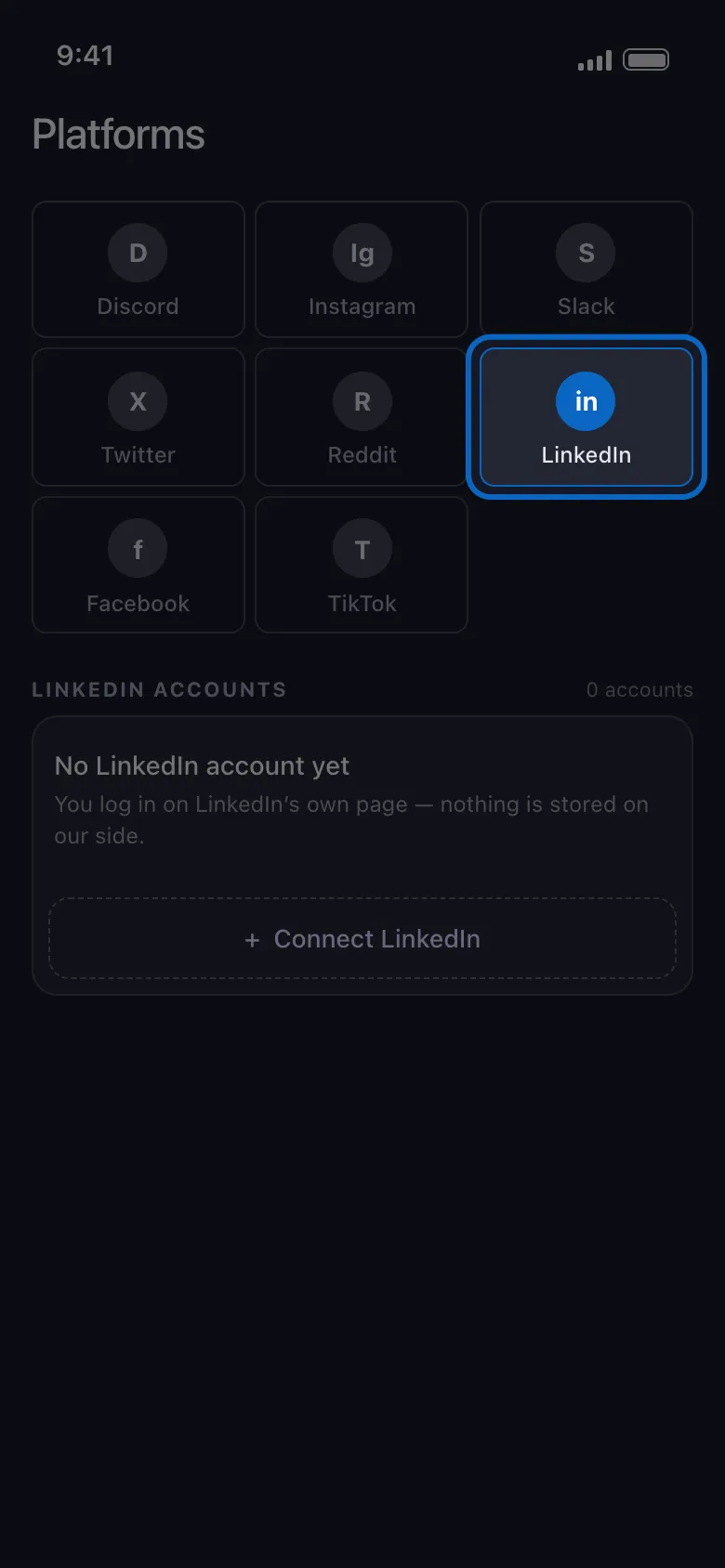
Open Unpost and choose LinkedIn from the platform list on the home screen.
-
Connect your account through LinkedIn’s normal login screen inside the app. Nothing is pasted into a website and no password is stored.
-
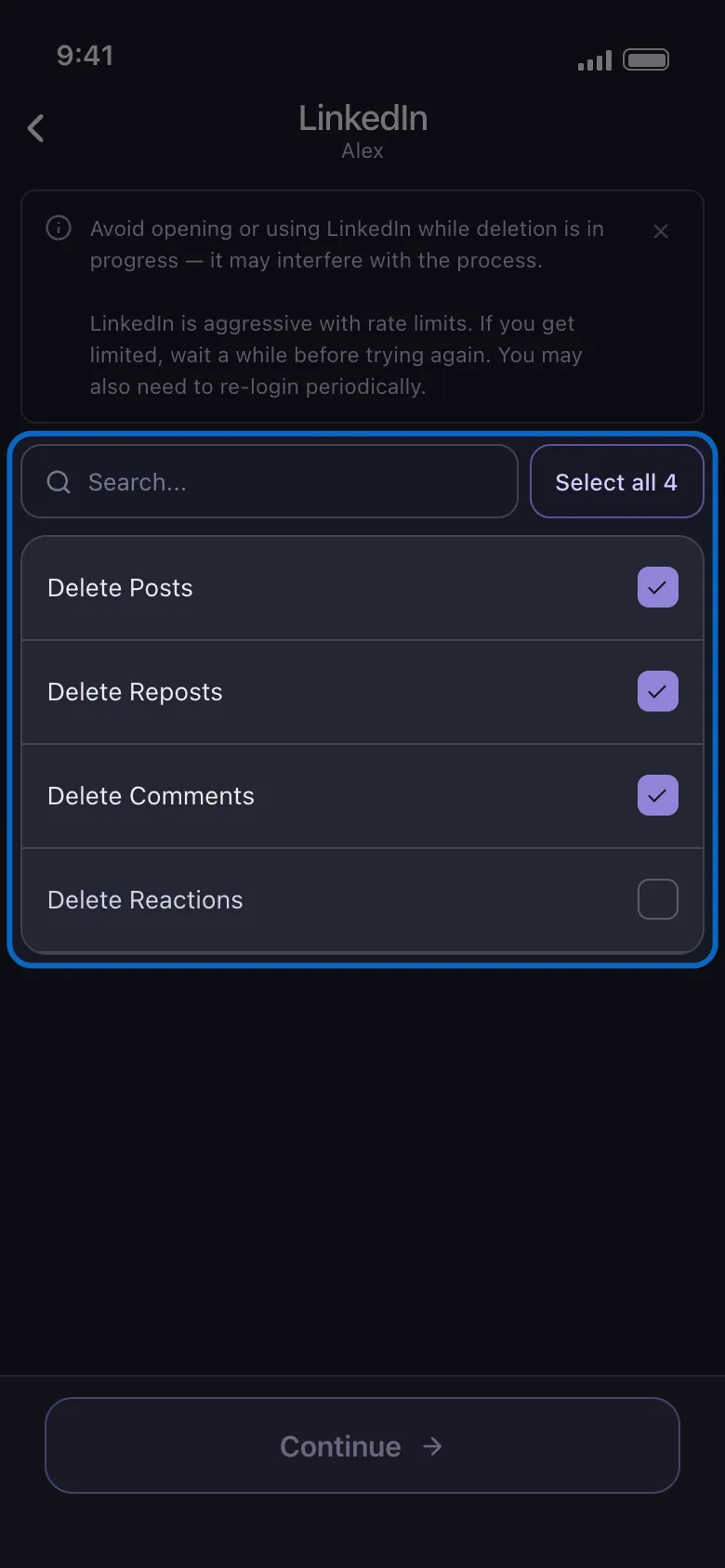
Pick what to delete. LinkedIn’s list is flat, one row each: Delete Posts, Delete Reposts, Delete Comments, Delete Reactions. Tick one or several, then tap Continue.
-
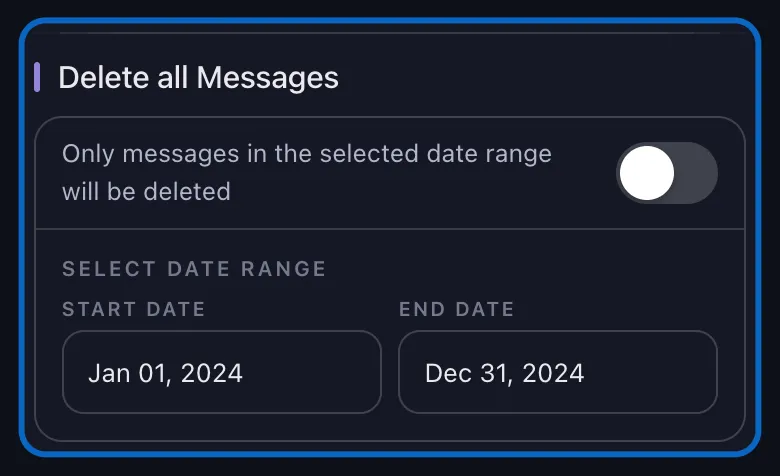
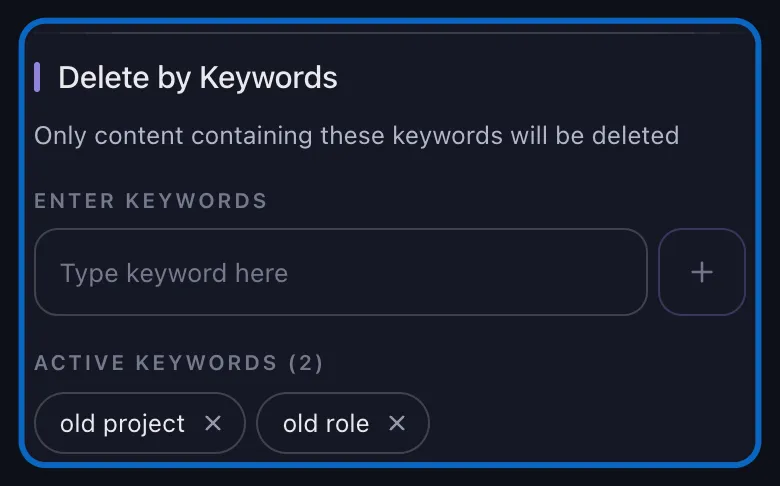
Set your filters. The options screen has two sections. The first is a Delete all Messages switch; turn it off and a Select Date Range block appears with a Start Date and an End Date. The second is headed Delete by Keywords, and each word you add becomes a chip. Leave both untouched to take everything in the categories you ticked. One thing the screen does not tell you: its hint reads “Only messages in the selected date range will be deleted”, but a reactions run ignores the dates and takes every reaction unless keywords narrow it.
-
Tap Delete, confirm the popup, and leave Unpost open on screen. The Important Information popup restates the rules: keep the app in the foreground, the process stops in the background, deletion is permanent. The run starts when you tap Got it, and the run card shows what is being deleted, how many items are finished and a running tally.
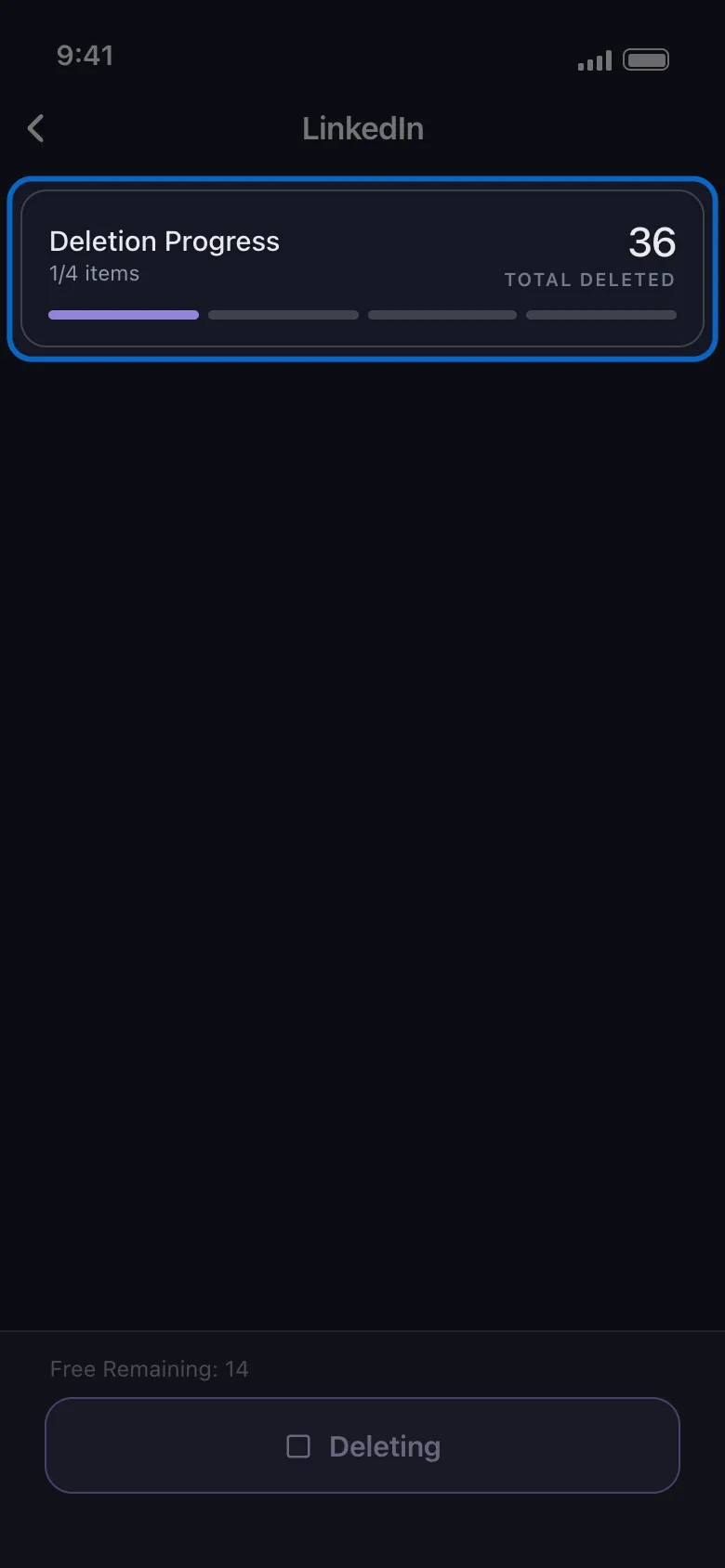
Start it and leave LinkedIn alone. LinkedIn is aggressive with rate limits, and Unpost says so on screen before you begin: avoid opening or using LinkedIn while a deletion is in progress, because it can interfere with the process. If you do get rate limited, wait a while before trying again, and expect to log back in periodically on a long job. The app paces every deletion rather than firing them off in a burst, and when LinkedIn throttles anyway it pauses and retries a few times. If LinkedIn has also signed the session out, the run stops and is reported as Failed; open the account again, log back in when Unpost asks, and start a new run, which only finds what is still there.
The free plan covers 50 deletions a day, enough to clear a quiet year of activity or to watch the whole workflow end to end. A multi-year cleanup needs the subscription that lifts the daily cap, and a few thousand reactions are enough to get there on their own.
Clean Your Activity Page
Bulk delete LinkedIn posts, comments, reactions and reposts.
Install Unpost, connect LinkedIn through its own login screen, filter by keyword or date, start the job — and leave LinkedIn closed while it runs.
Delete Everything That Mentions an Old Employer
The most common LinkedIn cleanup is not “delete everything”. It is “delete everything about the last job, before the next one reads my profile”. That is what the keyword filter is for: add the words that matter as chips, and only the matching items are deleted.
Words worth putting on that list:
- The company name, plus the shorthand everyone used internally and the abbreviation you typed in a hurry.
- Your old job title, if you announced it, thanked people for it, or signed posts with it.
- Product and project names you promoted — the ones a search of your name still surfaces.
- Hashtags from that era, including hiring campaigns and event tags you were asked to amplify.
- A topic that aged badly — a tool you no longer endorse, a stance you have moved on from, a prediction that did not land.
Two practical notes. Run one theme at a time rather than a giant list: a narrow pass is easier to sanity-check, and you can stop after each one. And know which filter bites on which category, because the two are not symmetrical.
Keywords match text on all four categories — but not always your text. On posts, comments and reposts you added commentary to, Unpost matches what you wrote. On reactions it matches the text of the post you reacted to, so “delete everything I ever liked that mentions the old company” is a real instruction rather than wishful thinking. Two gaps: a reaction on a caption-less photo or video has no text to match at all; a plain repost carries no words of yours — the filter reads the repost, not the post inside it — so a keyword pass leaves both where they are. Take plain reposts with a date-range pass or an unfiltered Delete Reposts run, and caption-less reactions with an unfiltered Delete Reactions run.
The date range goes the other way. It applies to posts, reposts and comments; a reactions run ignores it. Tick Delete Reactions and every reaction on the account is in scope, whatever dates you set — so tick it when all of them can go, or hand it a keyword list and let the words do the narrowing.
On posts, comments and reposts with your own commentary, the two filters combine, which is where the job gets precise: everything mentioning the old company, published before the day you started the new role, and nothing else.
Delete Your LinkedIn Comments, Reactions and Reposts
Posts get the attention, but they are usually the smallest part of the footprint. Each of the other three has its own native route:
- Comments. Profile → Activity → Comments tab. Open the three-dot menu on a comment and choose to delete it. LinkedIn asks for confirmation and the comment is gone from the thread.
- Reactions. Profile → Activity → Reactions tab. It lists the posts you reacted to, each card showing your reaction button highlighted; tap that button to take the reaction back. One tap per item, no confirmation.
- Reposts. A plain repost is removed from the repost itself: open its three-dot menu on your activity page and choose Delete repost. Tapping the Repost button on the original post again and choosing Undo repost does the same thing. A repost where you added your own commentary is a post in its own right, so delete it from the Posts tab like any other.
Do not stop at posts. A years-old reaction on a controversial post is exactly what someone finds when they go looking, and it takes one tab to check.
Hide vs Delete: What LinkedIn Lets You Change After Posting
People look for a way to hide a LinkedIn post without deleting it, so here is the honest inventory of what a published post allows:
- Edit the text. Three-dot menu → Edit post. You can rewrite the copy and the hashtags; LinkedIn labels the result as edited.
- Restrict comments. The same menu lets you choose who can comment — anyone, connections only, or nobody. This closes a thread without touching the post.
- Change the audience. Not possible. The audience you picked in the composer is locked once the post is live.
- Hide or archive it. No such control exists for your own published posts. The “hide” option you may have seen removes someone else’s post from your own feed.
- Reduce who stumbles on it. Settings → Visibility → Edit your public profile turns sections off for signed-out visitors and search engines. That trims your exposure to strangers, but any logged-in member can still open your activity page.
Short version: you can change the words, close the conversation and shrink the public-web version of your profile — but you cannot hide a post from other members. Removing it means deleting it.
Clean Up Your LinkedIn Before a Job Search
If a job search is what brought you here, work in this order rather than scrolling randomly:
- Download your data first. Settings → Data privacy → Get a copy of your data. LinkedIn’s own timing is a first part of the archive within minutes and the full archive within 24 hours, occasionally longer in practice, so start it before anything else. It tells you what you actually posted, which is usually a surprise.
- Treat that export as a reading copy, not a deletion source. Unpost can delete straight from an export on Discord, X and Reddit, and here is how the data package route works on those platforms. LinkedIn is not one of them, so the cleanup itself runs against your live account.
- Run the old-employer keyword pass across posts, reposts, comments and reactions, with the filter rules above in mind: a reaction is matched on the post you reacted to, and a plain repost of the old company’s post carries no words of yours, so the keyword pass skips it.
- Then a date-range pass for everything before your current role. It takes posts, comments and the plain reposts the keyword pass skipped; reactions ignore dates, so finish them with an unfiltered run if every one can go.
- Then fix the profile itself, meaning the headline, the About section and the old role descriptions, so the story matches the activity.
- Then the rest of your name in search. A pre-interview cleanup rarely stops at one platform: wiping an old Twitter/X timeline and tidying an Instagram account are the usual other half, and our checklist for cleaning up your social media before a job search covers what employers actually screen for and how early to start.
For why a smaller public trail is worth the evening, our guide to the practical privacy benefits of cleaning up your online history makes the case without hand-waving.
What Deleting a LinkedIn Post Does Not Do
Deletion removes the post from LinkedIn, the place it is most visible and most tied to your name. A complete plan still accounts for what survives:
- The discussion goes with it, and nothing comes back. Comments and reactions belong to the post, so a thread you were proud of disappears alongside the post you regret — and LinkedIn keeps no trash folder to fish it back out of. Screenshot anything worth keeping first.
- Other people’s copies stay. Screenshots, newsletters that quoted you and notification emails already sent all contain the text. If someone reposted you with commentary, your words vanish from the repost while their commentary remains.
- Search results lag. A public post that Google indexed can keep showing an old title or snippet for days or weeks until the page is recrawled. That fades on its own.
- Scheduled posts are elsewhere. Anything queued but not yet published sits behind the composer’s clock icon, under View all scheduled posts, not on your activity page. Delete it there — Unpost does not reach it.
- Messages, articles, connections and profile fields are untouched. Unpost’s LinkedIn support covers activity only: posts, reposts, comments and reactions. Articles, newsletter editions and events are separate objects rather than posts, so they sit outside that scope as well; an article or newsletter edition comes off from its own page. Nor does it touch your inbox, your connections, who viewed your profile, or the profile fields.
- The rate limit still applies. By hand or in a job, LinkedIn throttles fast activity. Let a run take the time it takes rather than poking at the account meanwhile.
Start With the Post That Is Bothering You
If one specific item is the reason you opened this page, use the steps at the top: the answer to how to delete a post on LinkedIn is the ten-second routine there, done before you finish this paragraph. If the real problem is three years of activity that no longer matches who you are, pick the pass you need — a keyword sweep for one employer or topic, or a date range for everything before your current role — and let the app work through it while you do something else.
Either way the order is the same: export your data as a backup, delete the posts, then the comments and reactions, and only then rewrite the profile. LinkedIn will not make any of it bulk, but it does not have to cost you an evening.
Past about fifty items, get Unpost, connect LinkedIn, pick a keyword list or a date range, and let the app do the tapping while you stay out of LinkedIn.
Frequently Asked Questions

Get Started
Delete Old Content Across Your Accounts
Bulk delete messages, posts, likes, comments, DMs, reactions, bookmarks, followers, and more — all from one app.
No password storage • Free to start • iOS & Android
 Download for iOS
  Download for Android