
How to delete one conversation, channel, or server
On Discord and Slack you pick where to delete before anything else: one DM, one channel, a whole server, or all of it. Unpost deletes the messages you sent; other people’s stay (to remove theirs where you moderate, see How to delete other people’s messages as an admin).
- 01
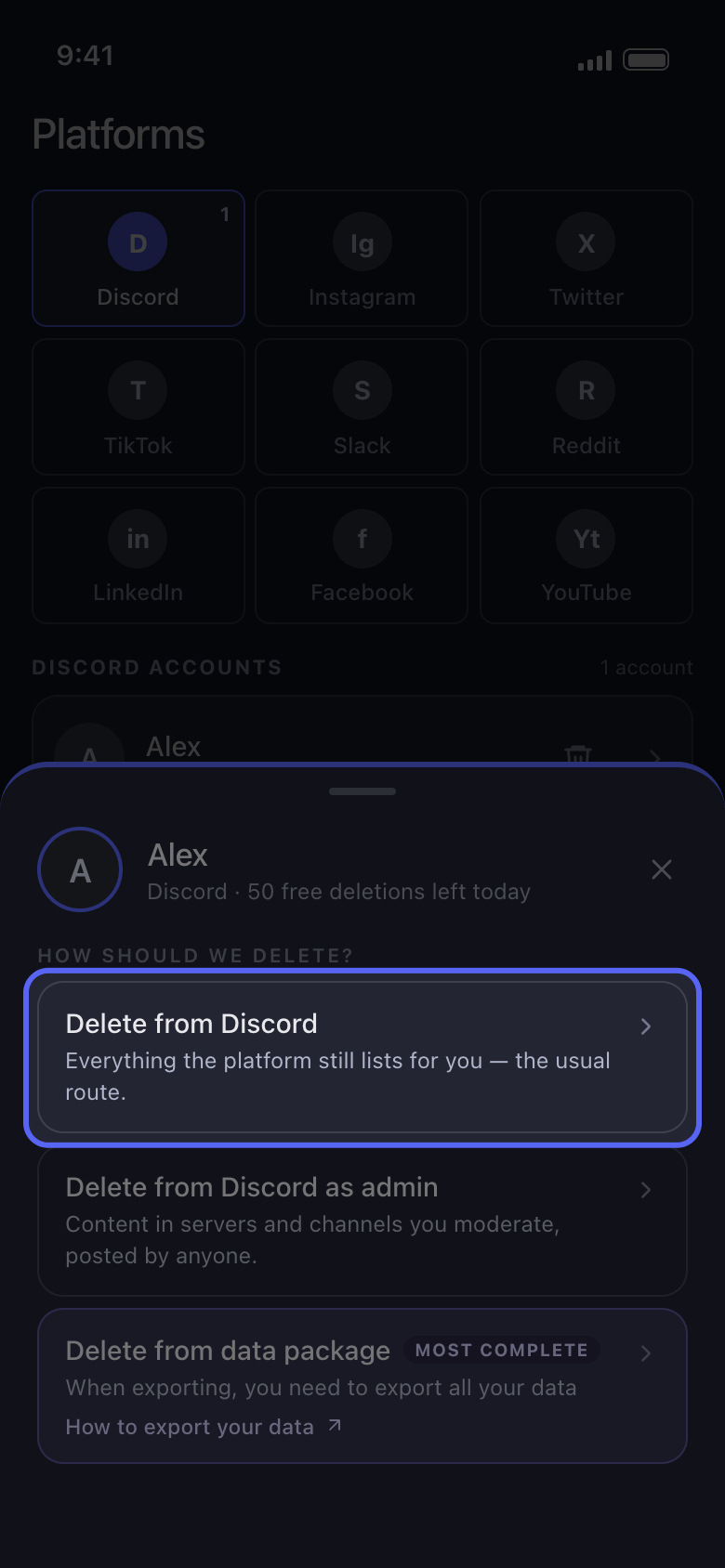
Open the account and choose Delete from Discord
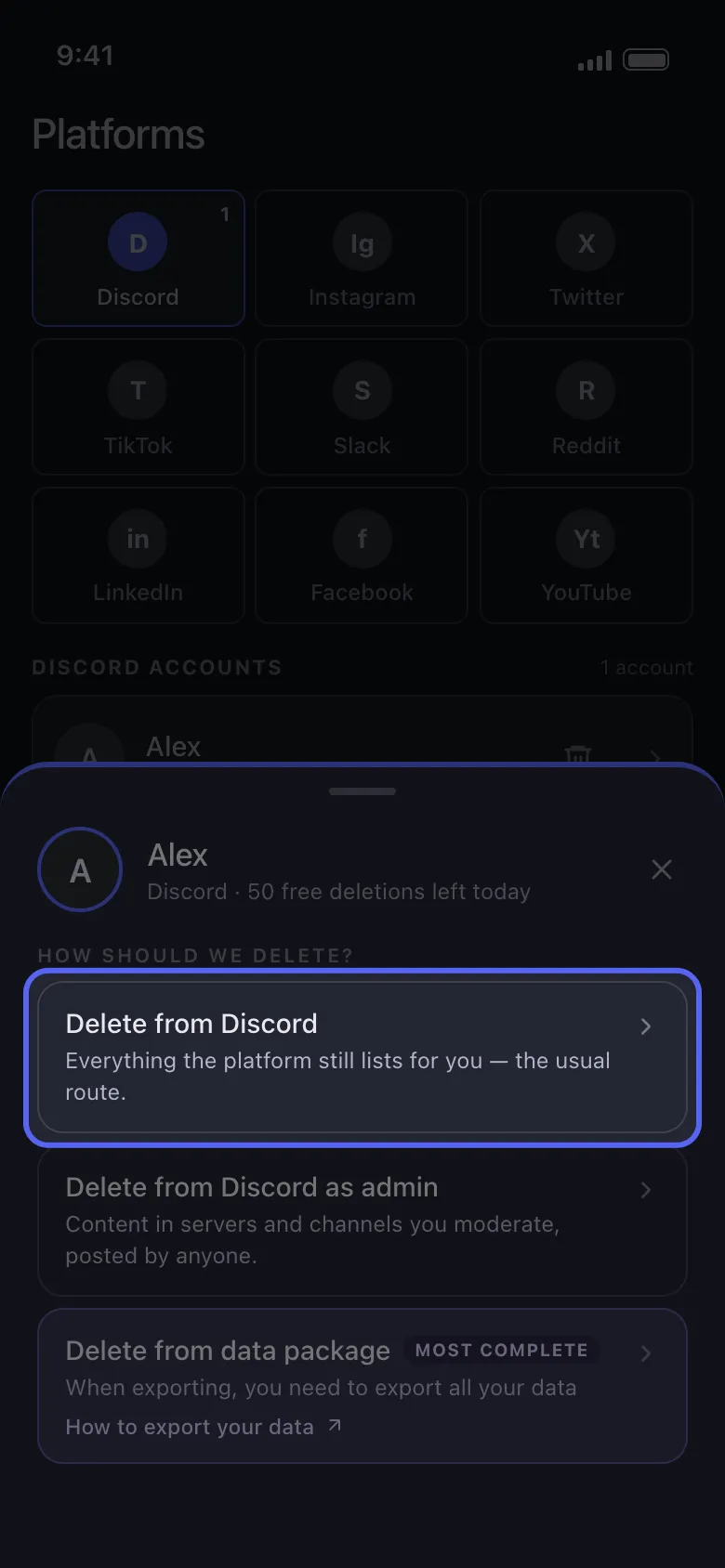
Tap your Discord account on Main. The sheet asks how to delete: Delete from Discord works on the conversations Discord still lists for you.
In the app Main → Discord → account → Delete from Discord
- 02
One conversation: tick it on the Dms tab
The list opens on the Dms tab: your direct messages and group chats. Tick only the ones to clean; the search box finds one by name. A DM you closed in Discord isn’t listed: open it again in Discord first, or reach it with Delete from data package, which lists the conversations in your Discord data export (see How to delete old messages with a data package).
In the app Delete from Discord → Dms
- 03
One channel or a whole server: open it on the Servers tab
Tap a server to open its list of text channels, then tick single channels, or tap Select all to take every channel in that server. There is no box for the server itself: Select all inside it is how you clean a whole server. Threads aren’t listed; they are reached through the channel they were started in (next step).
In the app Delete from Discord → Servers → server
- 04
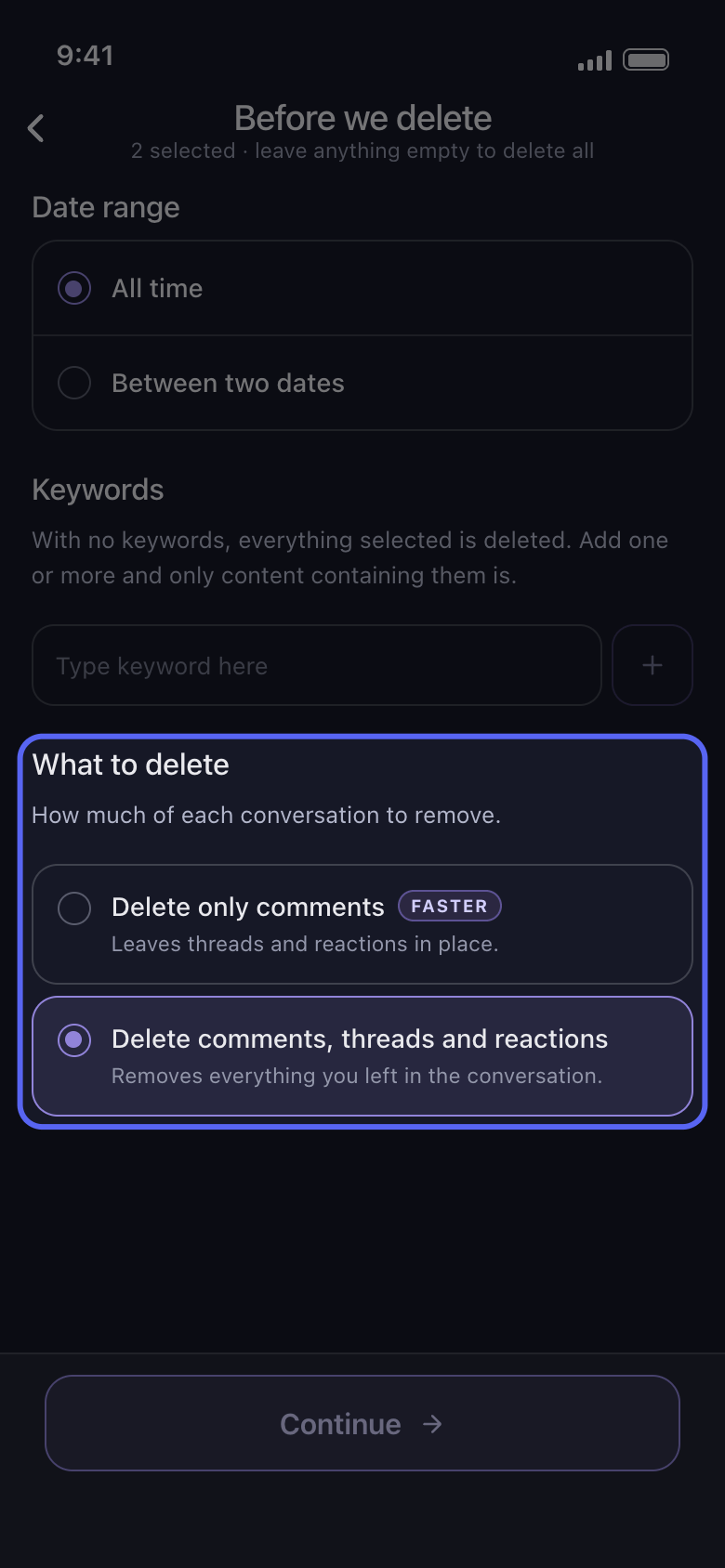
Choose whether threads and reactions go too
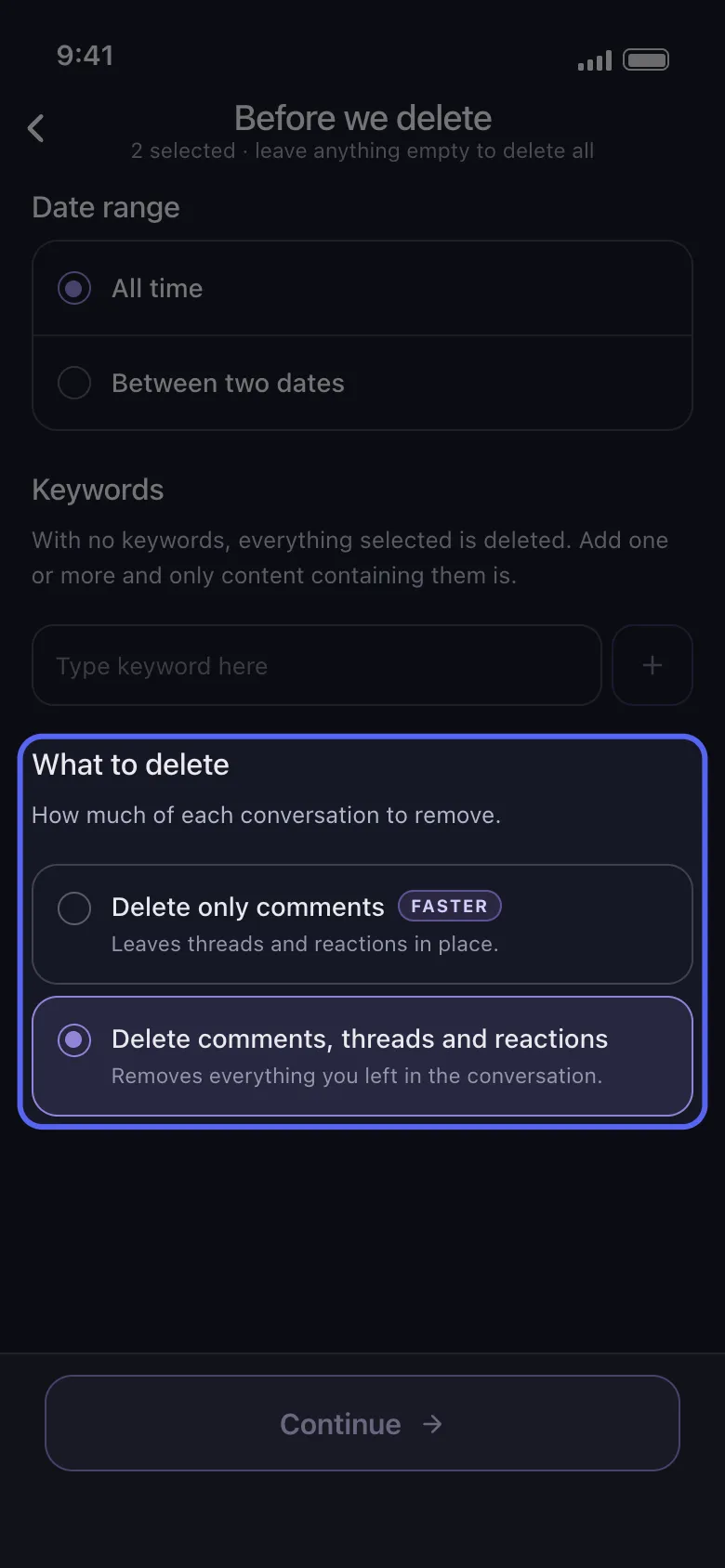
Tap Continue. On the options screen, Before we delete, What to delete comes last, after Date range and Keywords. Delete comments, threads and reactions is selected at first: it removes everything you left in each conversation you ticked, your messages in threads started there and your reactions included. Delete only comments, marked faster, leaves threads and reactions in place, in DMs and group chats as in server channels. Keep the first choice when your thread replies must go too; pick the second to keep your reactions. Then tap Continue.
In the app Continue → What to delete → Continue
- 05
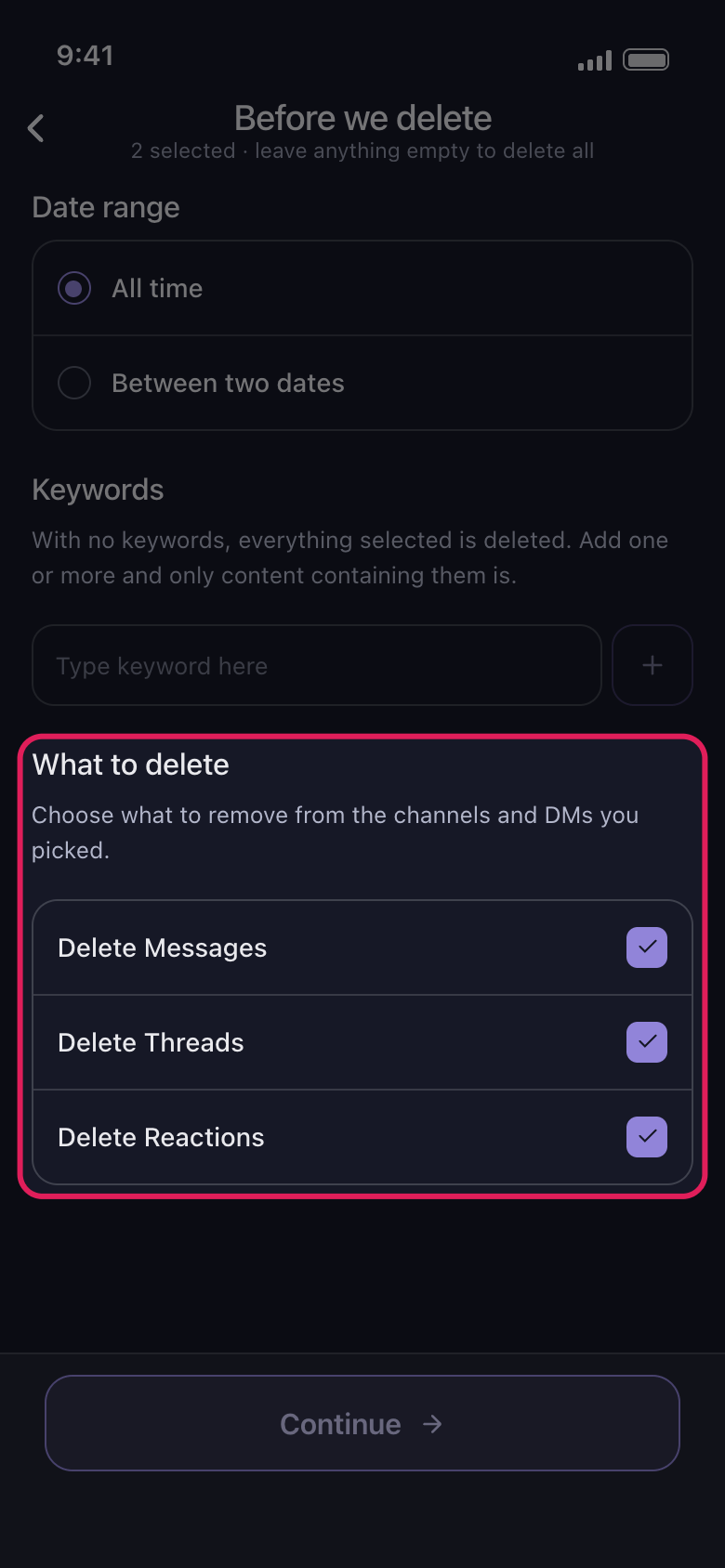
On Slack: Dms or channels, then what goes
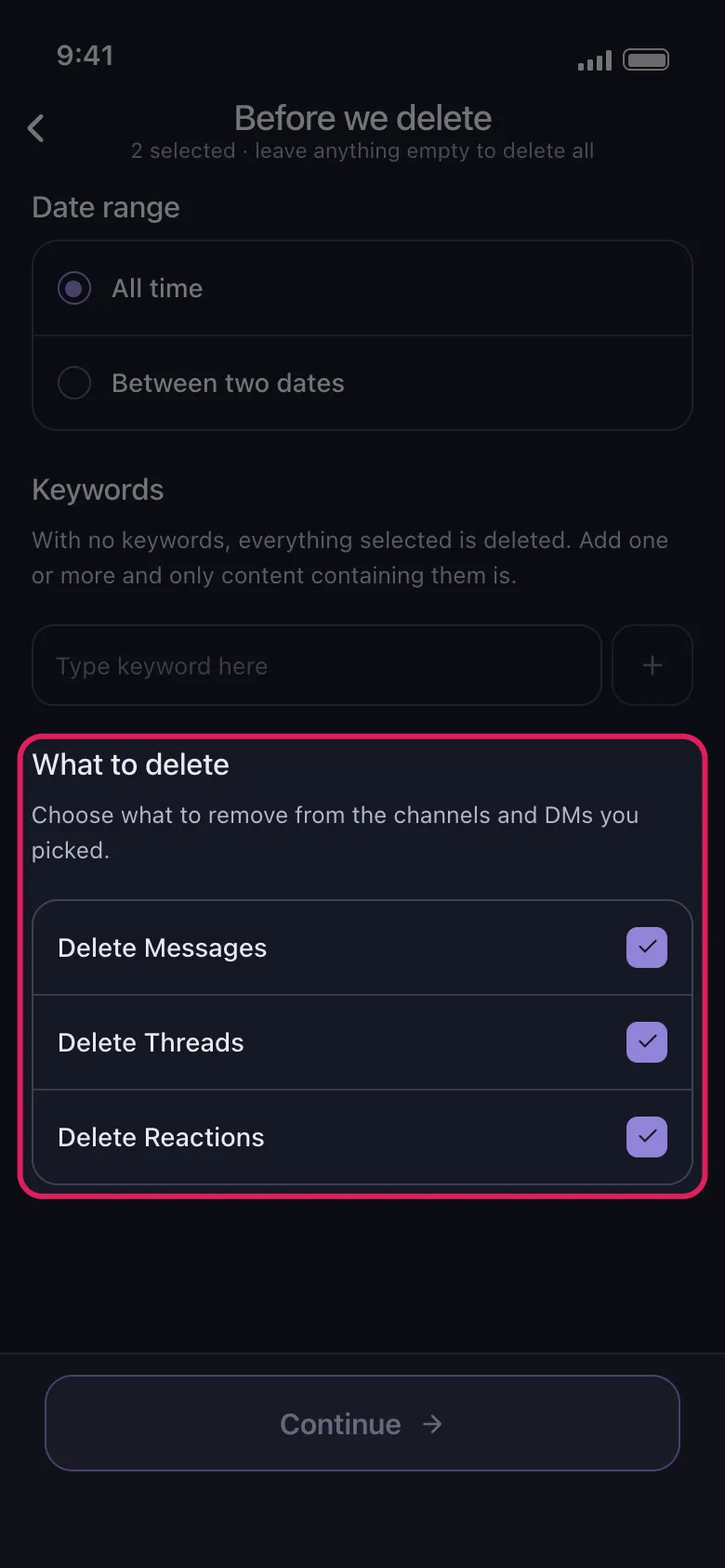
Choose Delete from Slack on the sheet, then tick conversations on the Dms tab or channels on the channels tab. After Continue, What to delete has Delete Messages, Delete Threads and Delete Reactions, all ticked at first: untick what you want to keep, then tap Continue.
In the app Main → Slack → account → Delete from Slack
- 06
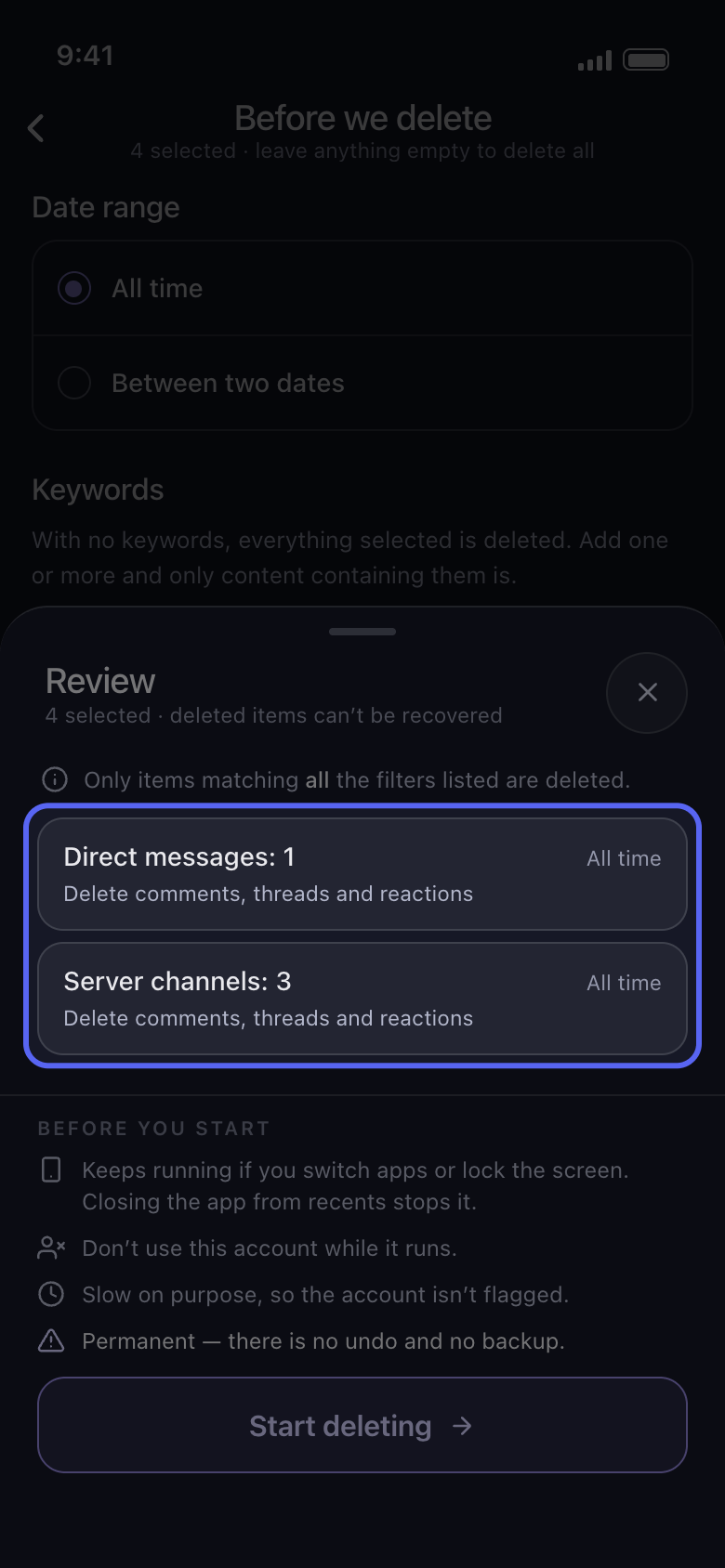
Check the Review sheet and tap Start deleting
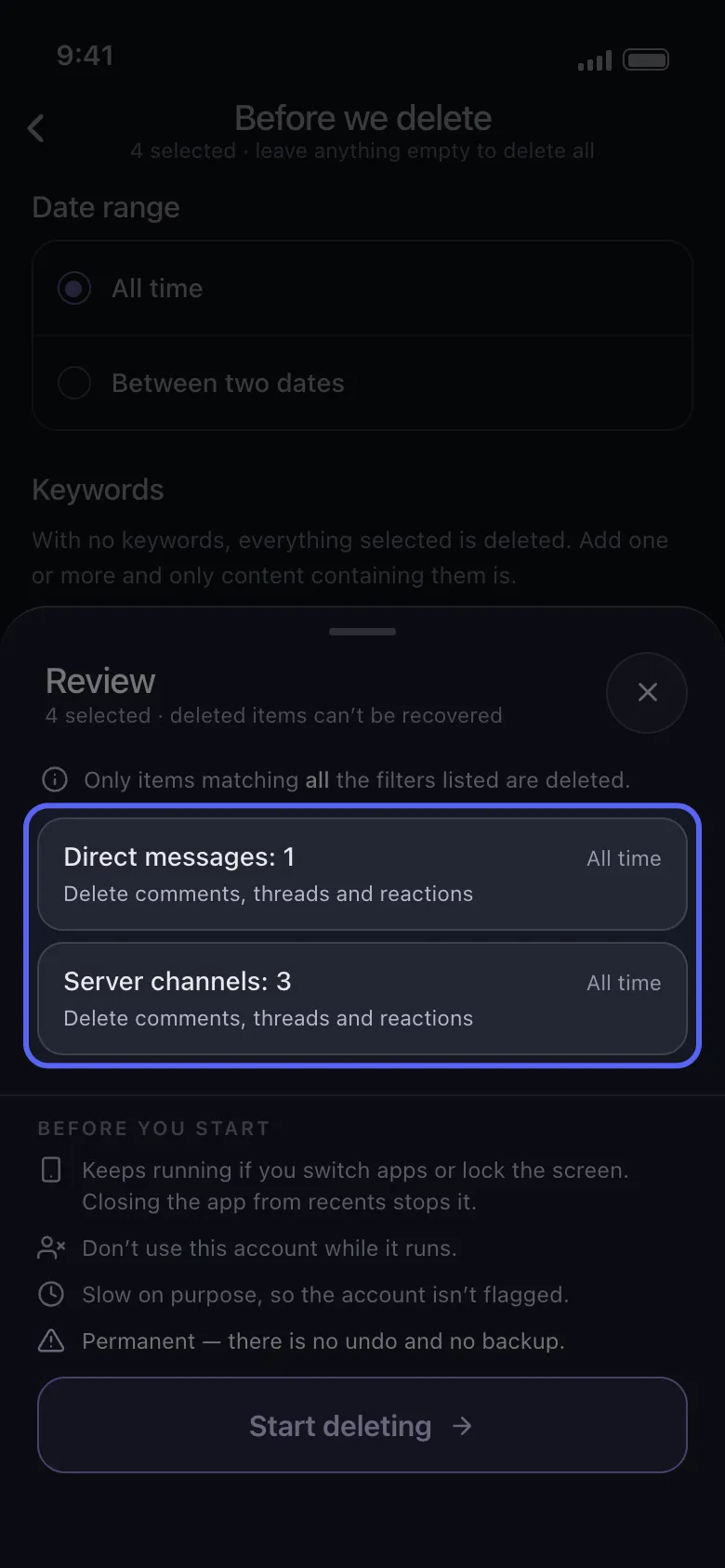
The Review sheet counts what you ticked by kind, without naming the conversations, for example Direct messages: 1 and Server channels: 3. Each tile shows its date range (All time unless you set one) and how much goes. Nothing is deleted until you tap Start deleting.
In the app Continue → Review → Start deleting
Good to know
- The date range and keywords on the same options screen narrow a run further: see How to delete only a date range and How to delete messages containing a keyword.
More guides