
How to Delete Discord Threads and Reactions
Quick Summary
A lot of Discord cleanup guides stop at messages.
But messages are not your whole footprint.
You may also want to clean up:
- threads you posted in
- emoji reactions you left on messages
- deeper server history where a conversation kept going inside thread branches
If you only remove message text and leave everything else behind, the cleanup can still feel incomplete.
If you want the broader Discord guide first, start here: How to Delete Discord Messages in Bulk.
Deeper Discord Cleanup
Use Unpost on mobile when you want more than message-only cleanup across DMs, servers, filters, and live progress.
Last updated: April 16, 2026. Written for the current Discord and Unpost mobile workflow.
| Task | Native Discord | Unpost |
|---|---|---|
| Undo one reaction you added | Yes, manually | Also possible inside broader cleanup |
| Delete one thread | Possible if you have the right thread permission | Handled as part of deeper server cleanup |
| Clean up thread participation across many channels | Slow, manual, and scattered | Built for broader cleanup scope |
| Choose lighter vs deeper cleanup | No native bulk depth toggle | Comments only or comments, threads, and reactions |
| Target by date or keyword first | Manual review only | Built-in selective cleanup filters |
What counts as a deeper Discord footprint?
Many users think of Discord history as just chat logs.
But older Discord activity is often spread across more than that:
- the original message
- a thread branch created from that message
- the reactions left on that message
- server channels where you posted over time
That means a message-only cleanup can leave traces of participation behind.
Visibility Note
Reactions still count as visible activity.
Even if the message text is gone, reactions can still show where you were active, what topics you engaged with, and how you signaled agreement or interest in public channels.
What you can do manually in Discord
Discord does allow some manual cleanup for reactions and threads. The problem is scale.
Removing your own reaction
If you reacted to a message and want to take it back, Discord lets you remove your own reaction by selecting that reaction again. You can also open View Reactions and remove it there.
That is fine when you only need to clean one or two reactions.
Moderator removal of some reactions
Discord’s support docs specifically mention moderator and admin removal for Super Reactions when the person has Manage Messages permission and is using desktop or browser.
That is useful in moderation cases, but it is not the same thing as a complete cleanup method for one person’s full Discord footprint.
Manual thread cleanup
Thread cleanup is where native workflows get much more painful.
Two points matter here:
- closing a thread is not the same as deleting it
- deleting a thread manually requires the Manage Threads permission
If you have years of participation across multiple servers, cleaning thread-related history by hand gets slow fast.
Why threads and reactions matter for privacy cleanup
Threads and reactions may seem minor, but they can still reveal:
- who you interacted with
- where you were active
- what topics you engaged with
- which communities you spent time in
- what kind of tone or stance you signaled publicly
This matters most when you want to:
- reduce your public footprint
- clean up old server participation
- separate old gaming or social history from a newer personal or professional identity
- do a more complete reputation cleanup
How Unpost handles Discord threads and reactions
Unpost’s broader Discord cleanup flow is built for more than plain message text.
Across the existing Discord content on this site, the app supports cleanup for:
- messages
- reactions
- threads
In practice, that means the deeper cleanup path is the right choice when you do not want a comments-only pass.
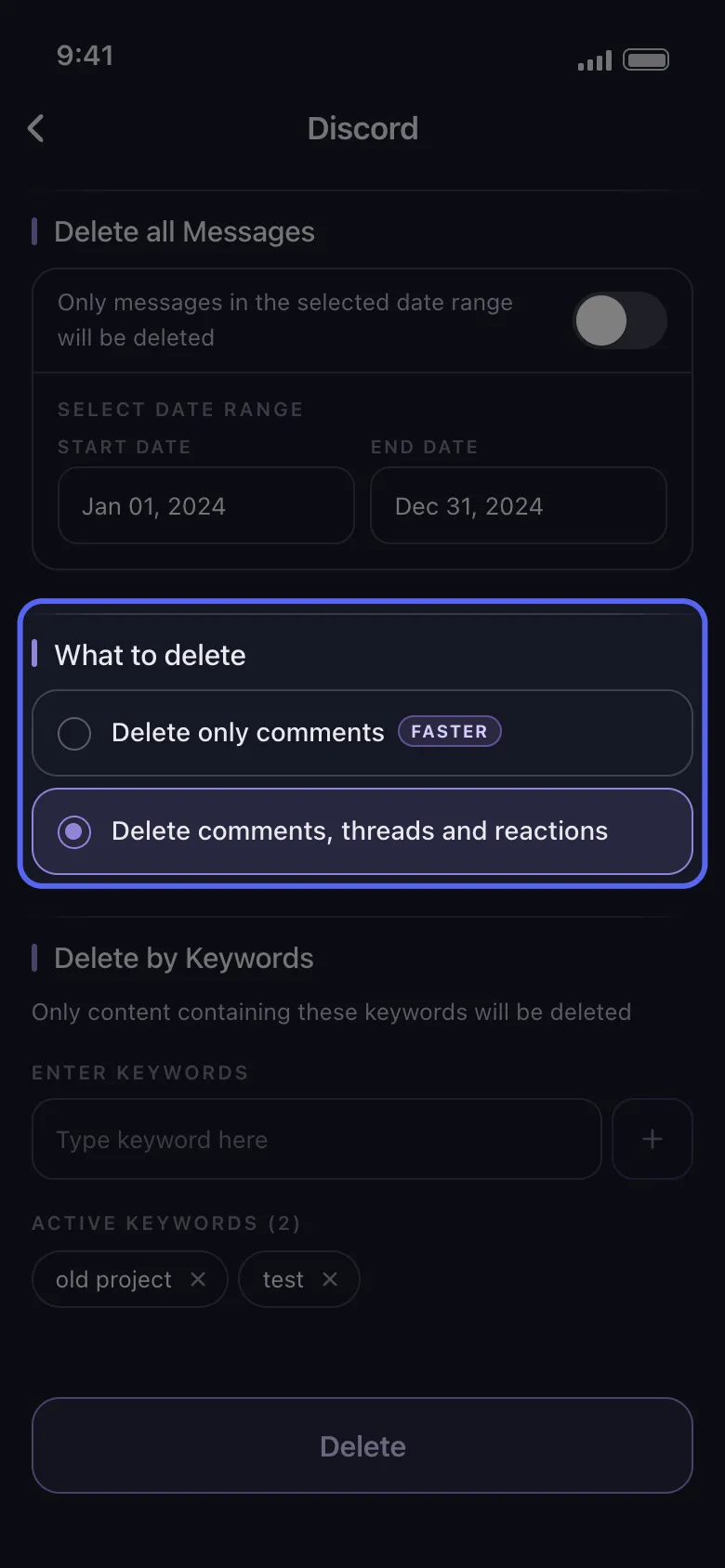
The delete-depth toggle is the key control when you want more than simple comment removal.
The two Discord cleanup depths in Unpost
This is the most important product split on this page.
Choose The Right Cleanup Depth
Delete only comments
Use this when you want a lighter or faster cleanup focused on message text.
- Best for testing the workflow first
- Good when text is the main concern
- Usually the faster option
Delete comments, threads, and reactions
Use this when you want a more complete Discord cleanup that goes beyond visible message text alone.
- Best for server history spread across thread branches
- Useful when reactions matter as much as text
- Better fit for deeper privacy cleanup
How to delete Discord threads and reactions with Unpost
Step 1: Install Unpost and add Discord
Download Unpost on iPhone or Android, open the app, and add your Discord account through the browser login flow.
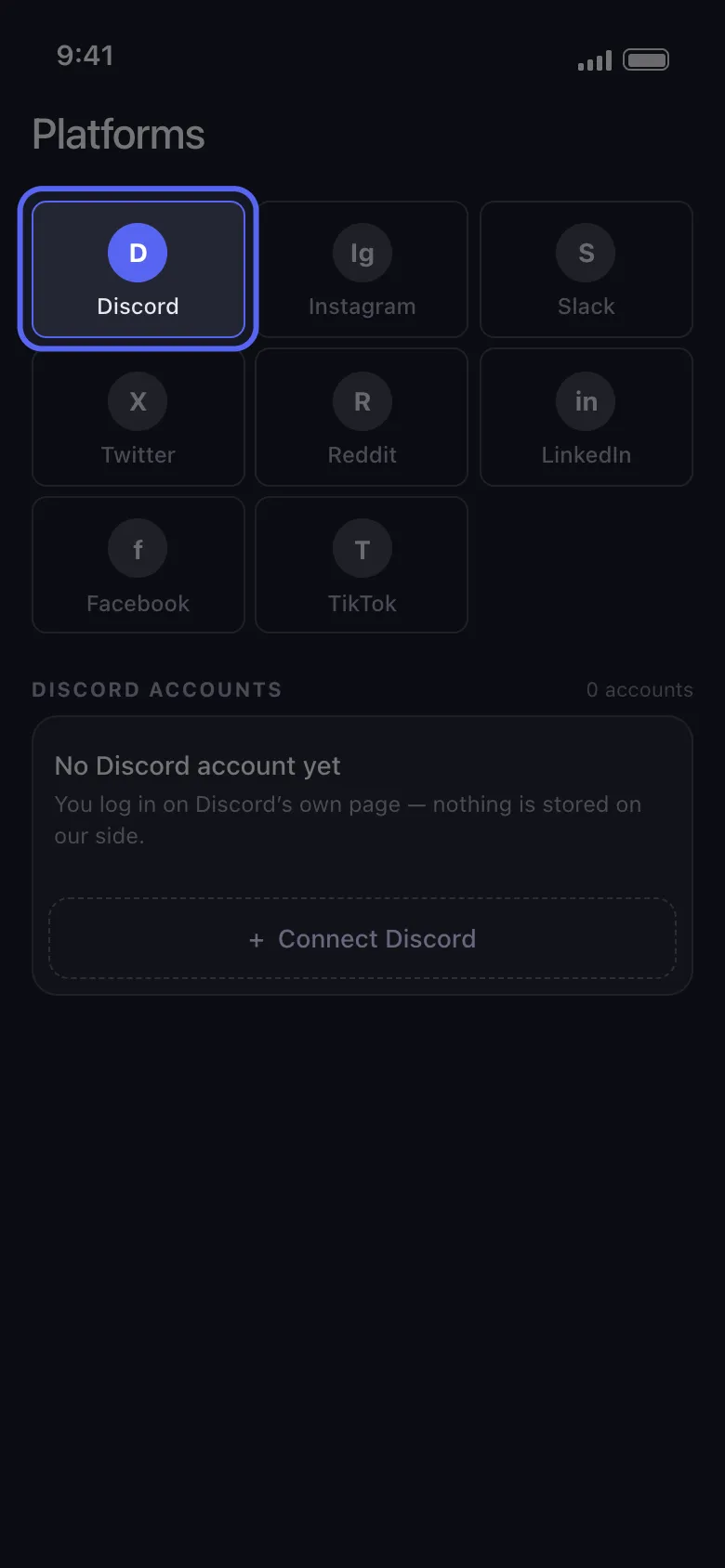
Step 2: Choose the right mode
For your own history, use Delete from Discord.
For server moderation, use Delete from Discord as Admin if you have the correct permissions.
For older history, use Delete from Data Package.
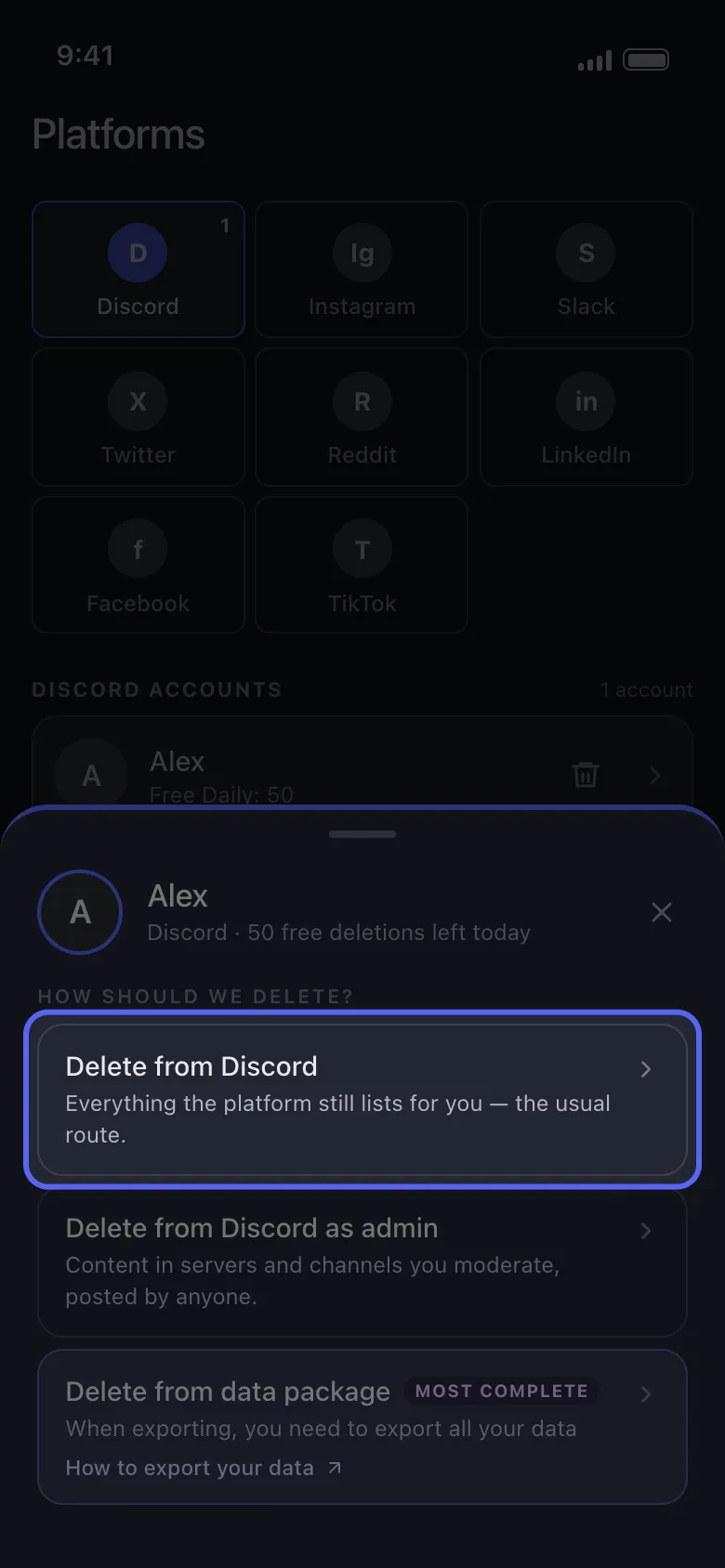
Choose the Discord cleanup mode first, then decide how deep the cleanup should go.
Step 3: Choose DMs or Servers
This matters because thread-heavy cleanup is usually a server job, while reaction cleanup can matter in both DMs and servers.
Start by choosing whether the cleanup belongs on the DMs side or the Servers side.
Step 4: Choose the deeper cleanup type
Inside the Discord-specific options, select:
Delete comments, threads, and reactions
That tells Unpost to do a deeper cleanup instead of removing text only.

Step 5: Add filters if needed
You can still narrow the job with:
- date ranges
- keywords
- channel selections
- user selections in admin mode
That means you do not have to run a full-account cleanup just to remove threads and reactions from one period or one topic.
Helpful next pages:
Step 6: Start the cleanup and keep the app open
Once started, Unpost shows live progress and handles retry timing when rate-limited.
Because deeper cleanup jobs have more to process than message-only jobs, they can take longer. Keep the app in the foreground until the run is finished.
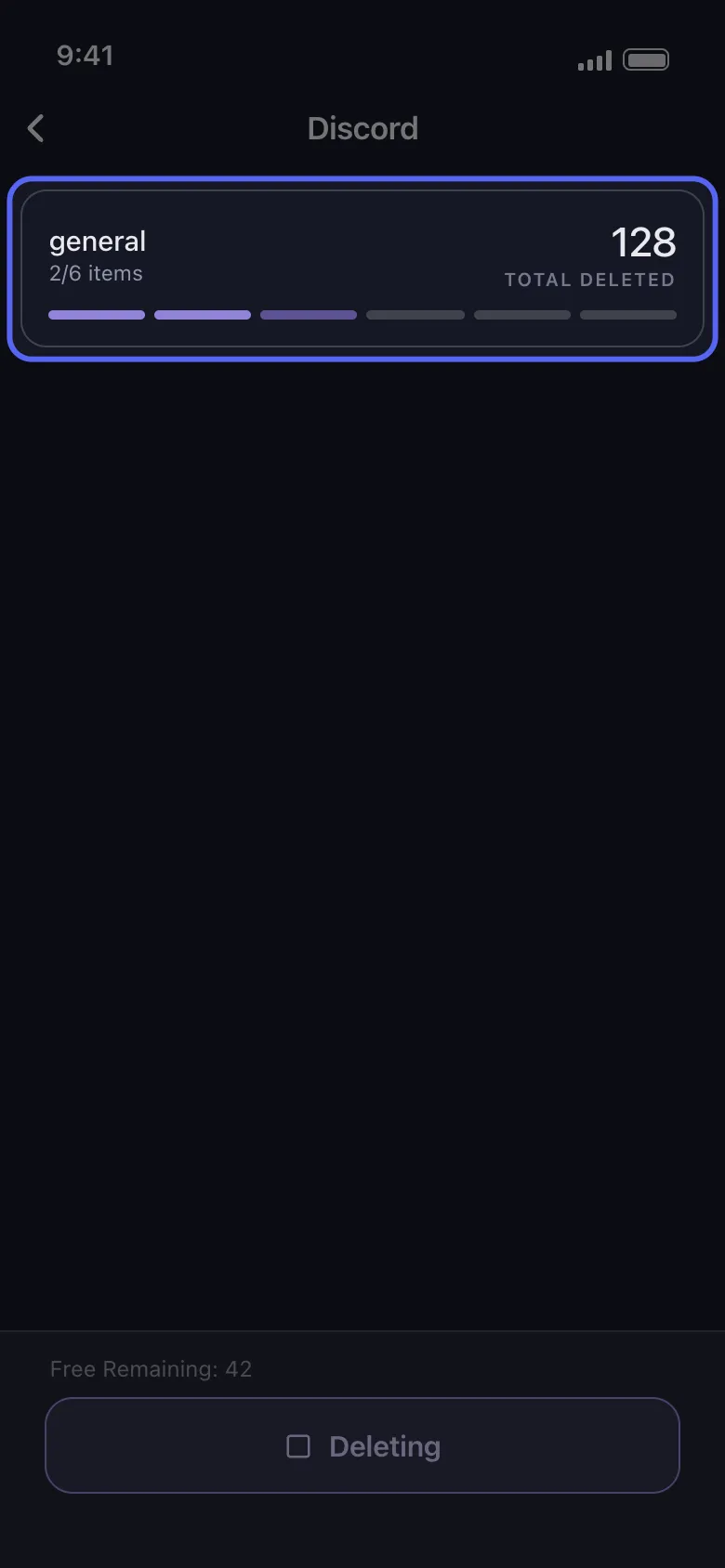
Deeper Discord cleanup is usually about coverage and control, not raw speed.
Ready To Go Deeper?
Choose the broader cleanup mode when completeness matters more than speed.
If the goal is to reduce visible participation traces rather than just remove message text, use the deeper Discord cleanup path from the start.
When comments-only is the better choice
Even though deeper cleanup is useful, it is not always the right first step.
Use comments only when:
- you want to test the workflow first
- you mainly care about text, not reactions
- you are running a smaller cleanup
- you want a quicker pass before doing anything broader
Use comments, threads, and reactions when completeness matters more than speed.
Best use cases for thread and reaction cleanup
Server history reset
You posted in many channels and threads and want a broader cleanup than message-only removal.
Old community footprint cleanup
You want to reduce traces of participation in older hobby, gaming, or fandom communities.
Topic-specific cleanup with reactions included
You want to remove not only the discussion but also the visible reactions tied to it.
Moderation support
You manage a server and need a stronger cleanup workflow than one-by-one actions.
If you need the permission-side explanation, read Can You Delete Someone Else’s Discord Messages? Admin Guide.
Related guides
- How to Delete Discord Messages in Bulk
- How to Delete Discord DMs and Chat History
- How to Delete Discord Messages by Date Range
- How to Delete Discord Messages by Keyword
FAQ
Can I remove my own reactions on Discord manually?
Yes. Discord supports manual removal of your own reactions.
Can I remove someone else’s reactions as a moderator?
Discord’s support docs specifically mention Super Reaction removal for moderators or admins with Manage Messages permission on desktop or browser.
Does Unpost cover more than message text?
Yes. The broader Discord cleanup path is designed for messages, reactions, and threads rather than message text alone.
Do threads matter if I am only cleaning DMs?
Usually less than in server history, but reaction cleanup can still matter in DMs and group DMs.
Is this page a replacement for the main bulk-delete guide?
No. Think of this as the deeper-cleanup support page linked from the pillar.
Final recommendation
If you want the cleanup to feel complete, do not think only in terms of message text.
Think in terms of:
- messages
- reactions
- threads
- where those interactions happened
That is the difference between a basic Discord cleanup and a deeper one.
Frequently Asked Questions

Get Started
Delete Old Content Across Your Accounts
Bulk delete messages, posts, likes, comments, DMs, reactions, bookmarks, followers, and more — all from one app.
No password storage • Free to start • iOS & Android
 Download for iOS
  Download for Android