
How to delete only public, private or unlisted posts
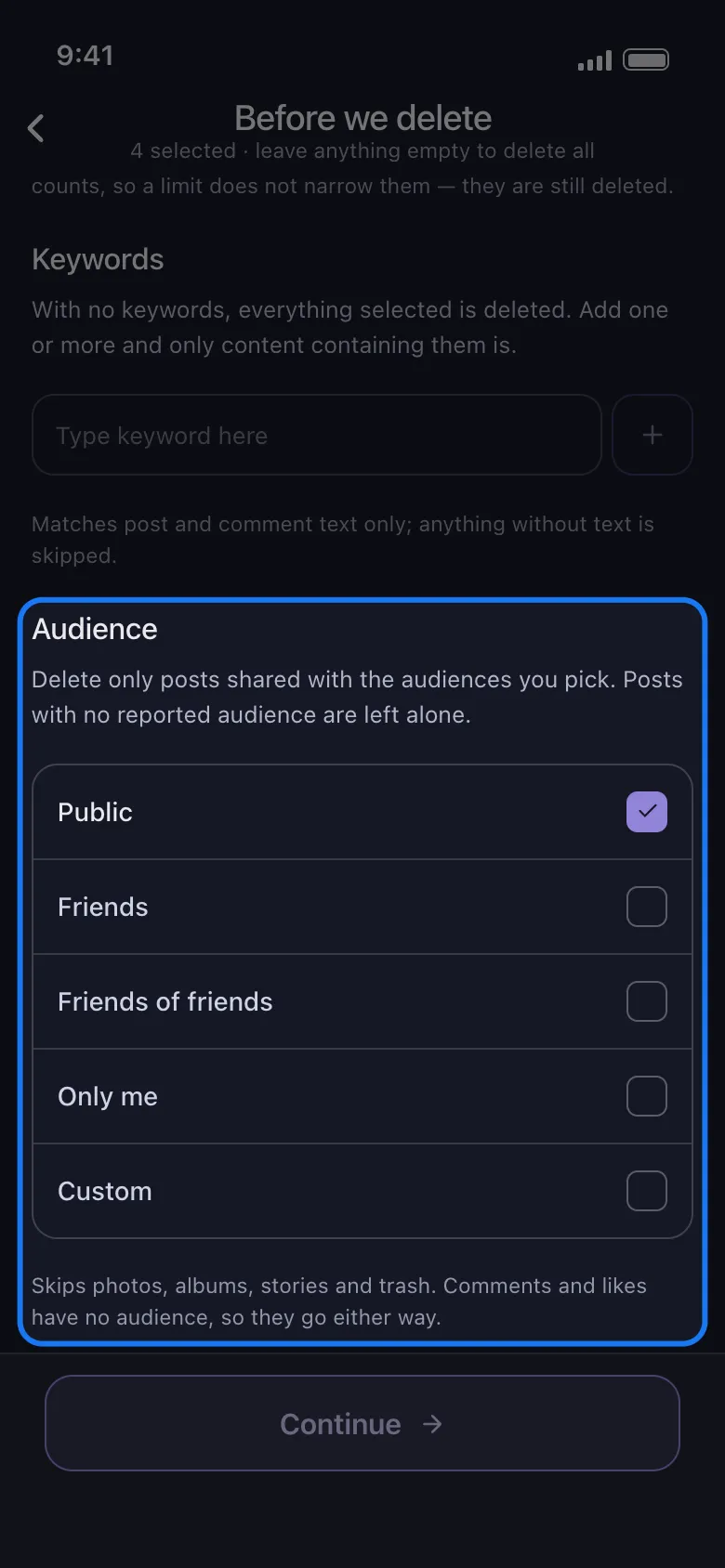
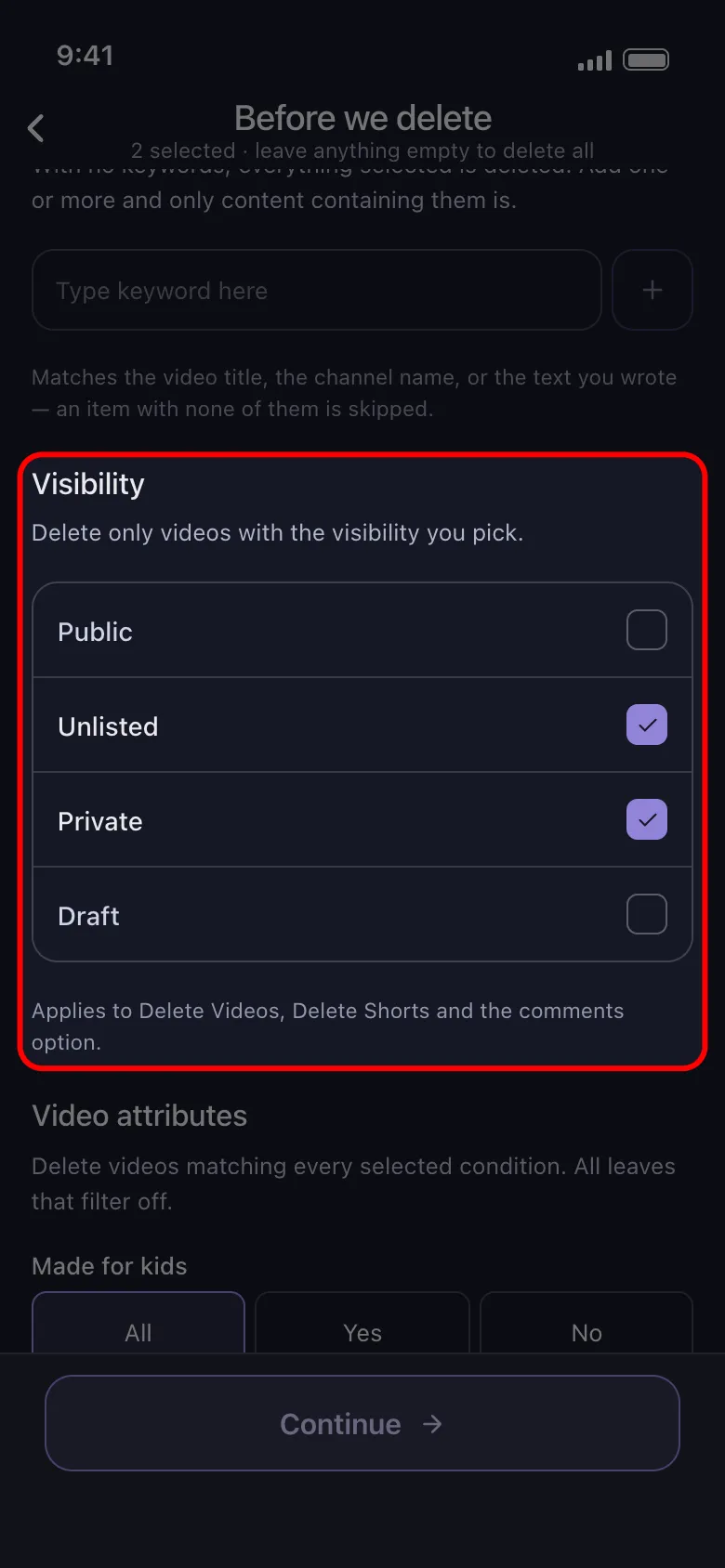
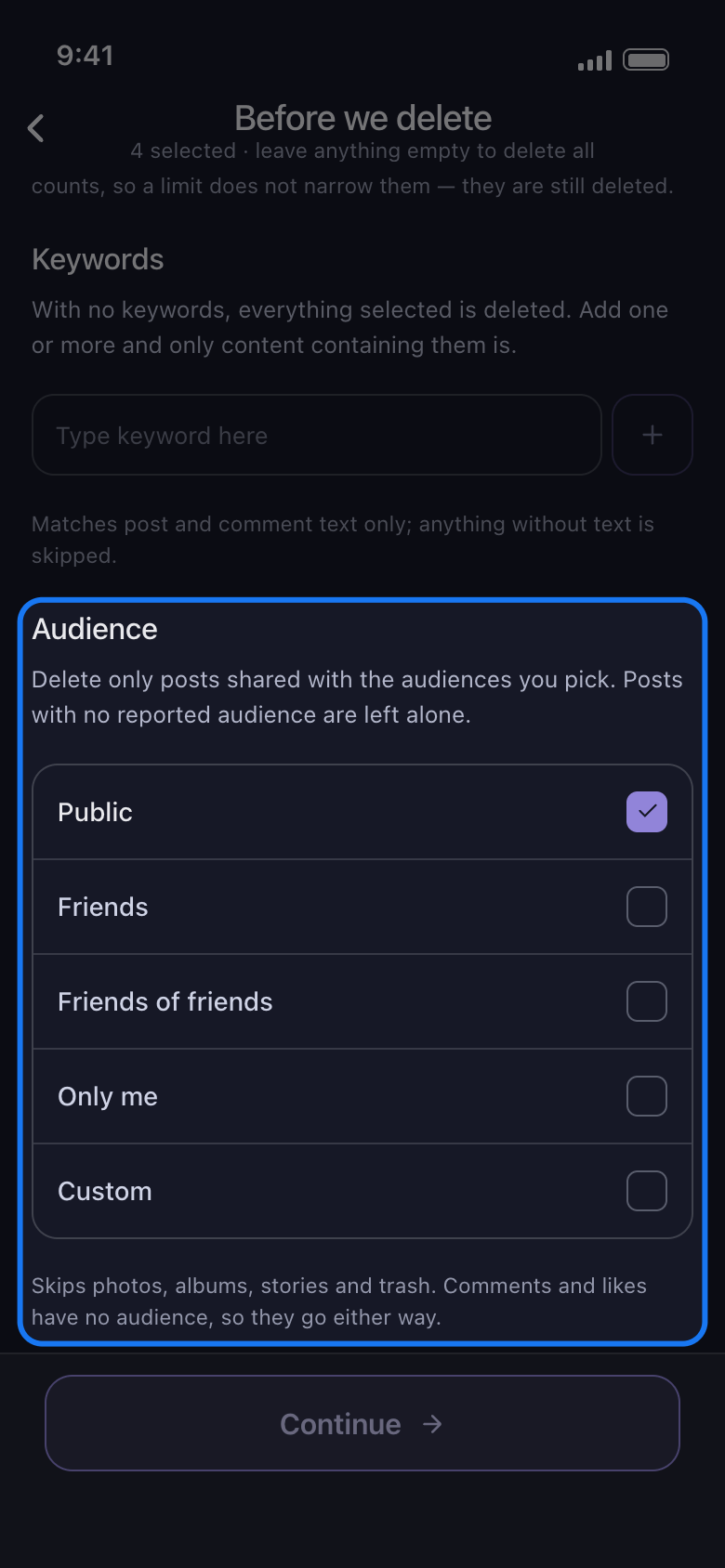
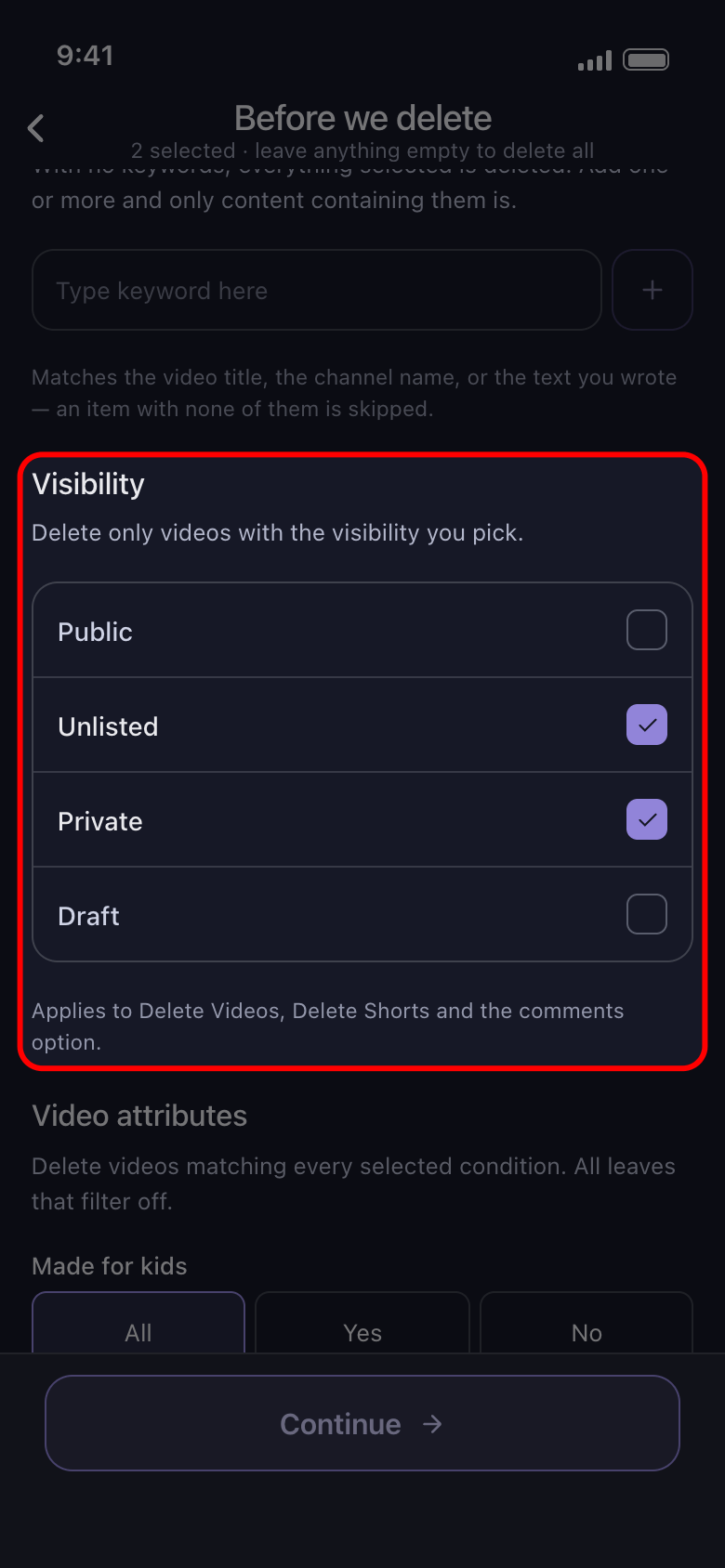
Want to delete only your public posts, say before a job search? On Facebook, the Audience section of Before we delete keeps the run to the audiences you tick: Public, Friends, Friends of friends, Only me or Custom. On YouTube, Visibility does the same for Public, Unlisted, Private and Draft, and Video attributes picks videos by what YouTube records about them.
- 01
Tick posts or videos, then tap Continue
On Facebook, Audience narrows Delete Text Posts, Delete Photo Posts, Delete Reels, Delete Videos, Delete Reposts, Delete Posts from Friends, Delete Everything Else and Delete Posts on Others’ Profiles. On YouTube, Visibility and Video attributes narrow Delete Videos, Delete Shorts and Delete Comments on Your Videos and Shorts. Tick one of those to see them.
In the app Main → Facebook or YouTube → account → Continue
- 02
Facebook: keep ticked only the audiences to delete
Every audience is ticked at first, so posts go whoever they are shared with. Untick the ones to keep: to delete only your public posts, leave Public alone ticked.
In the app Before we delete → Audience
- 03
Know what Audience leaves alone
Once you untick an audience, nothing is deleted from Delete Archived Posts, Delete Photo Library, Delete Albums, Delete Your Stories, Delete Archived Stories and Empty Your Trash, although the Review marks only Delete Photo Library and Delete Albums Skipped. Comments and likes have no audience, so they go either way: leave them unticked on the list to keep them.
In the app Before we delete → Audience
- 04
YouTube: keep ticked only the visibilities to delete
Public, Unlisted, Private and Draft are all ticked at first. Untick the ones to keep: to delete only unlisted and private videos, leave those two ticked.
In the app Before we delete → Visibility
- 05
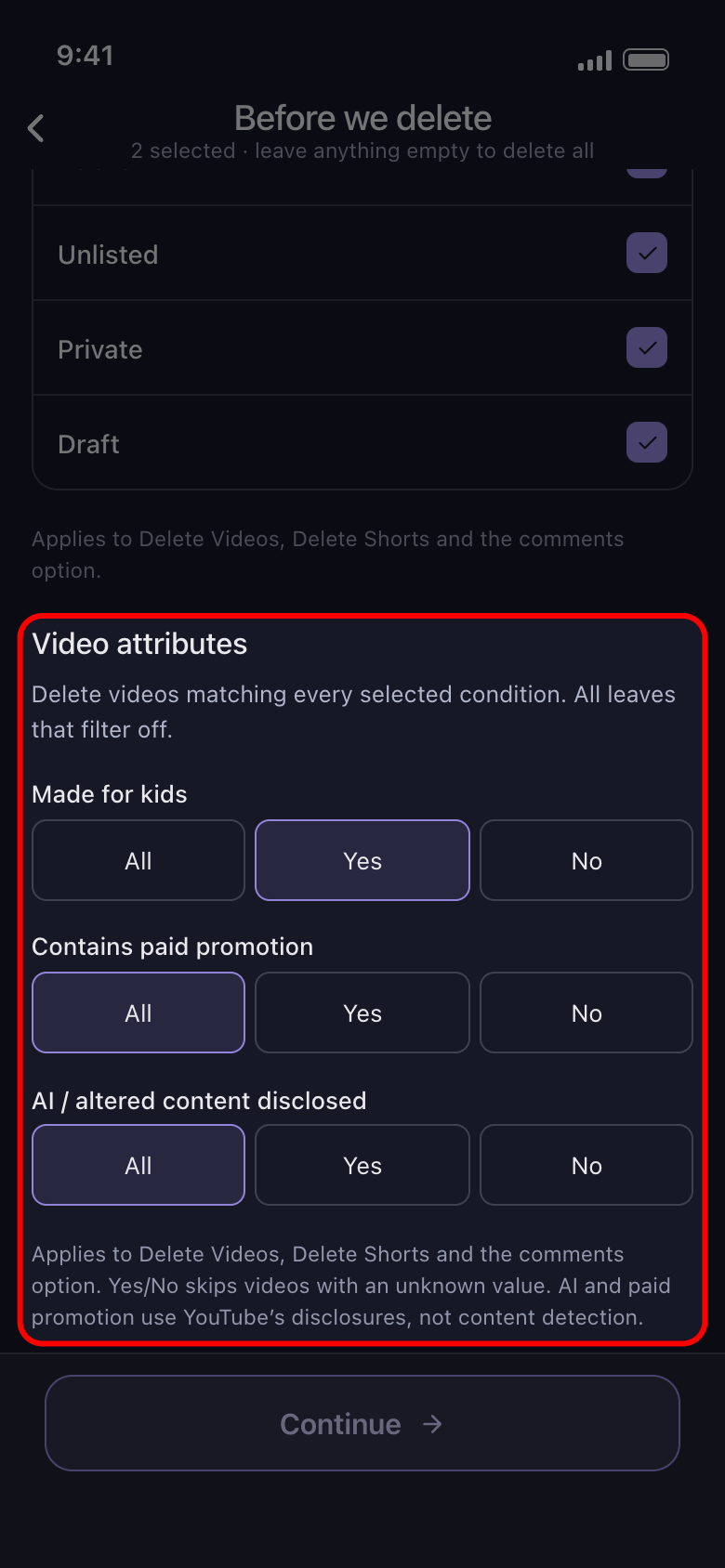
YouTube: pick videos by what YouTube records
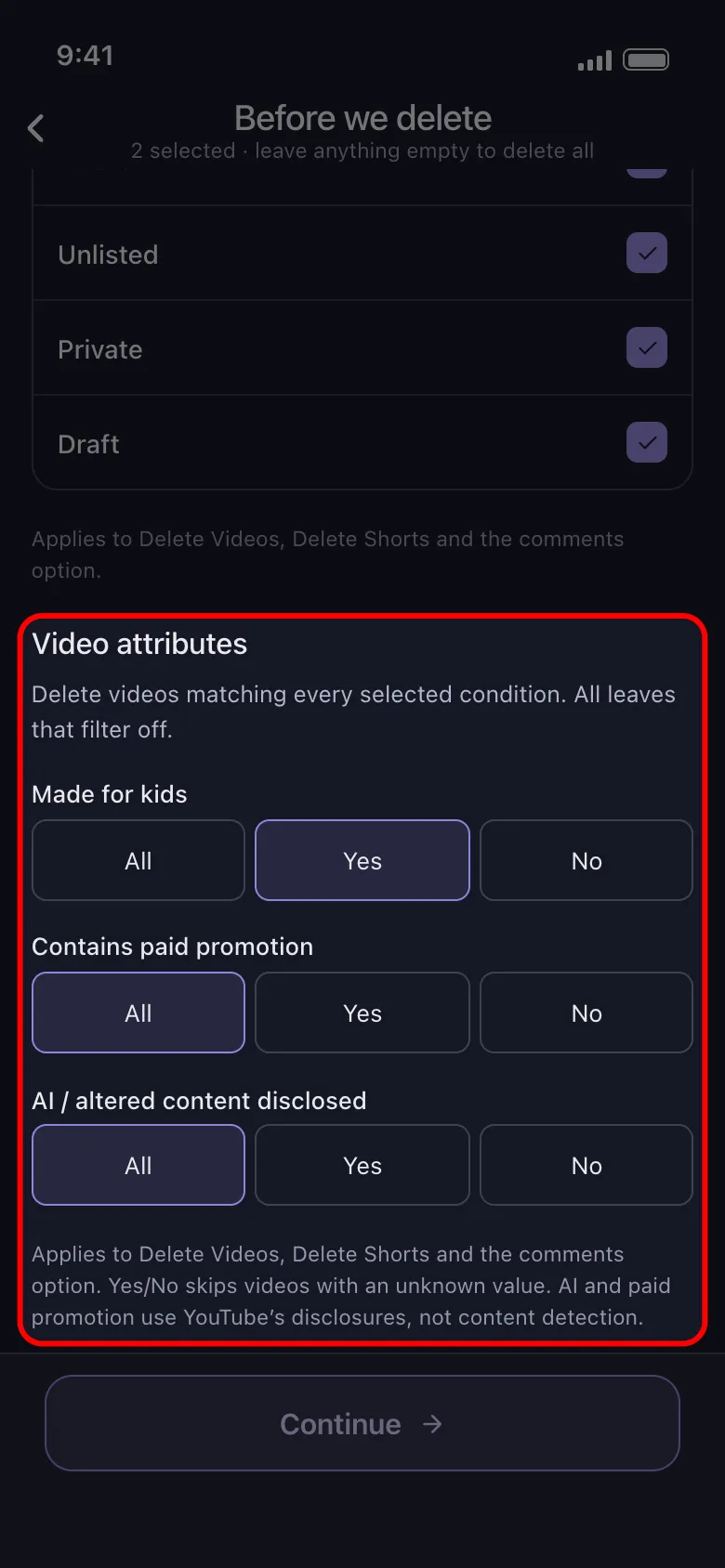
Video attributes has three lines: Made for kids, Contains paid promotion and AI / altered content disclosed. All, chosen at first, leaves a line off. Yes deletes only the videos YouTube records that way, No only the ones it records the other way, and both skip videos whose value is unknown. These are YouTube’s own disclosures, not a check of what a video shows.
In the app Before we delete → Video attributes
- 06
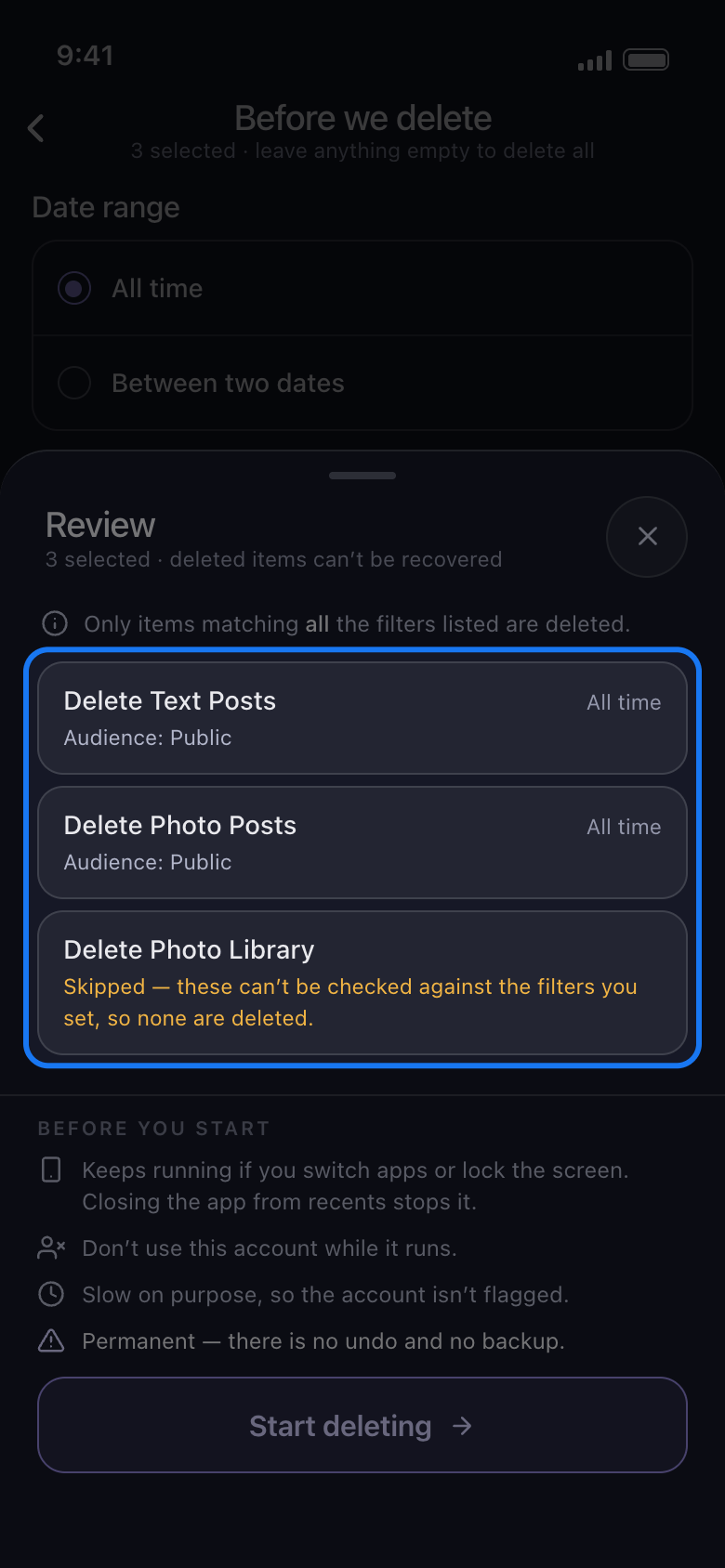
Tap Continue and check the Review
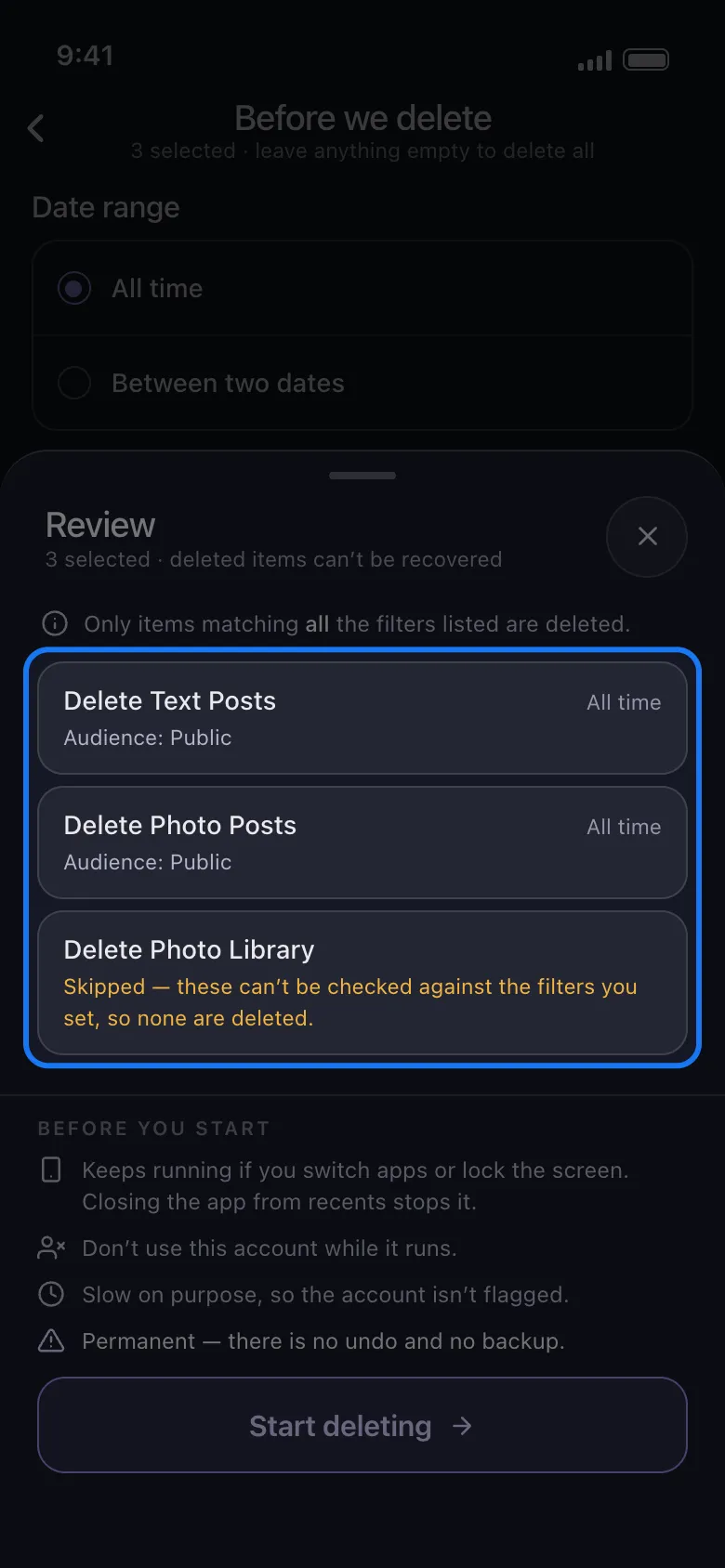
Each tile these filters reach lists what you chose, such as Audience: Public. A tile without that line is deleted whatever its audience or visibility, and one marked Skipped is left alone. Nothing is deleted until you tap Start deleting.
In the app Continue → Review → Start deleting
Good to know
- Facebook moves your own deleted timeline posts to its trash, which it empties after 30 days. Empty Your Trash deletes them at once, but not while an audience is unticked: run it afterwards with every audience ticked.
- Audience, Visibility and Video attributes work with the other sections of Before we delete: only what matches every filter you set is deleted.
More guides