
Cómo borrar los mensajes de otras personas como administrador
Si moderas un servidor de Discord o un espacio de trabajo de Slack, el modo administrador borra lo que otras personas publicaron en sus canales: los mensajes de todos los miembros, o solo los de los miembros que elijas. Nunca llega a los MD, donde solo se pueden borrar los mensajes que enviaste.
- 01
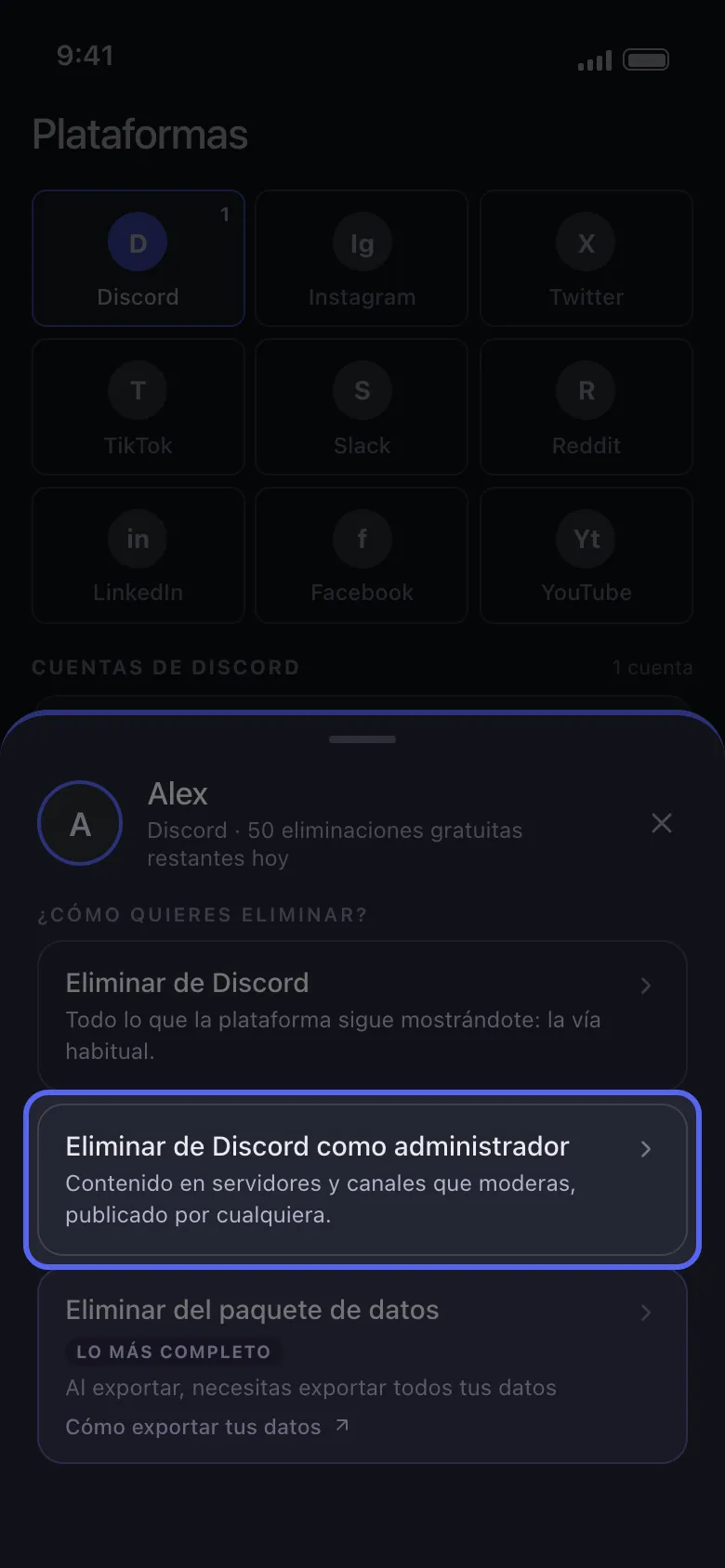
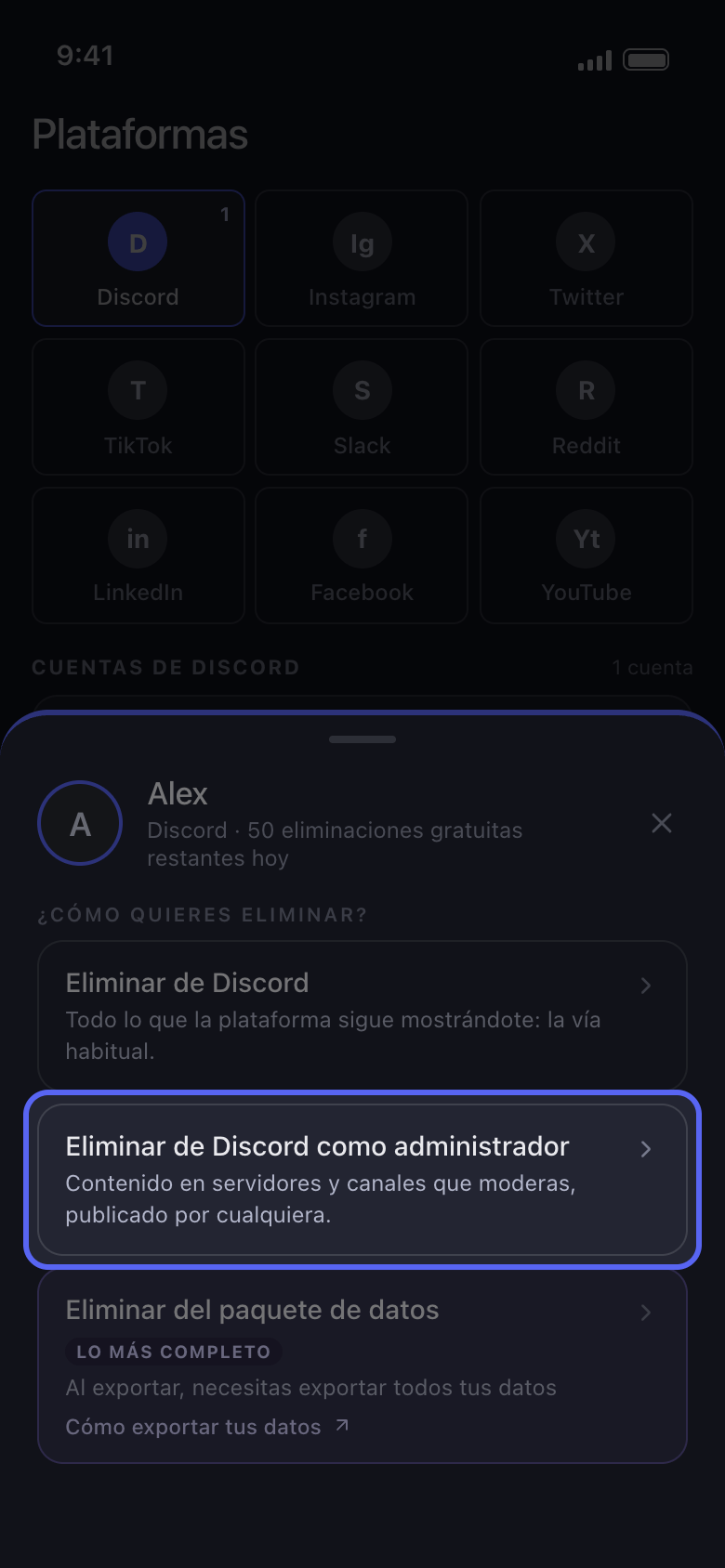
Elige Eliminar de Discord como administrador
Toca tu cuenta en Principal. En el panel ¿Cómo quieres eliminar?, elige Eliminar de Discord como administrador (en Slack, Eliminar de Slack como administrador) en lugar de la primera opción.
En la app Principal → Discord → cuenta → Eliminar de Discord como administrador
- 02
Elige los canales
En Discord, la lista solo incluye los servidores que son tuyos o en los que tienes el permiso Administrador o Gestionar mensajes: toca uno y marca sus canales, uno a uno o todos a la vez. En Slack, el modo administrador es para los administradores del espacio de trabajo: marca los canales. Después toca Continuar.
En la app Eliminar de Discord como administrador → servidor → canales → Continuar
- 03
Elige de quién se borran los mensajes
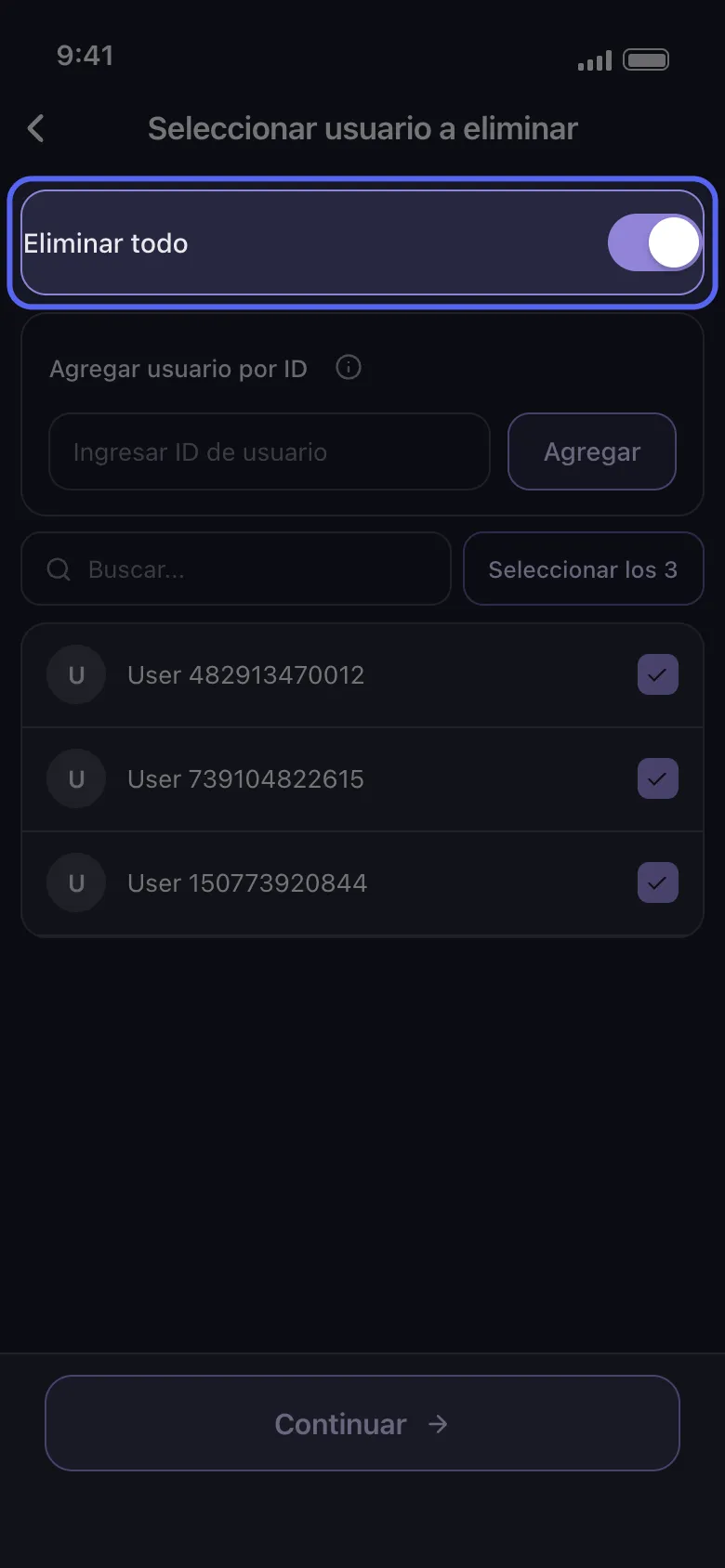
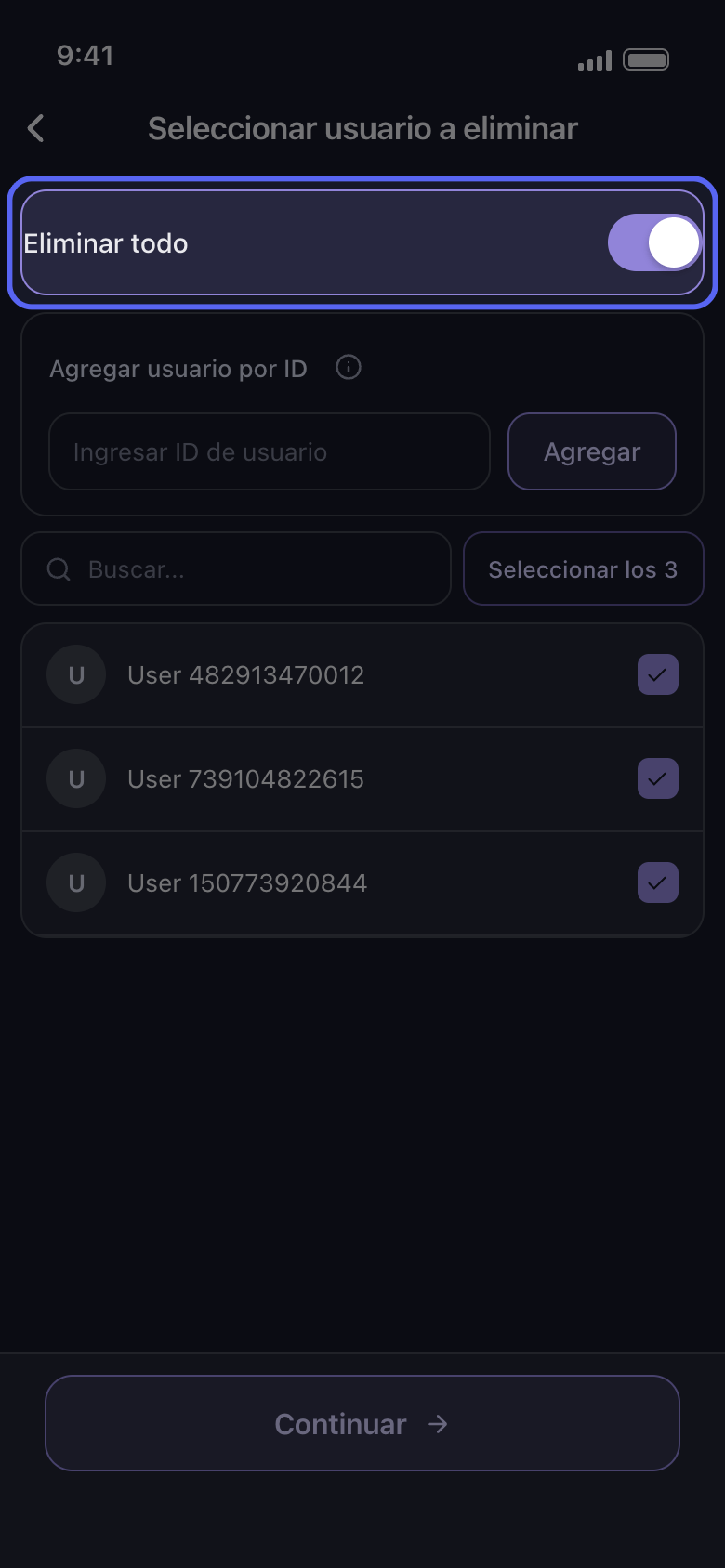
En Seleccionar usuario a eliminar, activa Eliminar todo para borrar los mensajes de todos los miembros en esos canales, o marca solo a los miembros cuyos mensajes quieras borrar. En Discord, Agregar usuario por ID sirve para alguien que no está en la lista: escribe su ID en Ingresar ID de usuario y toca Agregar. Después toca Continuar.
En la app Seleccionar usuario a eliminar
- 04
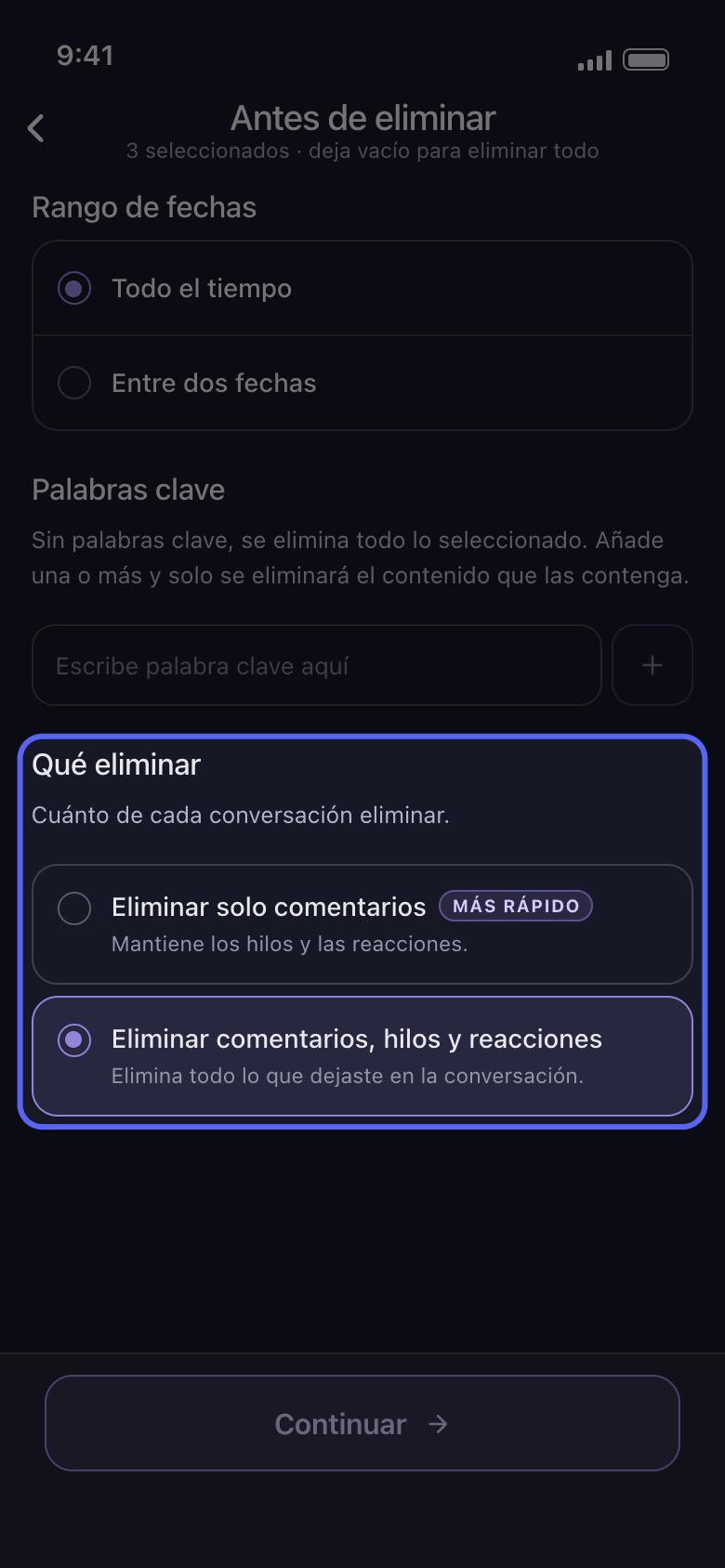
Elige qué se borra en Antes de eliminar
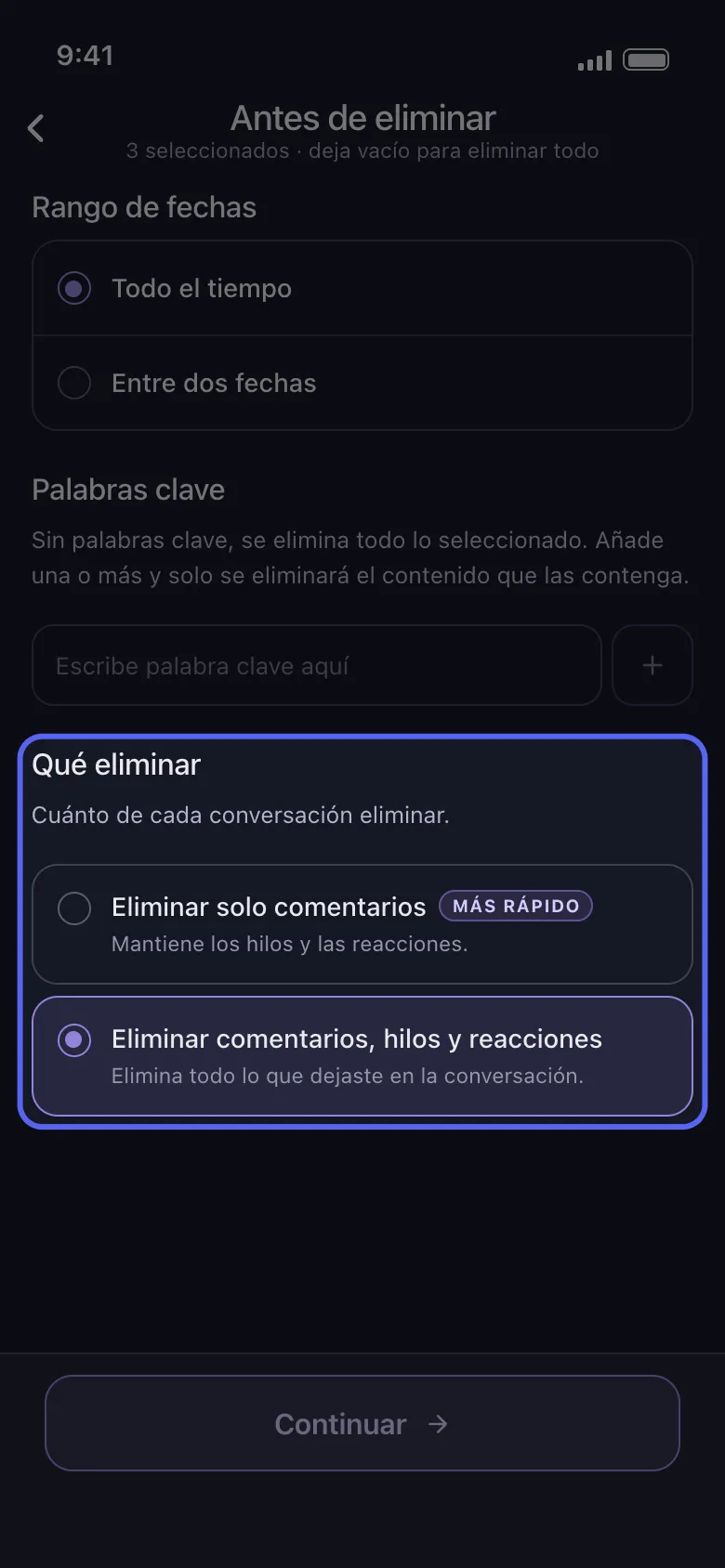
Rango de fechas y Palabras clave limitan una limpieza como administrador igual que cualquier otra. En Discord también cuenta Qué eliminar: Eliminar solo comentarios deja los hilos y las reacciones, así que las respuestas en los hilos se quedan. Para borrar también los hilos, elige Eliminar comentarios, hilos y reacciones, que además quita tus reacciones. En Slack, desmarca Eliminar mensajes, Eliminar hilos o Eliminar reacciones para conservarlos.
En la app Antes de eliminar → Qué eliminar
- 05
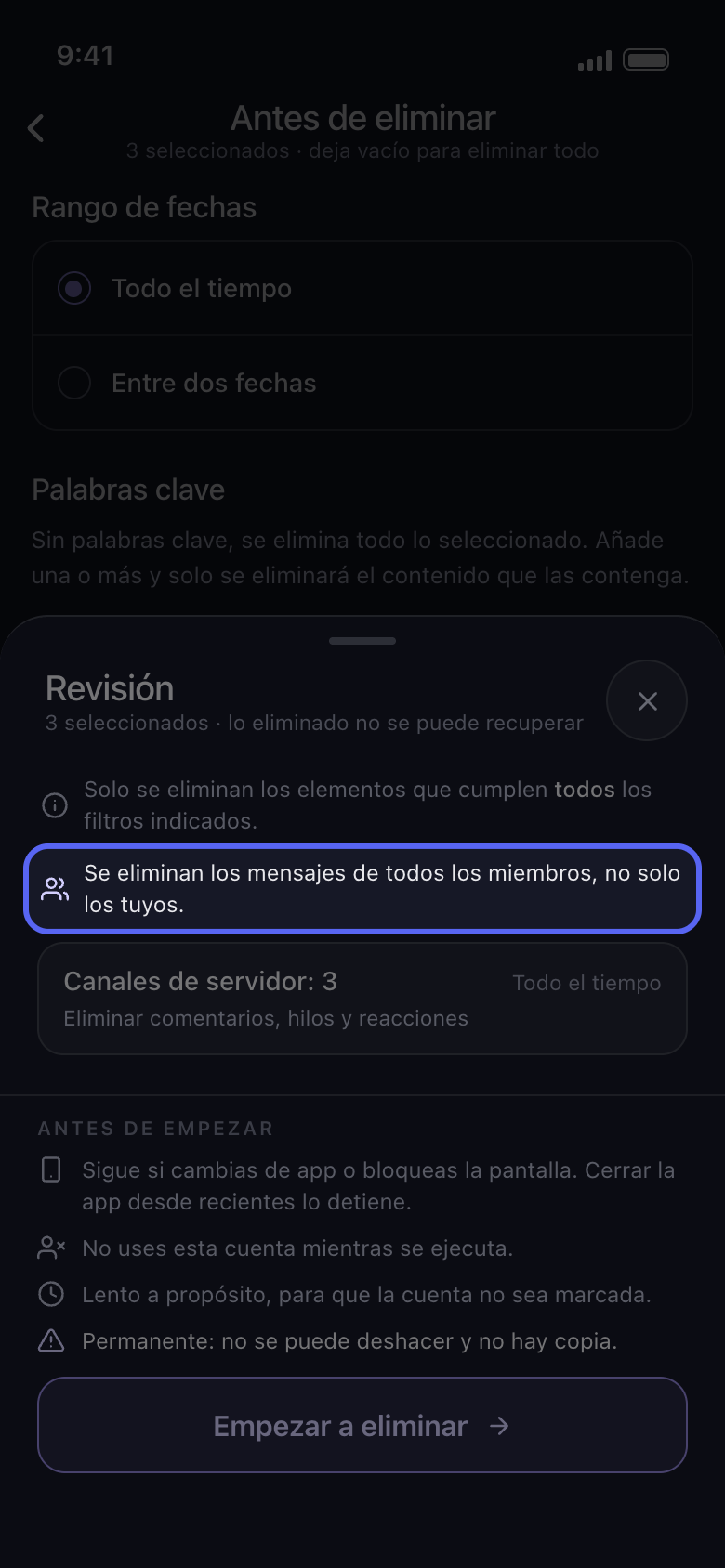
Comprueba la Revisión y toca Empezar a eliminar
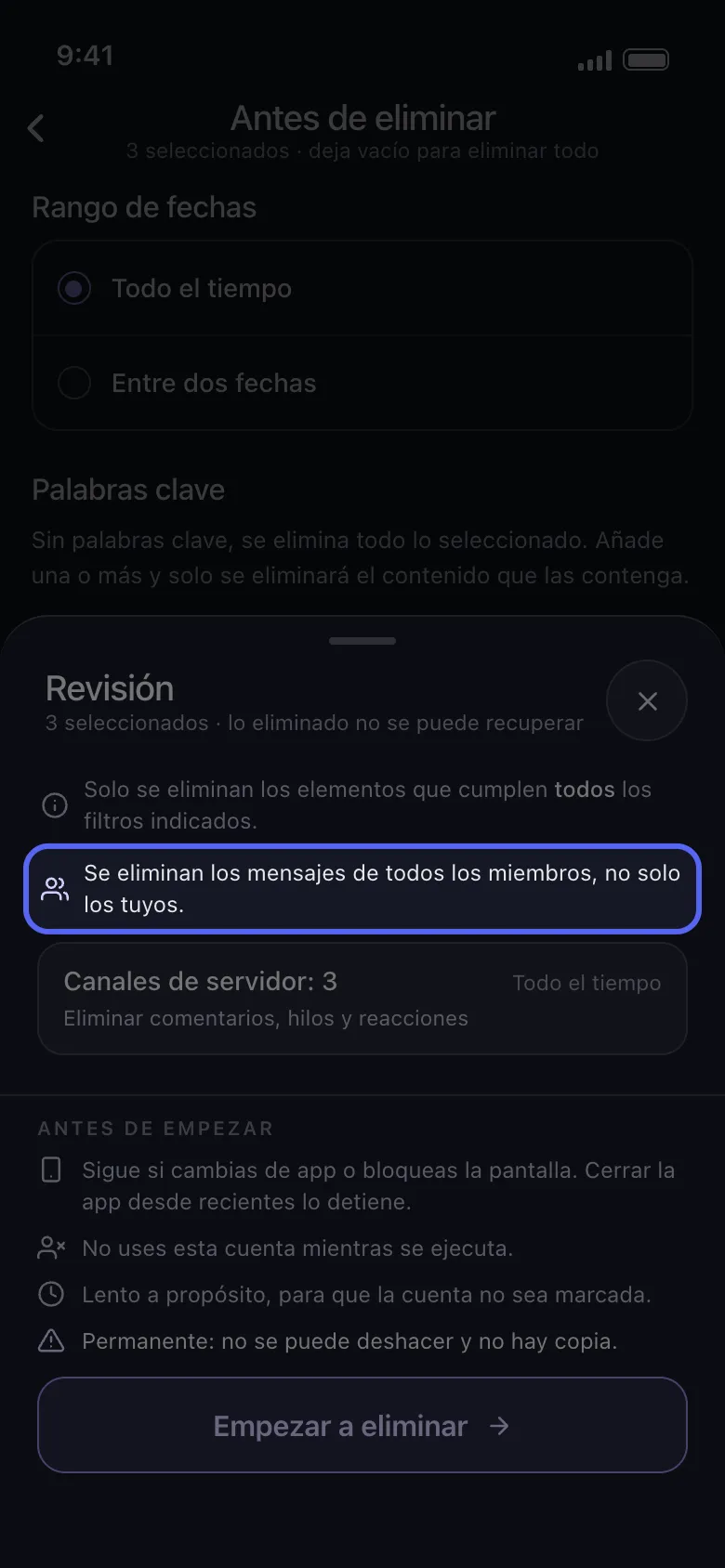
Encima de las tarjetas, la Revisión dice de quién se borran los mensajes: Se eliminan los mensajes de todos los miembros, no solo los tuyos, o cuántos miembros elegiste. No se borra nada hasta que tocas Empezar a eliminar.
En la app Continuar → Revisión → Empezar a eliminar
Bueno saberlo
- Un mensaje que Discord se niega a borrar se omite, y la limpieza continúa.
- Los comentarios que otras personas dejaron en tus propias publicaciones tienen sus propias opciones: Eliminar Comentarios en Mis Videos en TikTok, Eliminar comentarios dejados en tus publicaciones en Facebook y Eliminar comentarios de tus vídeos y Shorts en YouTube.
- Borrar es permanente: los mensajes de otras personas tampoco se pueden recuperar.
Más guías