
How to delete other people’s messages as an admin
If you moderate a Discord server or a Slack workspace, admin mode deletes what other people posted in its channels: every member’s messages, or only the members you pick. It never reaches DMs, where only the messages you sent can be deleted.
- 01
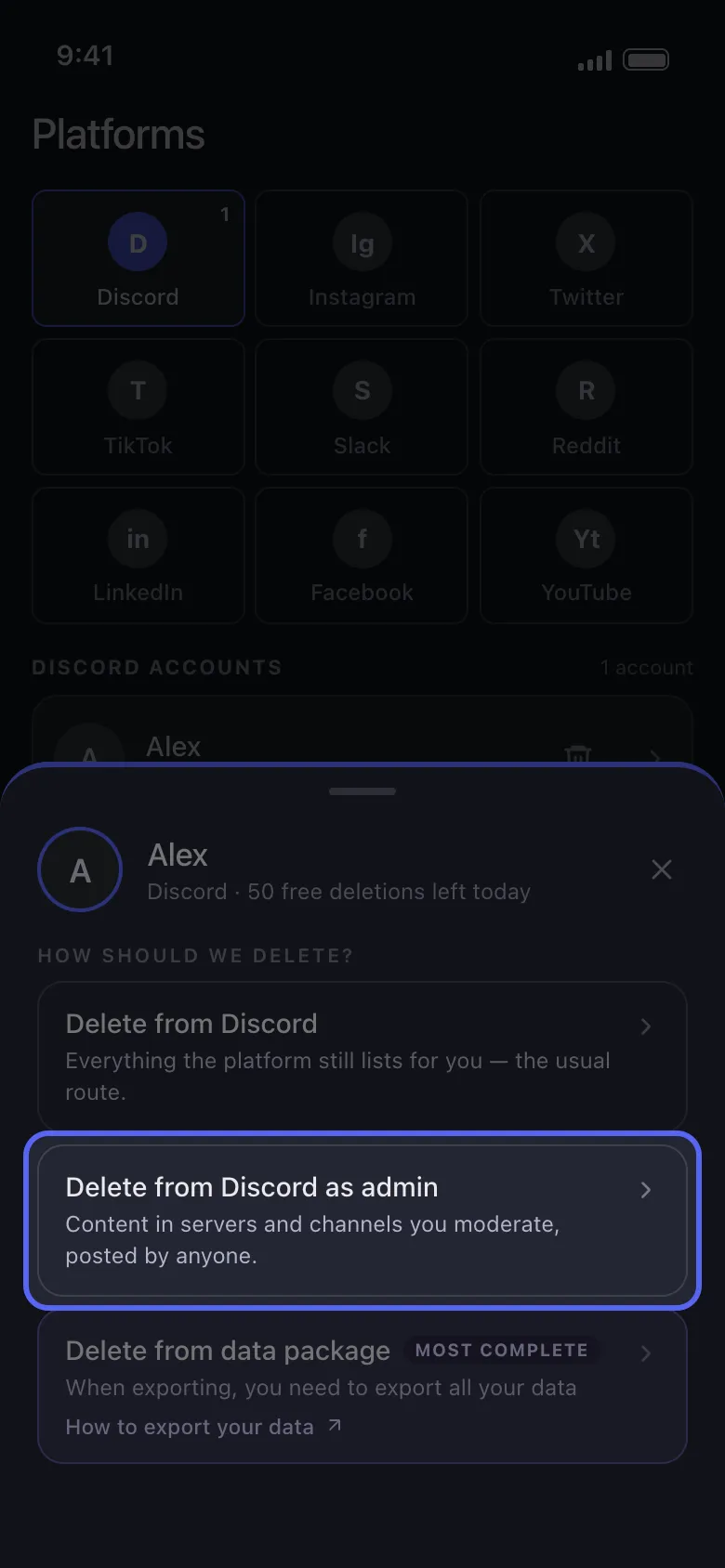
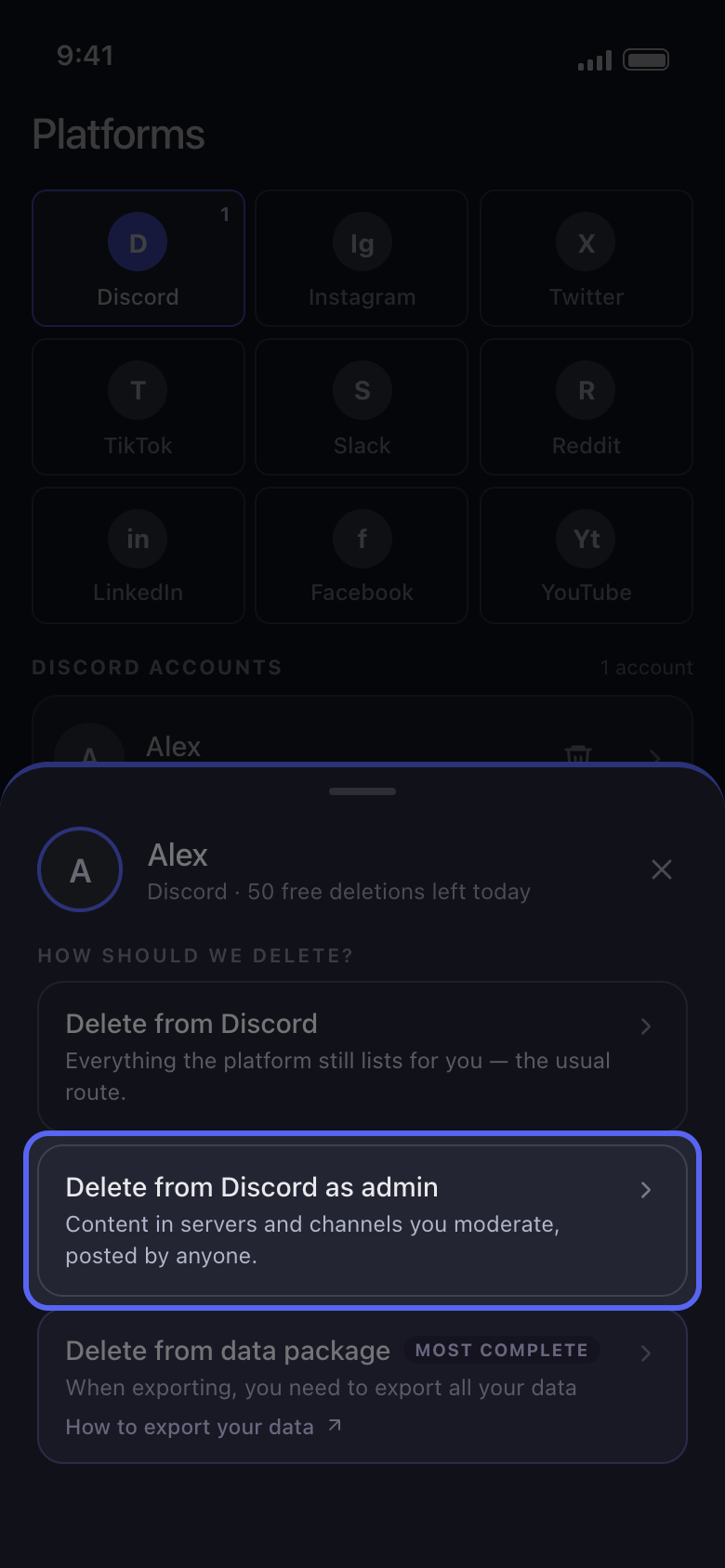
Choose Delete from Discord as admin
Tap your account on Main. On the How should we delete? sheet, pick Delete from Discord as admin (on Slack, Delete from Slack as admin) instead of the first option.
In the app Main → Discord → account → Delete from Discord as admin
- 02
Pick the channels
On Discord, the list has only the servers you own or where you have the Administrator or Manage Messages permission: tap one, then tick its channels, one by one or all at once. On Slack, admin mode is for workspace admins: tick the channels. Then tap Continue.
In the app Delete from Discord as admin → server → channels → Continue
- 03
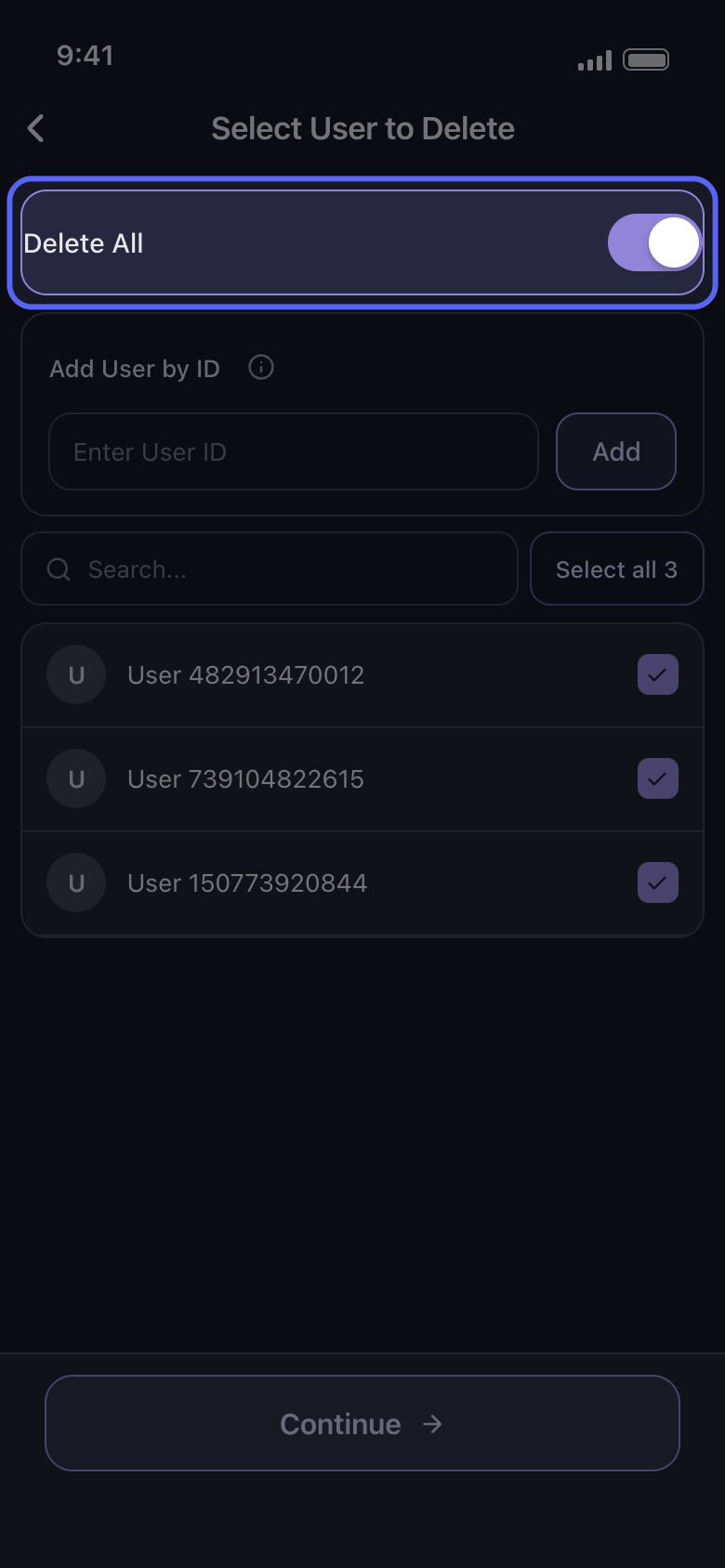
Choose whose messages go
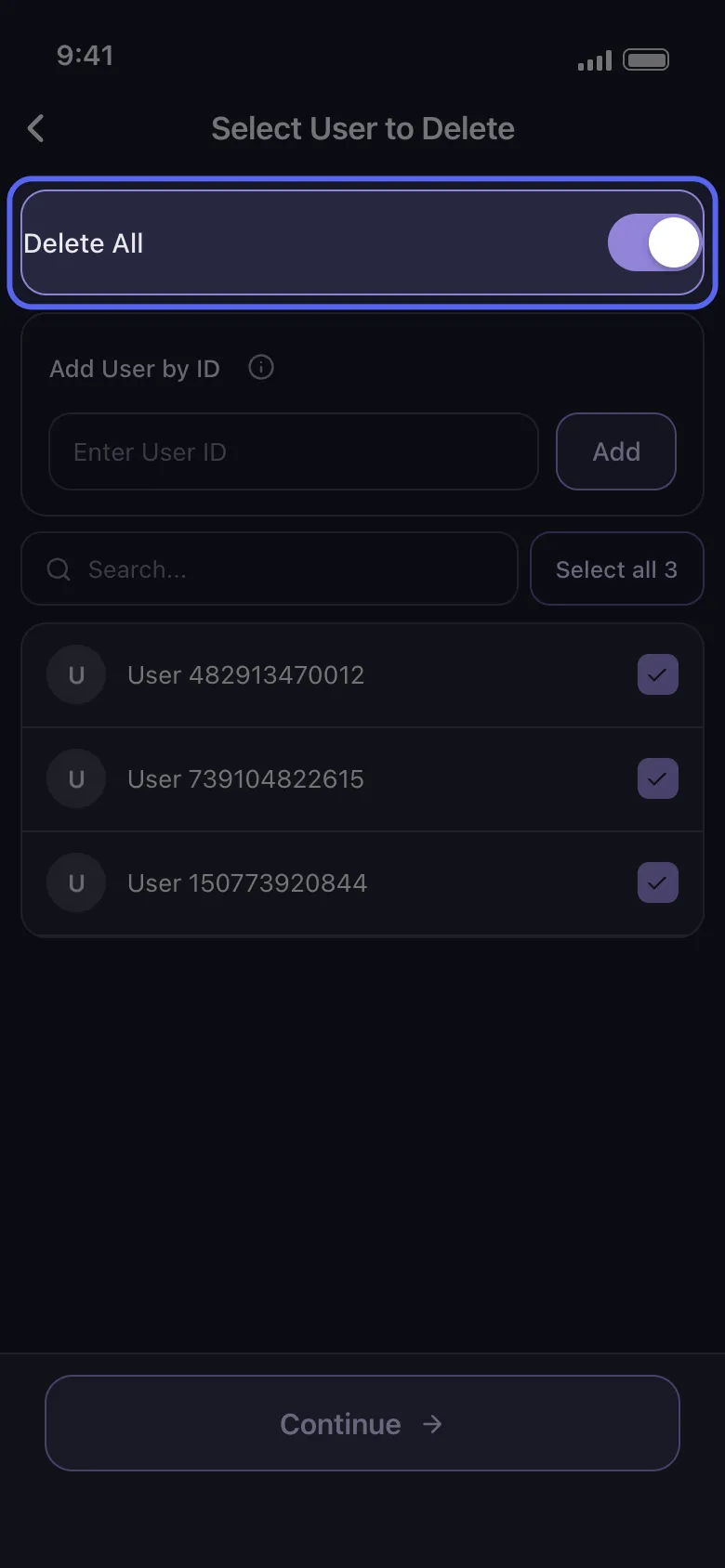
On Select User to Delete, turn on Delete All to delete every member’s messages in those channels, or tick only the members whose messages should go. On Discord, Add User by ID reaches someone who isn’t in the list: type their ID in Enter User ID and tap Add. Then tap Continue.
In the app Select User to Delete
- 04
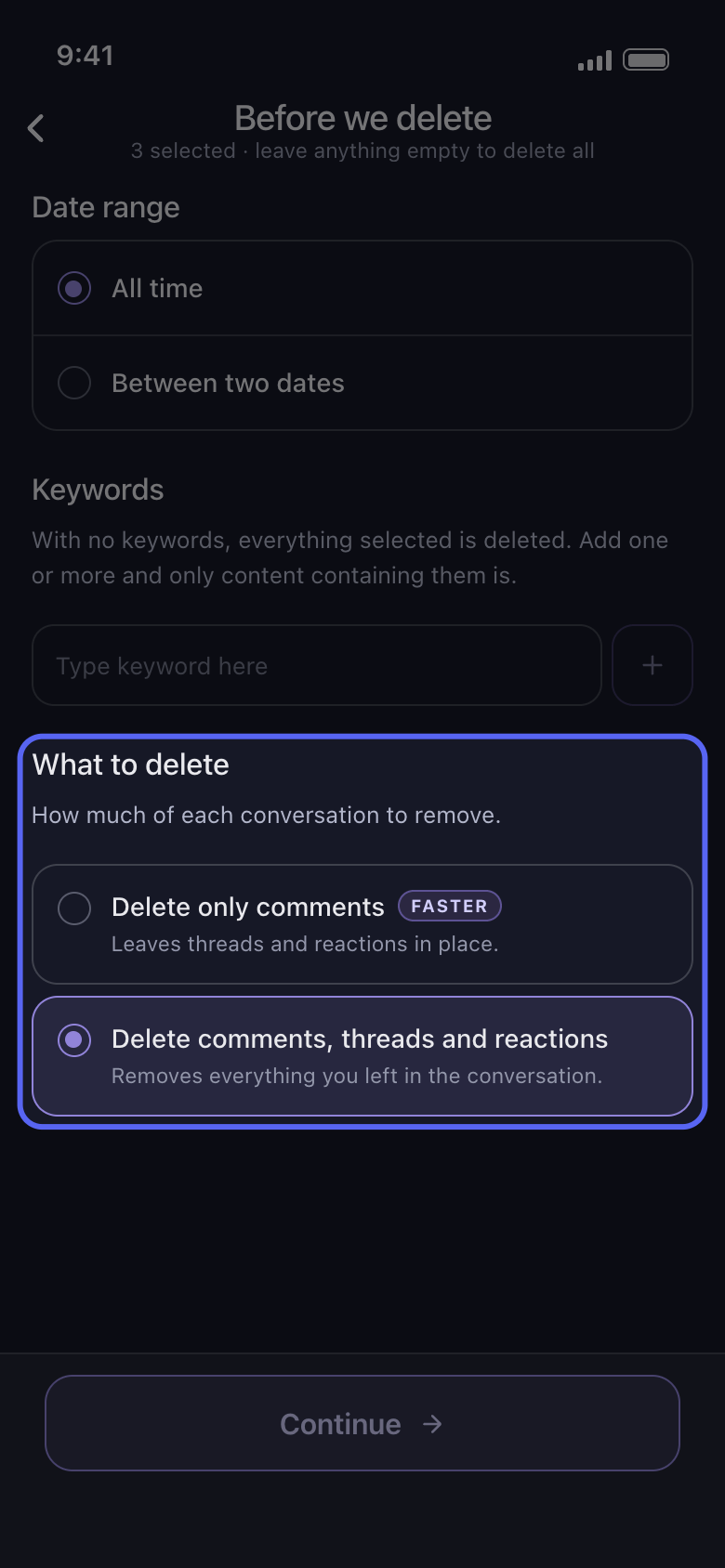
Choose what goes on Before we delete
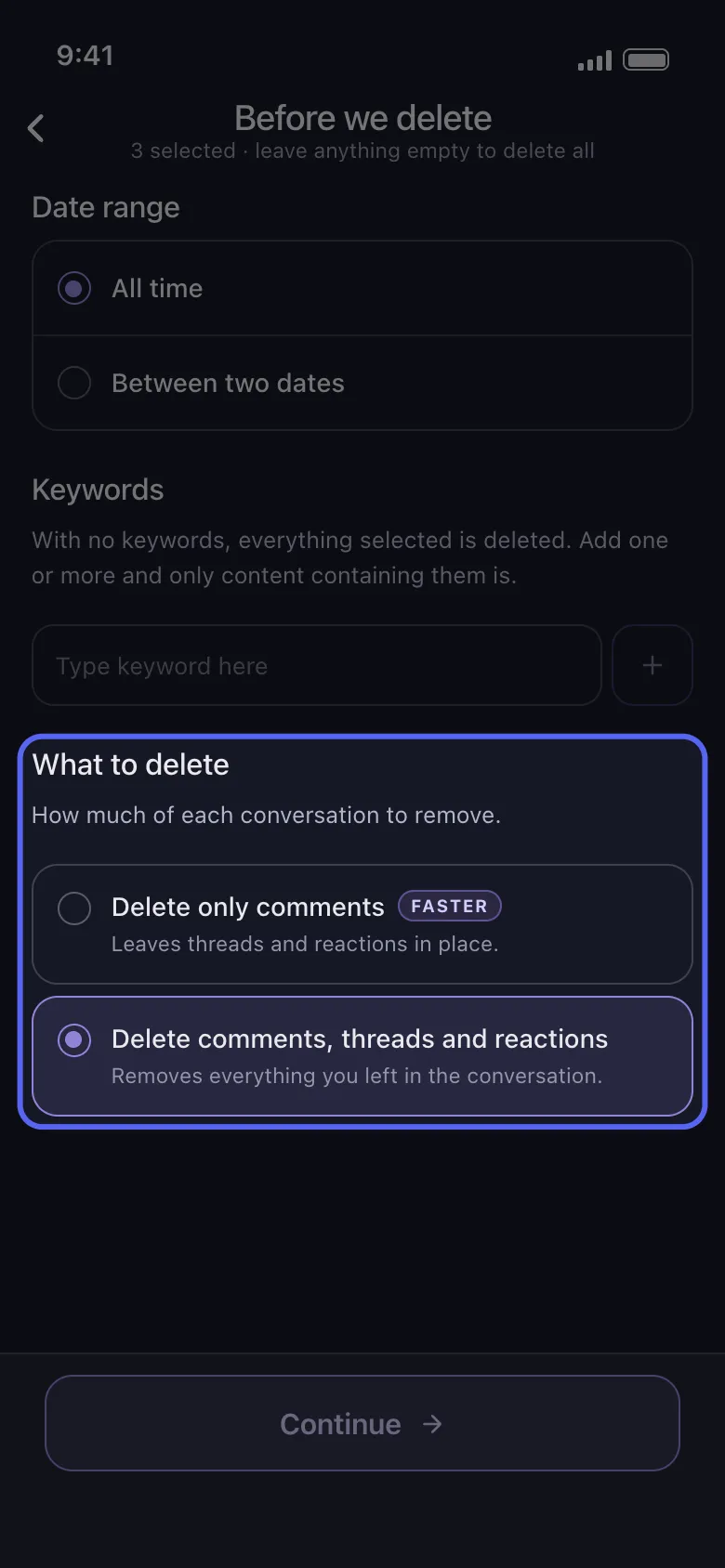
Date range and Keywords narrow an admin run as they do any other. On Discord, What to delete counts too: Delete only comments leaves threads and reactions in place, so the replies in threads stay. To clear the threads as well, choose Delete comments, threads and reactions, which also removes your reactions. On Slack, untick Delete Messages, Delete Threads or Delete Reactions to keep them.
In the app Before we delete → What to delete
- 05
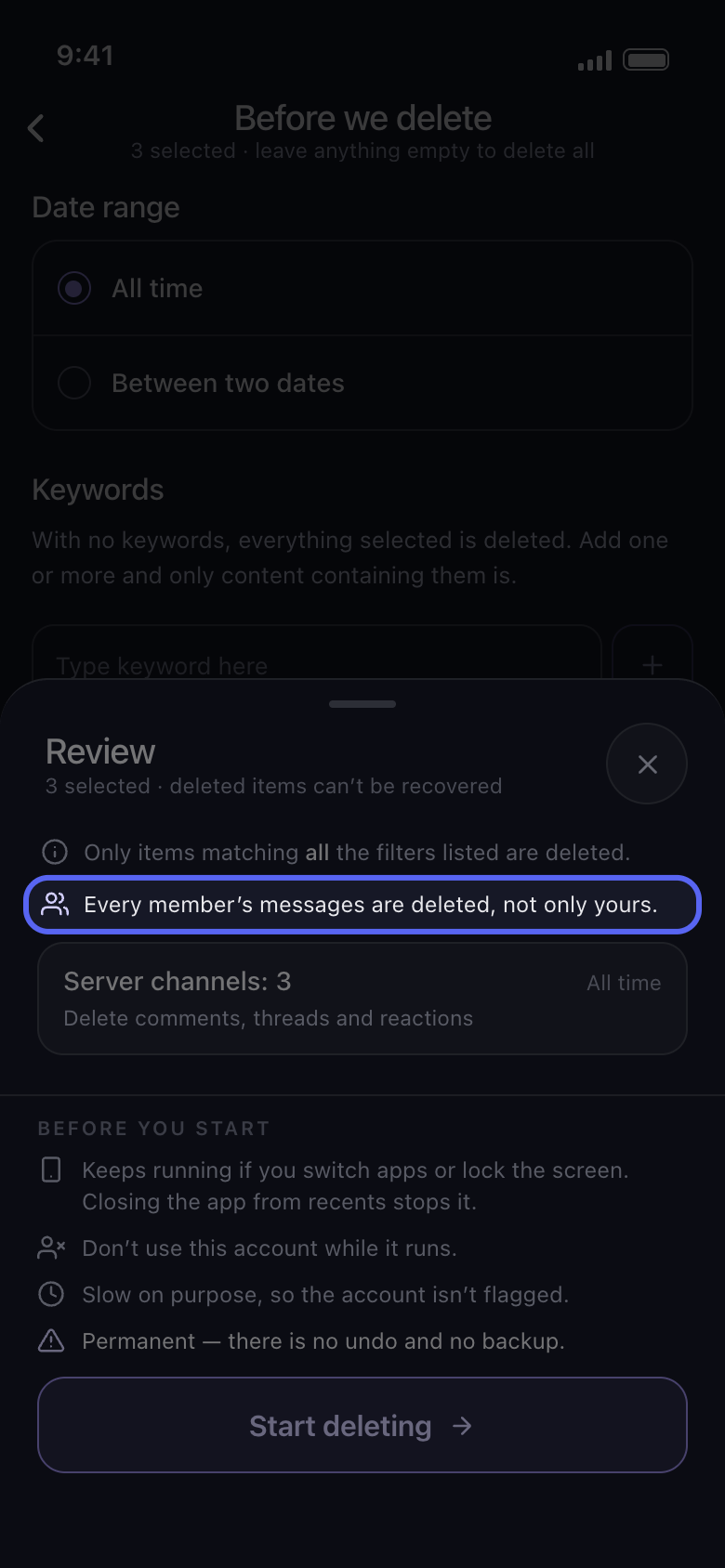
Check the Review, then tap Start deleting
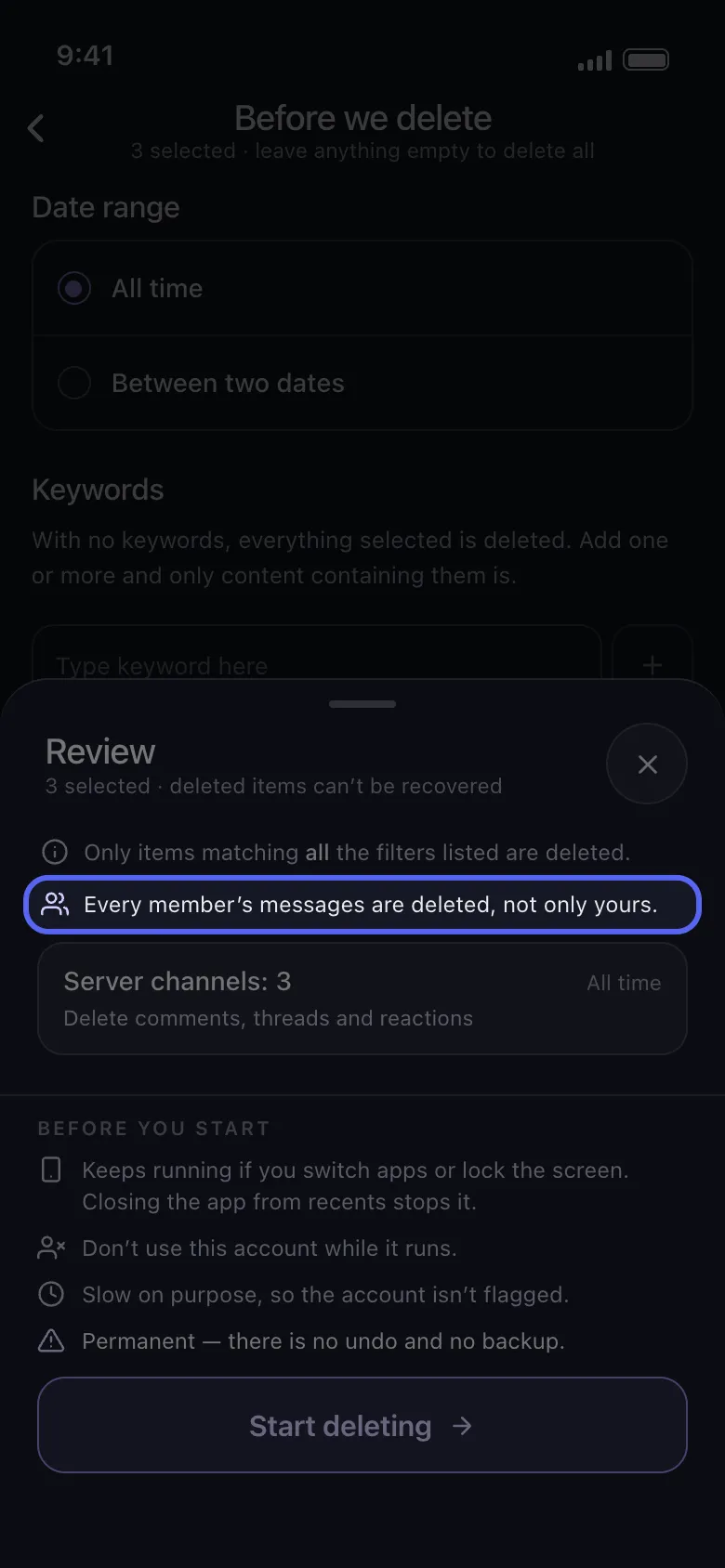
Above the tiles, the Review says whose messages go: Every member’s messages are deleted, not only yours, or how many members you picked. Nothing is deleted until you tap Start deleting.
In the app Continue → Review → Start deleting
Good to know
- A message Discord refuses to delete is skipped, and the run goes on.
- Comments other people left under your own posts have their own options: Delete Comments On My Videos on TikTok, Delete Comments Left On Your Posts on Facebook, and Delete Comments on Your Videos and Shorts on YouTube.
- Deleting is permanent: other people’s messages can’t be brought back either.
More guides