
YouTube: sign in with Google and choose the right channel
YouTube signs in with your Google account. One sign-in adds the account; then each brand channel and each channel it only manages shows as its own row on Main. You pick the channel first, then what to delete on it.
- 01
Tap YouTube, then Connect YouTube
On Main, tap the YouTube tile, then Connect YouTube under it. Google’s own sign-in page opens inside Unpost: sign in there, with any code Google asks for. On an iPhone, if Google asks for a passkey, choose another way to sign in and type your Google password. Unpost never stores your password, and the login stays on your phone. Nobody from Unpost will ever ask you for your password or a login code.
In the app Main → YouTube → Connect YouTube
- 02
Find each channel as its own row
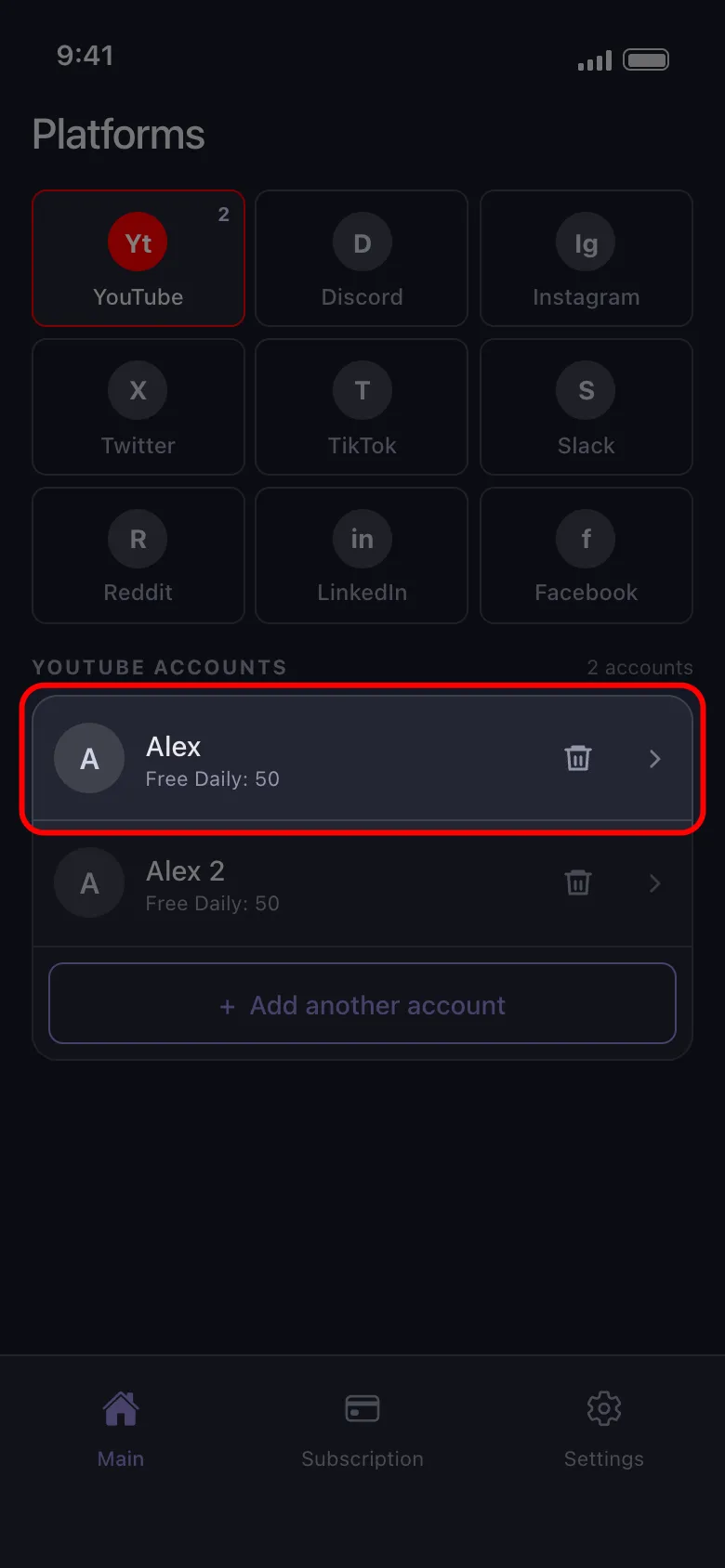
Once you’re signed in, the account appears in the YouTube list on Main. Then each brand channel of that Google account, and each channel it only manages, shows as a row of its own.
In the app Main → YouTube
- 03
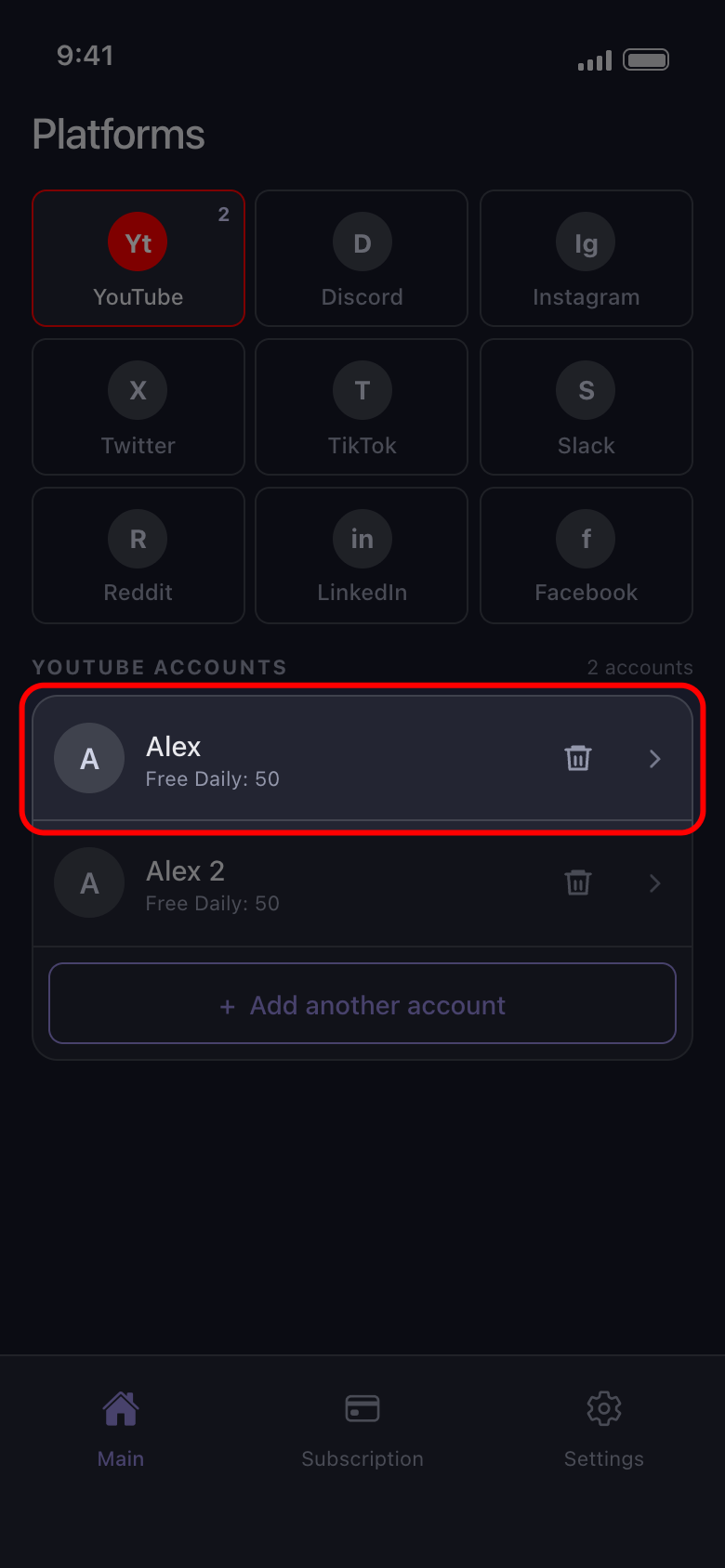
Tap the row of the channel to clean
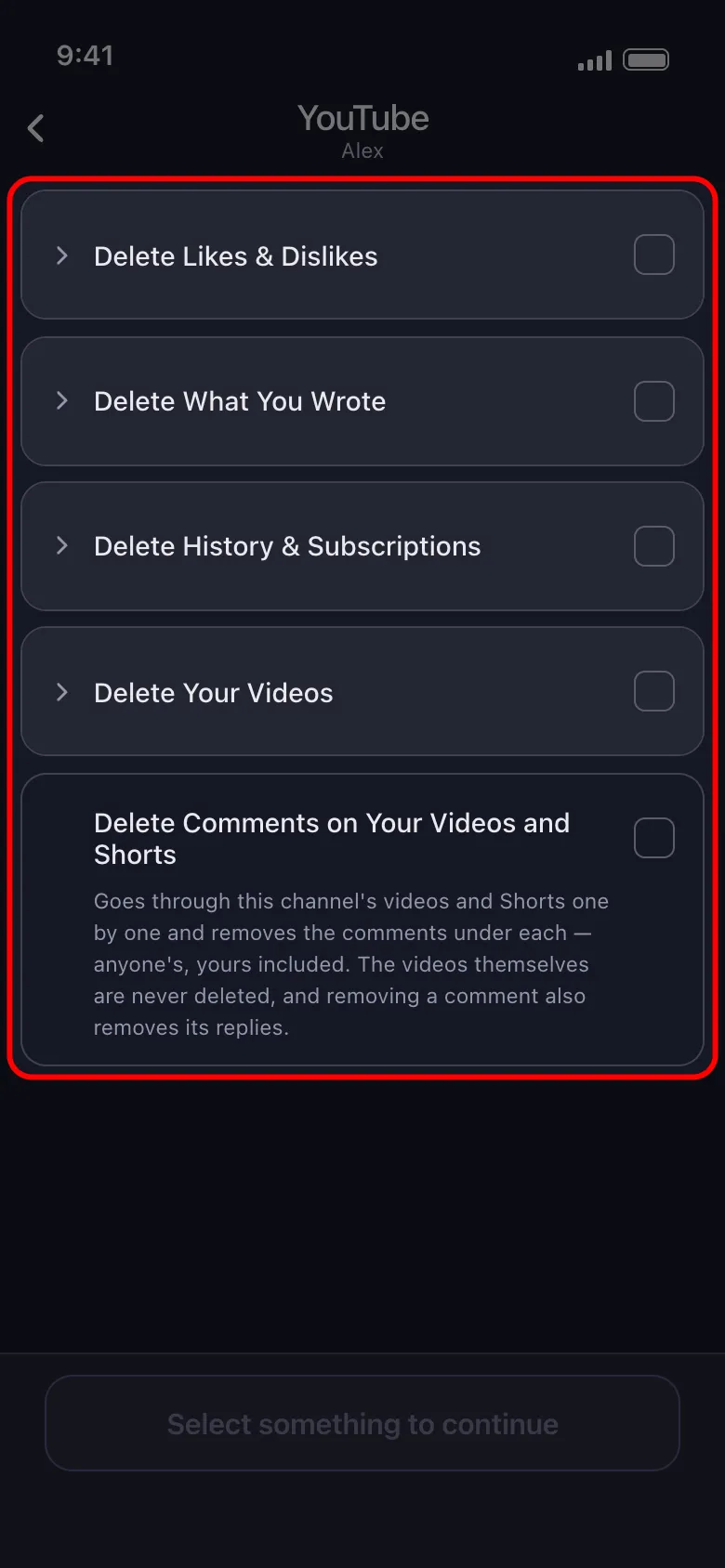
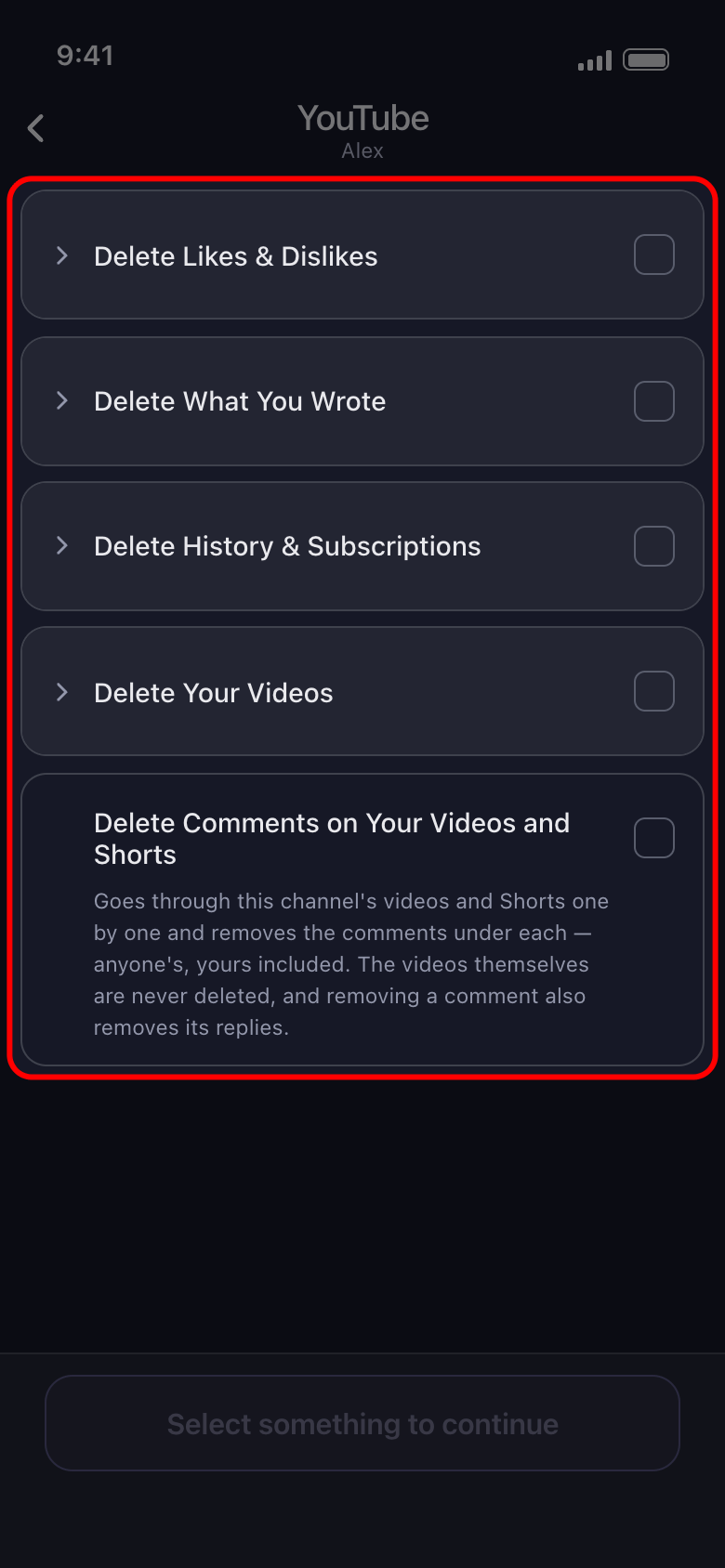
Each channel is cleaned on its own, and its list of what to delete opens straight away. On a channel you own, it has five rows: Delete Likes & Dislikes, Delete What You Wrote, Delete History & Subscriptions, Delete Your Videos, and Delete Comments on Your Videos and Shorts. What each one holds is in What Unpost can delete on each platform.
In the app Main → YouTube → channel
- 04
Know what a channel you only manage offers
On a channel your account manages but doesn’t own, the list has just Delete Videos, Delete Shorts and Delete Comments on Your Videos and Shorts. Its likes, dislikes, comments, replies, live chat messages, watch history and subscriptions aren’t offered.
In the app Main → YouTube → managed channel
- 05
Think twice before Unsubscribe from Channels
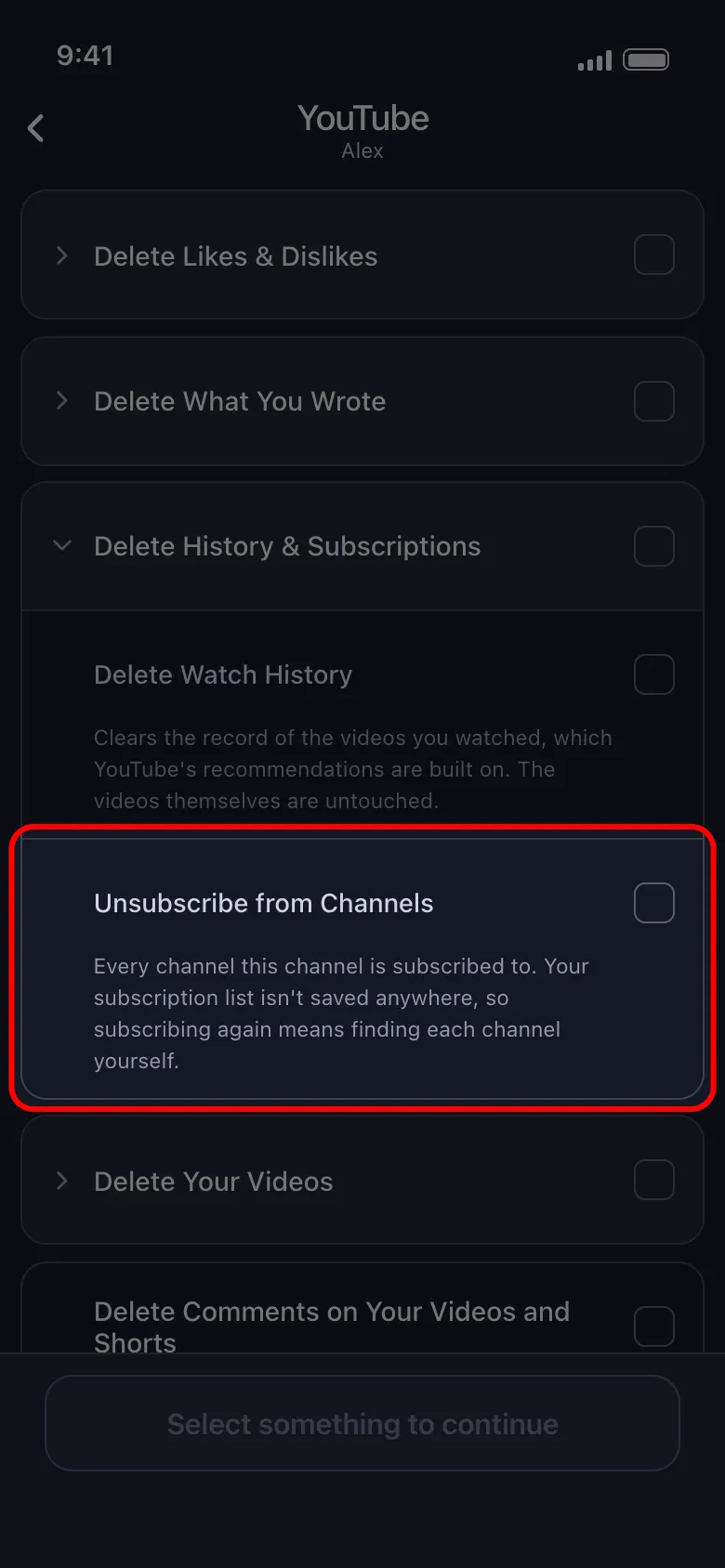
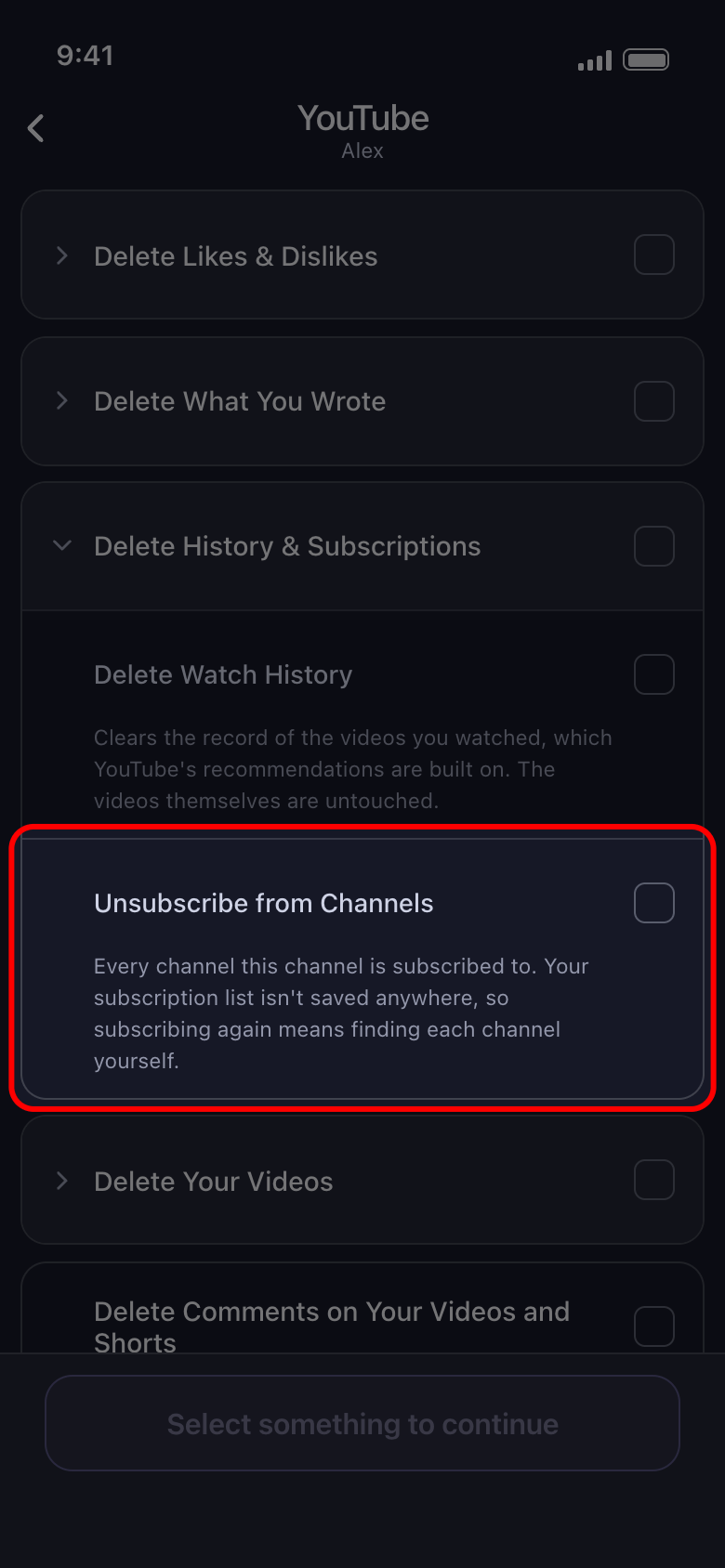
It unsubscribes the channel from every channel it follows, and the list isn’t saved anywhere: subscribing again means finding each channel yourself. While a date range is set, it is skipped, because subscriptions carry no date.
In the app Delete History & Subscriptions → Unsubscribe from Channels
- 06
Tick what to delete, then run it
Tick the rows you want and tap Continue, set what applies on Before we delete, check the Review and tap Start deleting.
In the app Continue → Review → Start deleting
Good to know
- To delete only some of a channel’s videos, see How to delete only public, private or unlisted posts and How to keep your best posts and delete the rest.
- If Google’s page doesn’t let you in, see How to sign in, and fix a login that won’t connect.
More guides