
How to Delete Old Discord Messages with a Data Package
Quick Summary
If the Discord conversation is recent and easy to find, standard live cleanup is usually enough.
If the messages are old, the DM is closed, or the history is buried across years of usage, the data-package workflow is usually the better option. It gives Unpost a structured archive of your older Discord history so cleanup is easier to target.
Discord Archive Cleanup
Last updated: April 16, 2026. Tested with the current Unpost mobile workflow. Covers iPhone and Android for archive import and deletion runs.
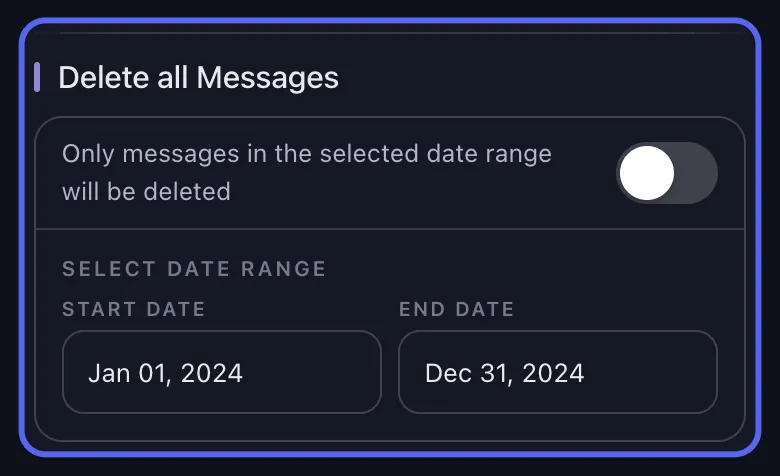
Old-message cleanup is usually a search and indexing problem, not a different delete rule.
What is a Discord data package?
A Discord data package is the ZIP archive you can request from Discord for your account.
For cleanup, the important part is simple: it gives Unpost a structured export of your older Discord history, including conversations that may be harder to reach through live browsing alone.
Why old Discord messages are hard to clean
Users usually run into the same problems:
- older DMs are no longer visible in the sidebar
- they do not remember the exact server, channel, or thread
- the conversation is buried under years of activity
- live cleanup works best for recent history, not archive-style cleanup
That is why the data-package workflow matters. It is built for Discord history that is still yours to delete, but harder to surface reliably in the normal interface.
Live mode vs data package mode
| Situation | Live Discord mode | Data package mode |
|---|---|---|
| Recent messages in a visible DM or server | Best choice | Usually unnecessary |
| Closed DM or hard-to-find conversation | May be inconsistent to surface | Best choice |
| Very old Discord history | Harder to locate manually | Best choice |
| Large archive cleanup across older chats | Slower to discover chat by chat | Best choice |
| Normal day-to-day cleanup | Best choice | Optional |
When to use the data-package method
Use it when:
- a DM is closed
- a conversation is missing from quick access
- your cleanup goal is based on older history
- you want a better workflow for large archive cleanup
If the messages are recent and easy to find, start with standard deletion instead.
How to request your Discord data package
Request the archive from Discord in your account settings, then wait for Discord to prepare the ZIP export. Discord’s help page for this is here: Requesting a Copy of your Data.
If you are planning to delete your Discord account too, request the archive and clean the messages before you start account deletion. For the full sequence, see Does Deleting Your Discord Account Delete Messages? What to Do First.
When the file is ready:
- download the ZIP
- keep it intact
- do not manually unzip it or rename files inside it
How to delete old Discord messages with Unpost
Step 1: Open Unpost and connect Discord
Install Unpost from the website, App Store, or Google Play.
Connect the same Discord account you used to request the export.
Step 2: Choose Delete from Data Package
Tap the connected Discord account and select Delete from Data Package.
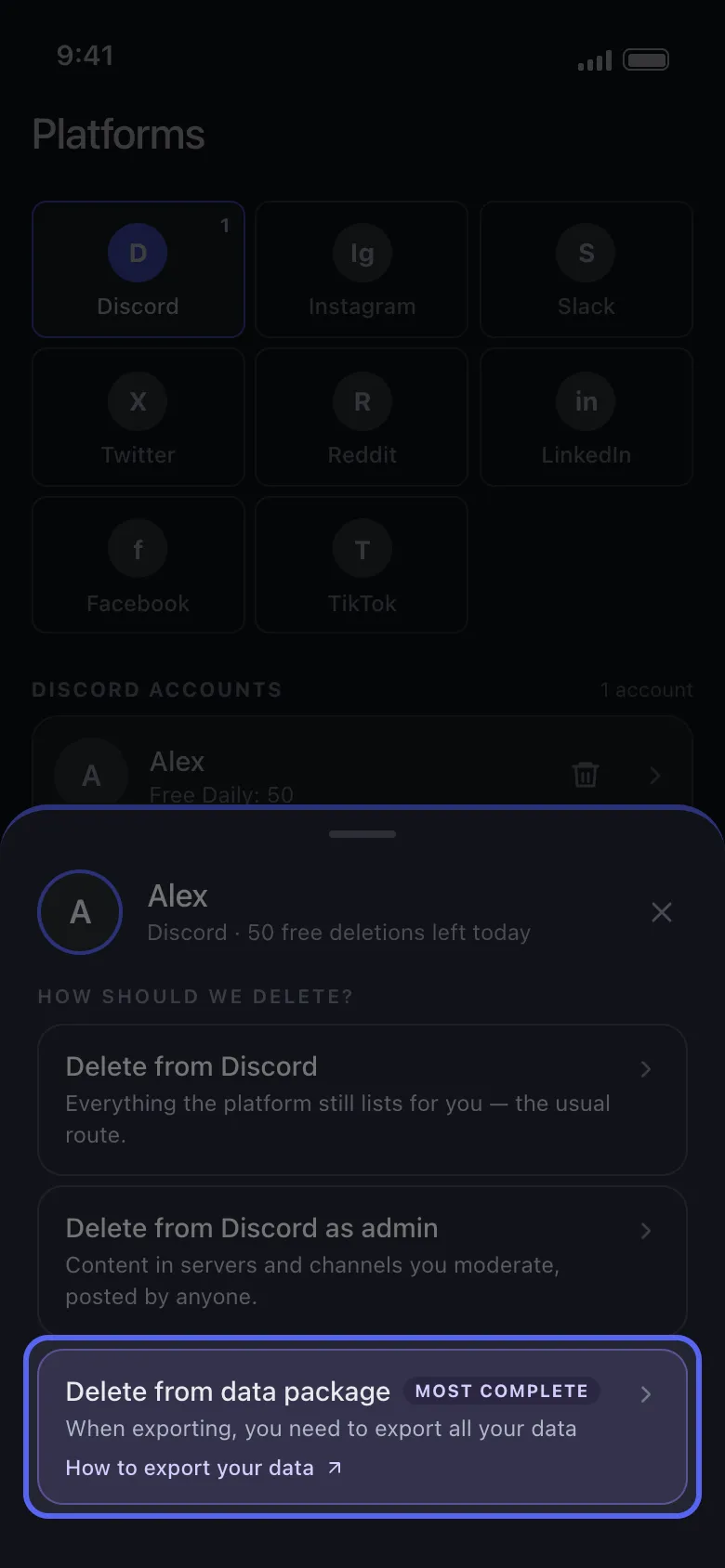
The Discord action menu separates live cleanup, admin cleanup, and archive-based cleanup into different flows.
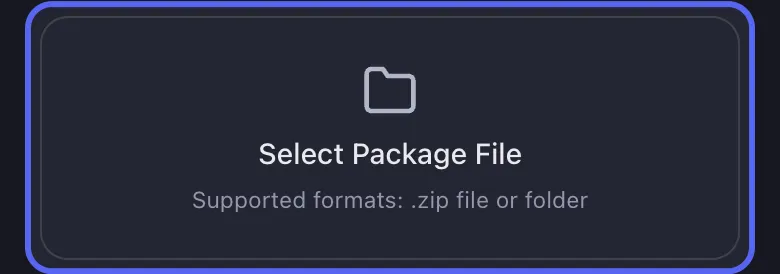
Step 3: Import the ZIP
Choose the Discord ZIP file you downloaded from Discord.
Unpost then:
- validates the archive
- checks the expected message structure
- extracts the content locally
- indexes the message data on your device
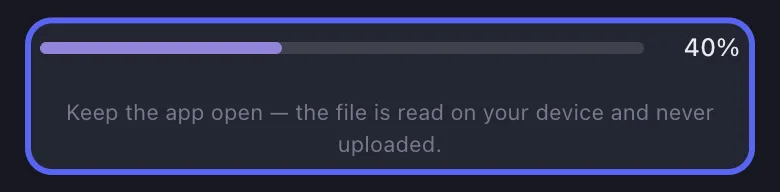
Step 4: Wait for indexing
Large Discord archives can take time to process, especially when they contain a lot of history.
Once indexing is complete, Unpost opens the deletion screen.
Step 5: Choose what to remove
Now you can select the content you want to clean and start the deletion run.
This is useful when your real goal is not just “delete everything” but “delete the old Discord history I can no longer find easily.”

Why this workflow is different
Most Discord cleanup pages stop at live navigation.
This workflow is different because it helps with:
- older DMs
- group DMs
- older server history
- archive-based cleanup when live discovery is weak
If you want the broader cross-platform version of this workflow, read Delete Messages Using Data Packages: Unpost Guide. If you want the main Discord cleanup hub first, go back to How to Delete Discord Messages in Bulk.
Need Old-History Cleanup?
Use the archive when live browsing stops being practical.
Unpost is most useful here when the messages still exist but the conversation is old, closed, or difficult to surface through Discord alone.
Best practices for data-package cleanup
Keep the ZIP untouched
Do not unpack the archive manually or rename files inside it.
Leave the device awake for large jobs
Large Discord archives can take time to index and delete cleanly.
Use stable internet during deletion
The ZIP is processed locally, but the actual deletion still depends on live requests.
Reuse the imported package later
Once the archive is indexed, future cleanup sessions are usually easier because the archive work is already done.
Related Discord guides
- How to Delete Discord Messages in Bulk
- Delete Messages Using Data Packages: Unpost Guide
- How to Delete Discord DMs and Chat History
- What Does Close DM Mean on Discord?
Final answer
If your Discord cleanup target is old, buried, or hard to find, a data package is often the smartest workflow.
Use Unpost to import your Discord archive and clean up older message history more efficiently.
Frequently Asked Questions

Get Started
Delete Old Content Across Your Accounts
Bulk delete messages, posts, likes, comments, DMs, reactions, bookmarks, followers, and more — all from one app.
No password storage • Free to start • iOS & Android
 Download for iOS
  Download for Android