
Instagram won’t connect: stuck on the feed, signed out, or asked for a birthday
Unpost opens Instagram’s own login page inside the app. Sign in there with your username (or email) and password, and keep Unpost up to date. Unpost never stores your password, the login stays on your phone, and nobody from Unpost ever asks for your password or a login code.
- 01
Tap Instagram, then Connect Instagram
On Main, tap the Instagram tile, then Connect Instagram (Add another account if one is already listed).
In the app Main → Instagram → Connect Instagram
- 02
Use the username or email and password form
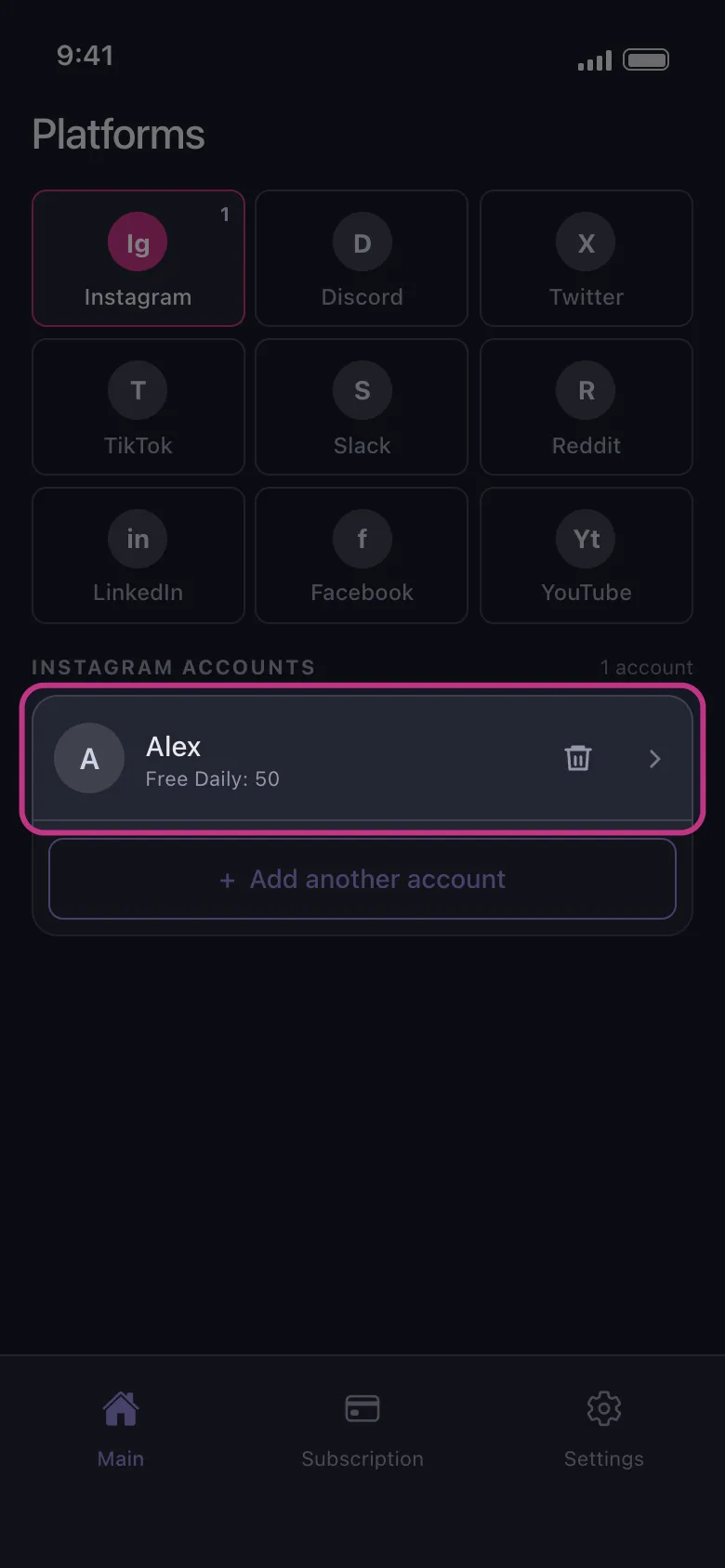
Add the two-factor code if Instagram asks for one; it can ask every time you connect. When the sign-in works, the page closes by itself and your account appears under Instagram on Main: tap it to choose what to delete. To leave the page without signing in, tap the back arrow at the top of the screen.
In the app Main → Instagram
- 03
Signed up with Google or Apple? Use a password
On Android, Continue with Google or Continue with Apple opens your browser, and a sign-in finished there never comes back to Unpost: set an Instagram password with Forgot password on Instagram’s login page, then use the form. On iPhone, if Google asks for a passkey, choose another way to sign in on Google’s page and type your Google password.
- 04
Stuck on the feed, or signed out at once? Update Unpost
If the page stays on Instagram’s feed after you sign in, the account is signed out right after connecting, or a message says your account or email isn’t secure, leave the page, update Unpost to the latest version from the App Store or Google Play (the version is at the bottom of Settings), then connect Instagram again.
- 05
Asked for a birthday, a name or a new username? Go back
Those screens are Instagram’s sign-up for a new account. Unpost never asks for them, and there is no Unpost account to create. Don’t fill them in: leave the page, connect Instagram again and sign in to the account you already have, after setting a password with Forgot password if you never had one.
- 06
Page still loading? Start again
Leave the page, check your connection (Wi-Fi if you can), then tap Connect Instagram again. Do the same if the page closed but no account appeared.
- 07
Still not connecting? Remove the account and add it again
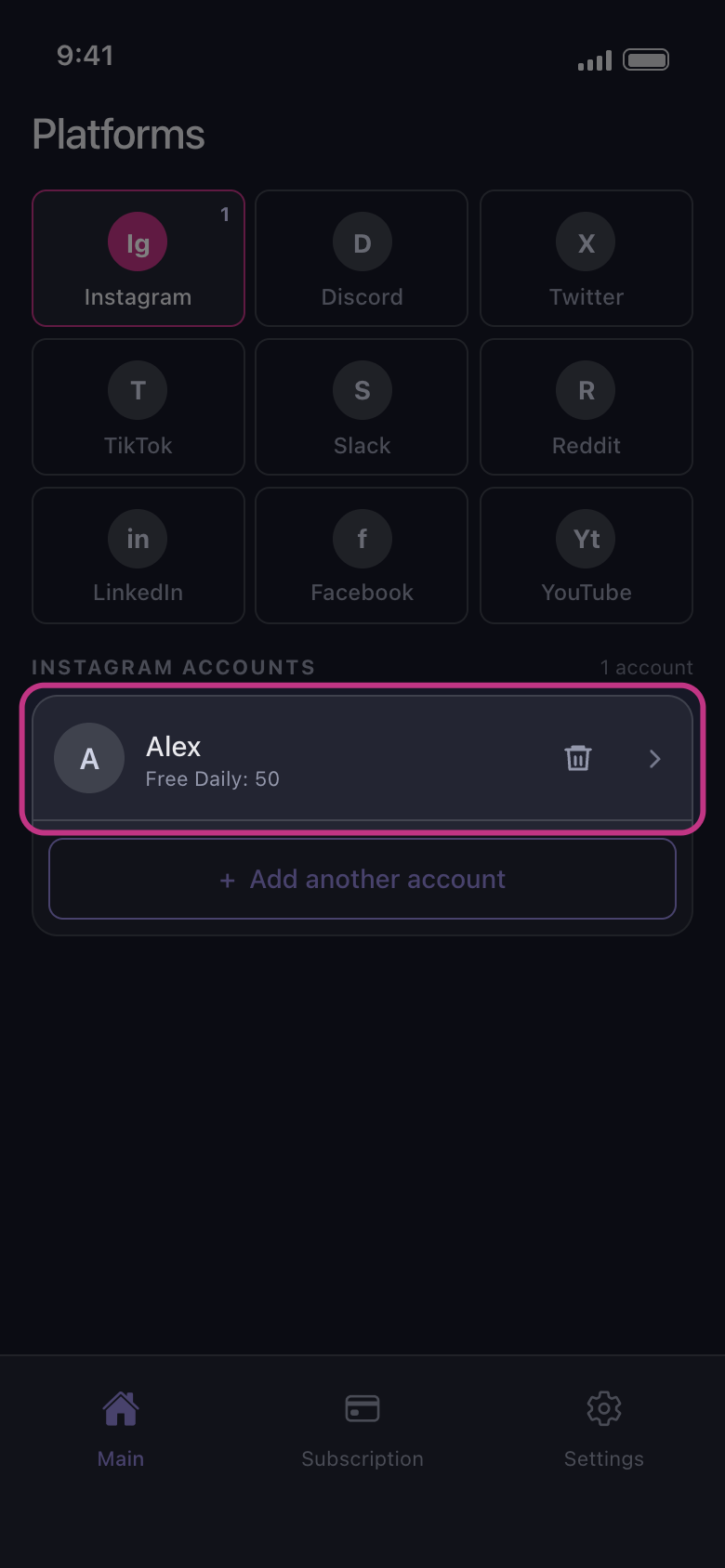
If the account is listed, tap the trash icon on its row and confirm with Delete: that only takes it out of Unpost, and nothing changes on Instagram. Then connect it again. Still failing? Write to us from Settings → Contact Support, with iPhone or Android, your phone model, the version at the bottom of Settings and, if you can, a screen recording from the moment you tap Connect Instagram.
In the app Main → Instagram → trash icon
Good to know
- Later on, a row that reads Not connected — tap to log in means Instagram ended the sign-in: tap the row and sign in again to the same account (see How to sign in, and fix a login that won’t connect).
- On Android, Unable to start Unpost right after you tap Connect Instagram can come from the device check: see Why Unpost stops on a rooted phone or emulator.
- Instagram asking you to confirm it’s you after a cleanup is a different case: see How to lower the risk of Instagram locking your account during a cleanup.
More guides