
How to Mass-Delete Instagram Posts (All or Multiple at Once)
Instagram finally has a way to delete multiple posts at once — sort of. On most current app versions, you can open Your activity (labeled Manage activity on some versions), go to Posts, and select several posts to delete in a single batch. For ten or twenty posts, that works. Where it breaks down is real mass deletion: clearing hundreds of posts natively means tapping every thumbnail by hand, working in limited batches, and bumping into Instagram’s rate limits, because the app was never designed for bulk removal. There is no select-all button anywhere on Instagram.
So the honest answer to how to mass-delete Instagram posts comes in two parts. For a small or moderate batch, the native multi-select flow below is enough — and if you want the per-format details for photos, reels, and carousels first, the full guide on how to delete Instagram posts, photos, reels, and carousels covers each one. For a true mass wipe — hundreds of posts, or your entire grid — a bulk tool like Unpost closes the gap Instagram leaves open.
This guide walks through the native multi-select steps, the limits you will hit at scale, when archiving beats deleting, and how to run a genuine mass deletion without fighting your phone for a whole weekend.
Quick Steps: Delete Multiple Instagram Posts at Once
Instagram’s built-in path for deleting several posts in one go is buried inside Your activity. Labels vary slightly by device and app version, but the current flow is usually:
- Open Instagram and go to your profile.
- Tap the menu (three lines) in the top corner.
- Tap Your activity (shown as Manage activity on some versions).
- Tap Posts, or Photos and videos and then Posts.
- Tap Select in the top corner. Use Sort & Filter first if you want to narrow the list by date.
- Tap every post you want to remove. A checkmark appears on each selected item.
- Tap Delete at the bottom of the screen.
- Confirm the deletion.
The same screen usually offers Archive right next to Delete, which matters later in this guide. If you do not see a multi-select option at all, update the app first: older versions only support deleting posts one at a time through the three-dot menu on each post.
The Native Limits You Will Hit at Scale
Multi-select looks like mass deletion until you point it at a few hundred posts. Three limits get in the way.
Selection stays manual and works in small batches. There is no select-all option, so every single post is a separate tap, and Instagram only lets you process a limited batch in one pass. Many app versions cap how many items you can select at a time, and the grid loads more slowly as you scroll deeper into older years. At 300 posts, “multi-select” quietly turns into an afternoon of tapping.
Everything lands in Recently Deleted for 30 days. Deleted posts do not vanish immediately. They move to Recently Deleted, where they sit for up to 30 days before permanent removal. Bulk deletions land there too, so a 300-post wipe means 300 items waiting in that folder. You can permanently delete them earlier from that screen, but Instagram asks you to confirm your identity with a verification code first.
Rate limiting kicks in on aggressive runs. Deleting hundreds of items in rapid succession looks like automation to Instagram’s systems. The app may slow down, throw errors, or temporarily block further actions. Spreading a big job across several sessions helps — or use a tool that paces the deletions for you automatically.
Archive vs Delete: Which One for a Profile Reset?
If what you actually want is a clean grid rather than destroyed content, archiving may be the smarter half of the job.
- Archive hides posts from your profile instantly but keeps them — including their likes and comments — visible only to you. You can unarchive any post later and it returns with its original date and engagement. The same multi-select screen in Your activity offers Archive next to Delete.
- Delete removes posts for everyone. Once the 30-day Recently Deleted window passes, the content and its engagement are gone for good.
Choose archive when you might want something back: pre-rebrand posts you are unsure about, seasonal content, personal memories you would rather keep privately. Choose delete when the content should simply stop existing — outdated photos, old captions and opinions, anything tied to a person or era you have moved past.
For a typical profile reset, a practical middle path is to run two passes: archive the posts you hesitate on, then delete everything you are certain about. Archiving first also gives you a safety net with no expiry date, unlike the 30-day Recently Deleted window.
Mass Deletion with Unpost: Hundreds of Posts, One Setup
When the job is bigger than the native flow can comfortably handle, this is exactly what Unpost is built for. Unpost is a mobile app for iOS and Android that bulk-deletes your own content on Instagram — posts, reels, and carousels — with filters that turn a blind wipe into a precise one:
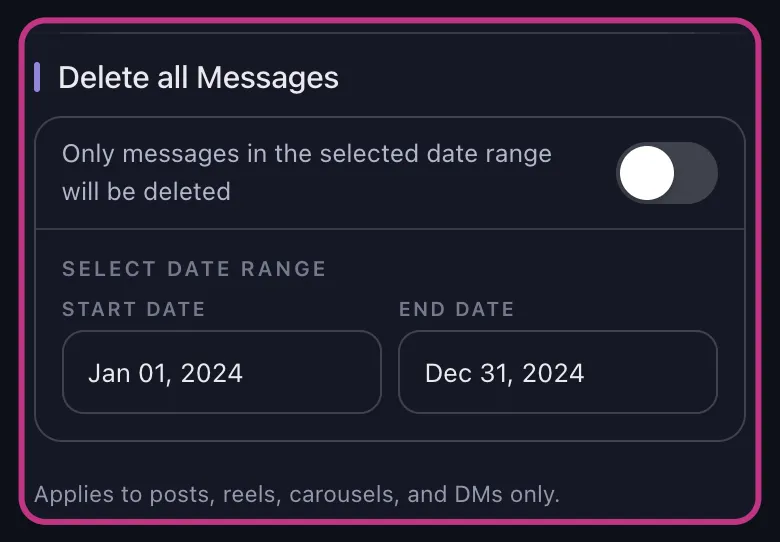
- Date range: clear everything before a certain date, or only a specific era such as 2019 to 2022.
- Content type: target posts, reels, or carousels separately instead of everything at once.
- Likes and comments ranges: sweep out low-engagement posts while keeping your best performers.
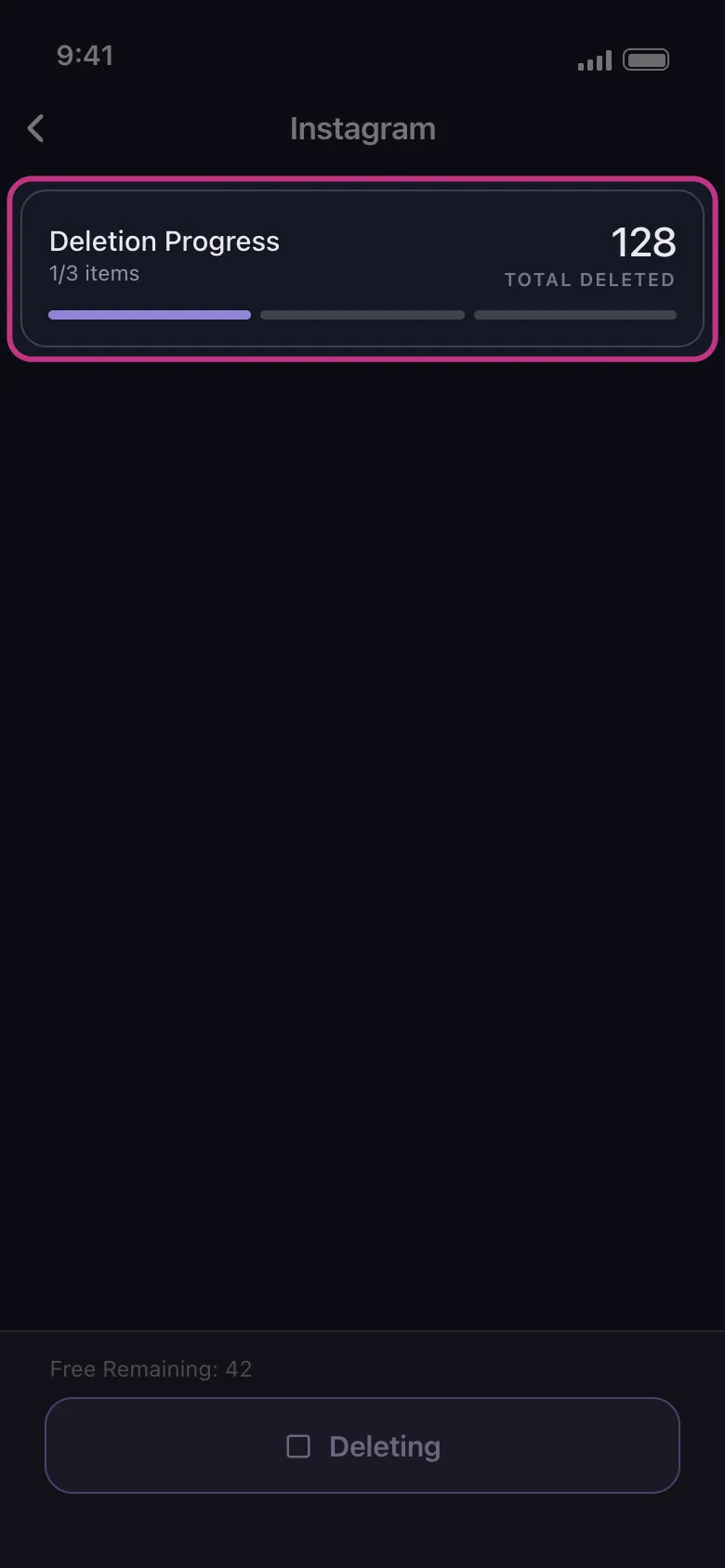
Unpost runs deletions the same way manual deletion works: it connects through Instagram’s own web login in an embedded browser and works through your selection one deletion at a time, pacing itself and pausing to retry if Instagram temporarily rate-limits the action. Encrypted session data stays local on your device. While a run is active, keep Unpost in the foreground and avoid using Instagram at the same time.
Bulk Cleanup
Wipe hundreds of posts without hundreds of taps.
Unpost filters your posts, reels, and carousels by date and engagement, then deletes them for you the same way manual deletion works.
The workflow takes a few minutes to set up:
-
Install Unpost on iOS or Android.
-
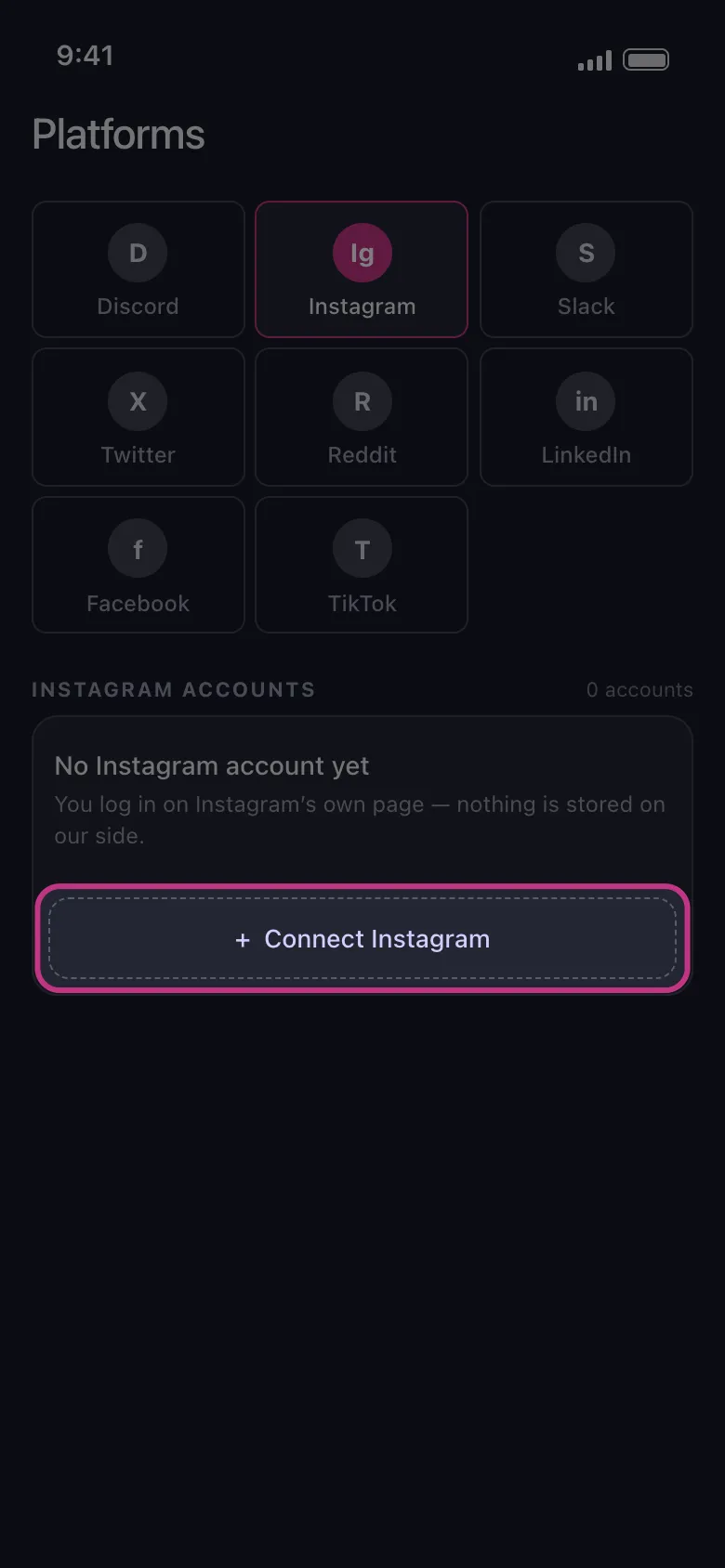
Add your Instagram account through the embedded Instagram web login.
-
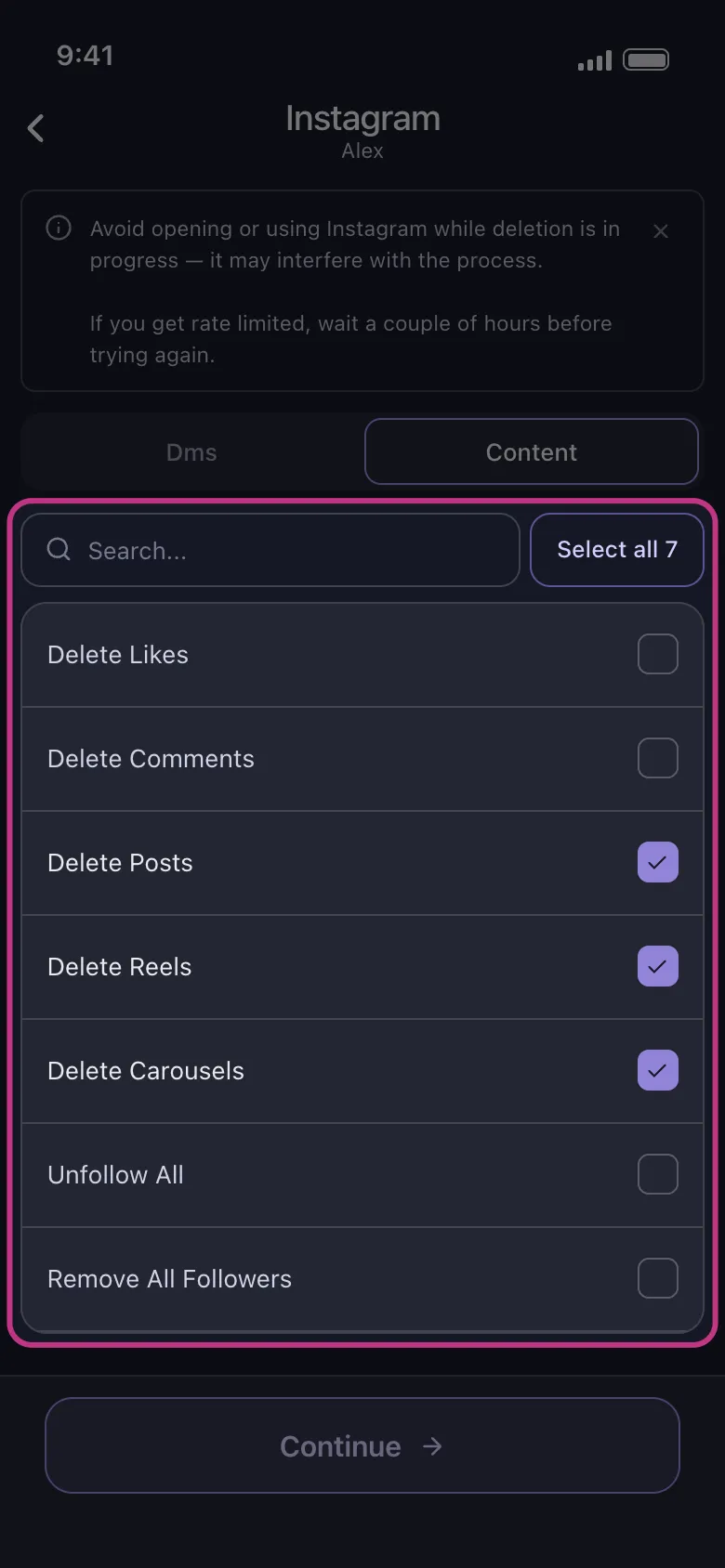
Pick the content type: posts, reels, or carousels.
-
Set date or engagement filters — or set none for a full wipe.
-
Start the run and let it work through the backlog, including any pause-and-retry steps.
For a closer look at how those runs behave on large backlogs, the post deleter for Instagram guide walks through the whole process in more detail.
One-by-One vs Multi-Select vs Archive vs Unpost
Here is how the four realistic options compare once the backlog gets serious:
| Method | Best for | Effort at 100+ posts | What happens to the content |
|---|---|---|---|
| One-by-one delete | A single post you regret | Hours of repetitive tapping | Recently Deleted for 30 days, then gone |
| Native multi-select | 10–50 posts you can find quickly | High: manual selection, small batches, rate limits | Recently Deleted for 30 days, then gone |
| Archive via multi-select | Hiding posts you may want back | Same manual selection effort | Hidden from profile, restorable anytime with engagement intact |
| Unpost | Hundreds of posts, full wipes, filtered cleanups | Low: set filters once and let the run finish | Deleted like manual deletion, Recently Deleted still applies |
Bottom Line
Instagram’s multi-select flow is real progress over deleting posts one at a time, and for a small batch it is all you need: Your activity, Posts, Select, Delete. But it was built for light housekeeping, not mass deletion — no select-all, limited batches, a 30-day Recently Deleted holding period, and rate limiting that punishes speed.
If you are wiping hundreds of posts or resetting a profile, split the job: archive what you might want back, then let Unpost handle the rest with date, content-type, and engagement filters. It deletes the way you would manually, just without the thousand taps. Get Unpost and run the cleanup in one pass instead of one weekend.
Frequently Asked Questions

Get Started
Delete Old Content Across Your Accounts
Bulk delete messages, posts, likes, comments, DMs, reactions, bookmarks, followers, and more — all from one app.
No password storage • Free to start • iOS & Android
 Download for iOS
  Download for Android